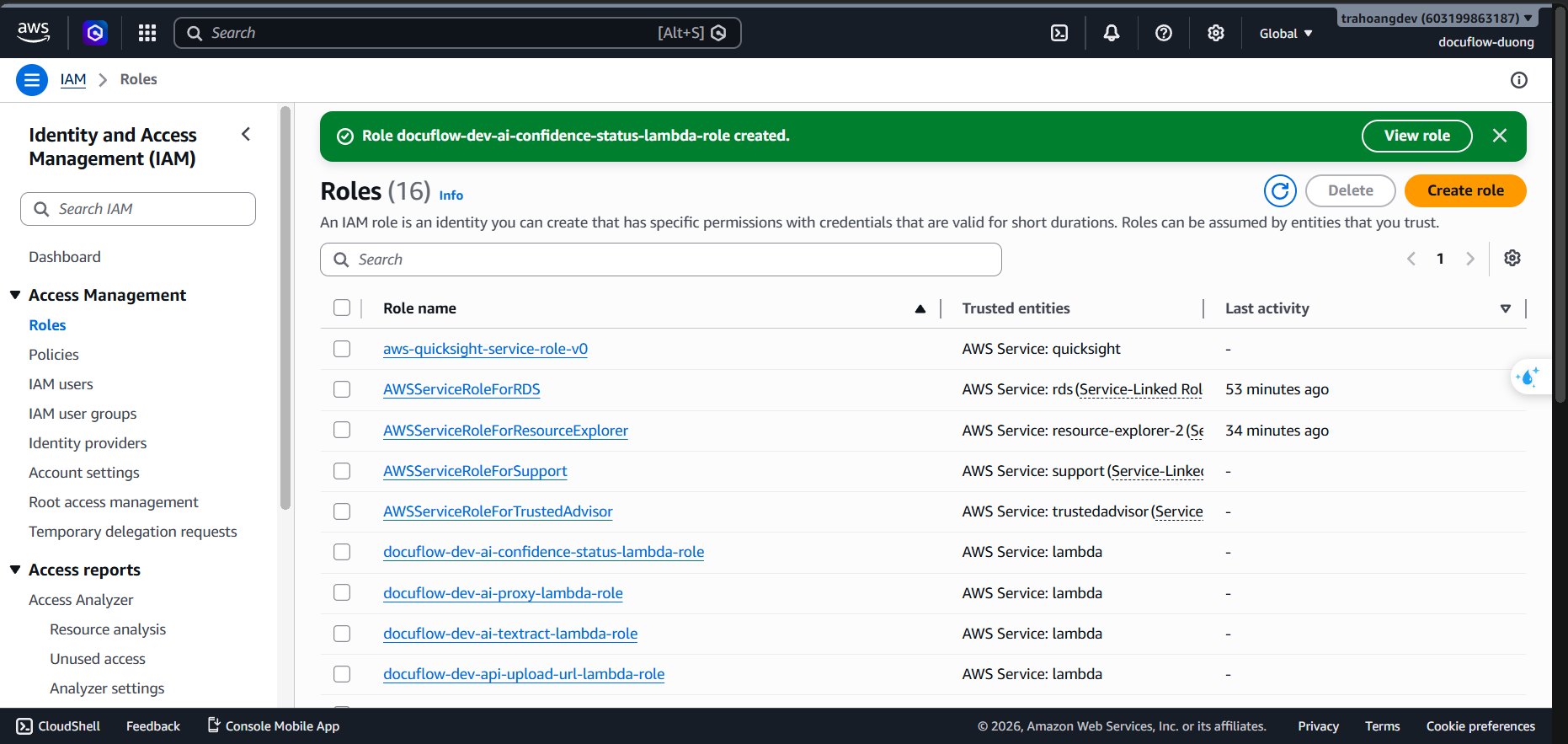
Configure IAM Groups and Roles
To adhere to the Principle of Least Privilege, we will create IAM Groups for workshop operators, then design and create specialized IAM Policies and Roles for each Lambda and Step Functions service within the system.
0. Create IAM Groups and IAM Users for the workshop
Before creating the service roles for the system, create IAM groups to manage AWS Console access by role. This avoids attaching permissions policies directly to each user.
Policies such as AdministratorAccess and PowerUserAccess are suitable only for controlled workshop/lab environments. For production, replace them with custom policies scoped to the exact resources and actions required.
Go to IAM -> User groups -> Create group.
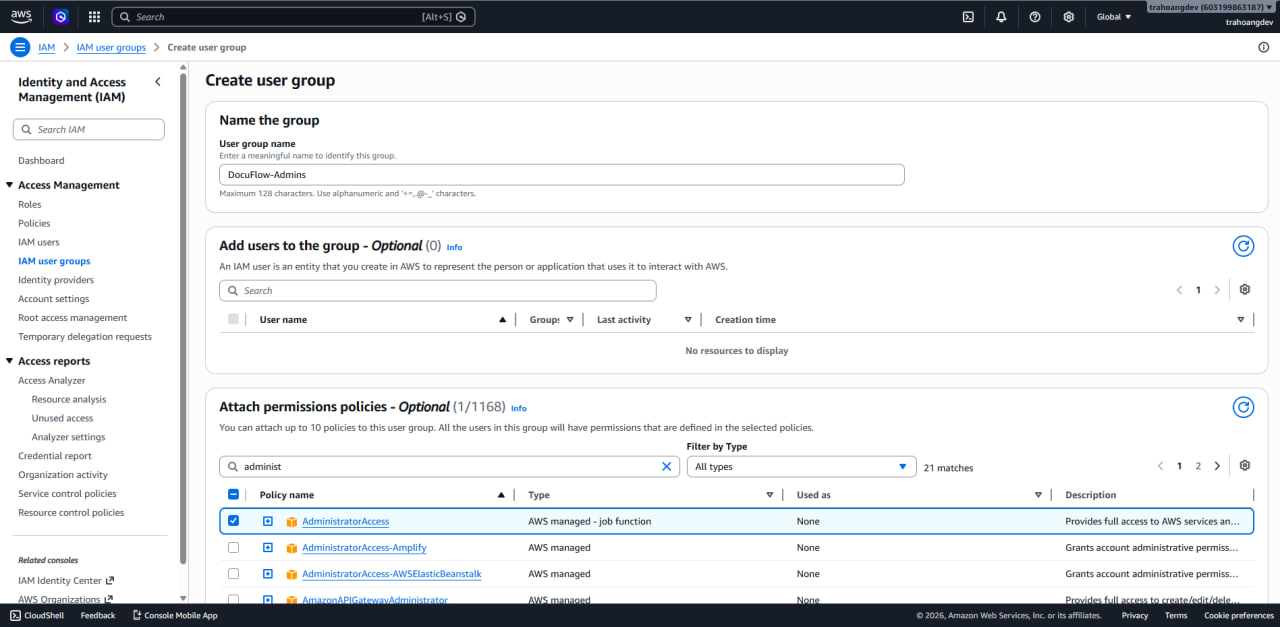
Create the administrator group:
- User group name:
DocuFlow-Admins - Permissions policy:
AdministratorAccess
- User group name:
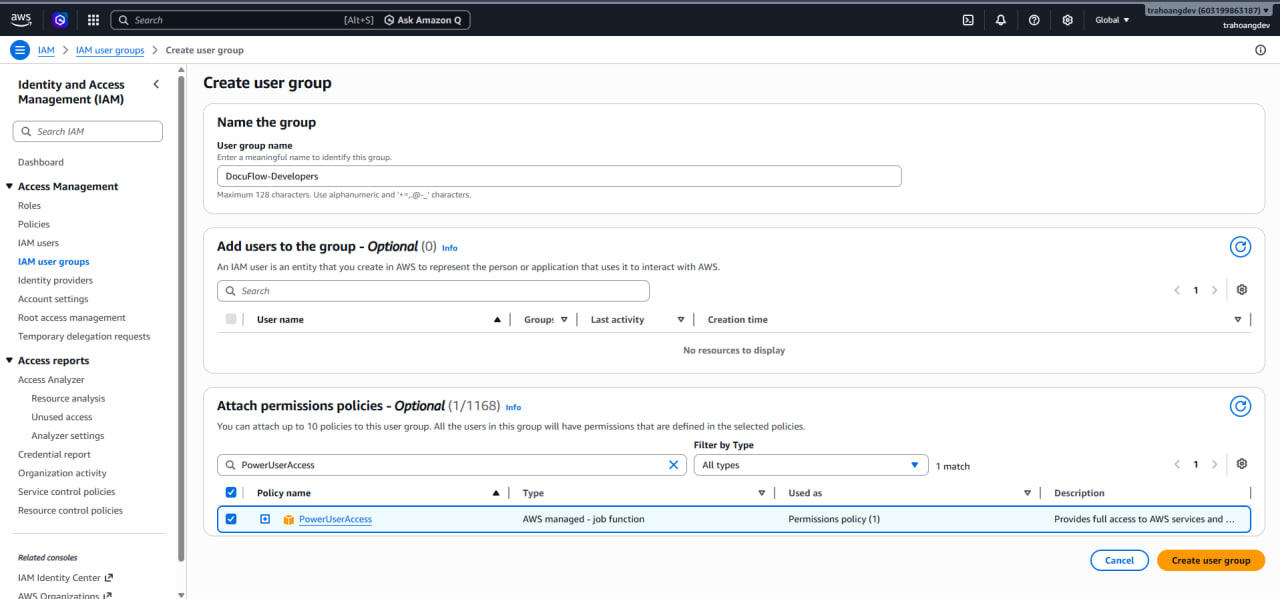
Create the developer group:
- User group name:
DocuFlow-Developers - Permissions policy:
PowerUserAccess
- User group name:
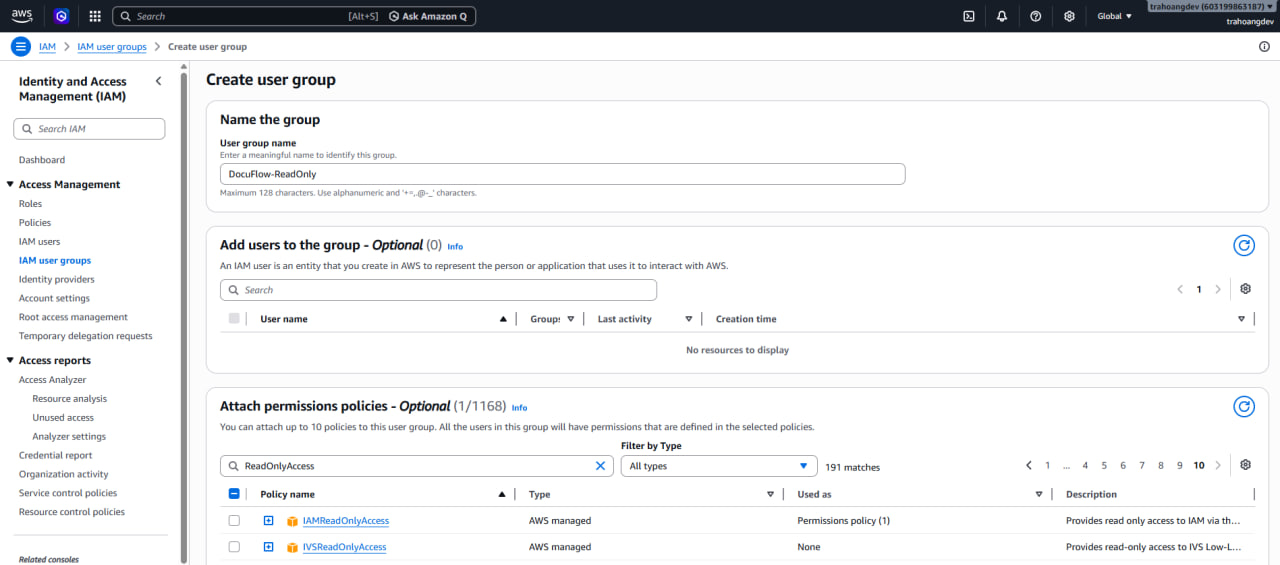
Create the read-only group:
- User group name:
DocuFlow-ReadOnly - Permissions policy:
ReadOnlyAccess
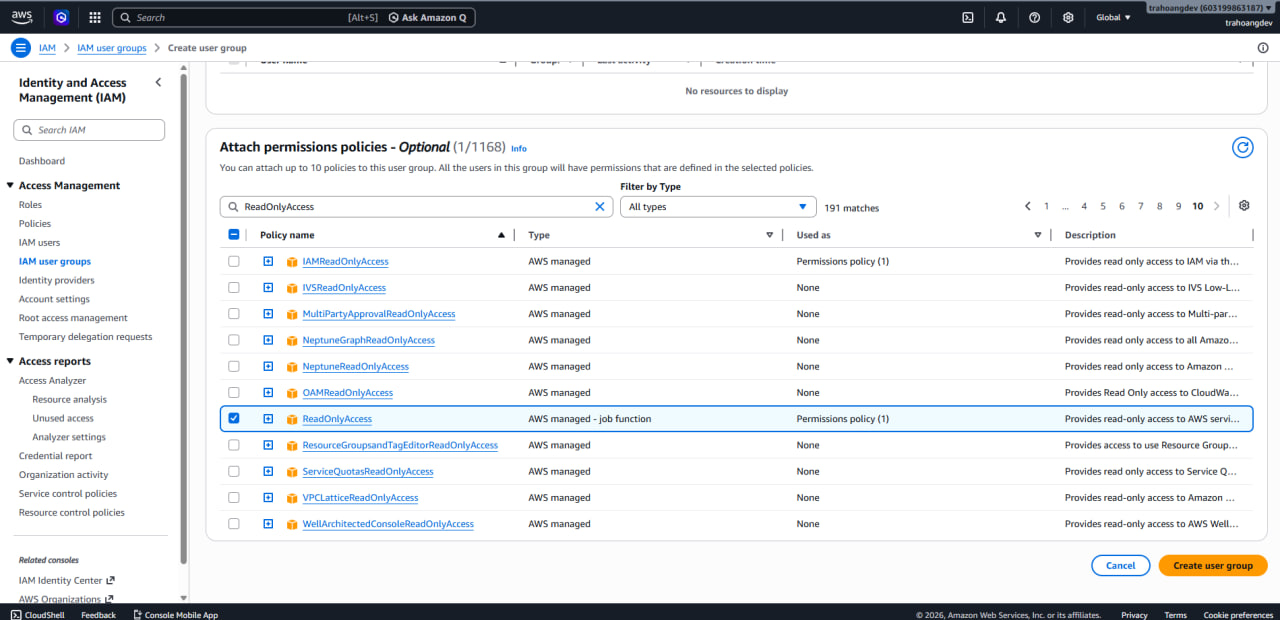
- User group name:
Create a sample admin user:
- Go to IAM -> Users -> Create user.
- Enter a user name, for example
docuflow-tra. - Select Provide user access to the AWS Management Console.
- Choose Autogenerated password and require the user to change the password at first sign-in.
- In Set permissions, choose Add user to group and add the user to
DocuFlow-Admins.
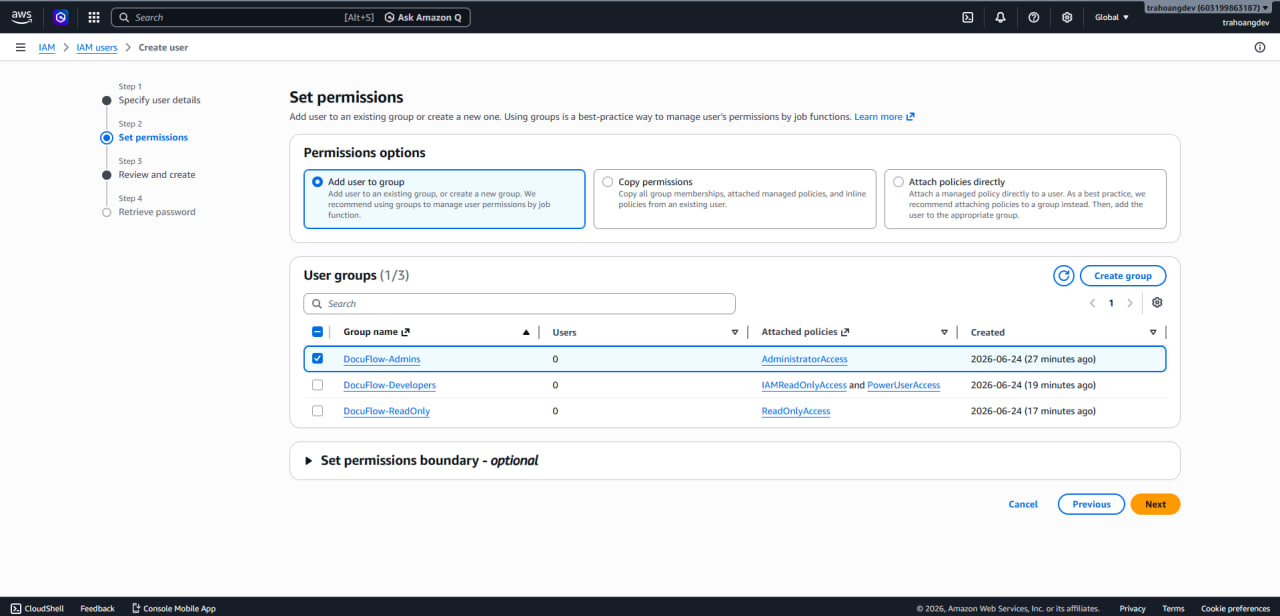
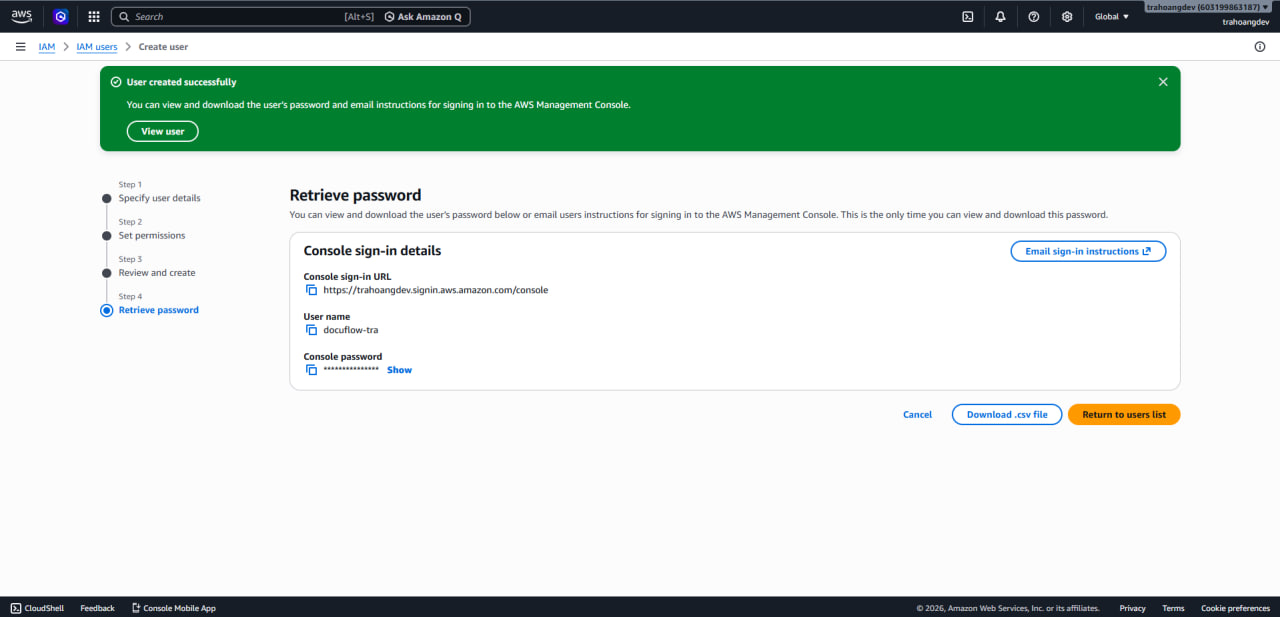
Create sample workshop users:
- Repeat Create user for developer users such as
docuflow-tinh,docuflow-tai, anddocuflow-duong. - If a view-only user is required, create an additional read-only user, for example
docuflow-loc. - Enable AWS Management Console access.
- Use an autogenerated password and require a password change at first sign-in.
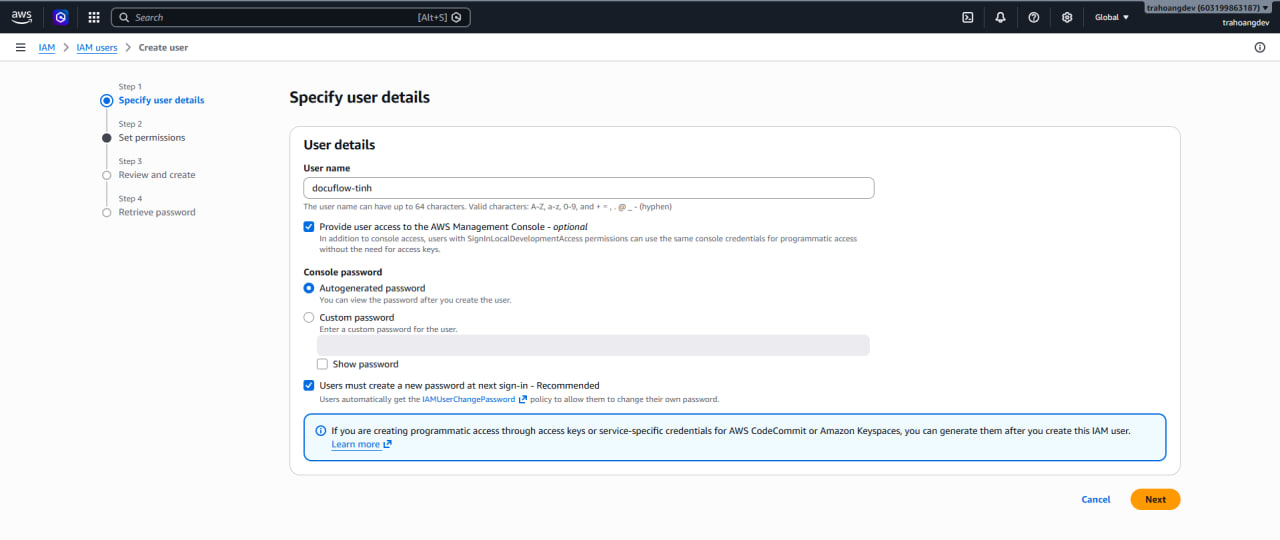
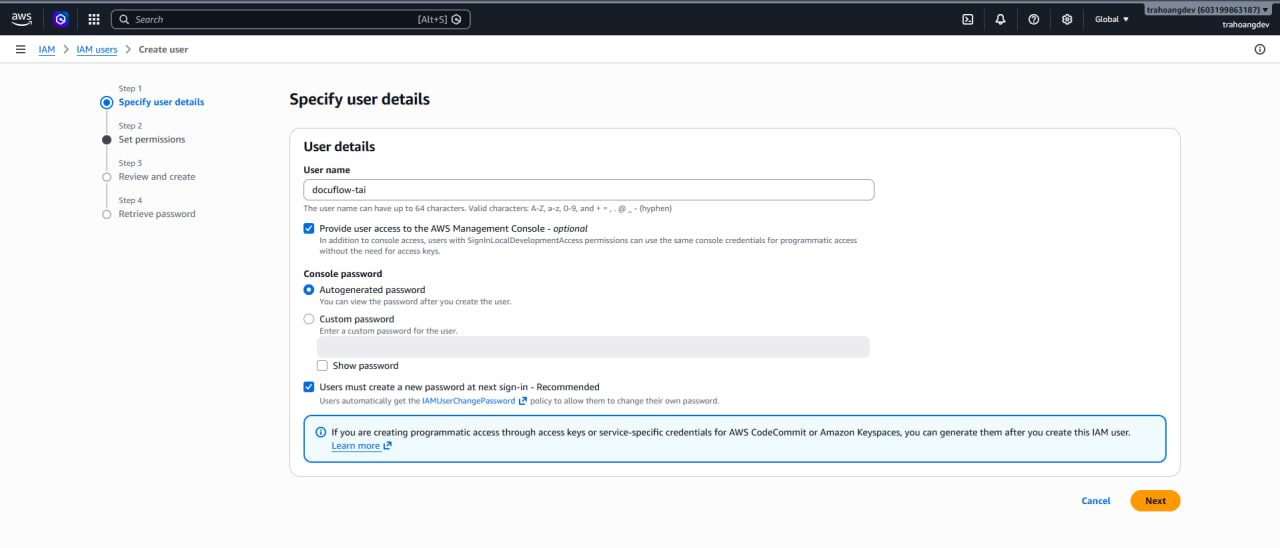
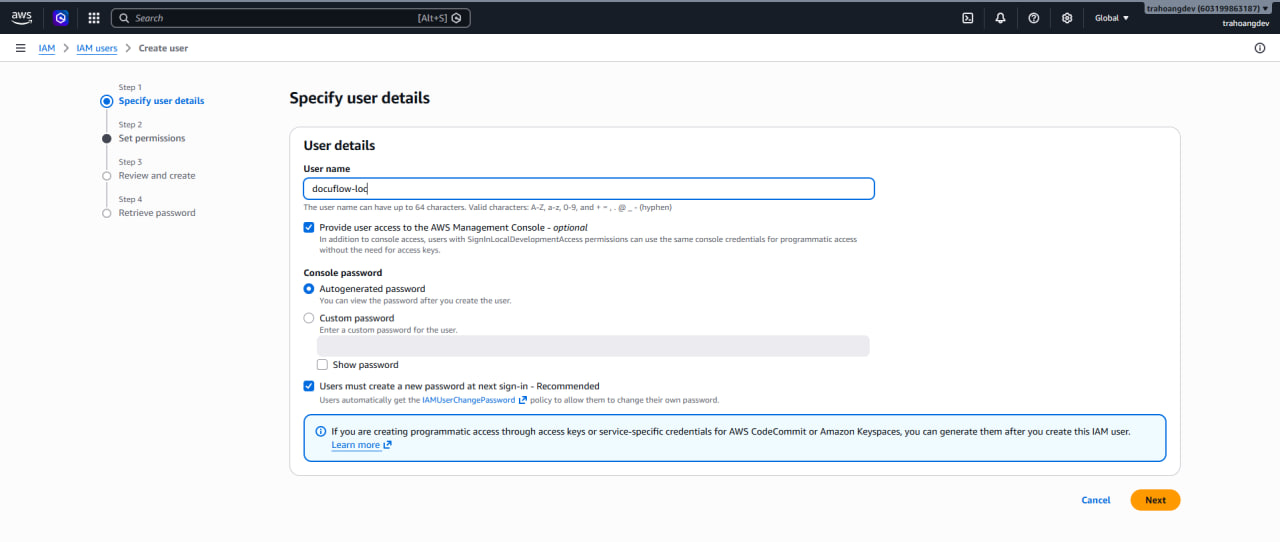
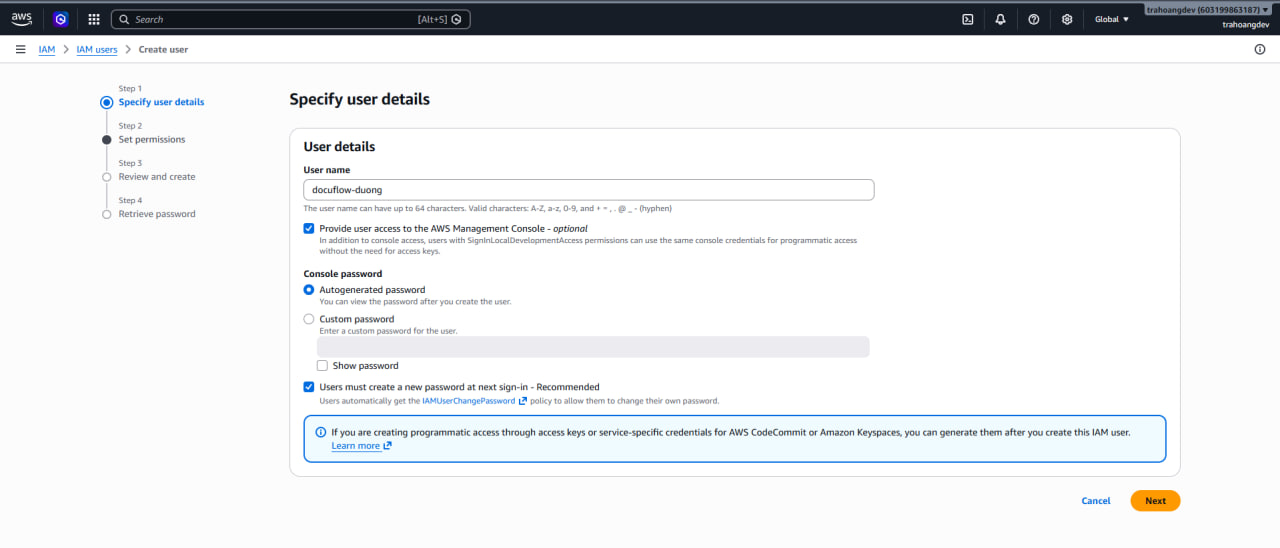
- Repeat Create user for developer users such as
In Set permissions, choose Add user to group. Add developer users to
DocuFlow-Developers; if you created a view-only user, add that user toDocuFlow-ReadOnly.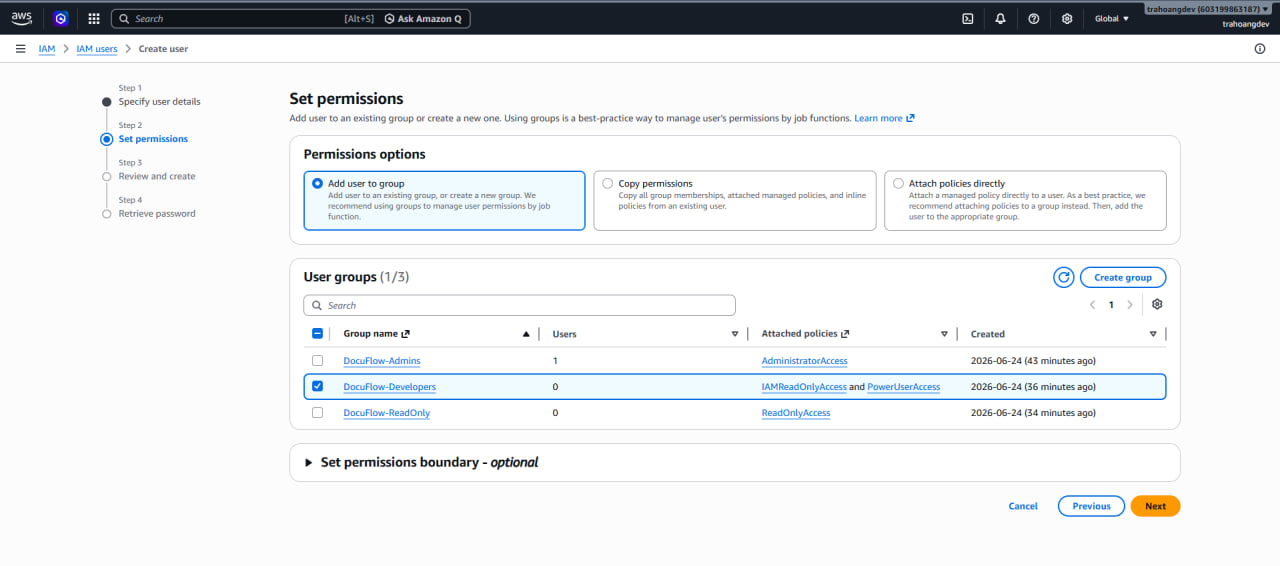
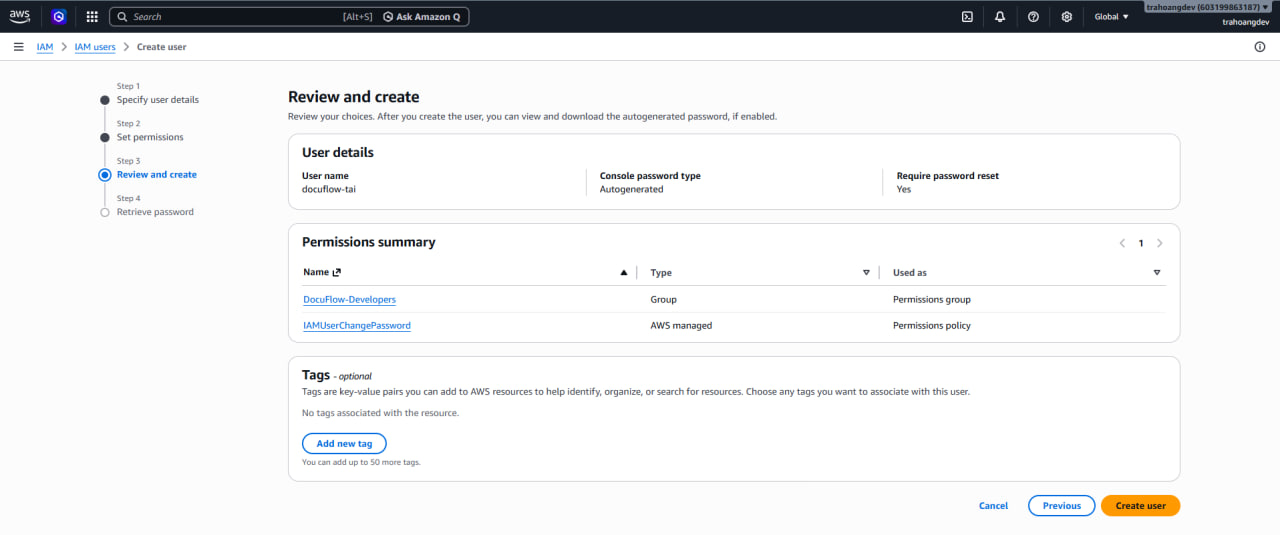
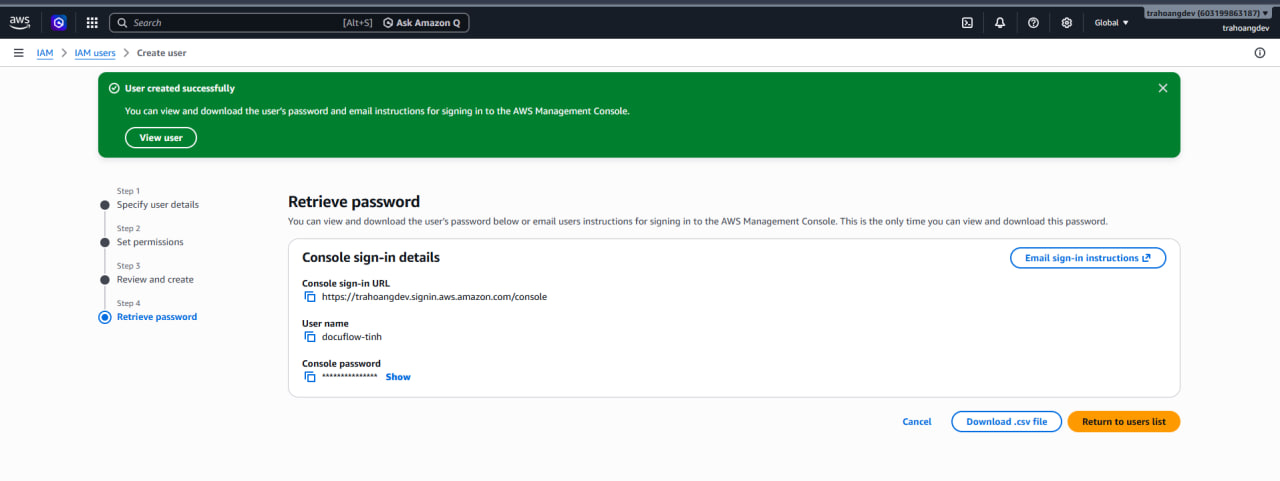
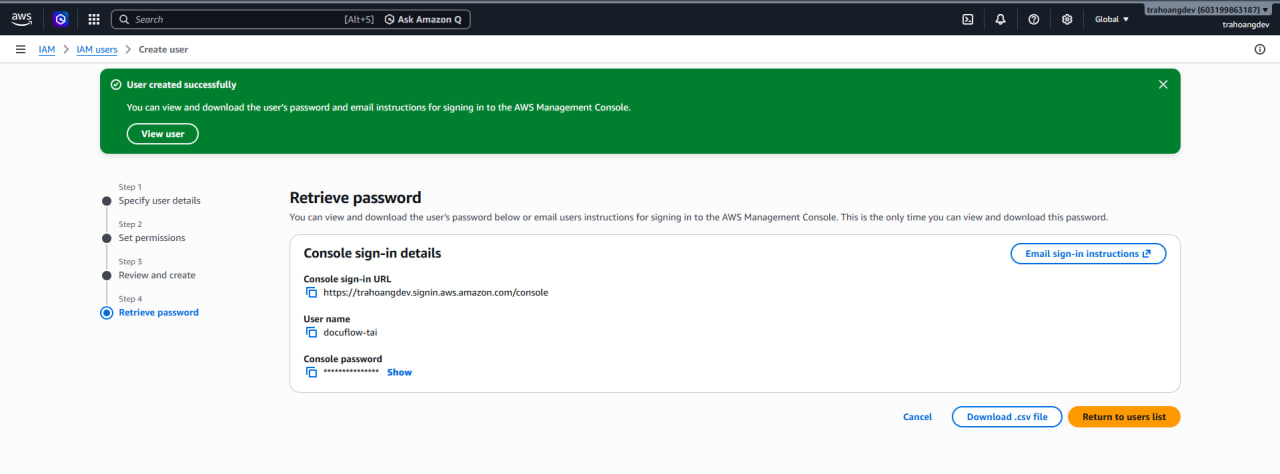
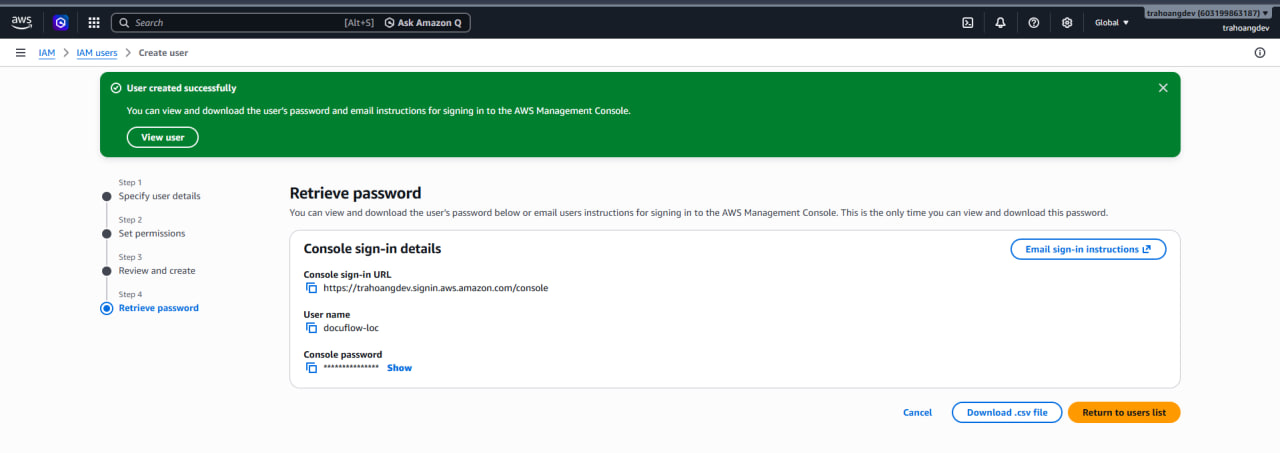
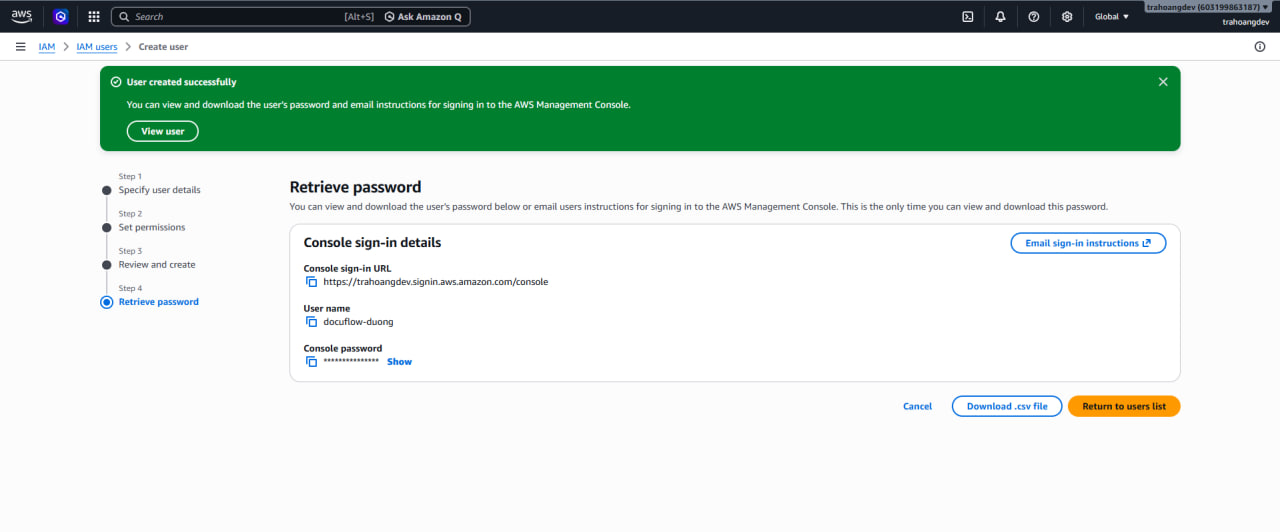
After creation, return to IAM -> User groups to confirm that the groups have the expected users and policies.
- Role 1: docuflow-dev-security-upload-url-role (Lambda to generate upload URL)
Purpose: Allows API Gateway to invoke Lambda to generate a Presigned URL so the Frontend can upload files to the S3 Raw bucket and record initial information into the database.
- Steps:
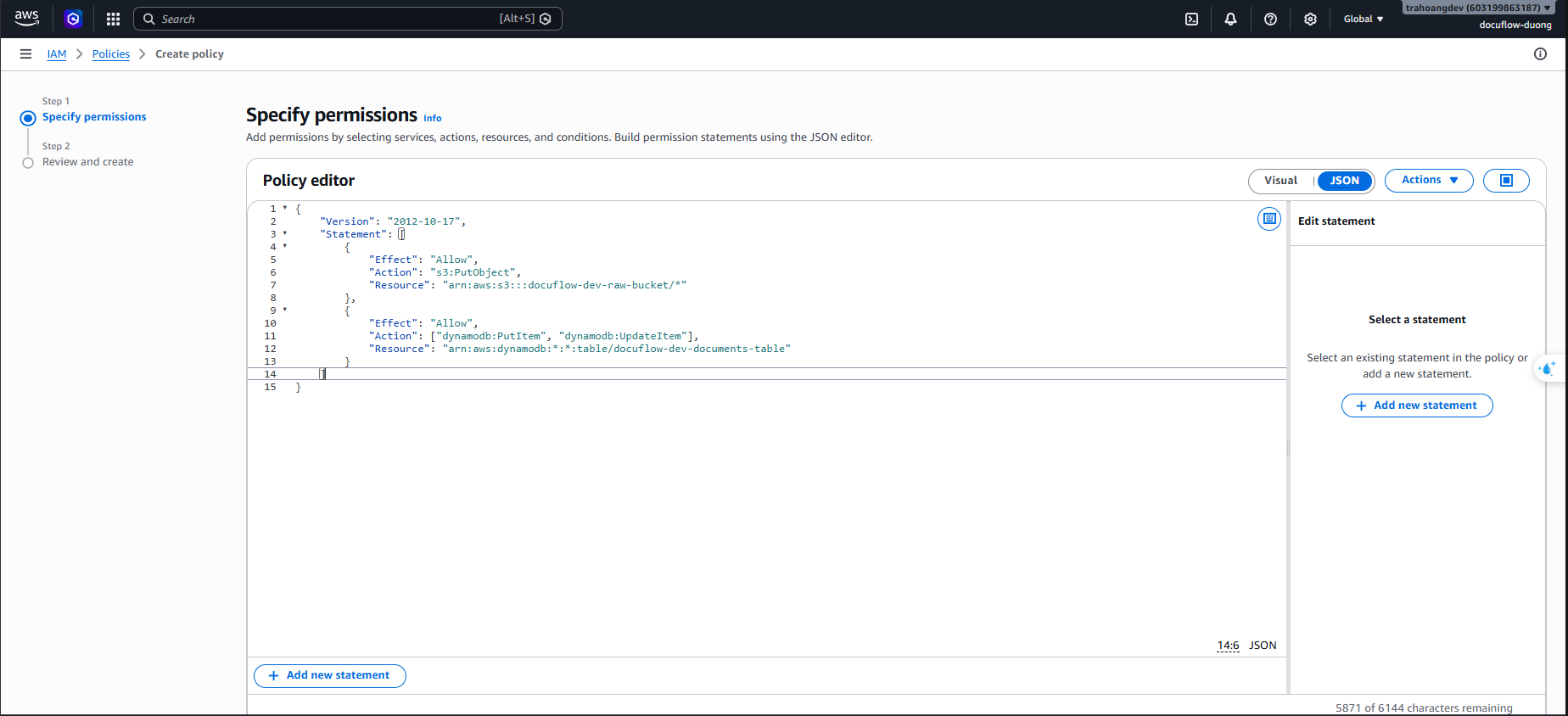
Go to the IAM service ➔ Policies ➔ Choose Create policy (Select the JSON tab).
Paste the following JSON Policy:
{
    "Version": "2012-10-17",
    "Statement": [
        {
            "Sid": "AllowPutObjectToRawBucket",
            "Effect": "Allow",
            "Action": "s3:PutObject",
            "Resource": "arn:aws:s3:::docuflow-dev-raw-*"
        },
        {
            "Sid": "AllowWriteToDynamoDB",
            "Effect": "Allow",
            "Action": [
                "dynamodb:PutItem",
                "dynamodb:UpdateItem"
            ],
            "Resource": "arn:aws:dynamodb:*:*:table/docuflow-dev-documents-table"
        }
    ]
}
Click Next. Set Policy Name:
docuflow-dev-ingestion-s3-raw-access-policy.Enter Description:
Allows Lambda function to generate S3 presigned URLs for raw document upload and initialize metadata in DynamoDB table.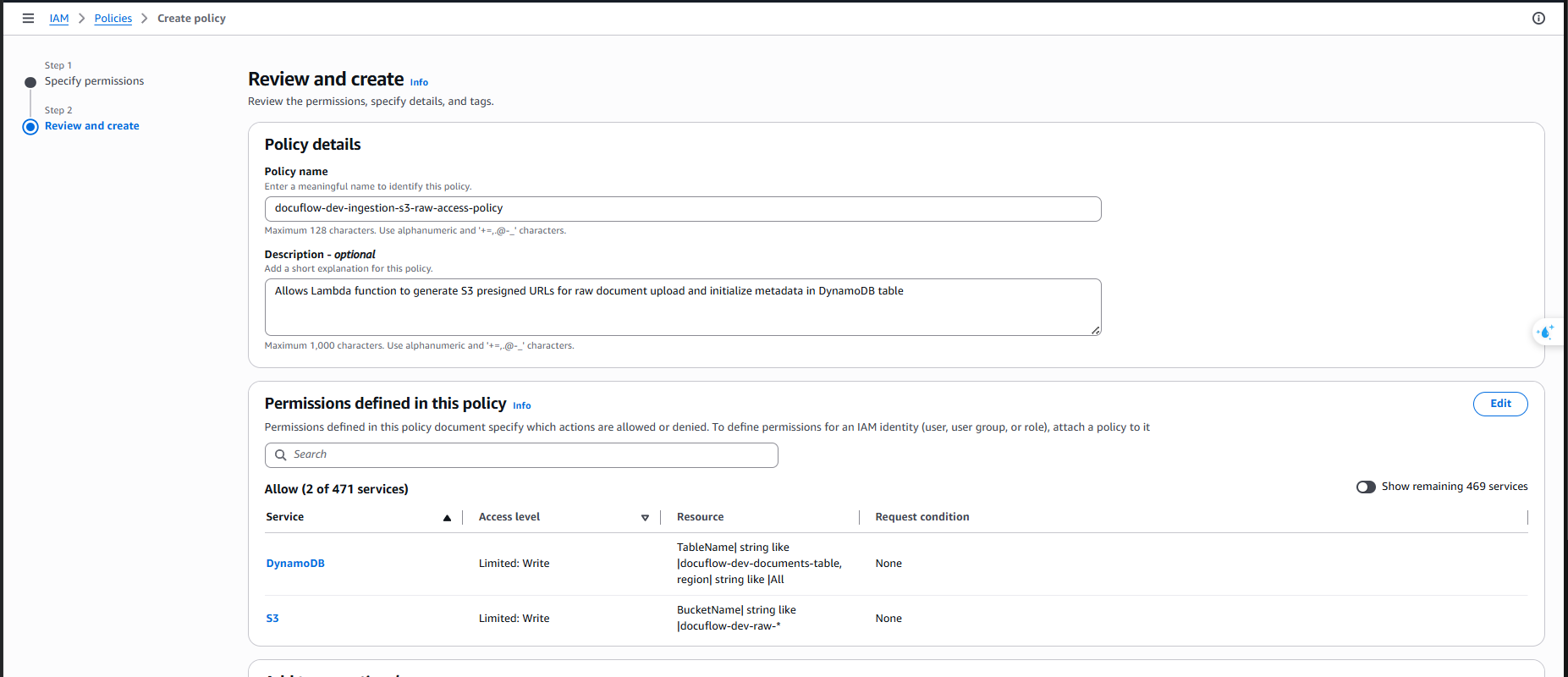
Click Create policy.
Go to Roles ➔ Choose Create role (Select Trusted Entity Type: AWS service ➔ Service or use case: Lambda).
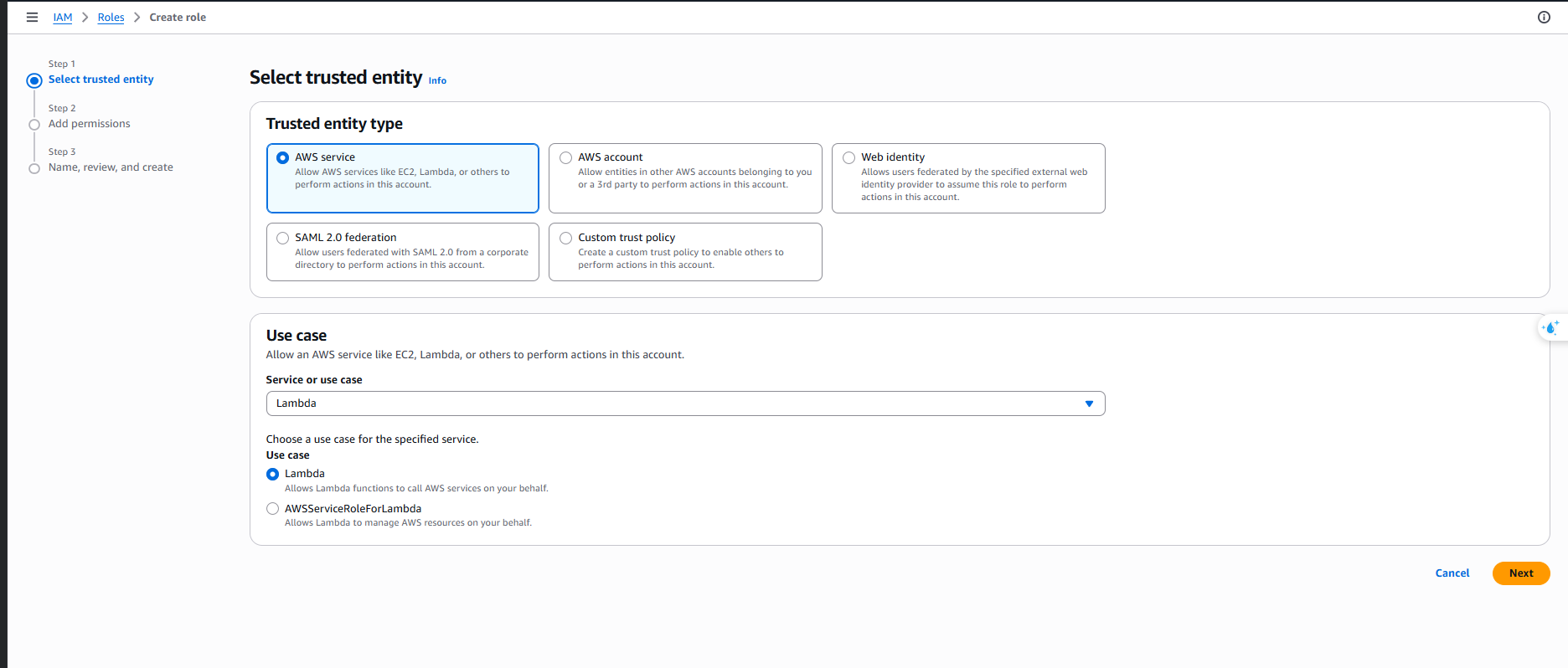
Click Next.
Attach Policy: Check
docuflow-dev-ingestion-s3-raw-access-policyand the default system policyAWSLambdaBasicExecutionRole(for logging).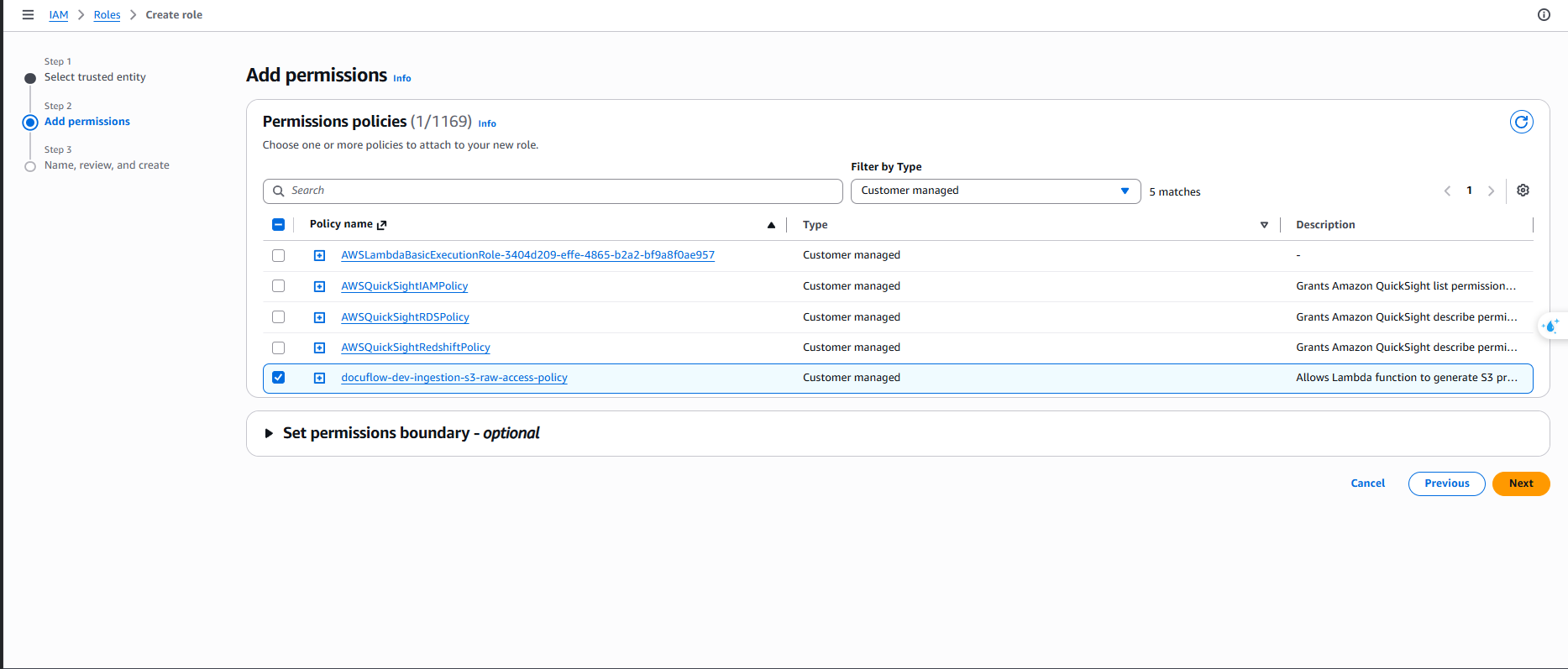
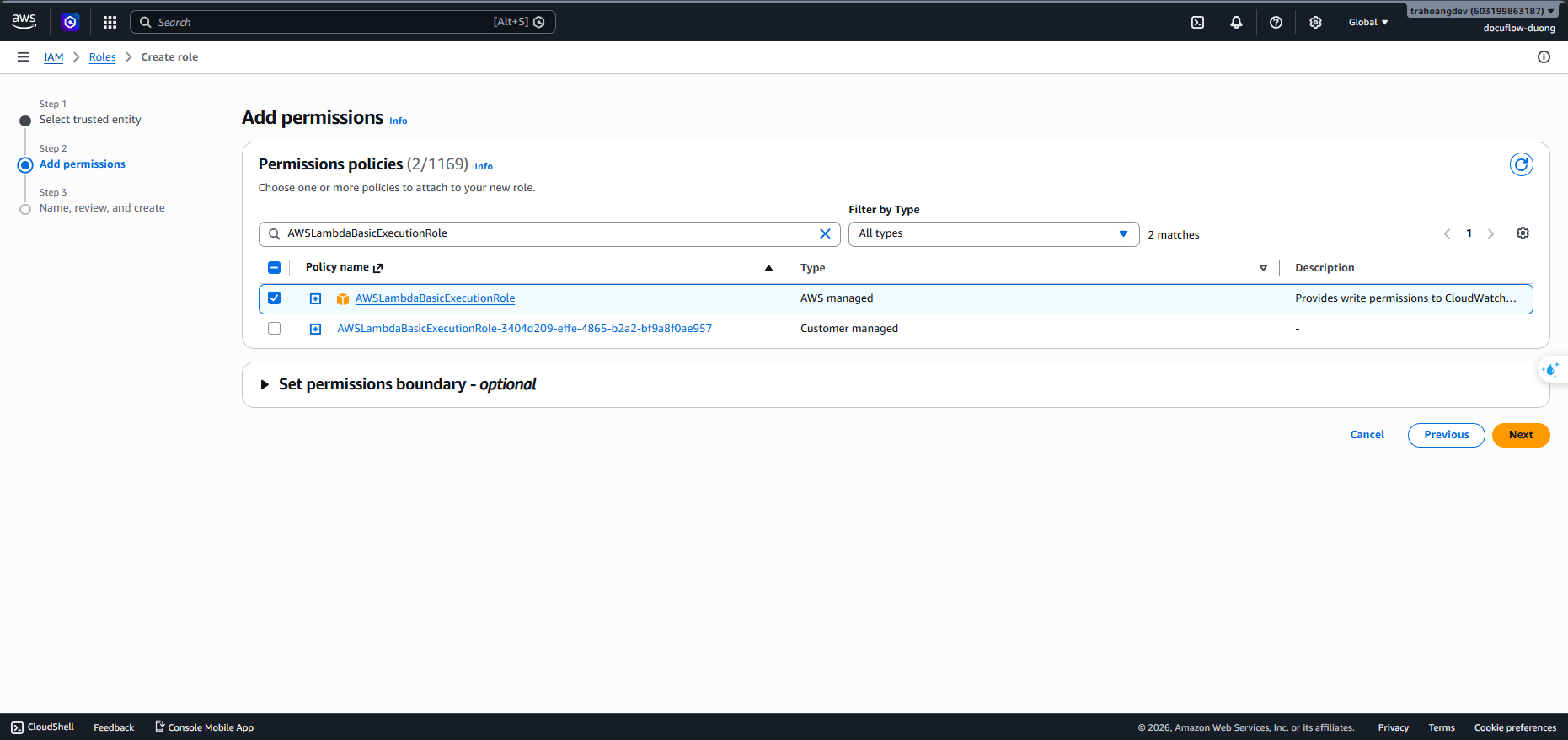
Click Next. Set Role Name:
docuflow-dev-security-upload-url-role.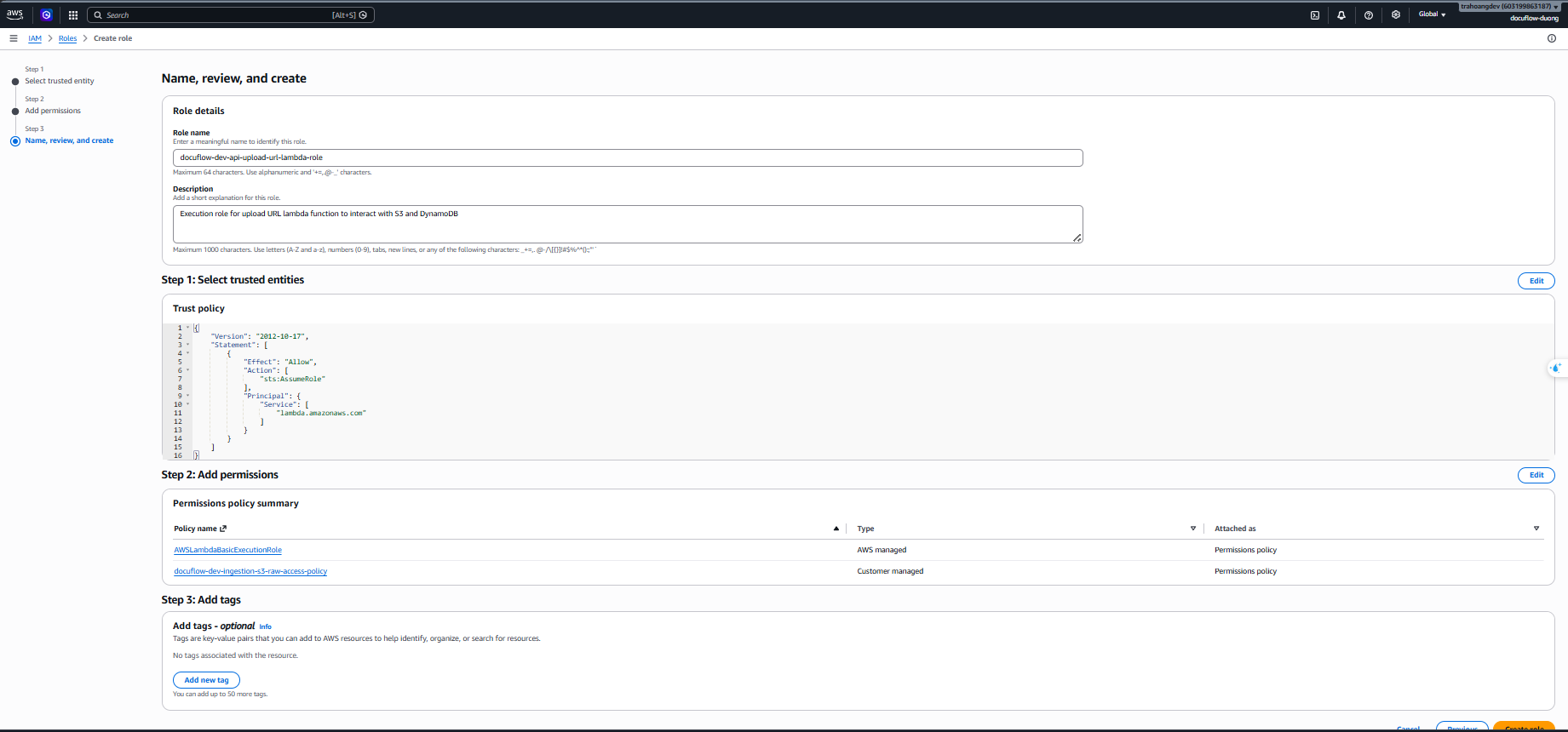
Click Create role.
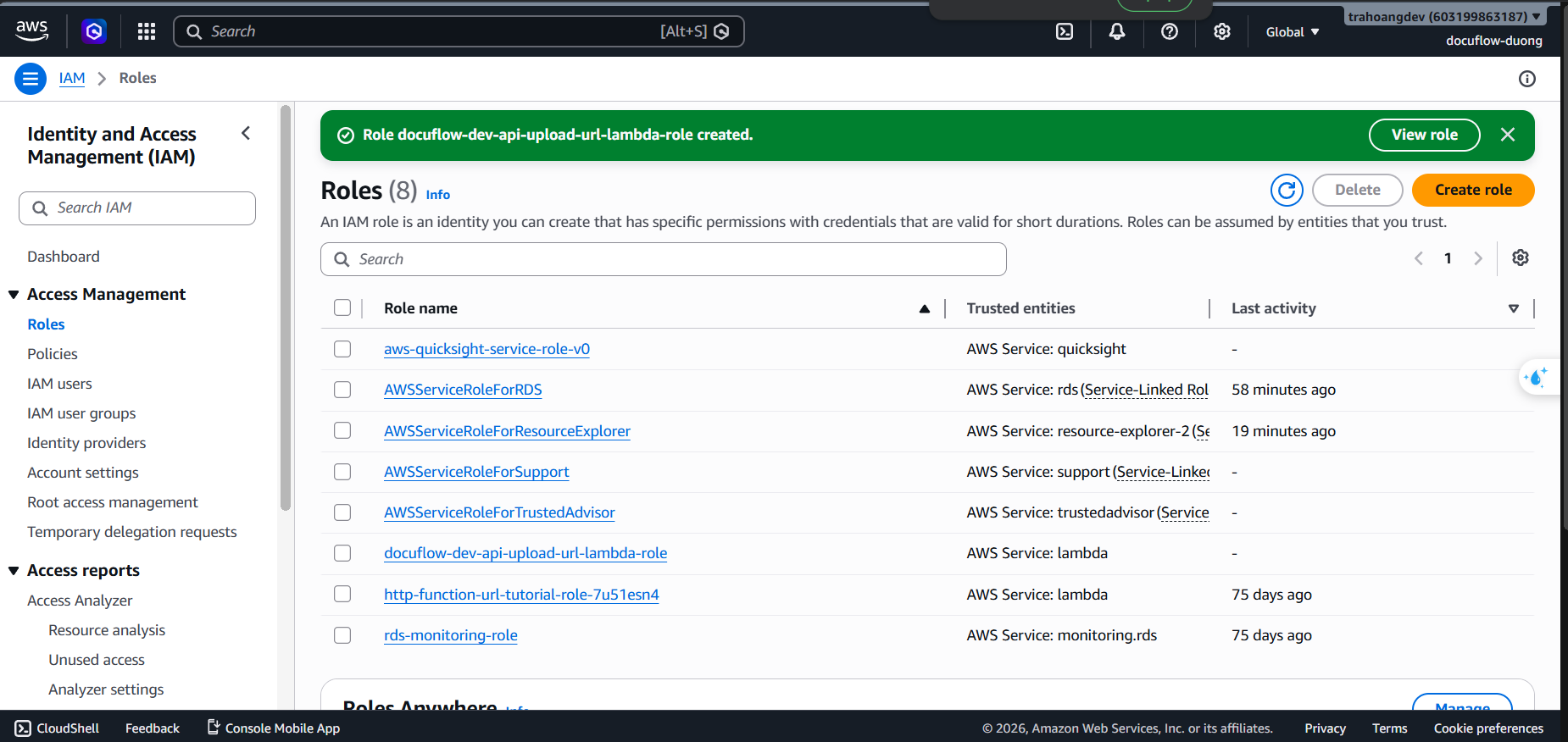
- Role 2: docuflow-dev-security-job-starter-role (Lambda to read SQS and trigger Workflow)
Purpose: Allows Lambda to receive messages from the SQS queue to get the file ID, then trigger the automated processing workflow in Step Functions.
- Steps:
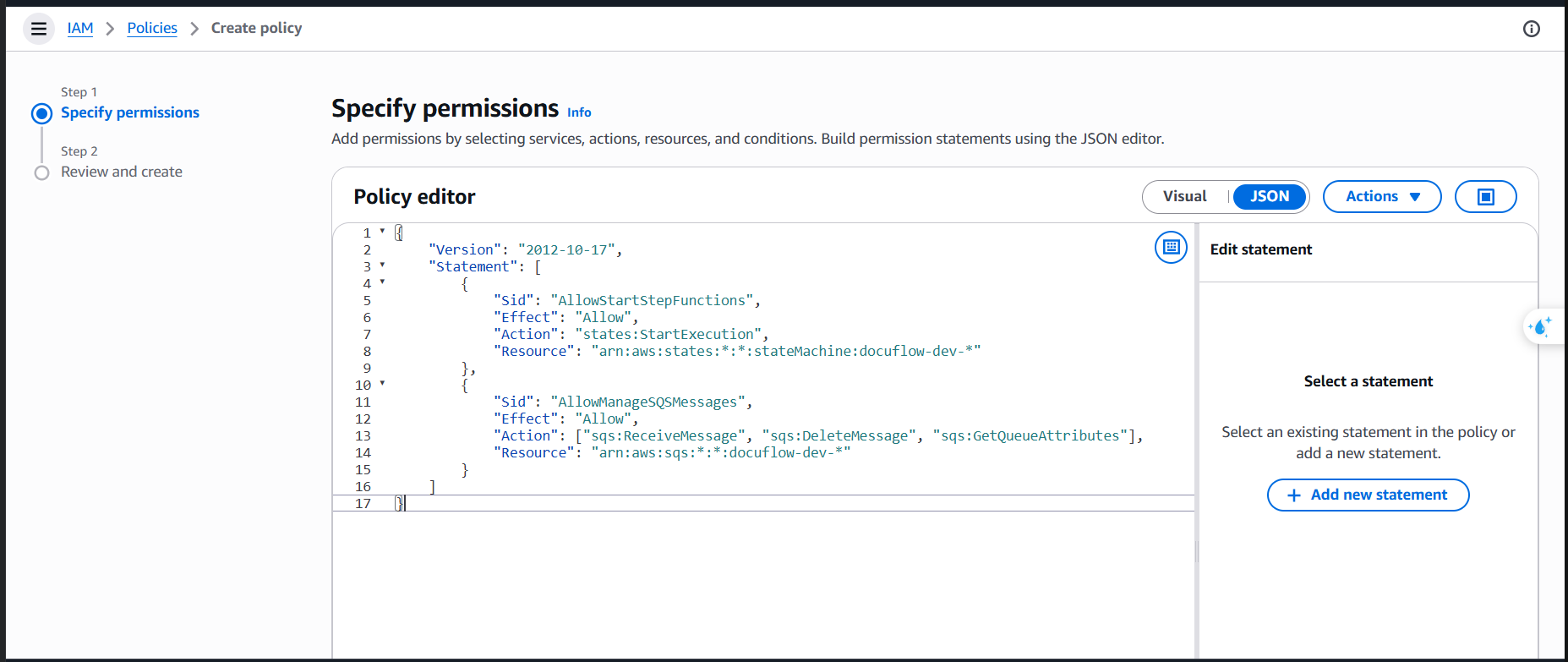
Go to the IAM service ➔ Policies ➔ Choose Create policy (Select the JSON tab).
Paste the following JSON Policy:
{
    "Version": "2012-10-17",
    "Statement": [
        {
            "Sid": "AllowStartStepFunctions",
            "Effect": "Allow",
            "Action": "states:StartExecution",
            "Resource": "arn:aws:states:*:*:stateMachine:docuflow-dev-*"
        },
        {
            "Sid": "AllowManageSQSMessages",
            "Effect": "Allow",
            "Action": [
                "sqs:ReceiveMessage",
                "sqs:DeleteMessage",
                "sqs:GetQueueAttributes"
            ],
            "Resource": "arn:aws:sqs:*:*:docuflow-dev-*"
        }
    ]
}
Click Next. Set Policy Name:
docuflow-dev-workflow-trigger-policy.Enter Description:
Grants permissions to process messages from SQS queue and trigger Step Functions workflow executions.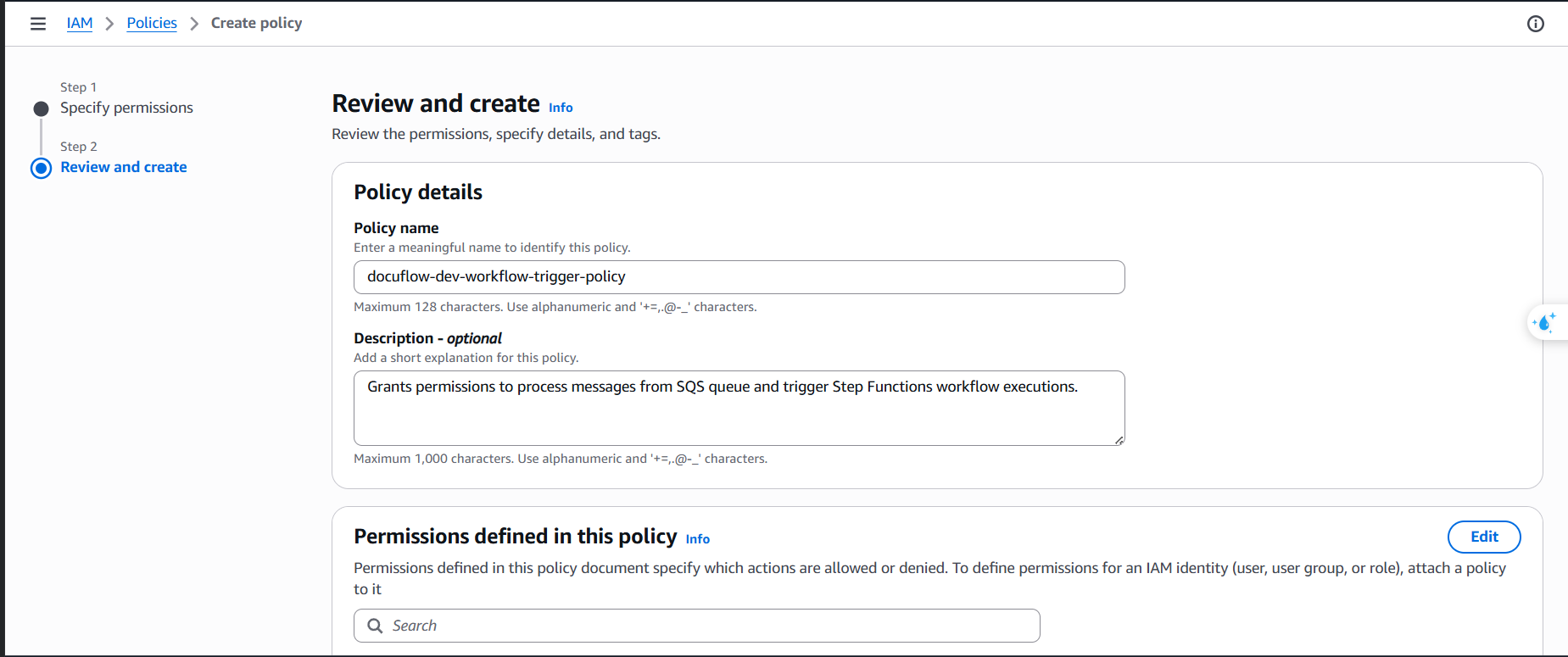
Click Create policy.
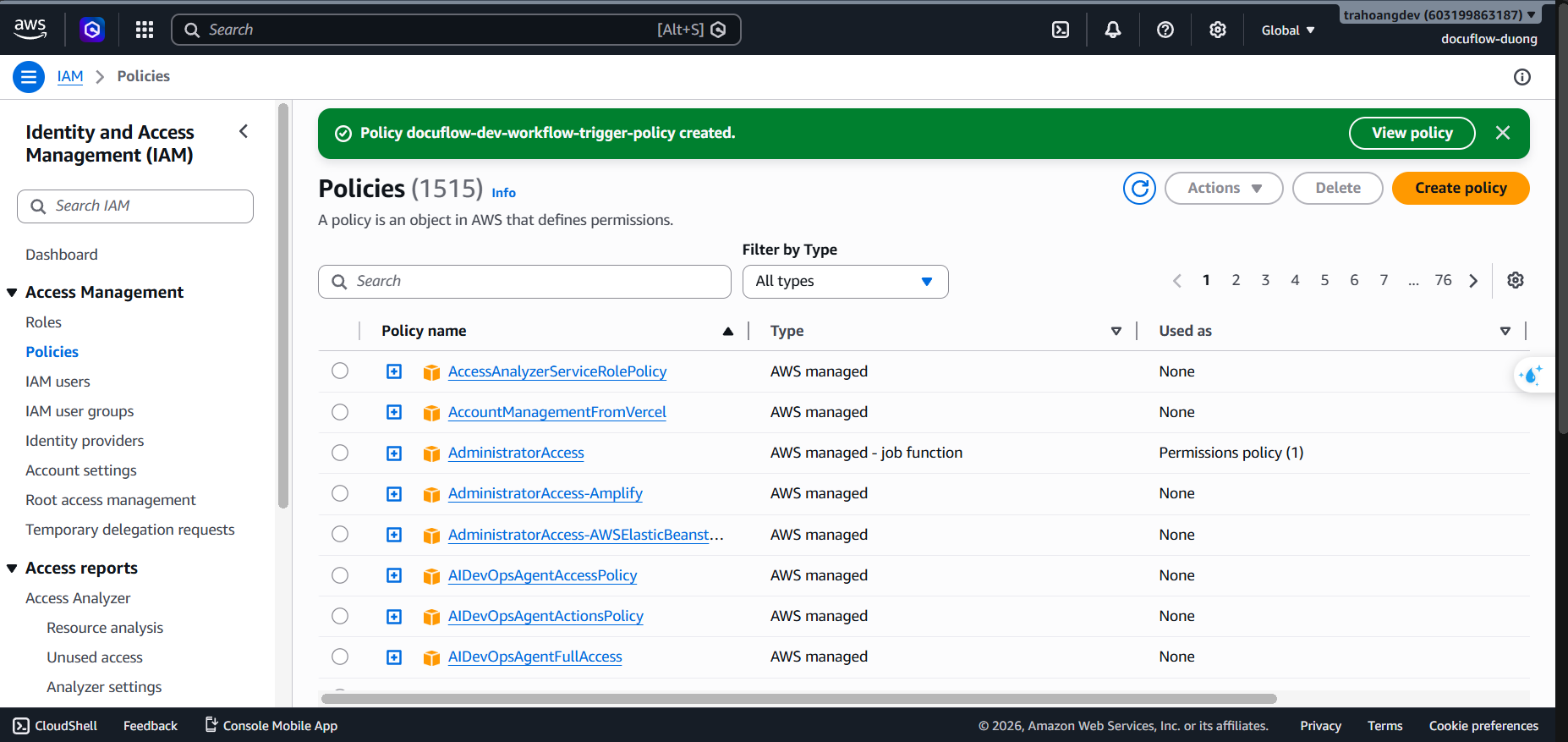
Go to Roles ➔ Choose Create role (Select Trusted Entity Type: AWS service ➔ Service or use case: Lambda).
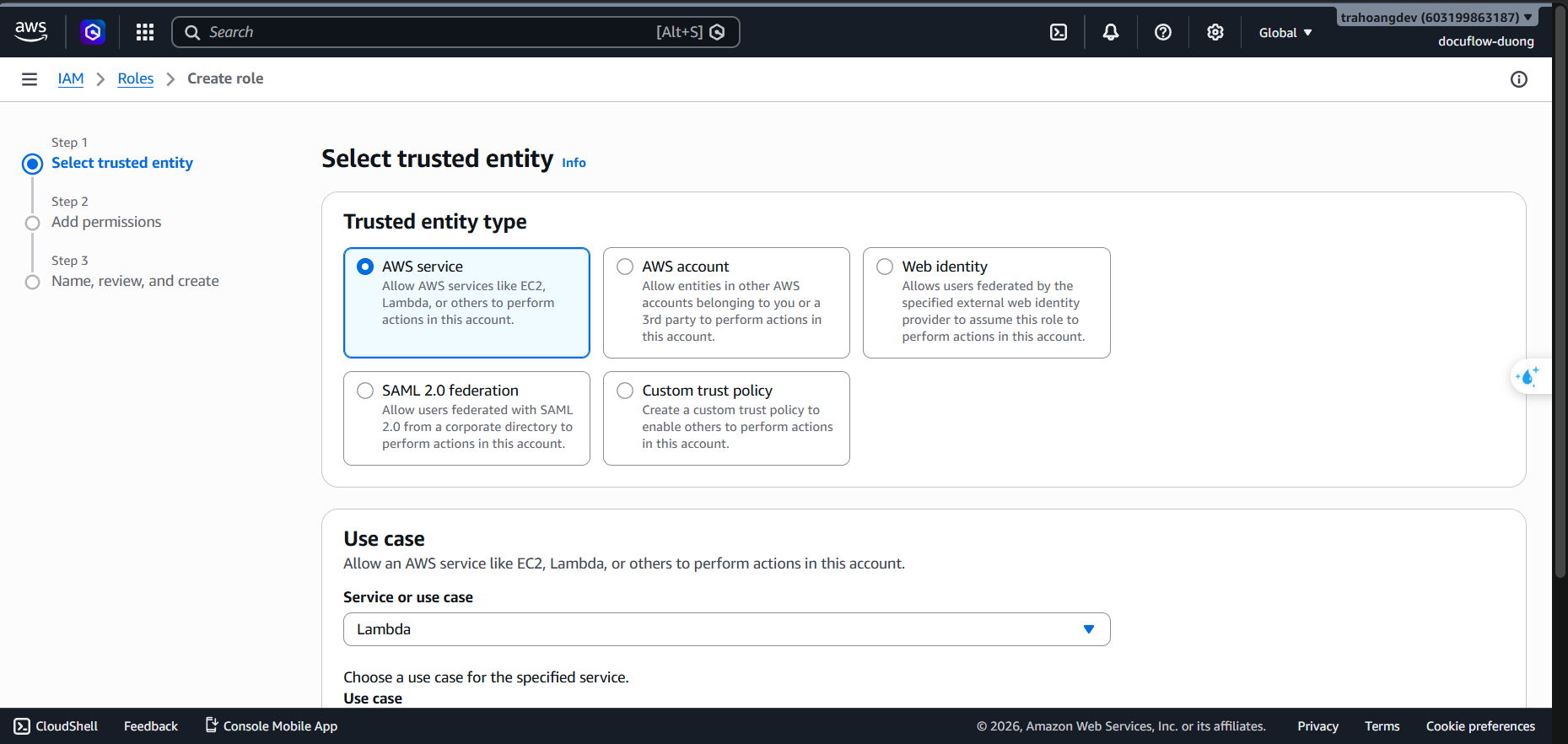
Click Next.
Attach Policy: Check
docuflow-dev-workflow-trigger-policyandAWSLambdaBasicExecutionRole.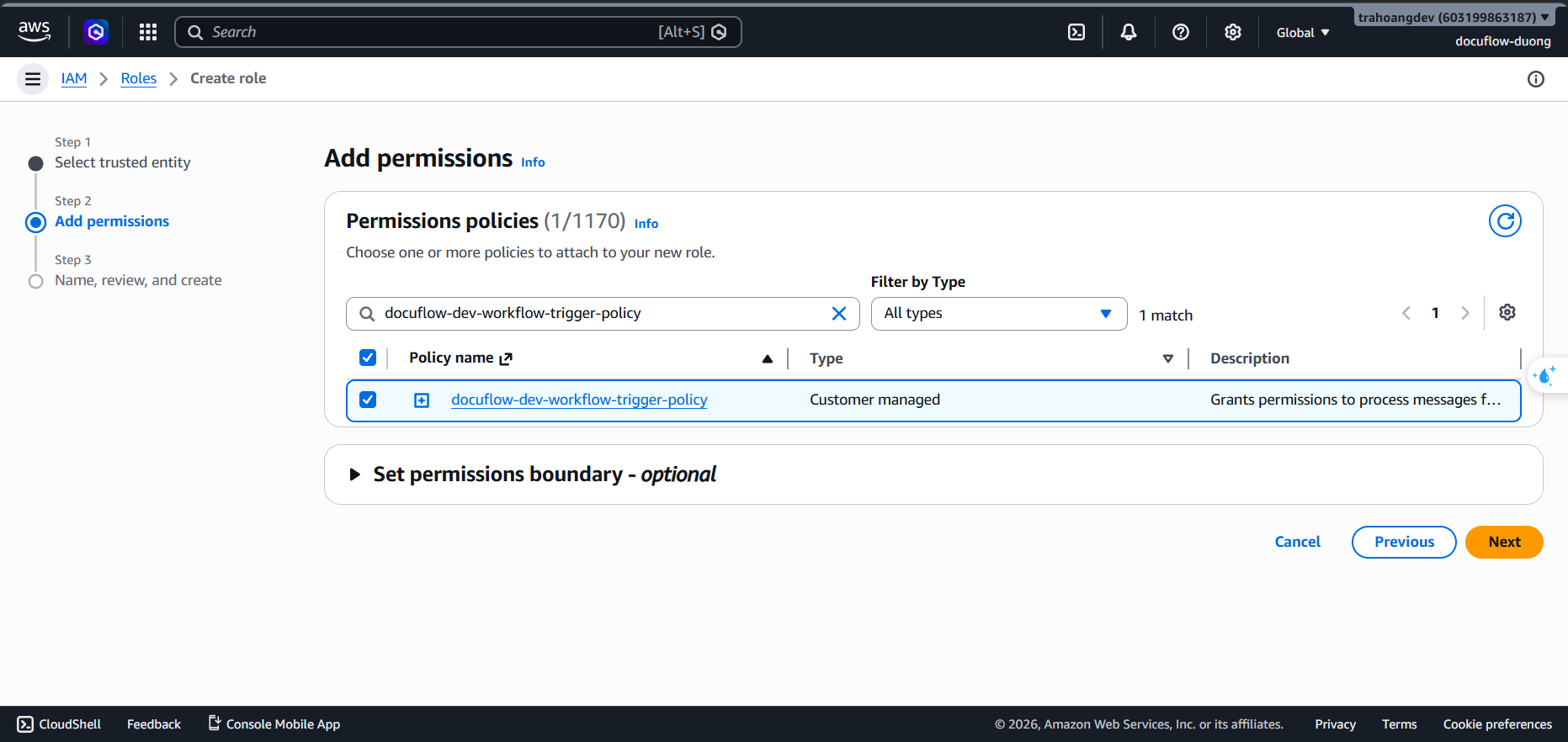
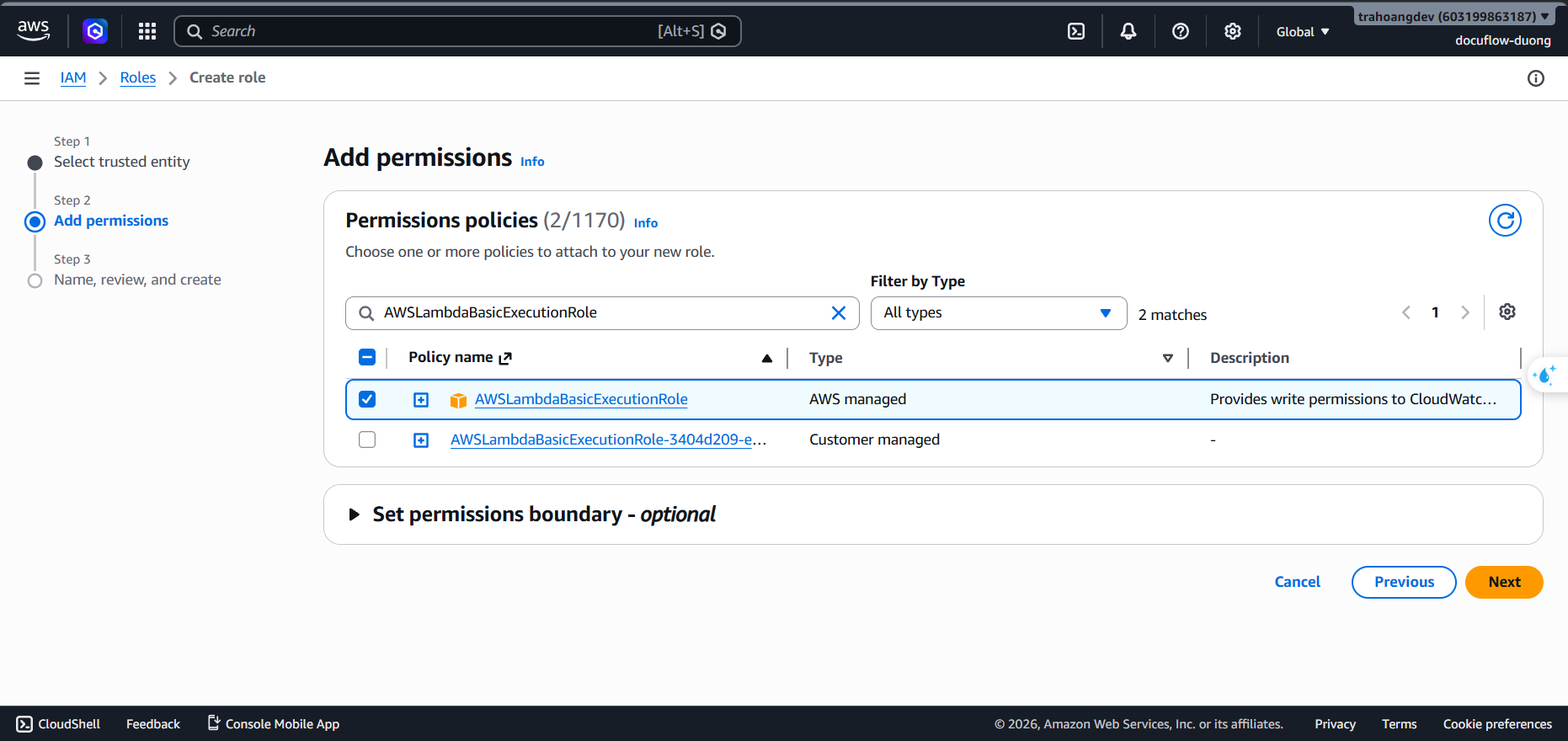
Click Next. Set Role Name:
docuflow-dev-security-job-starter-role.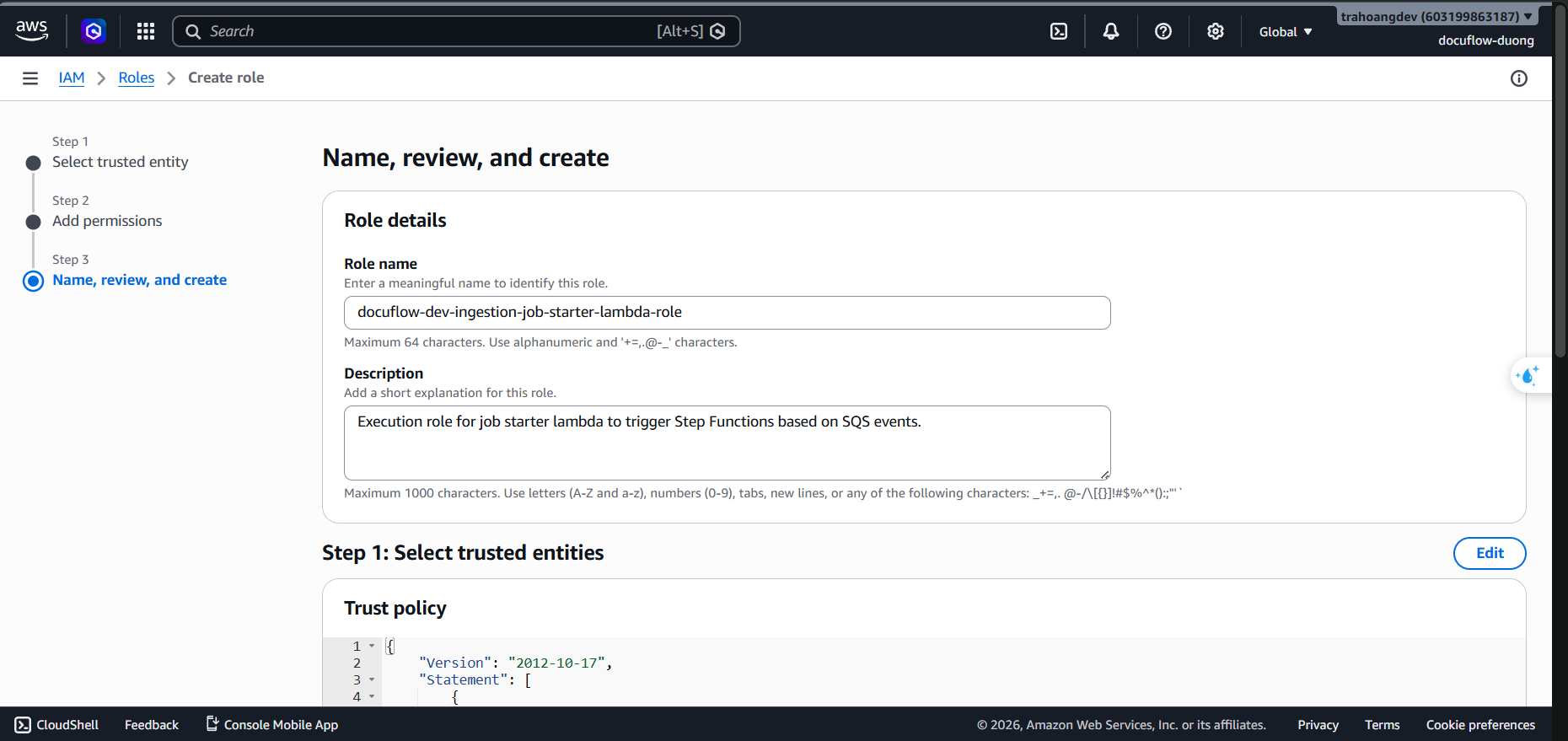
Click Create role.
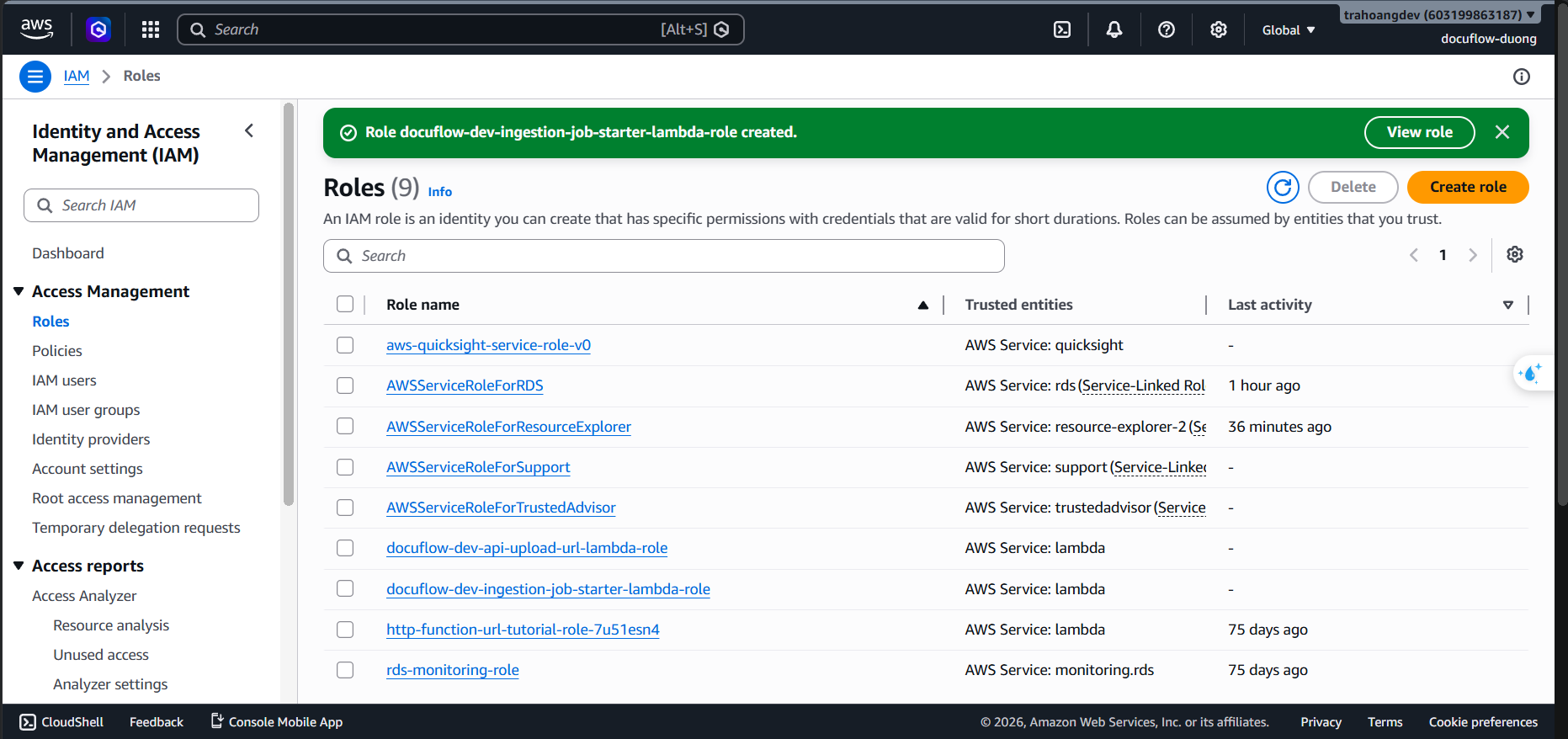
- Role 3: docuflow-dev-workflow-stepfunctions-role (Dedicated permissions for Step Functions Orchestrator)
Purpose: Grants Step Functions permissions to sequentially invoke processing Lambda functions and log execution progress.
- Steps:
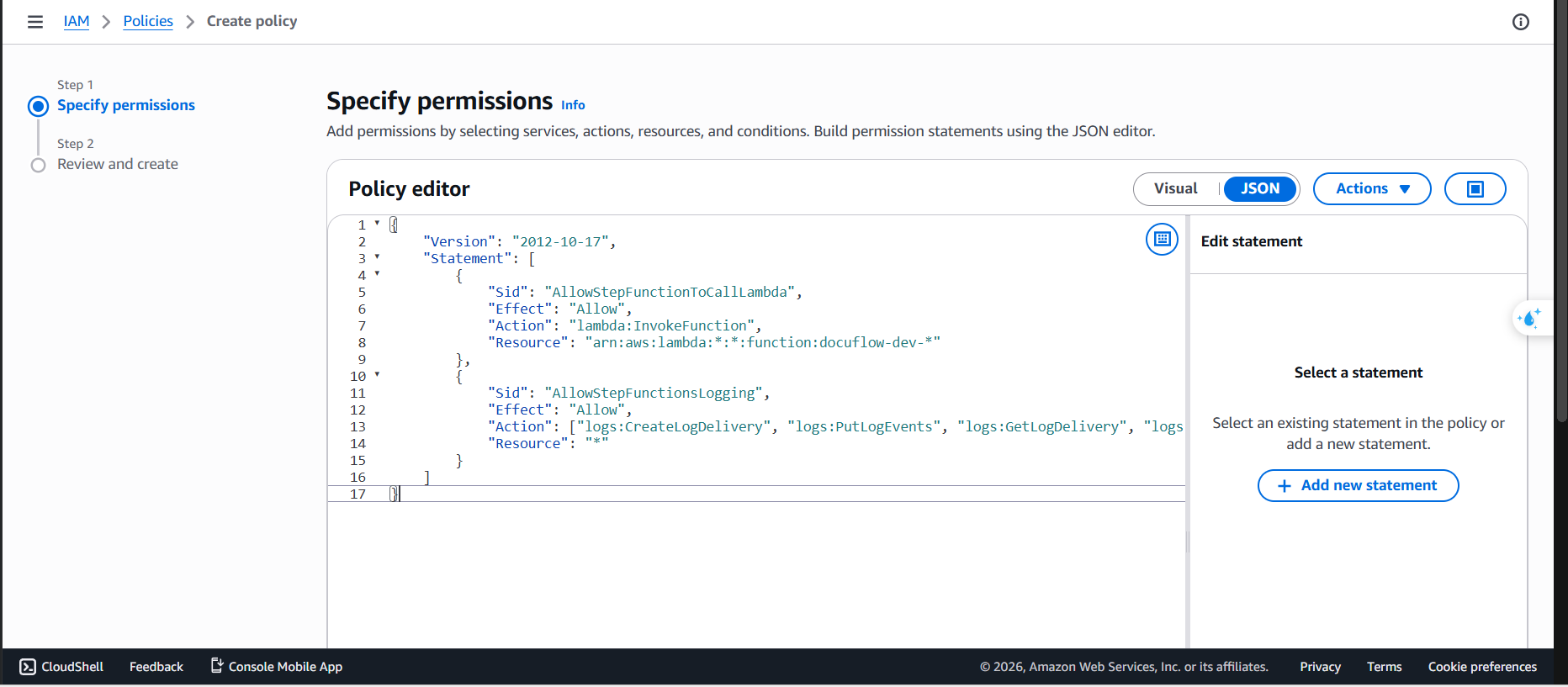
Go to the IAM service ➔ Policies ➔ Choose Create policy (Select the JSON tab).
Paste the following JSON Policy:
{
    "Version": "2012-10-17",
    "Statement": [
        {
            "Sid": "AllowStepFunctionToCallLambda",
            "Effect": "Allow",
            "Action": "lambda:InvokeFunction",
            "Resource": "arn:aws:lambda:*:*:function:docuflow-dev-*"
        },
        {
            "Sid": "AllowStepFunctionsLogging",
            "Effect": "Allow",
            "Action": [
                "logs:CreateLogDelivery",
                "logs:PutLogEvents",
                "logs:GetLogDelivery",
                "logs:UpdateLogDelivery",
                "logs:DeleteLogDelivery",
                "logs:ListLogDeliveries"
            ],
            "Resource": "*"
        }
    ]
}
Click Next. Set Policy Name:
docuflow-dev-workflow-orchestration-policy.Enter Description:
Allows Step Functions to orchestrate workflow by invoking core processing Lambdas and logging deliveries.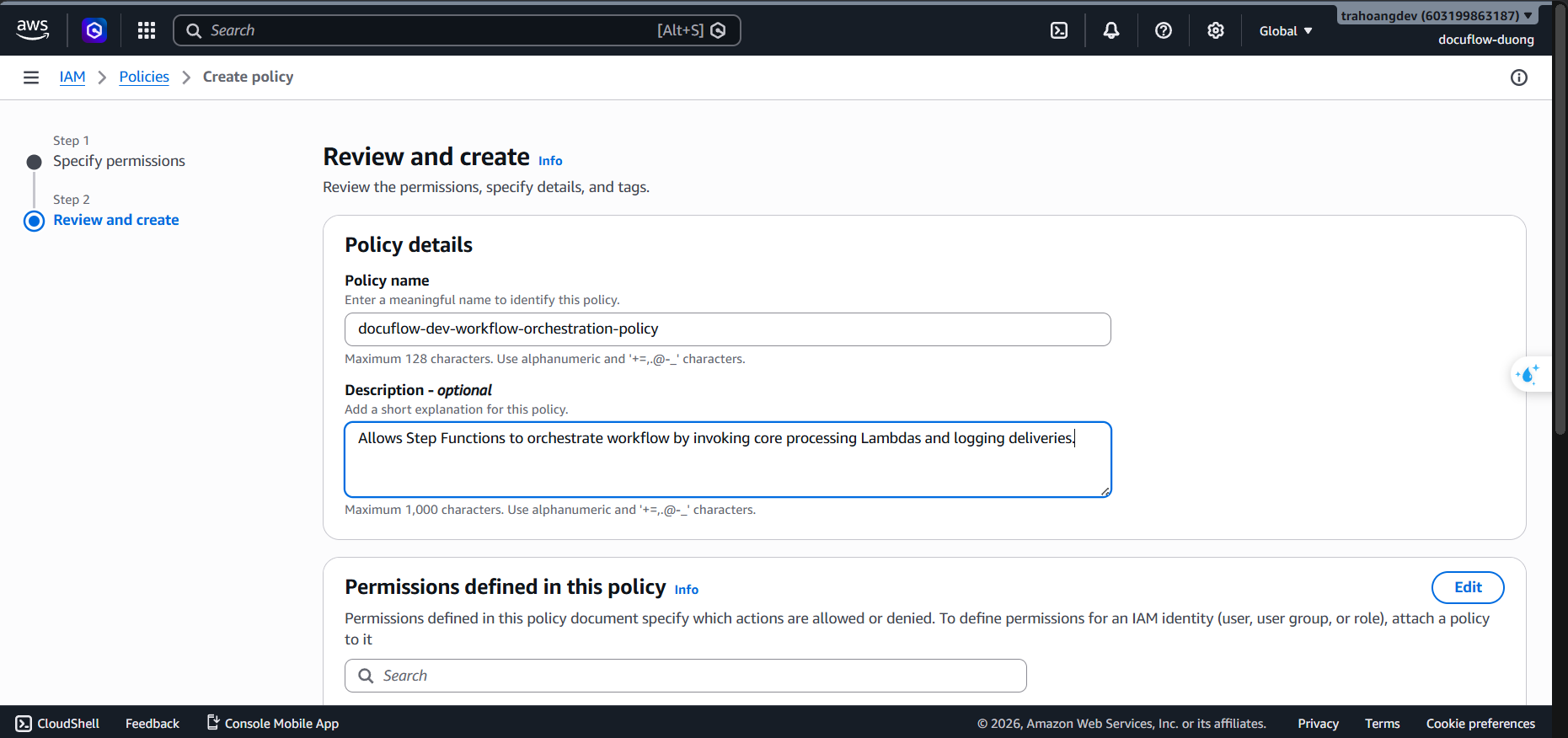
Click Create policy.
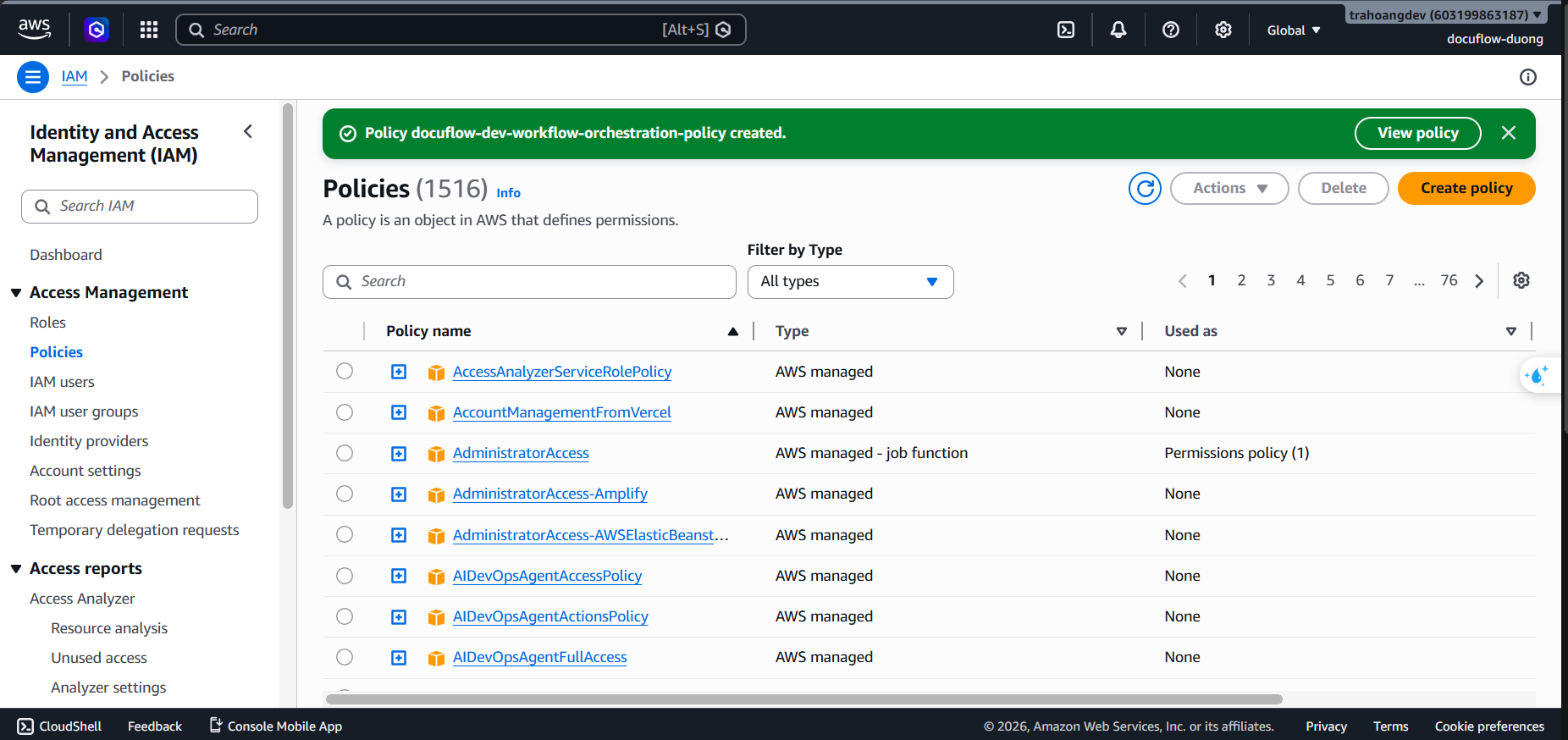
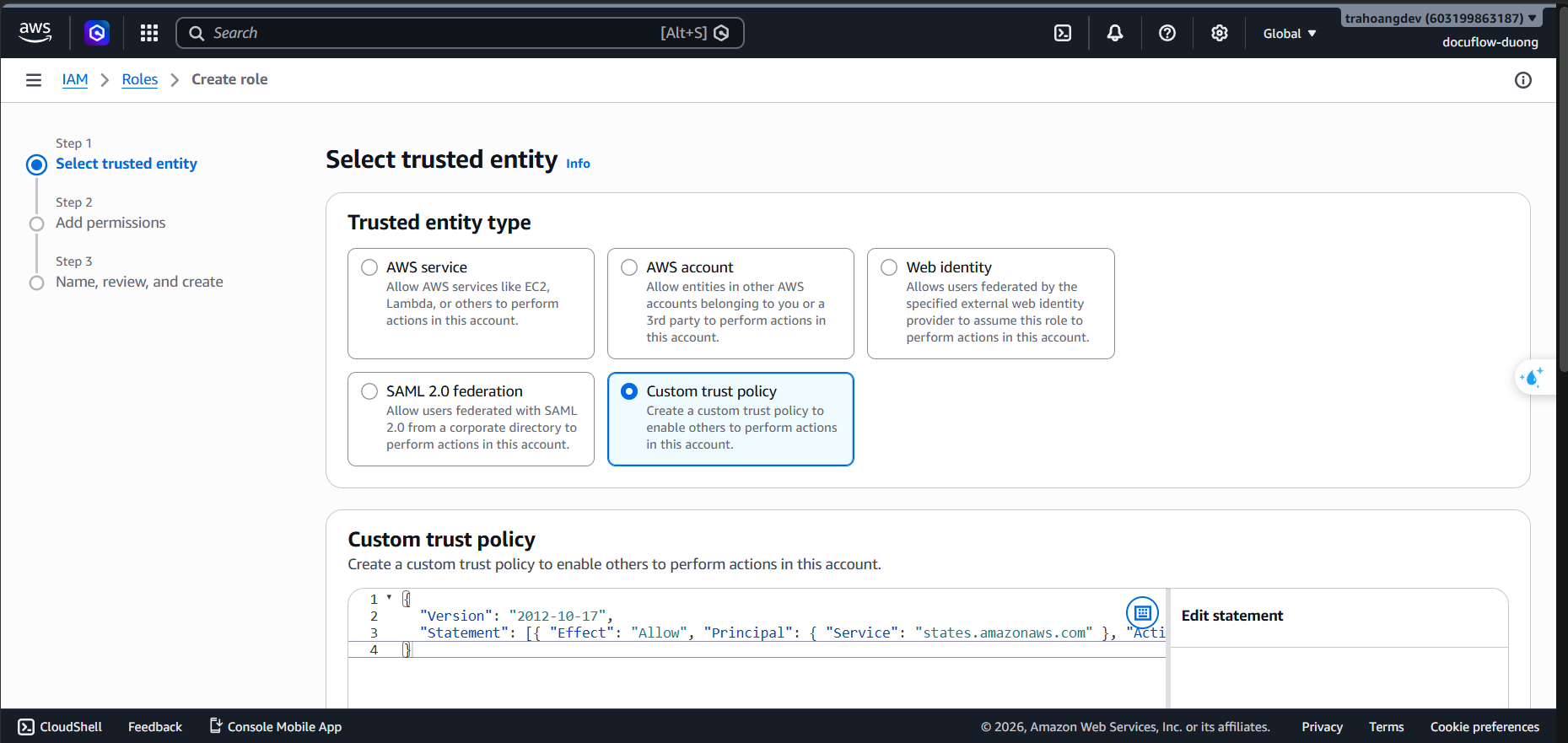
Go to Roles ➔ Choose Create role (Select Trusted Entity Type: Custom trust policy).
Paste the following Trust Policy defining the Step Functions service:
{
  "Version": "2012-10-17",
  "Statement": [{ "Effect": "Allow", "Principal": { "Service": "states.amazonaws.com" }, "Action": "sts:AssumeRole" }]
}
Click Next. Attach Policy: Check
docuflow-dev-workflow-orchestration-policy.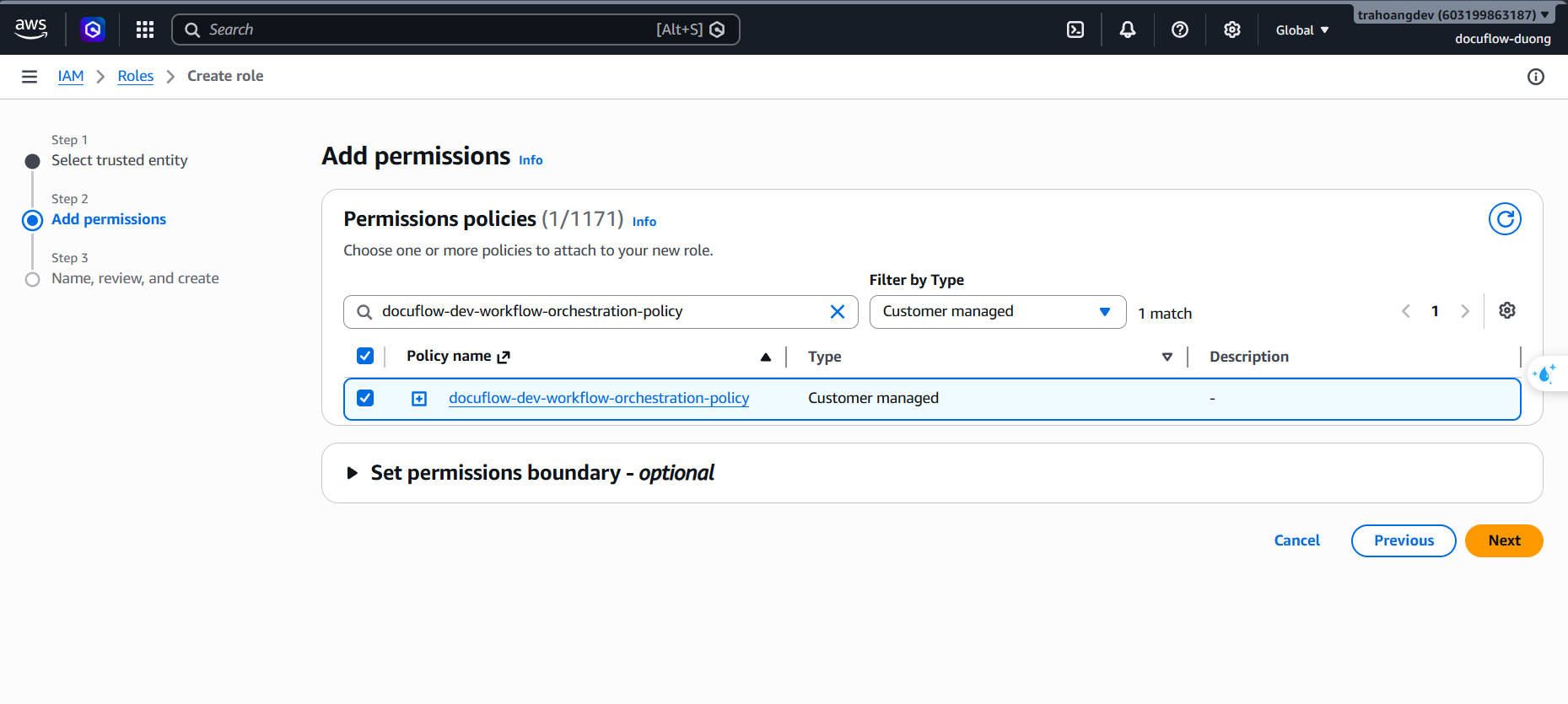
Click Next. Set Role Name:
docuflow-dev-workflow-stepfunctions-role.Enter Description:
Service role for Step Functions state machine to orchestrate the AI document pipeline.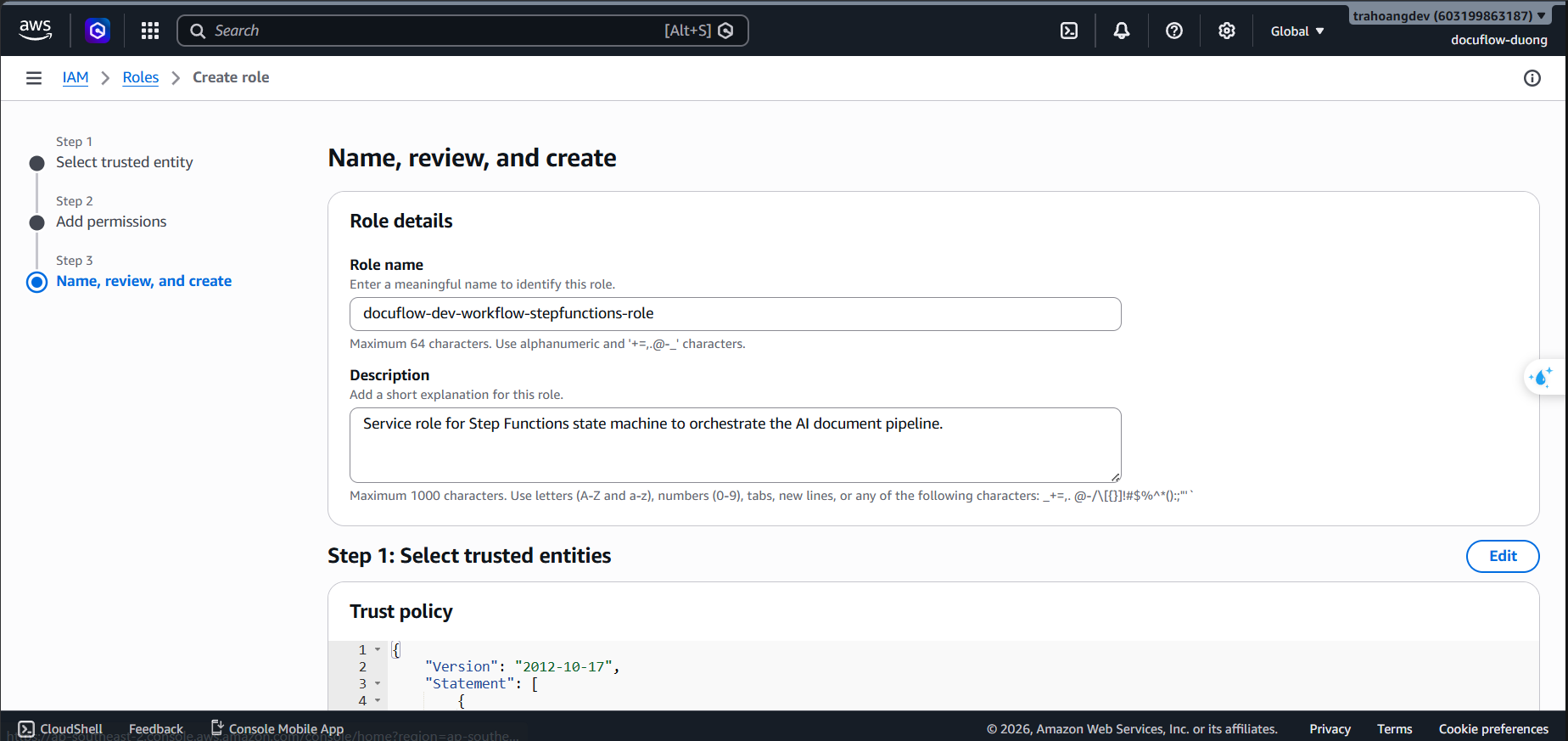
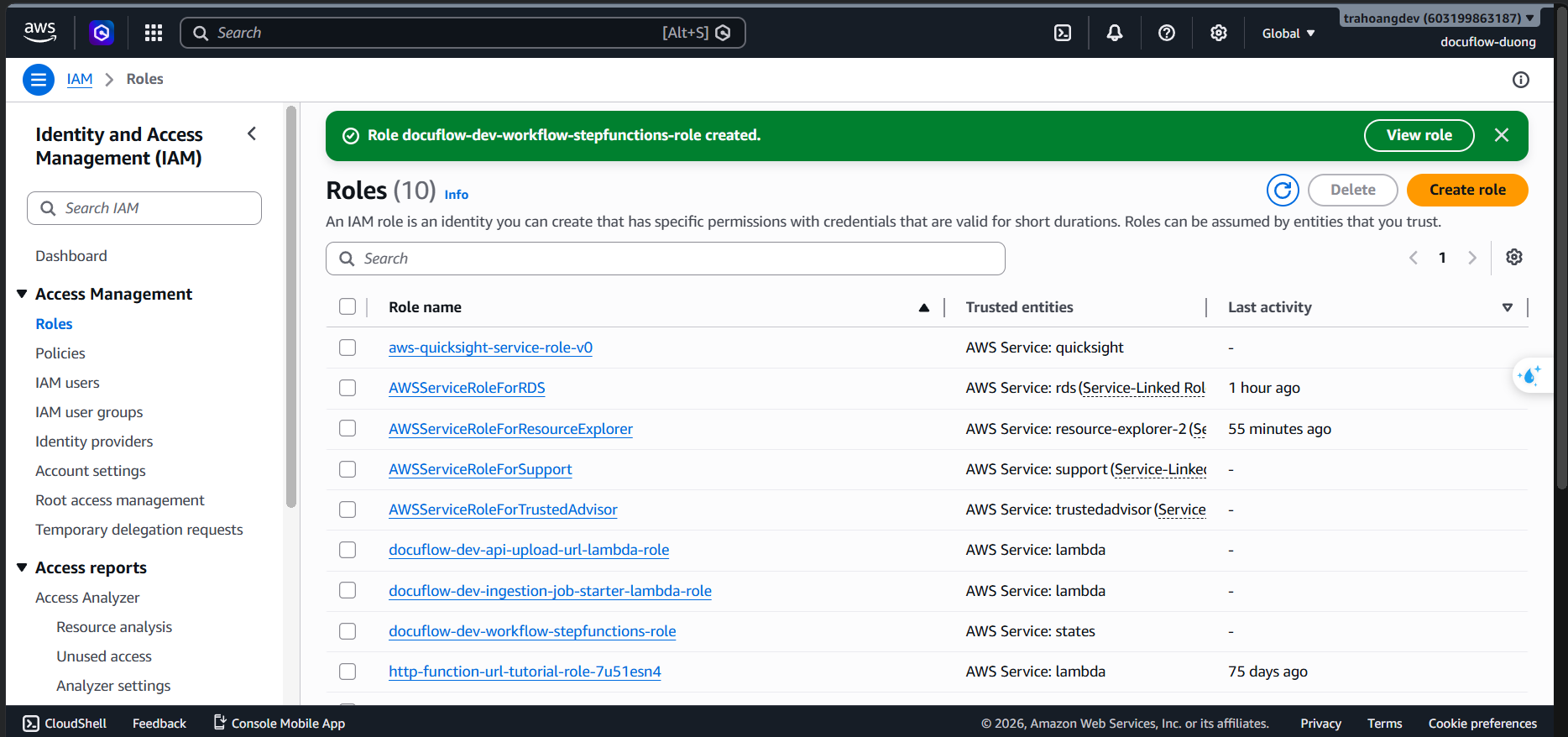
Click Create role.
- Role 4: docuflow-dev-ai-textract-lambda-role (Lambda permissions for Amazon Textract text extraction)
Purpose: Allows Lambda to retrieve files from the S3 Raw bucket, perform extraction using Textract, and save the raw results to the S3 Processed Bucket.
- Steps:
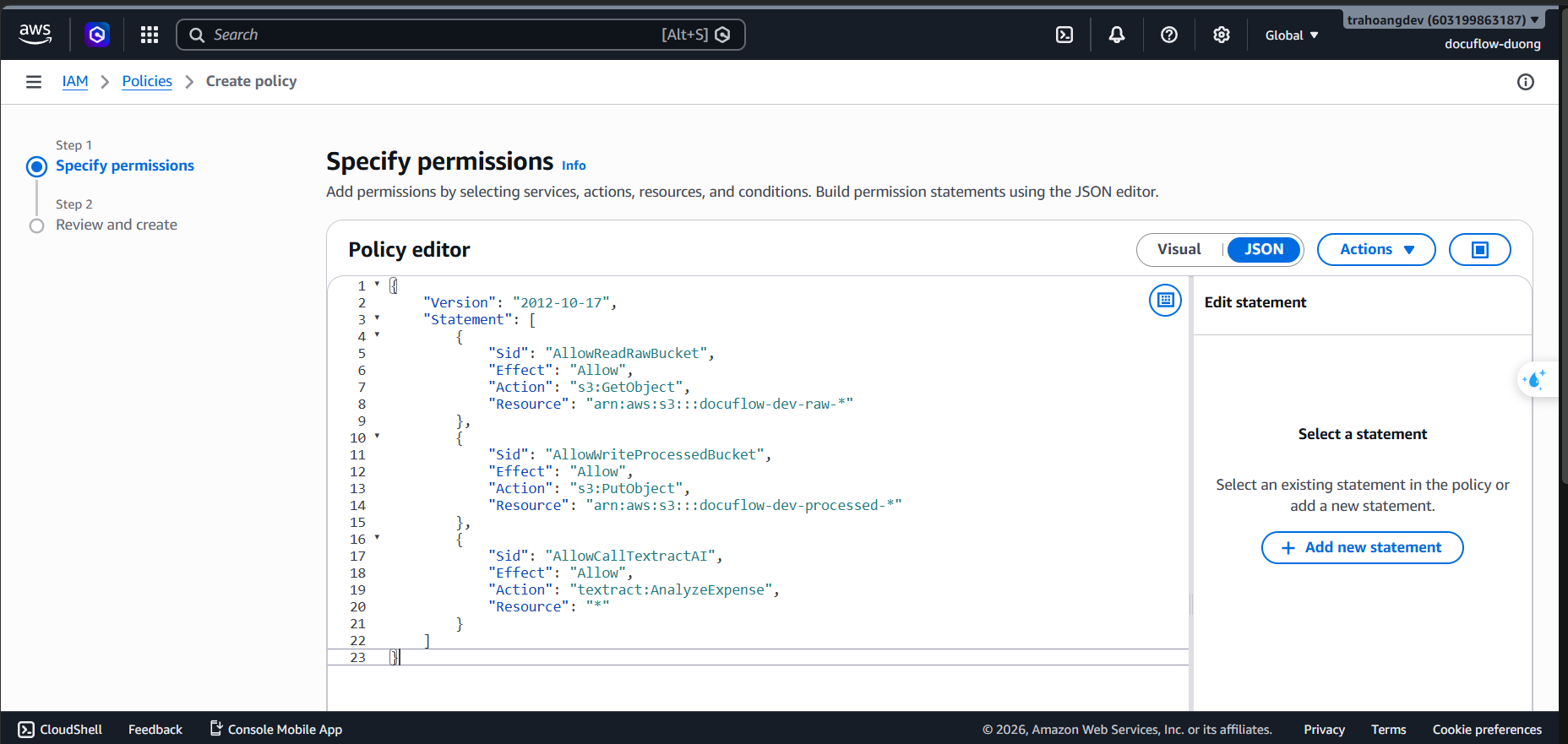
- Go to the IAM service ➔ Policies ➔ Choose Create policy (JSON).
- Paste the following JSON Policy:
{
    "Version": "2012-10-17",
    "Statement": [
        {
            "Sid": "AllowReadRawBucket",
            "Effect": "Allow",
            "Action": "s3:GetObject",
            "Resource": "arn:aws:s3:::docuflow-dev-raw-*"
        },
        {
            "Sid": "AllowWriteProcessedBucket",
            "Effect": "Allow",
            "Action": "s3:PutObject",
            "Resource": "arn:aws:s3:::docuflow-dev-processed-*"
        },
        {
            "Sid": "AllowCallTextractAI",
            "Effect": "Allow",
            "Action": "textract:AnalyzeExpense",
            "Resource": "*"
        }
    ]
}
- Click Next. Set Policy Name:
docuflow-dev-ai-textract-invoke-policy. - Enter Description:
Allows Lambda to retrieve raw documents from S3, invoke Amazon Textract AnalyzeExpense API, and save results.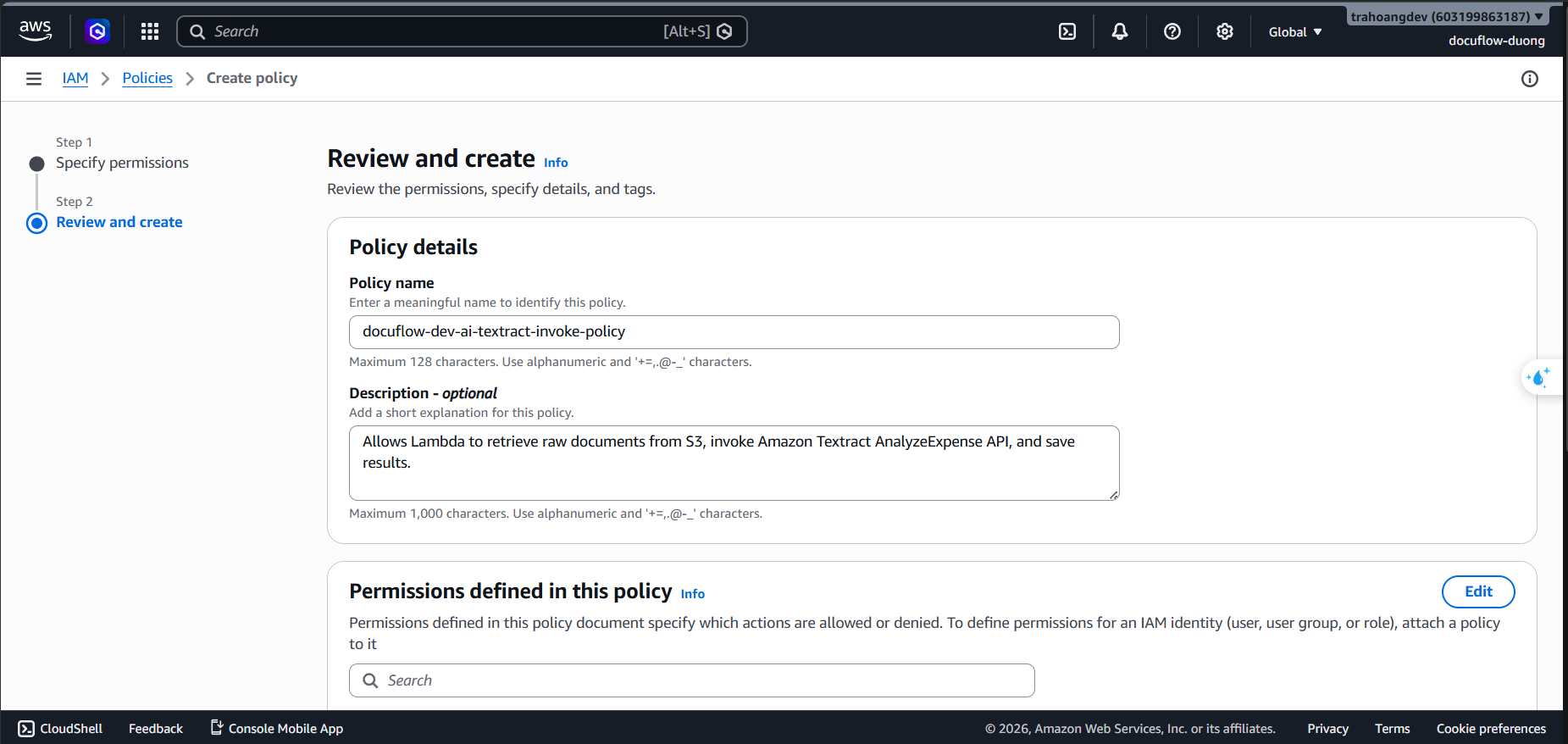
- Click Create policy.
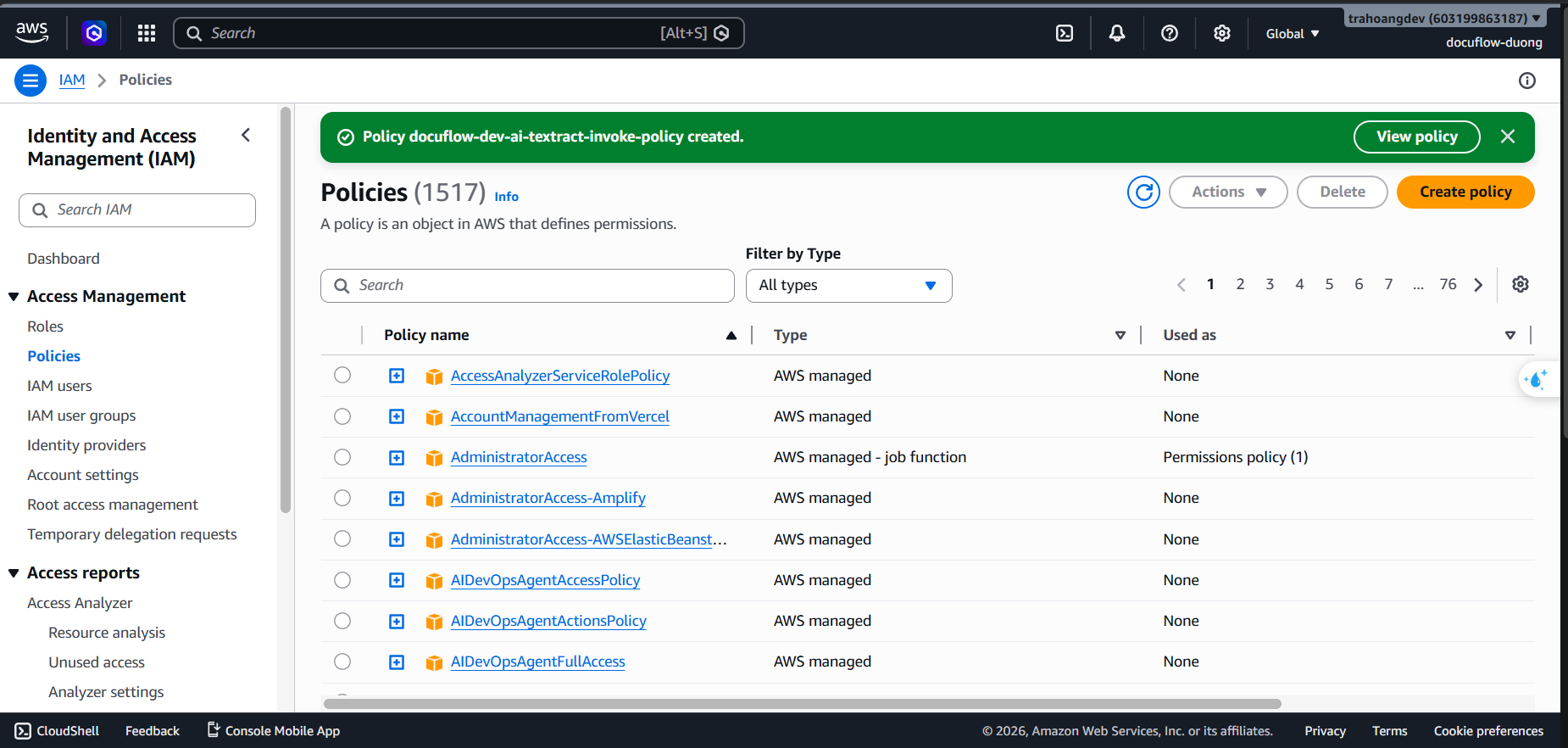
- Go to Roles ➔ Choose Create role (Trusted Entity Type: AWS service ➔ Service: Lambda).
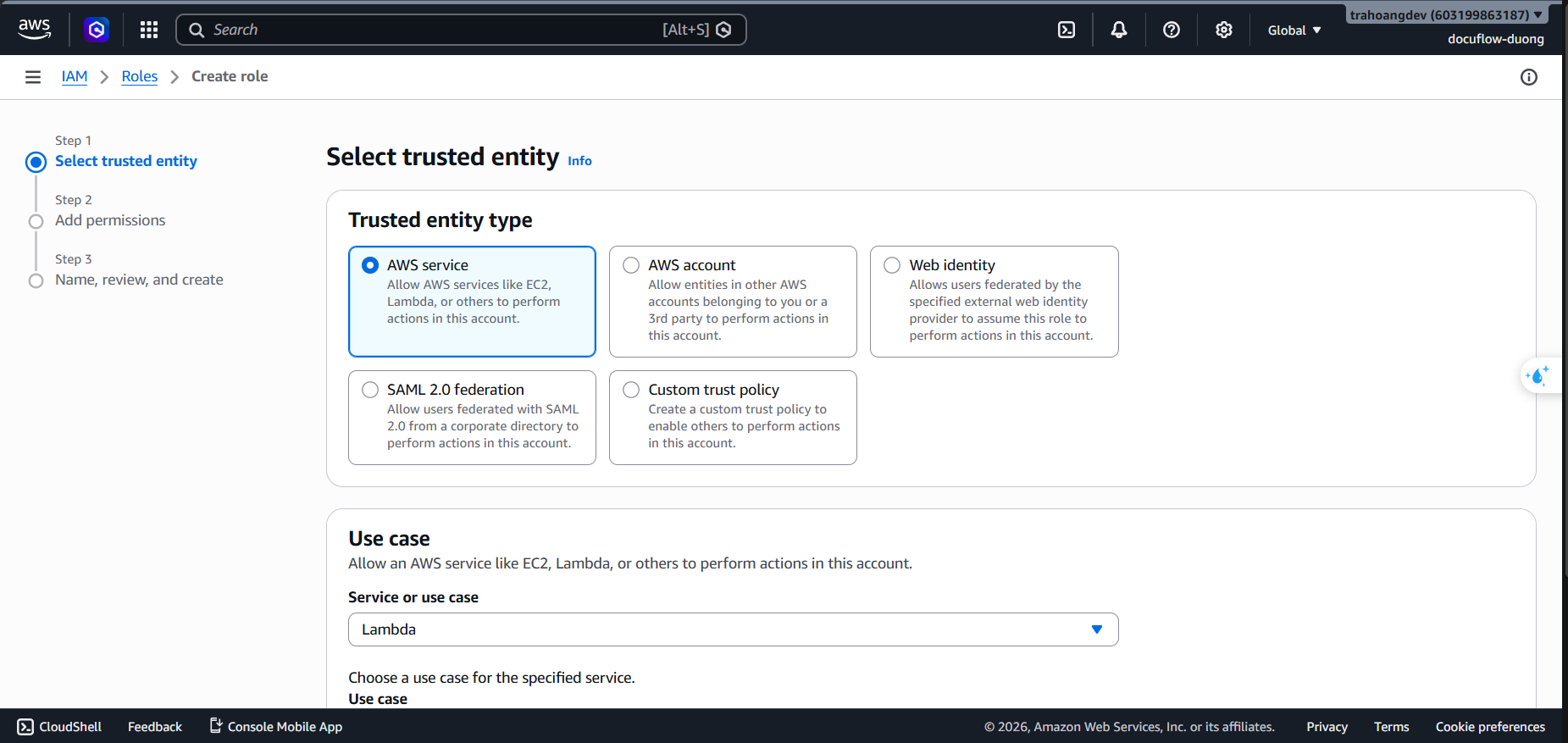
- Click Next.
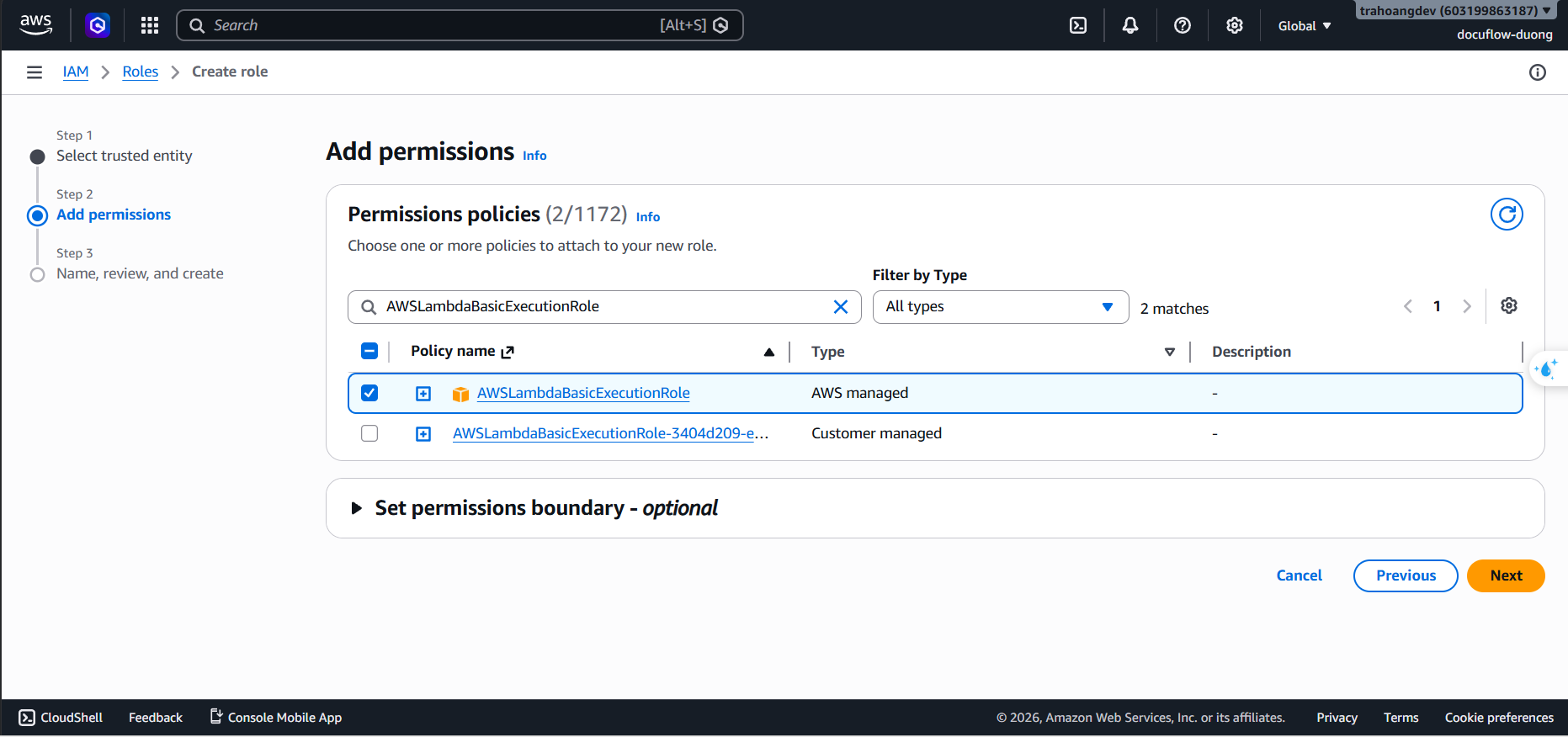
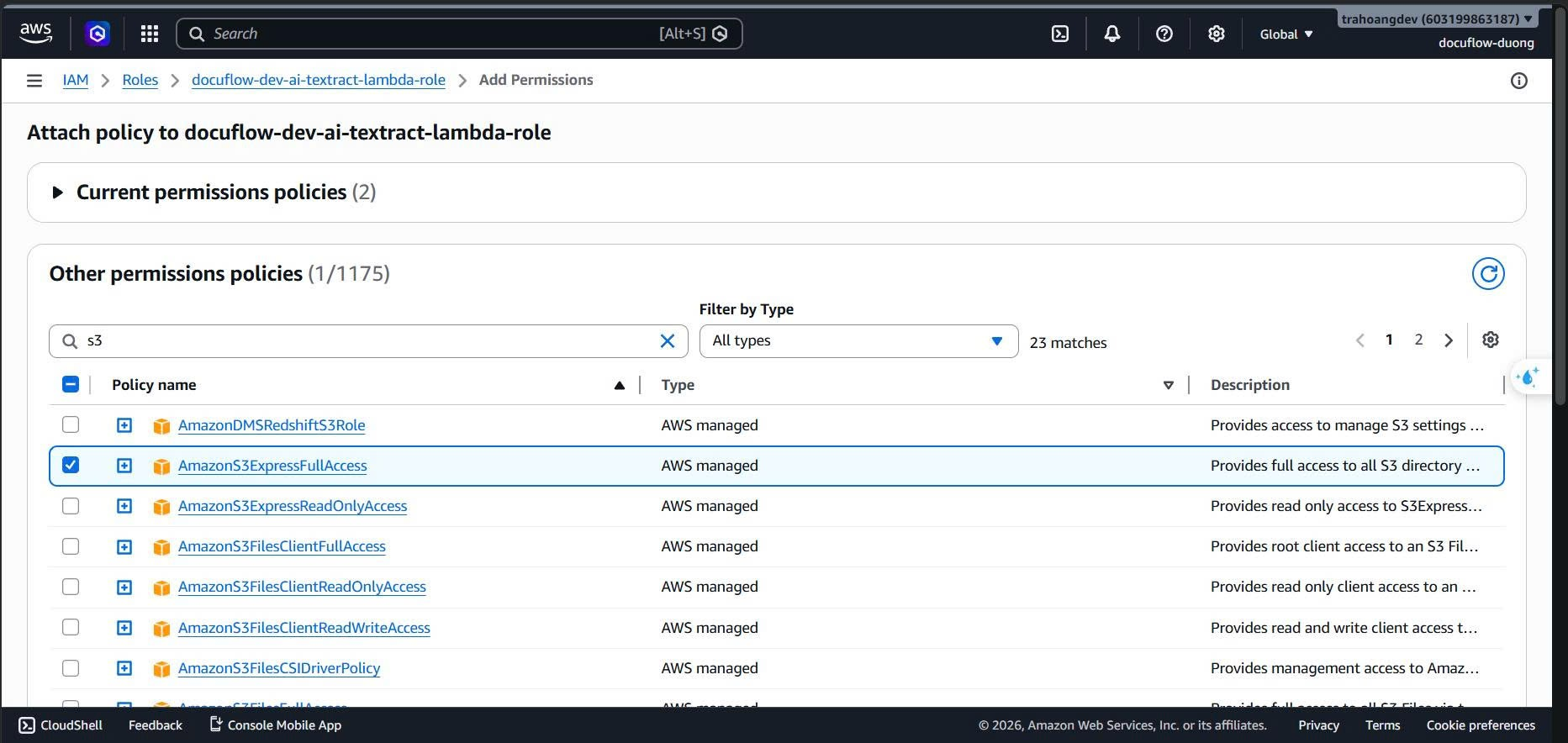
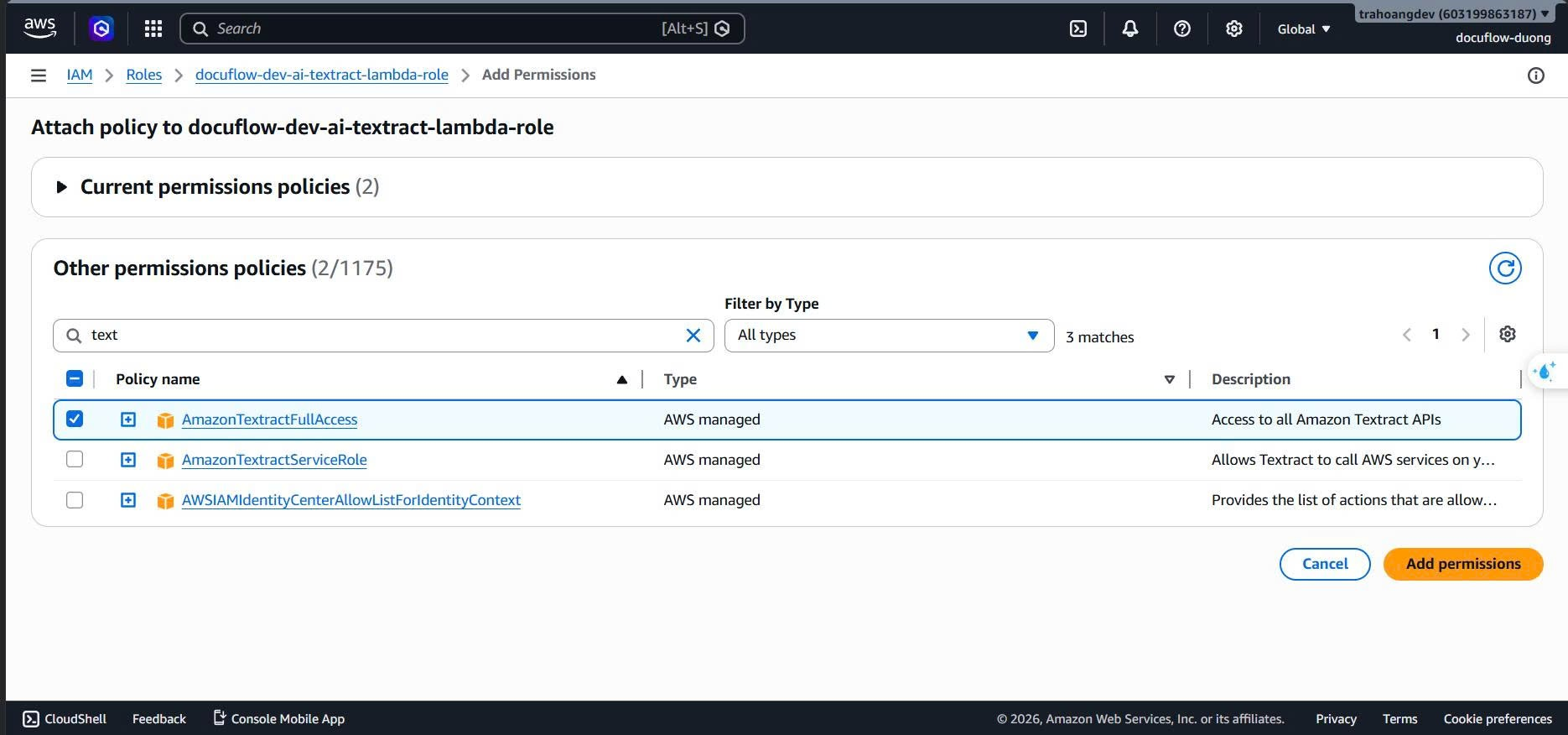
- Attach Policy: Check
docuflow-dev-ai-textract-invoke-policyalong withAWSLambdaBasicExecutionRole,AmazonS3ExpressFullAccess,AmazonTextractFullAccess.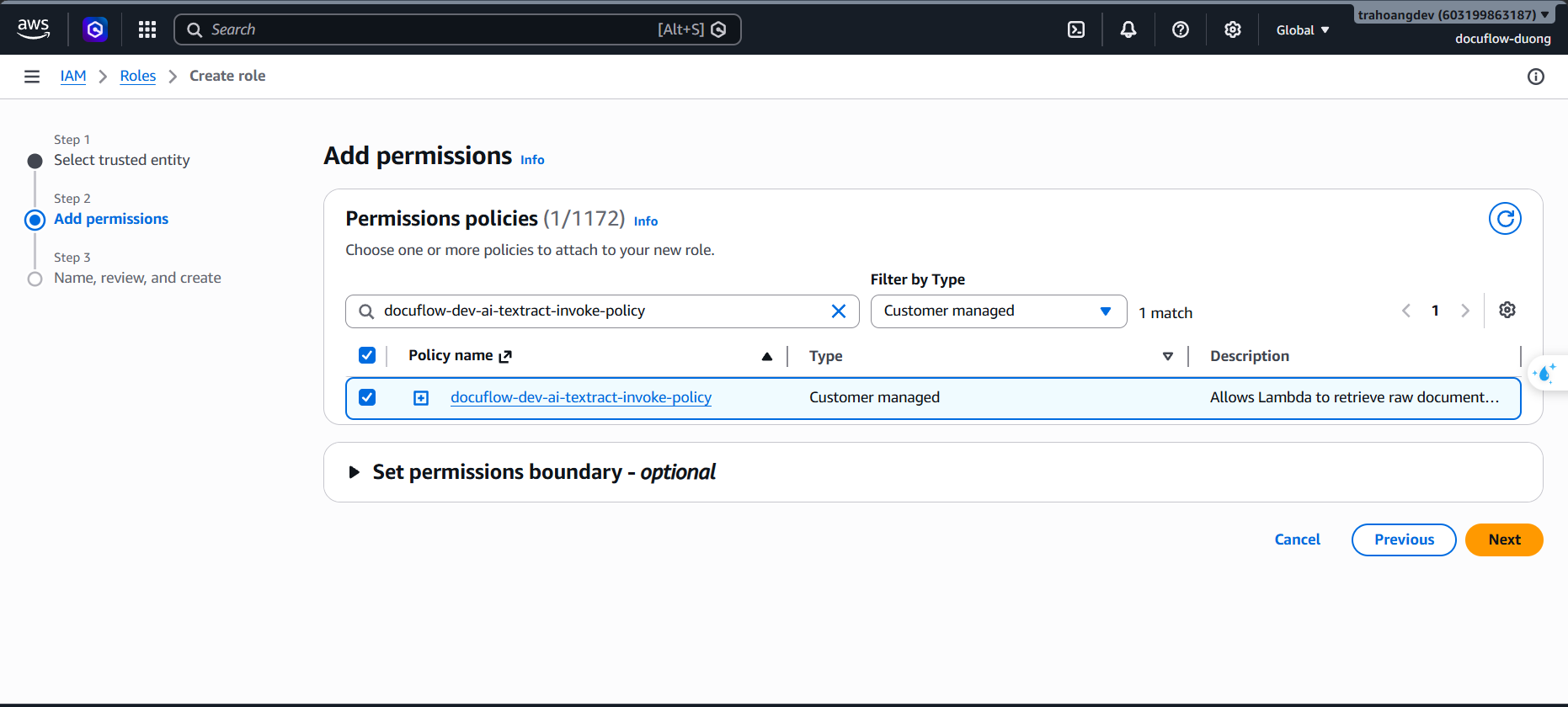
- Click Next. Set Role Name:
docuflow-dev-ai-textract-lambda-role. - Enter Description:
Execution role for extraction lambda to read raw invoices, run Textract OCR, and write thô data.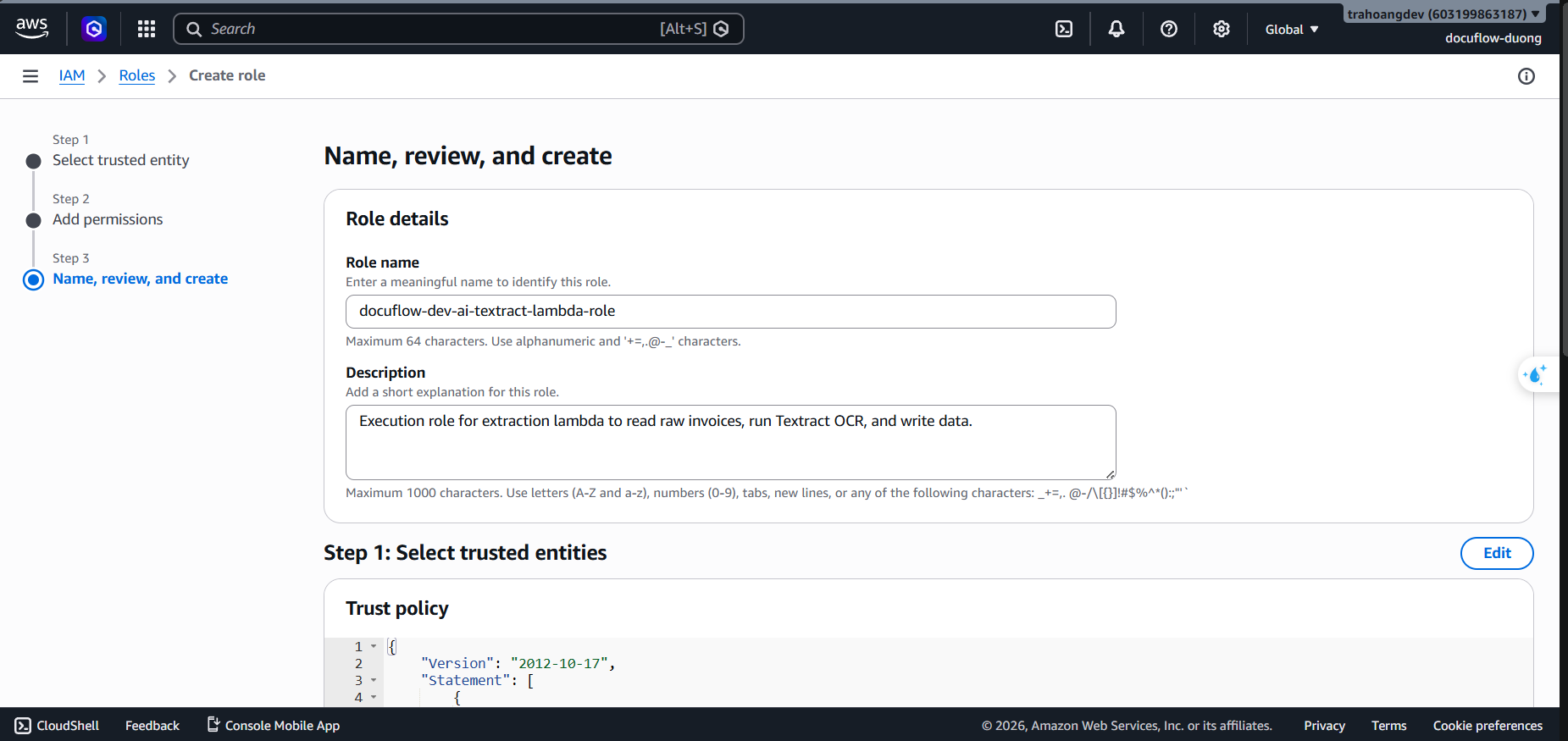
- Click Create role.
- Role 5: docuflow-dev-security-ai-proxy-role (Lambda permissions to call External AI outside AWS)
Purpose: The ultimate security checkpoint. Only this AI Proxy function is allowed to read the Token (API Key) stored in Secrets Manager to connect to external AI models.
- Steps:
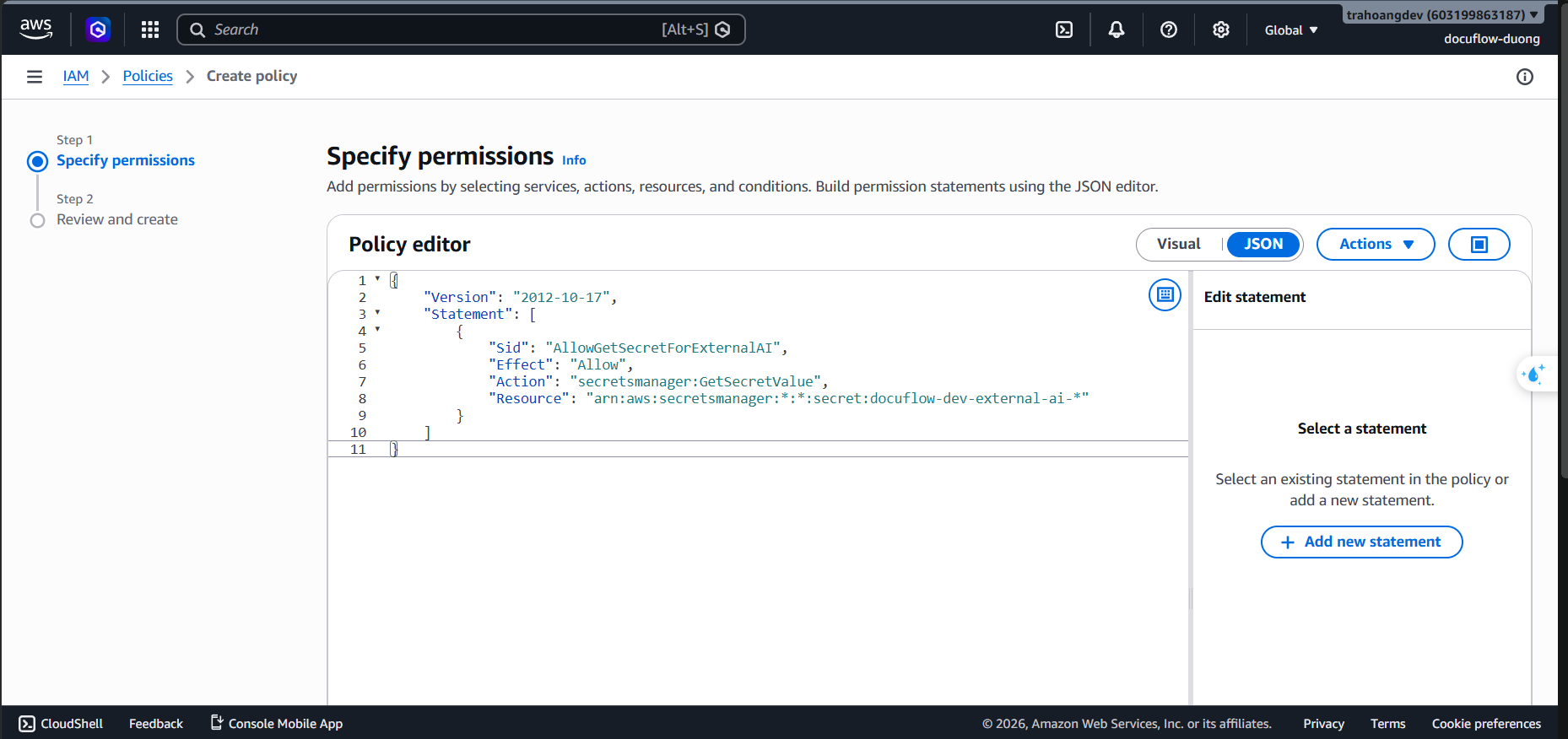
- Go to the IAM service ➔ Policies ➔ Choose Create policy (JSON).
- Paste the following JSON Policy (change the ARN accordingly if necessary):
{
    "Version": "2012-10-17",
    "Statement": [
        {
            "Sid": "AllowAIProxyToGetSecret",
            "Effect": "Allow",
            "Action": "secretsmanager:GetSecretValue",
            "Resource": "arn:aws:secretsmanager:ap-southeast-1:*:secret:docuflow-dev-external-ai-api-key-*"
        },
        {
            "Sid": "AllowAIProxyToUseKMS",
            "Effect": "Allow",
            "Action": [
                "kms:Decrypt",
                "kms:DescribeKey"
            ],
            "Resource": "arn:aws:kms:*:*:alias/docuflow-dev-main-key"
        }
    ]
}
- Click Next. Set Policy Name:
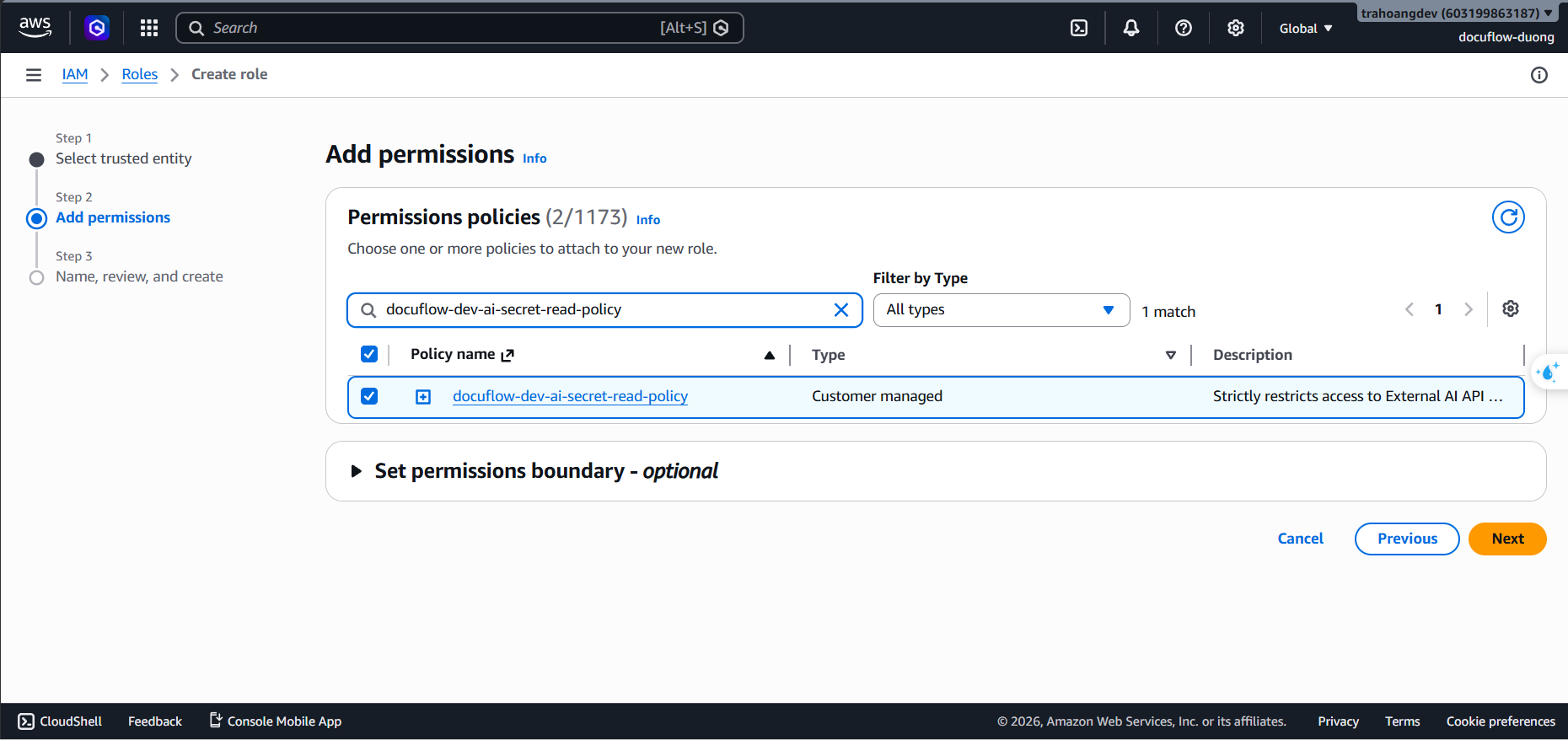
docuflow-dev-ai-secret-read-policy. - Enter Description:
Strictly restricts access to External AI API credentials stored within AWS Secrets Manager.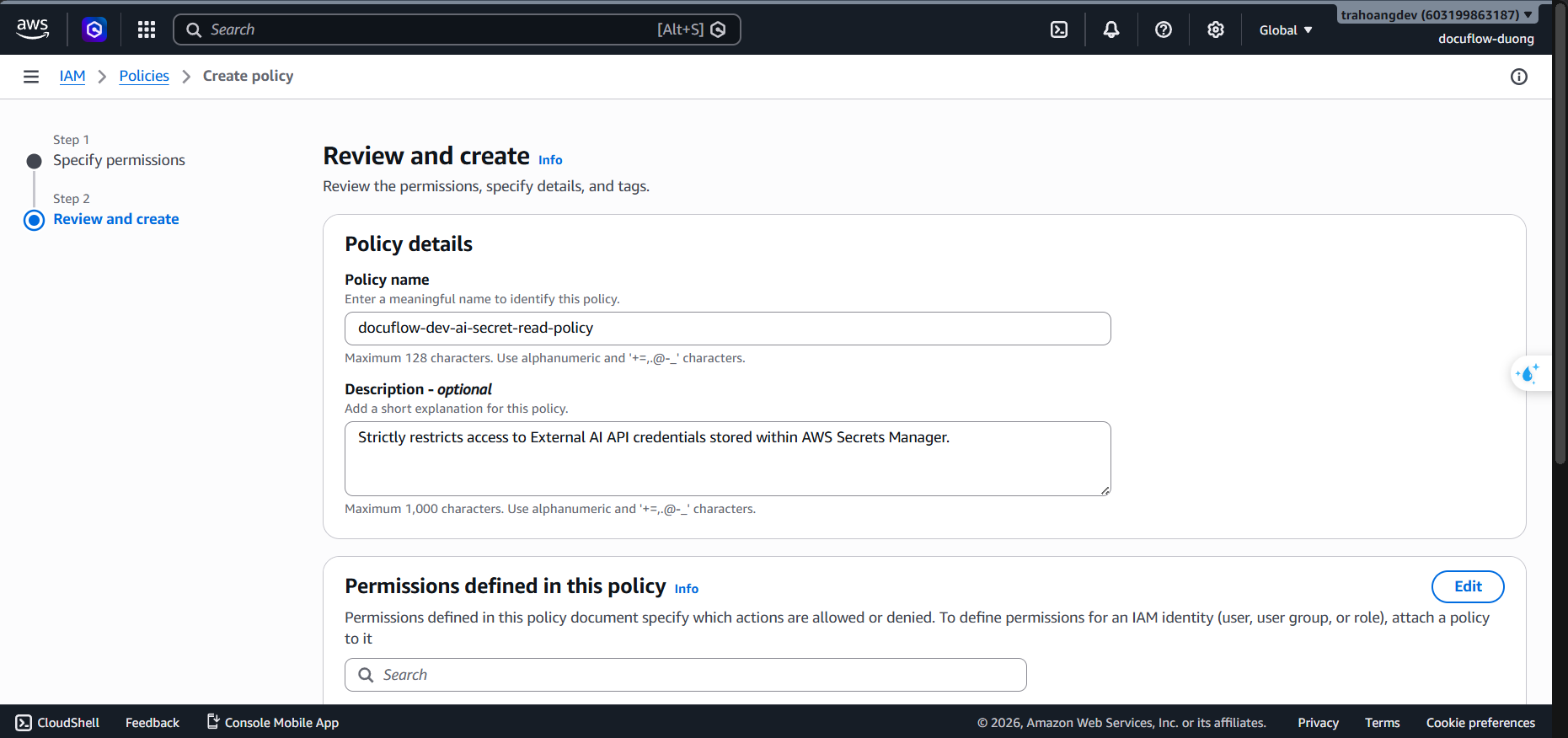
- Click Create policy.
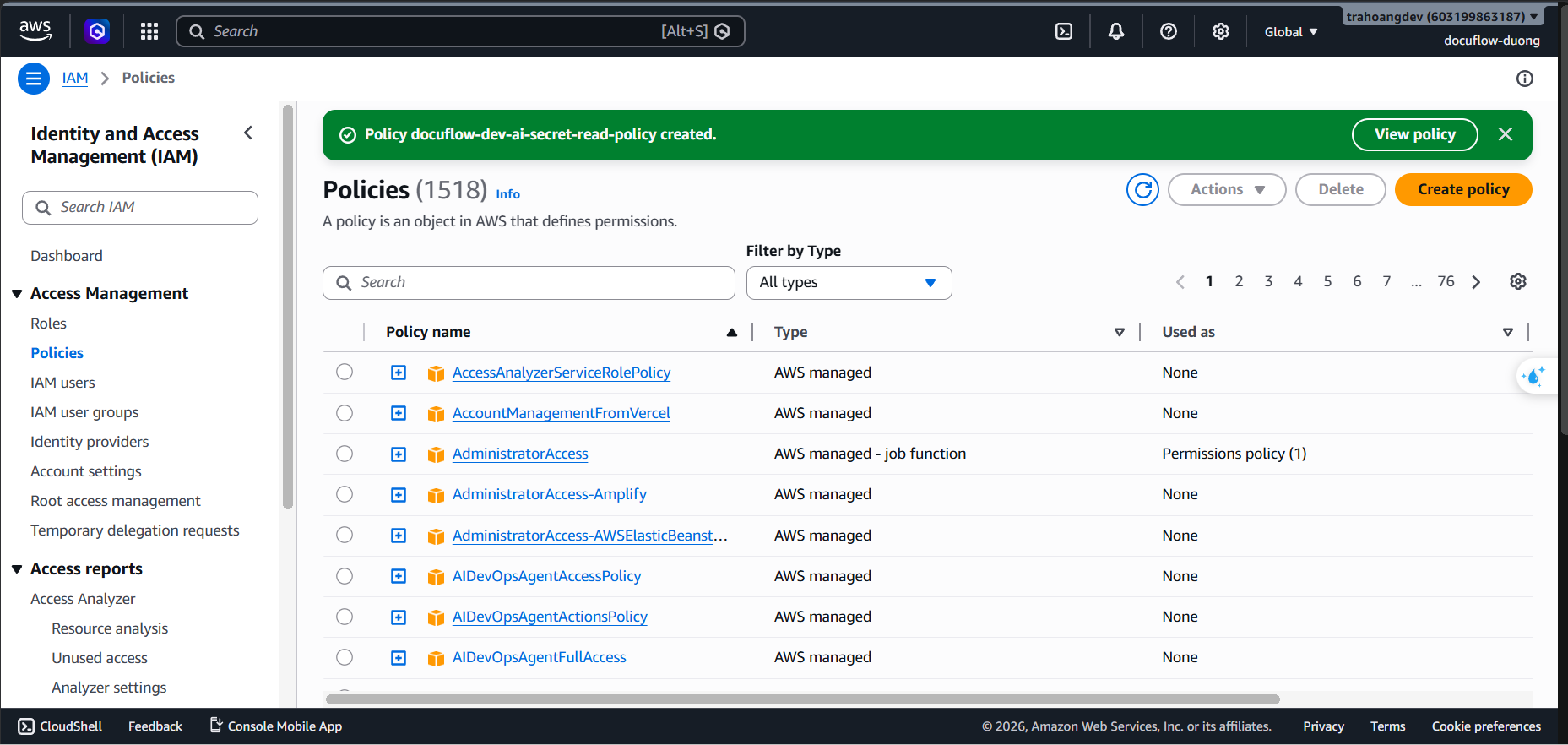
- Go to Roles ➔ Choose Create role (Trusted Entity Type: AWS service ➔ Service: Lambda).
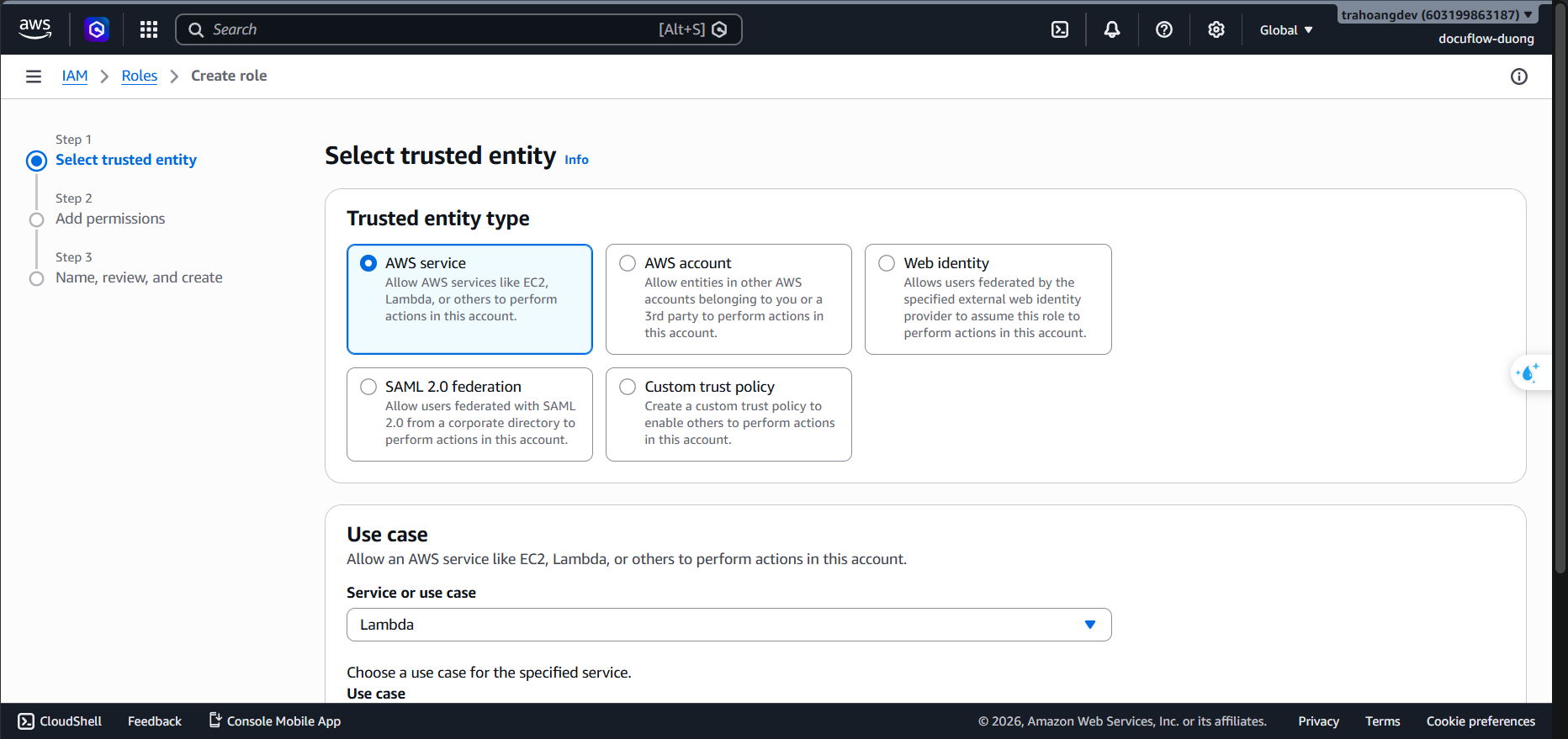
- Click Next.
- Attach Policy: Check
docuflow-dev-ai-secret-read-policyandAWSLambdaBasicExecutionRole.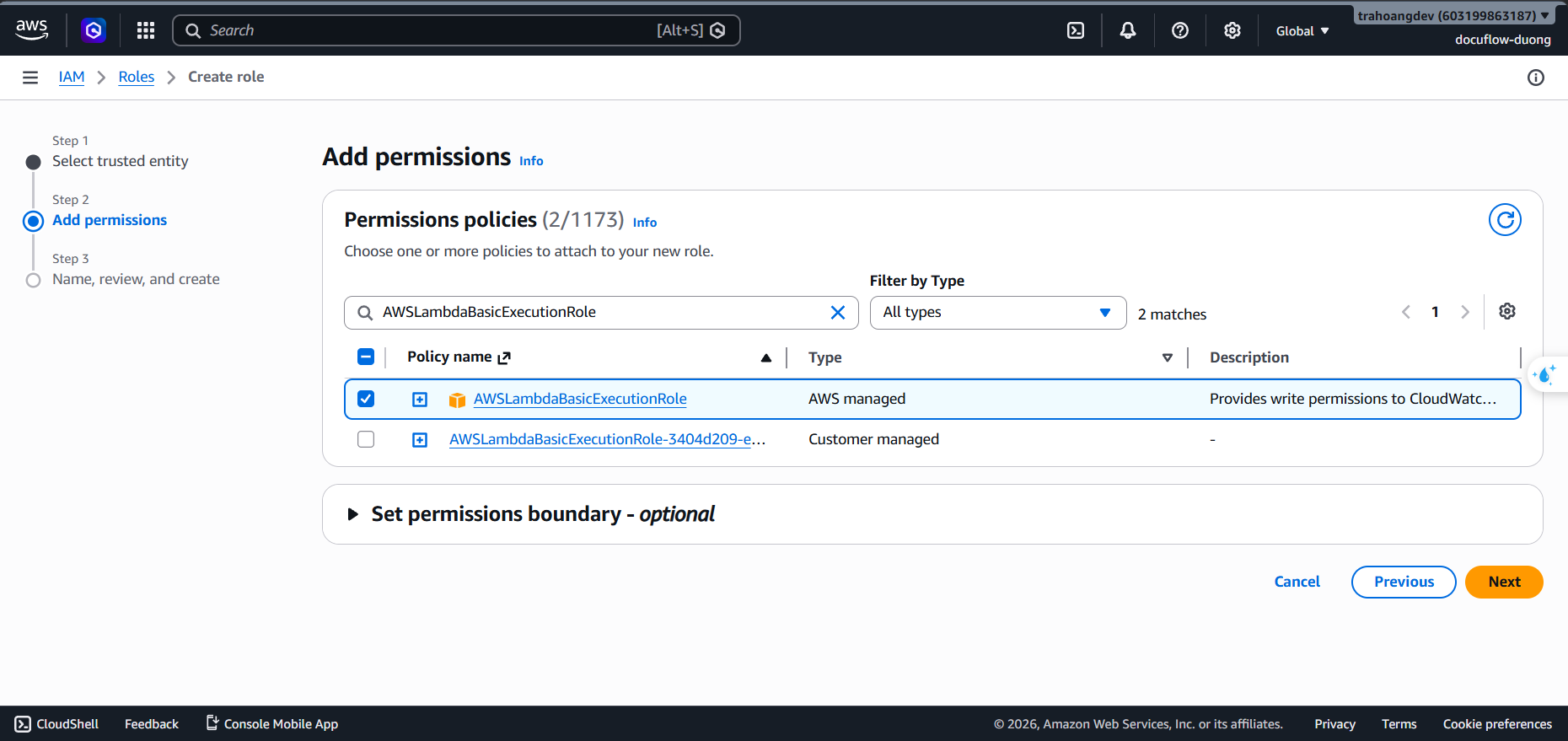
- Click Next. Set Role Name:
docuflow-dev-security-ai-proxy-role.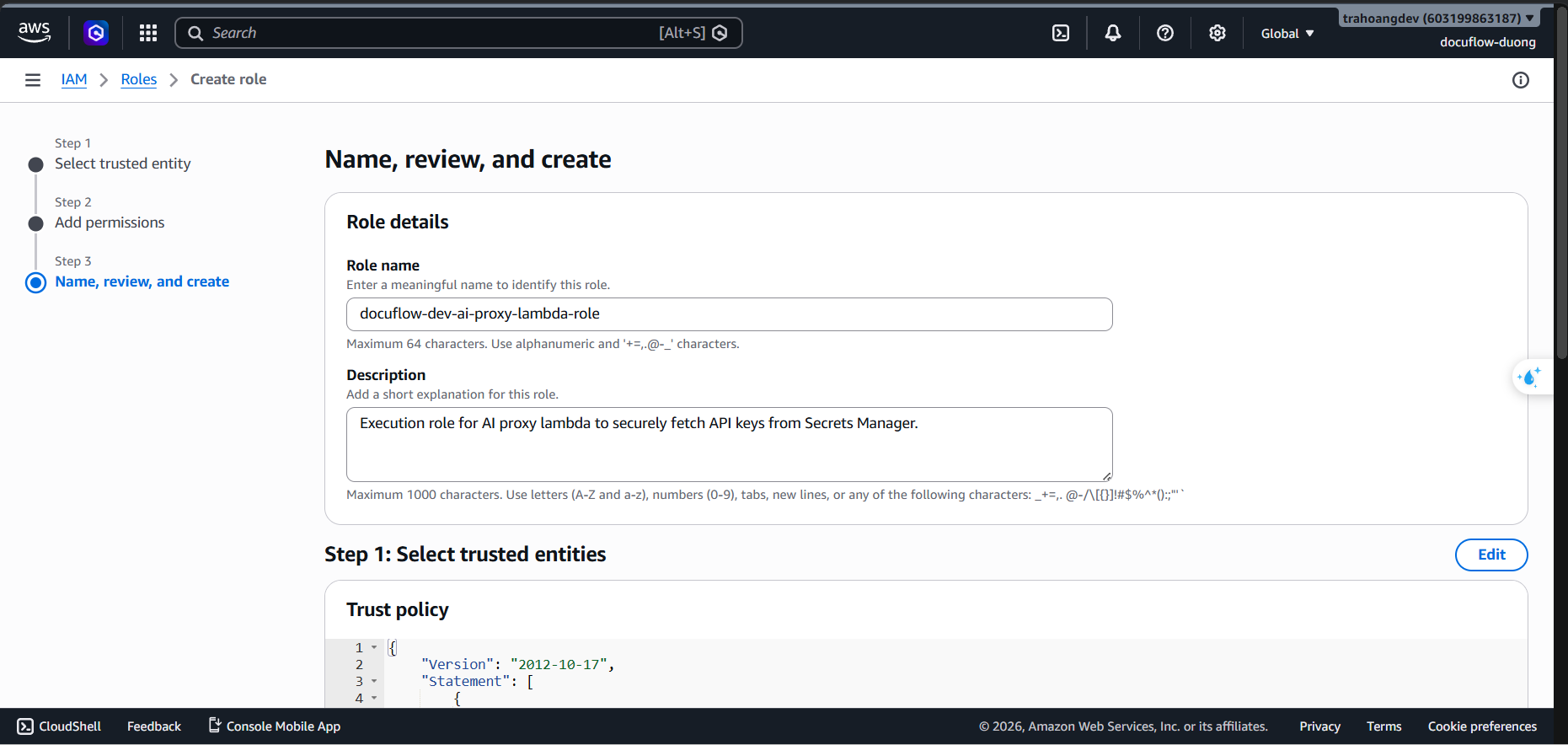
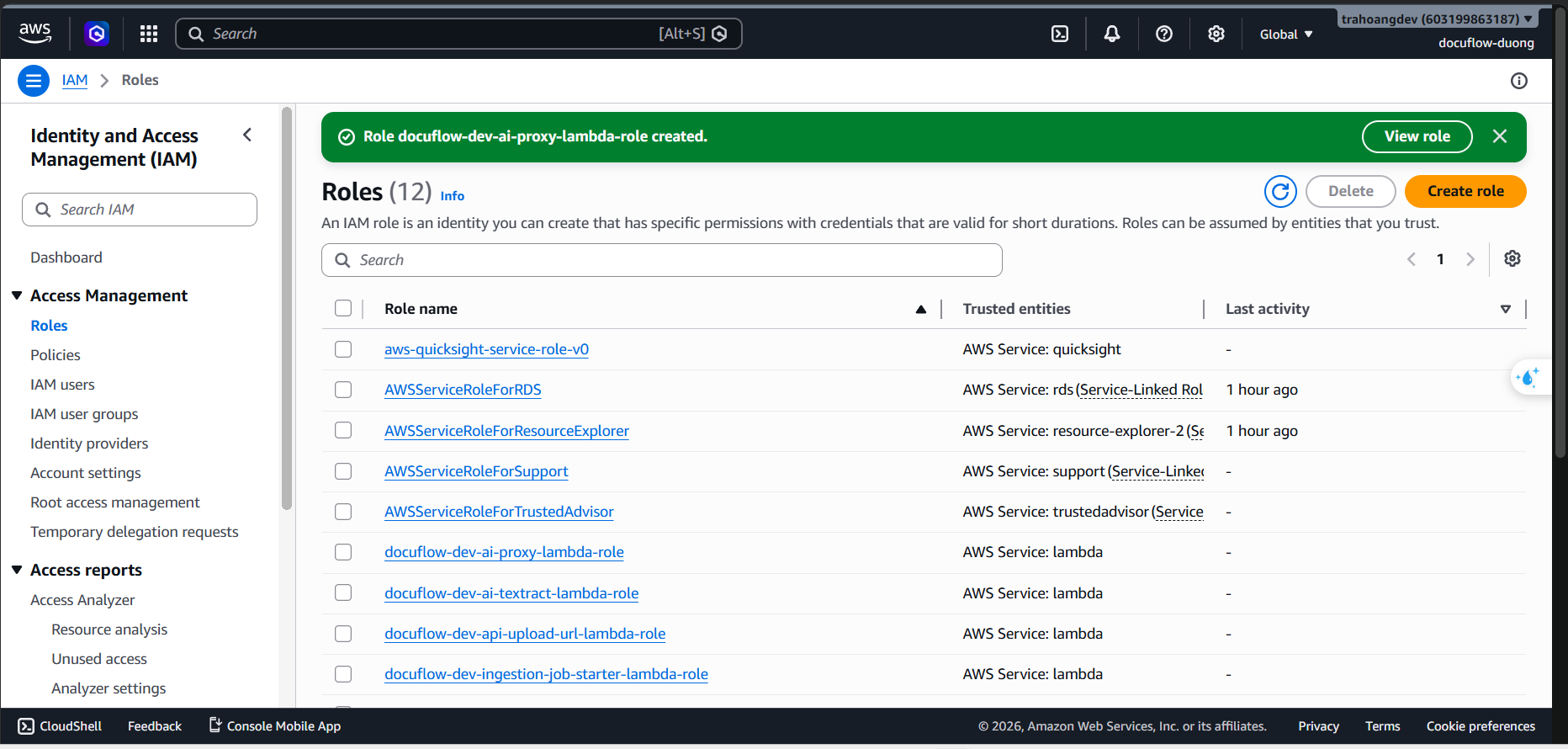
- Click Create role.
- Role 6: docuflow-dev-data-lambda-role (Lambda CRUD permissions for UI Display Data)
Purpose: Allows API Lambda functions to perform CRUD operations on DynamoDB and load files from S3 buckets to display on the Frontend.
- Steps:
- Go to the IAM service ➔ Policies ➔ Choose Create policy (JSON).
- Paste the following JSON Policy:
{
    "Version": "2012-10-17",
    "Statement": [
        {
            "Sid": "AllowReadWriteDynamoDBOnly",
            "Effect": "Allow",
            "Action": [
                "dynamodb:GetItem",
                "dynamodb:Query",
                "dynamodb:UpdateItem",
                "dynamodb:Scan",
                "dynamodb:DeleteItem"
            ],
            "Resource": [
                "arn:aws:dynamodb:*:*:table/docuflow-dev-documents-table",
                "arn:aws:dynamodb:*:*:table/docuflow-dev-documents-table/index/*"
            ]
        },
        {
            "Sid": "AllowReadS3ProcessedBucket",
            "Effect": "Allow",
            "Action": [
                "s3:GetObject",
                "s3:DeleteObject",
                "s3:ListBucket"
            ],
            "Resource": [
                "arn:aws:s3:::docuflow-dev-processed-*/*",
                "arn:aws:s3:::docuflow-dev-raw-*/*",
                "arn:aws:s3:::docuflow-dev-processed-*",
                "arn:aws:s3:::docuflow-dev-raw-*"
            ]
        }
    ]
}
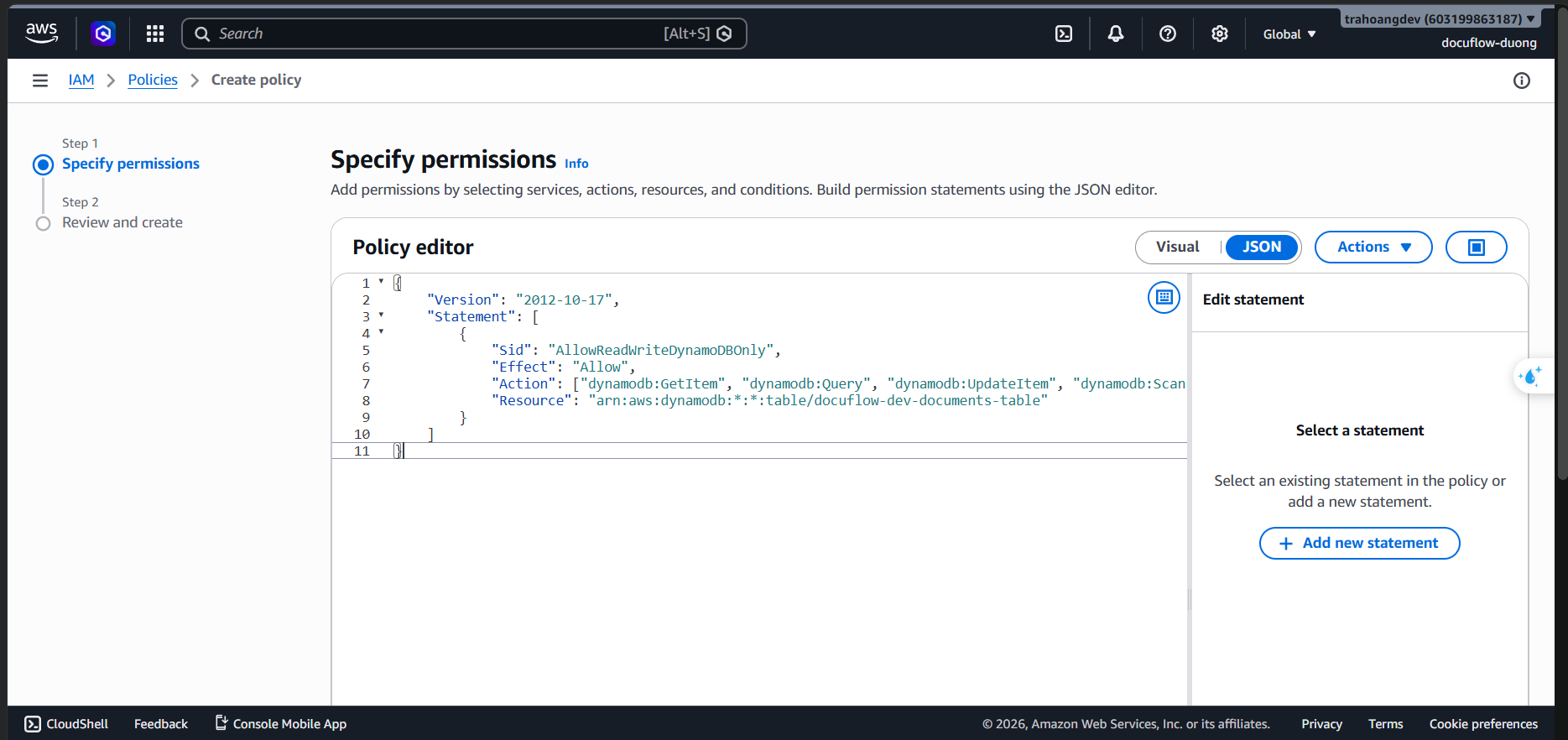 3. Click Next. Set Policy Name:
 docuflow-dev-data-dynamodb-access-policy. 4. Enter Description:Allows standard query, scanning, and metadata update operations against the core DynamoDB documents table.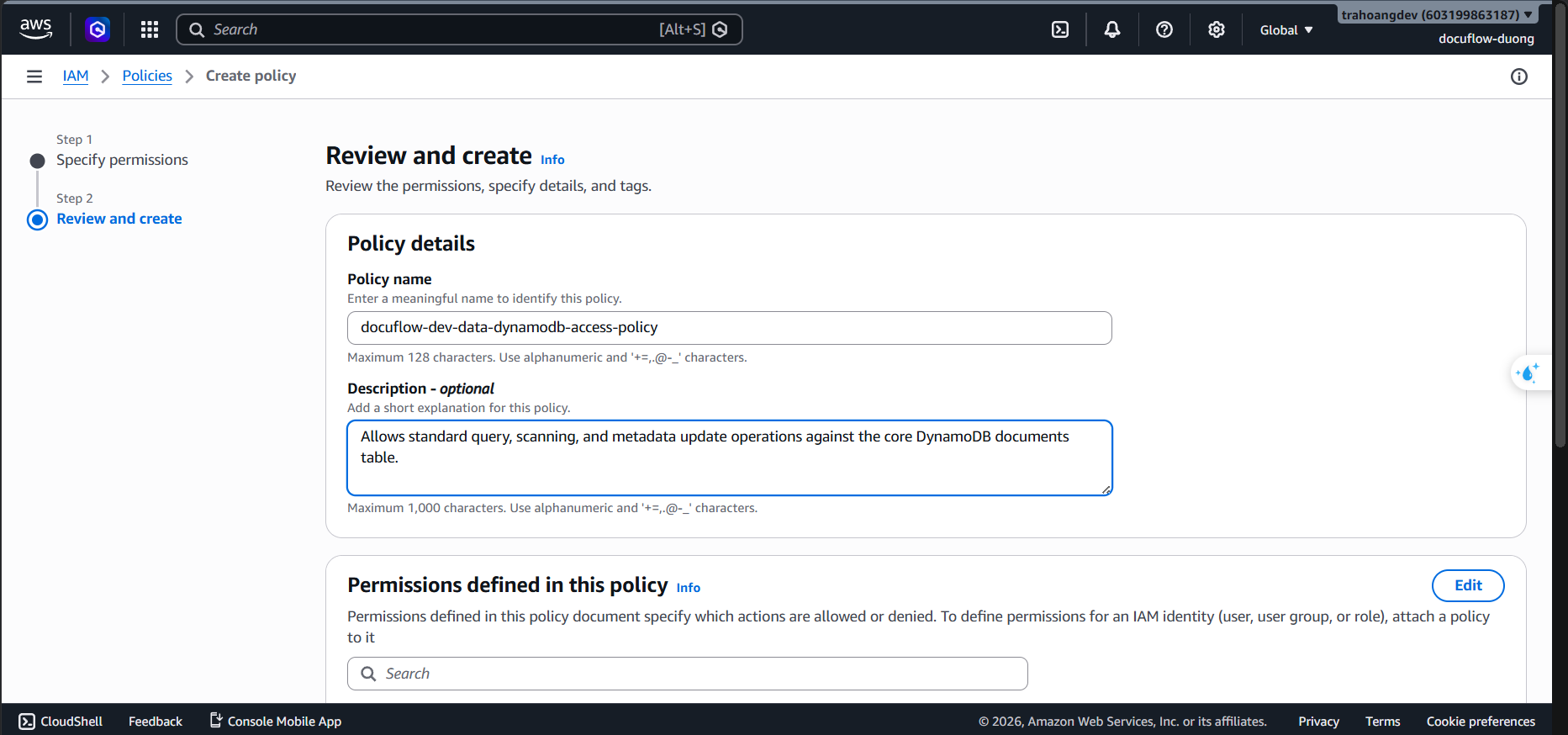 5. Click Create policy.
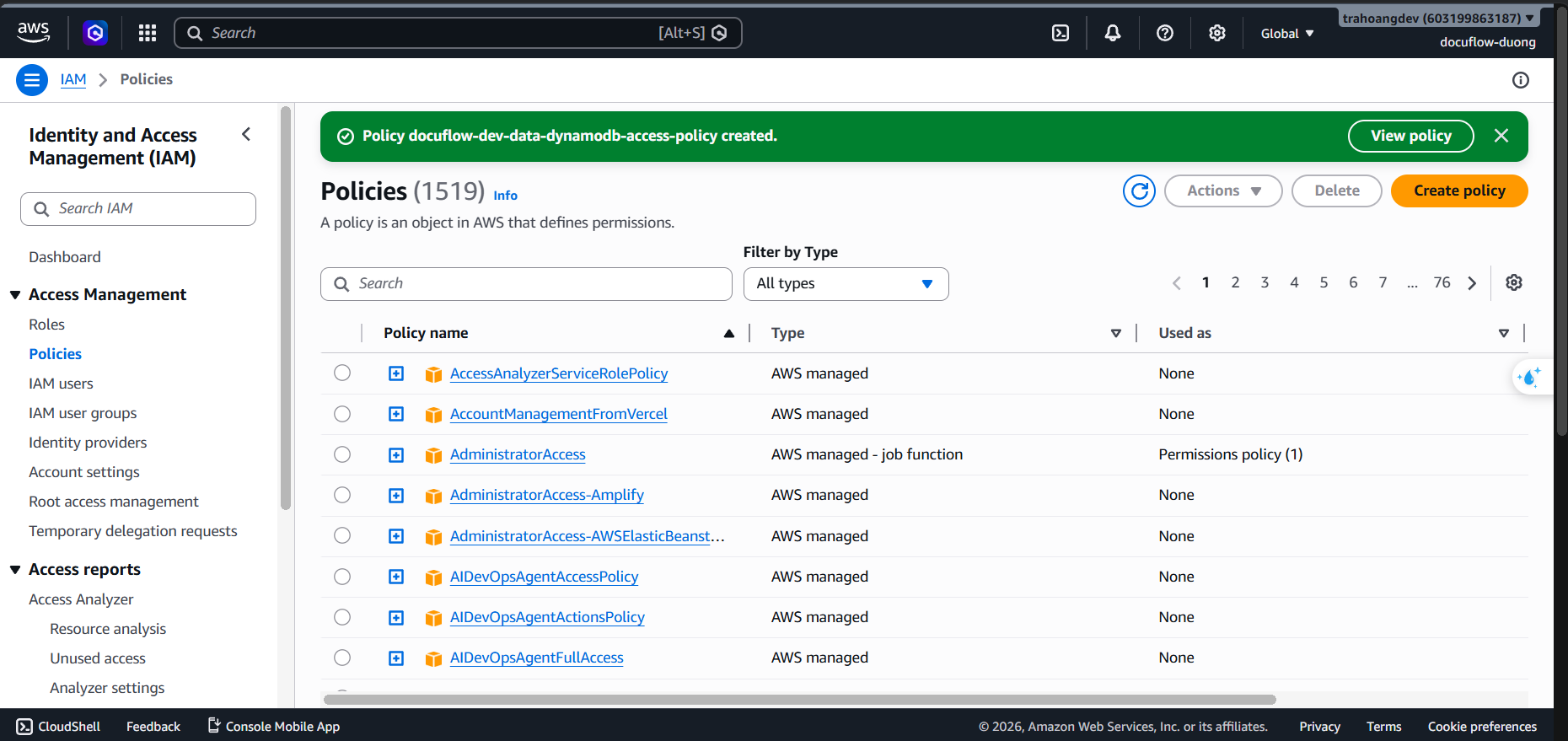 6. Go to Roles ➔ Choose Create role (Trusted Entity Type: AWS service ➔ Service: Lambda).
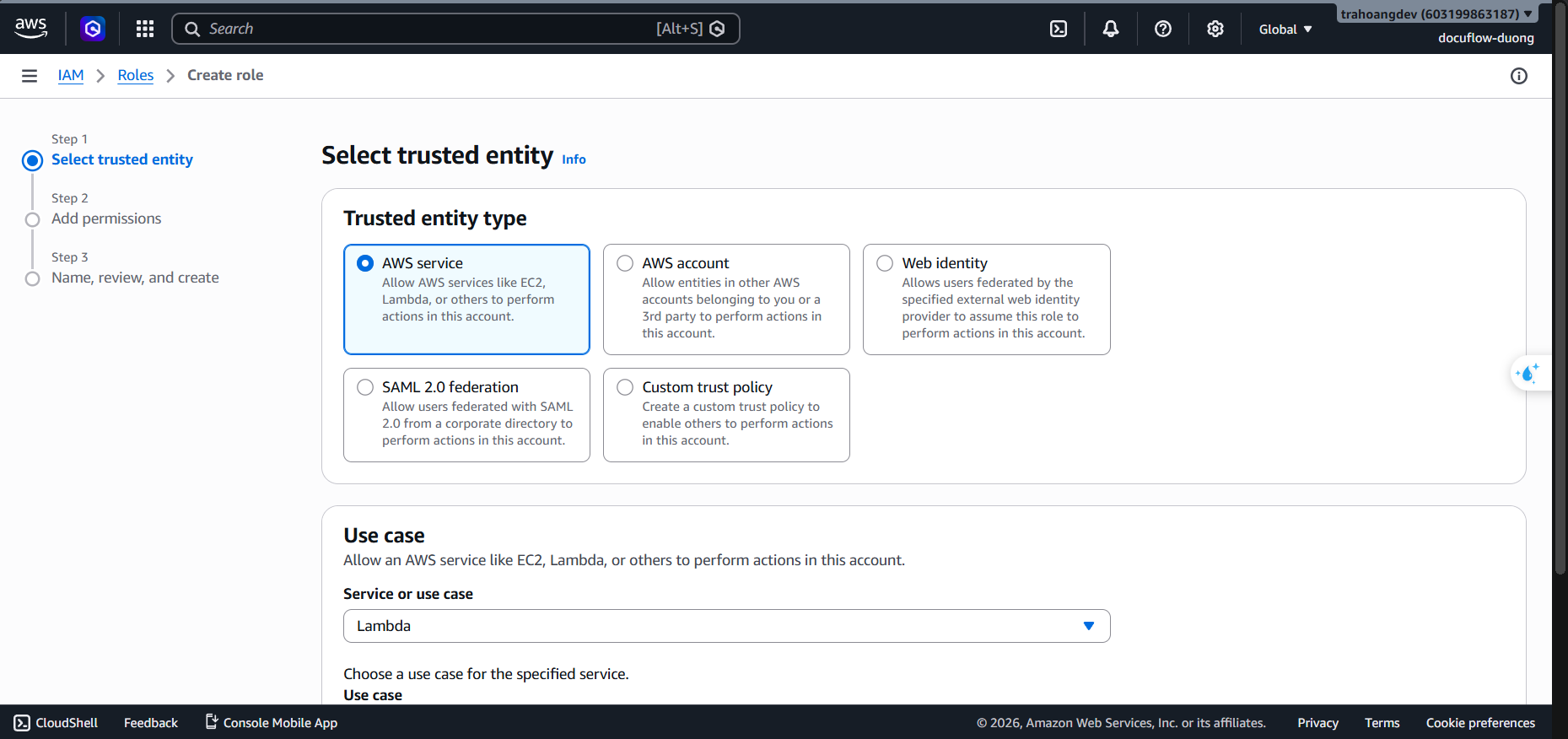 7. Click Next.
8. Attach Policy: Check
7. Click Next.
8. Attach Policy: Check docuflow-dev-data-dynamodb-access-policyandAWSLambdaBasicExecutionRole.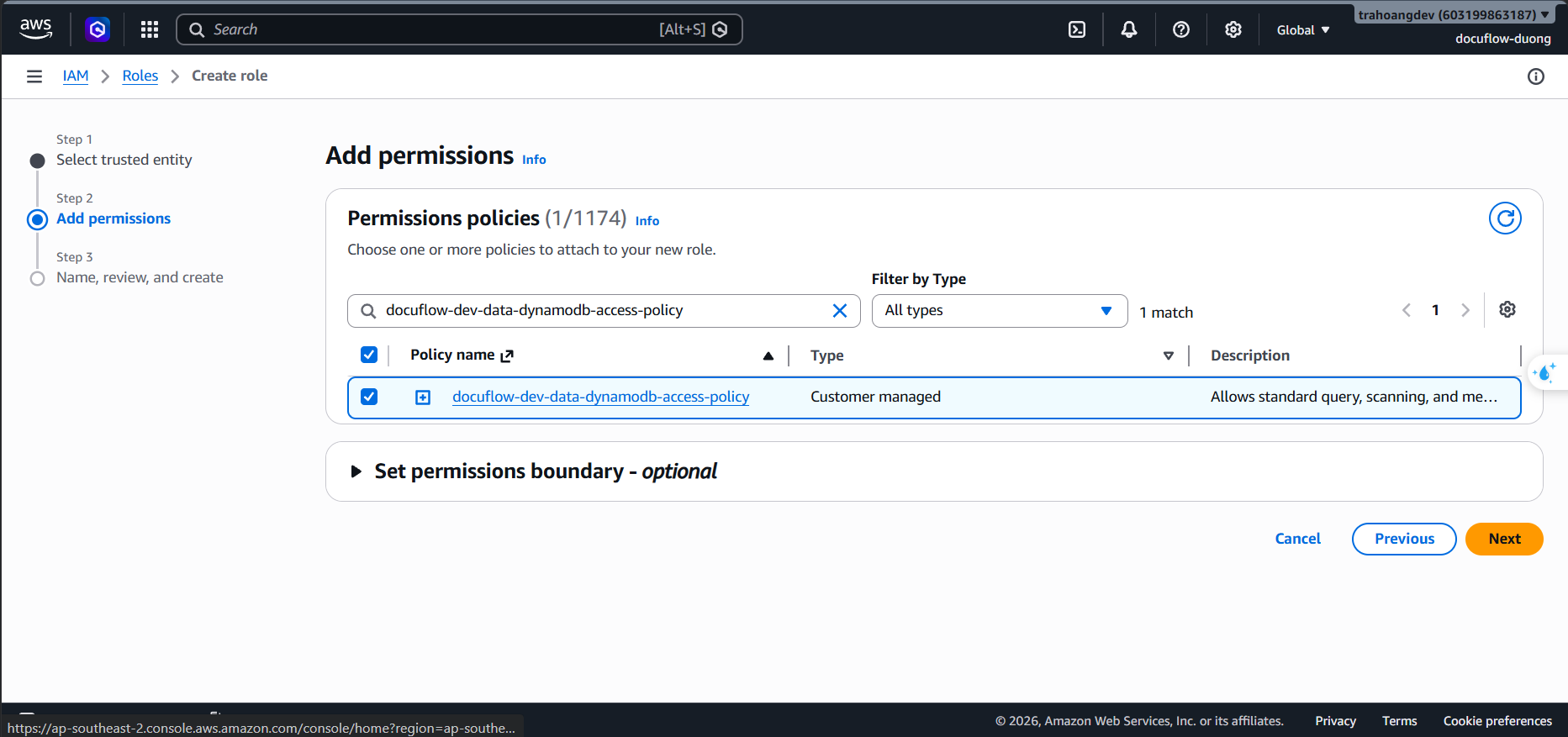
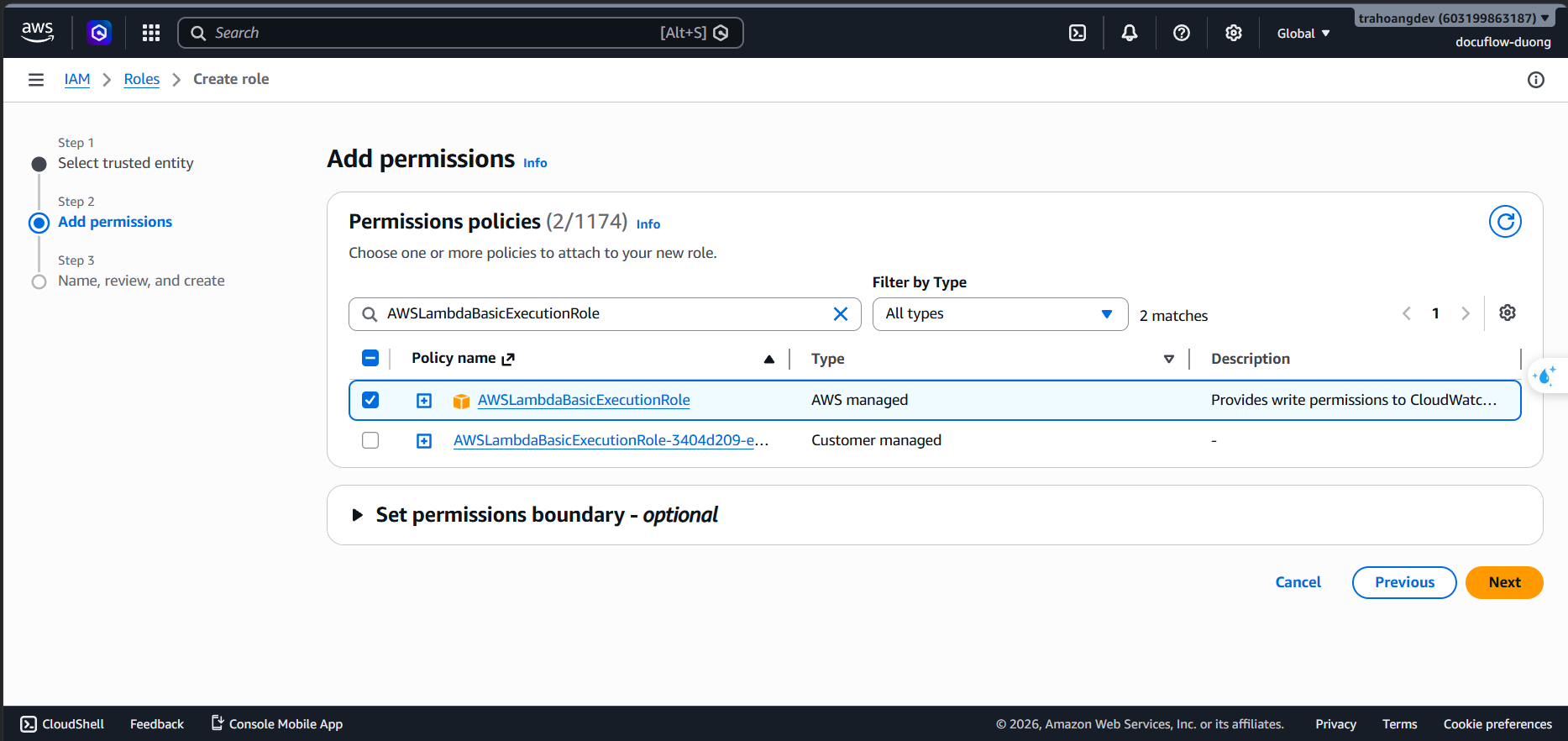 9. Click Next. Set Role Name:
 docuflow-dev-data-lambda-role.
- Enter Description:
Execution role for metadata/data lambda to fetch and modify documents inside DynamoDB.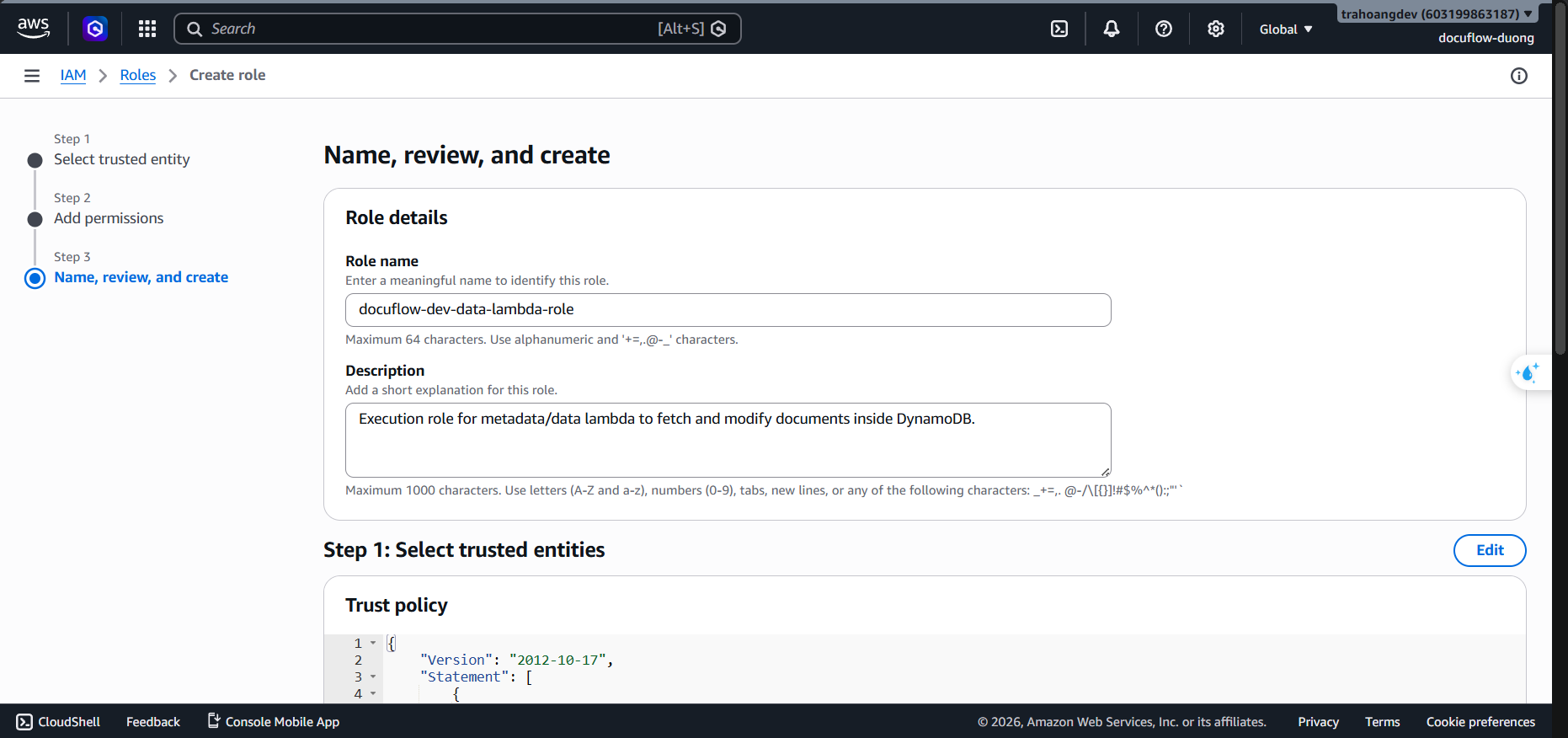
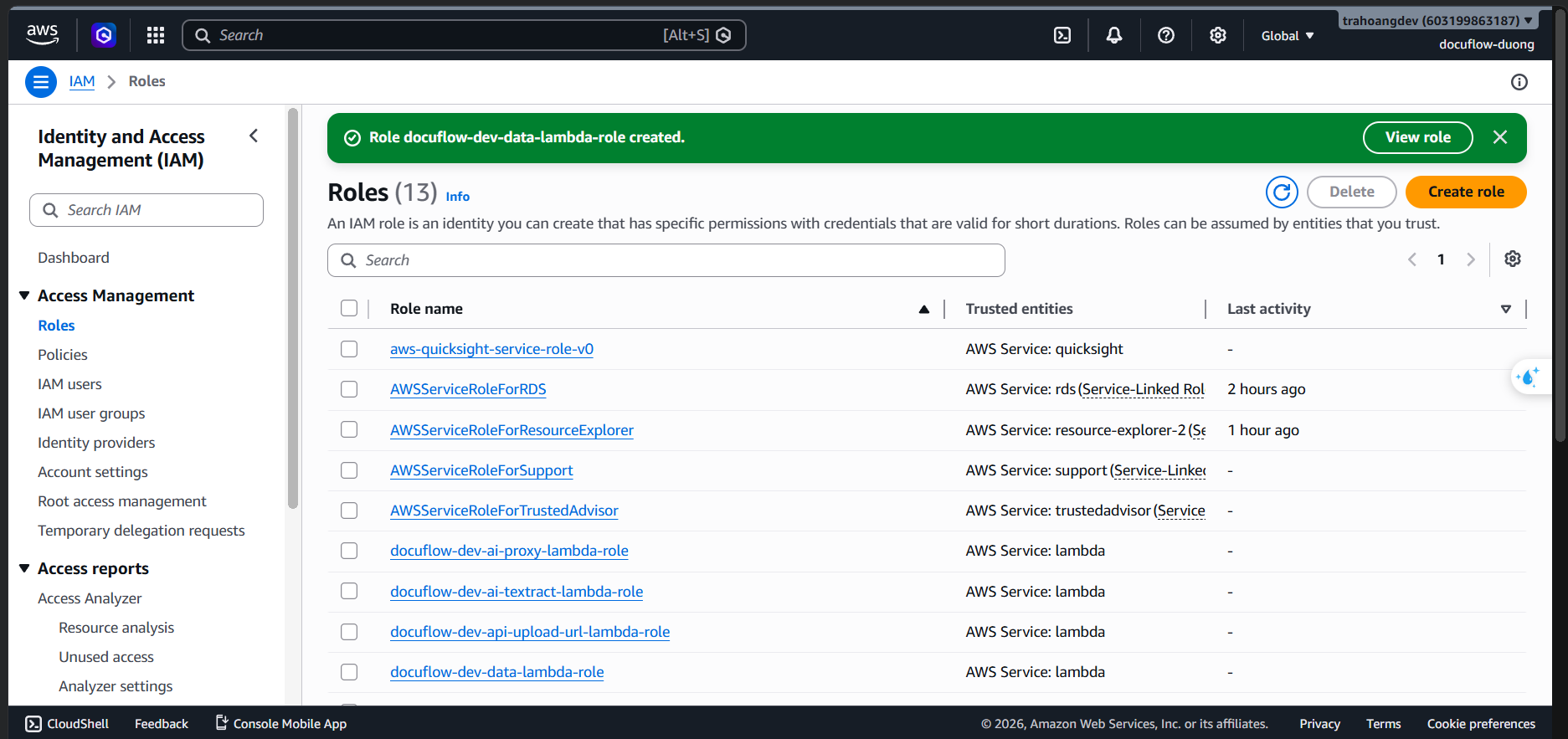
- Click Create role.
- Role 7: docuflow-dev-notification-lambda-role (Lambda permissions to send Alert notifications)
Purpose: Pushes system error notifications or abnormal invoice alerts to an SNS Topic to trigger the automated email flow for the team.
- Steps:
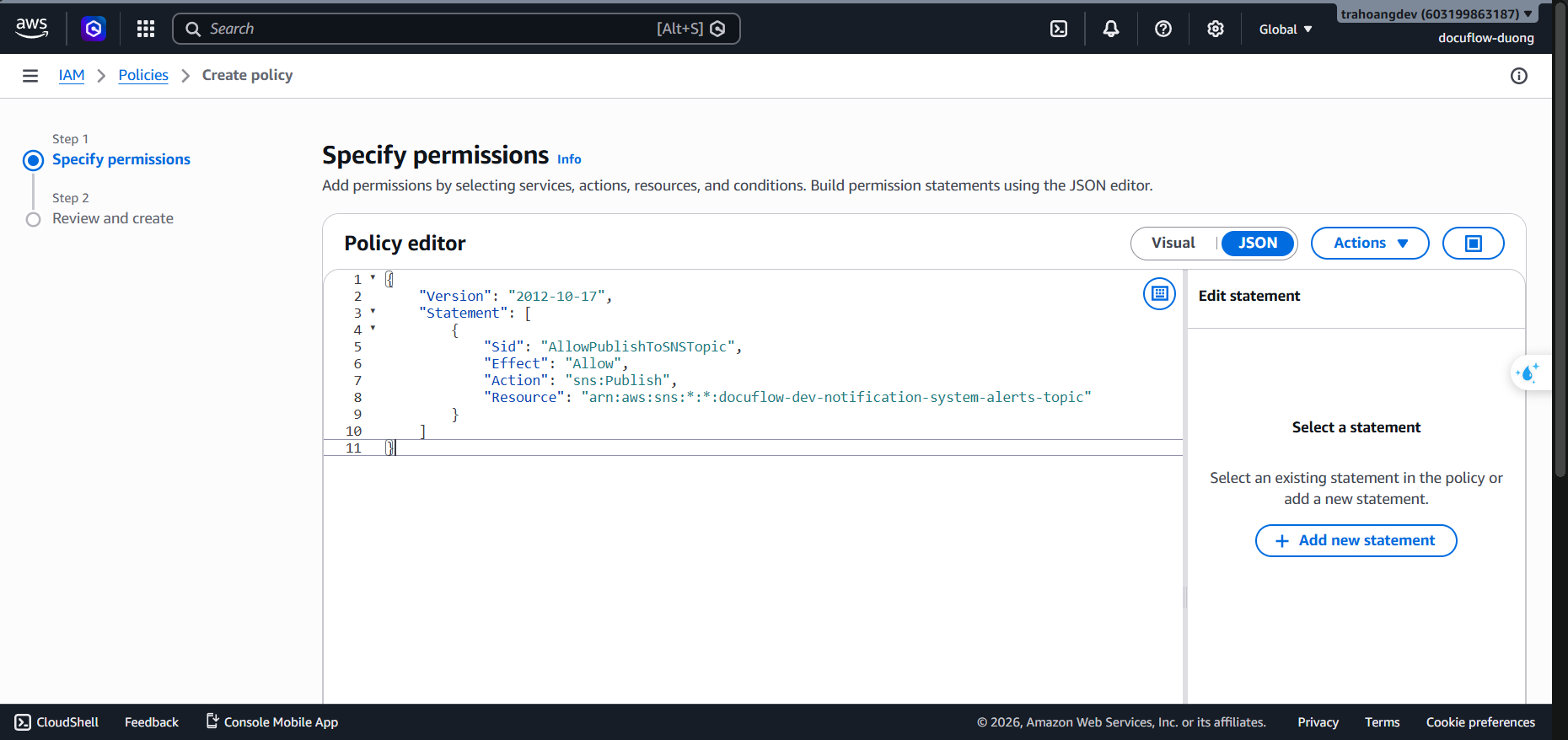
- Go to the IAM service ➔ Policies ➔ Choose Create policy (JSON).
- Paste the following JSON Policy:
{
    "Version": "2012-10-17",
    "Statement": [
        {
            "Sid": "AllowPublishToSNSTopic",
            "Effect": "Allow",
            "Action": "sns:Publish",
            "Resource": "arn:aws:sns:*:*:docuflow-dev-notification-system-alerts-topic"
        }
    ]
}
- Click Next. Set Policy Name:
docuflow-dev-notification-sns-publish-policy. - Enter Description:
Enables system alerting components to publish failure logs and anomaly alerts to the target SNS Topic.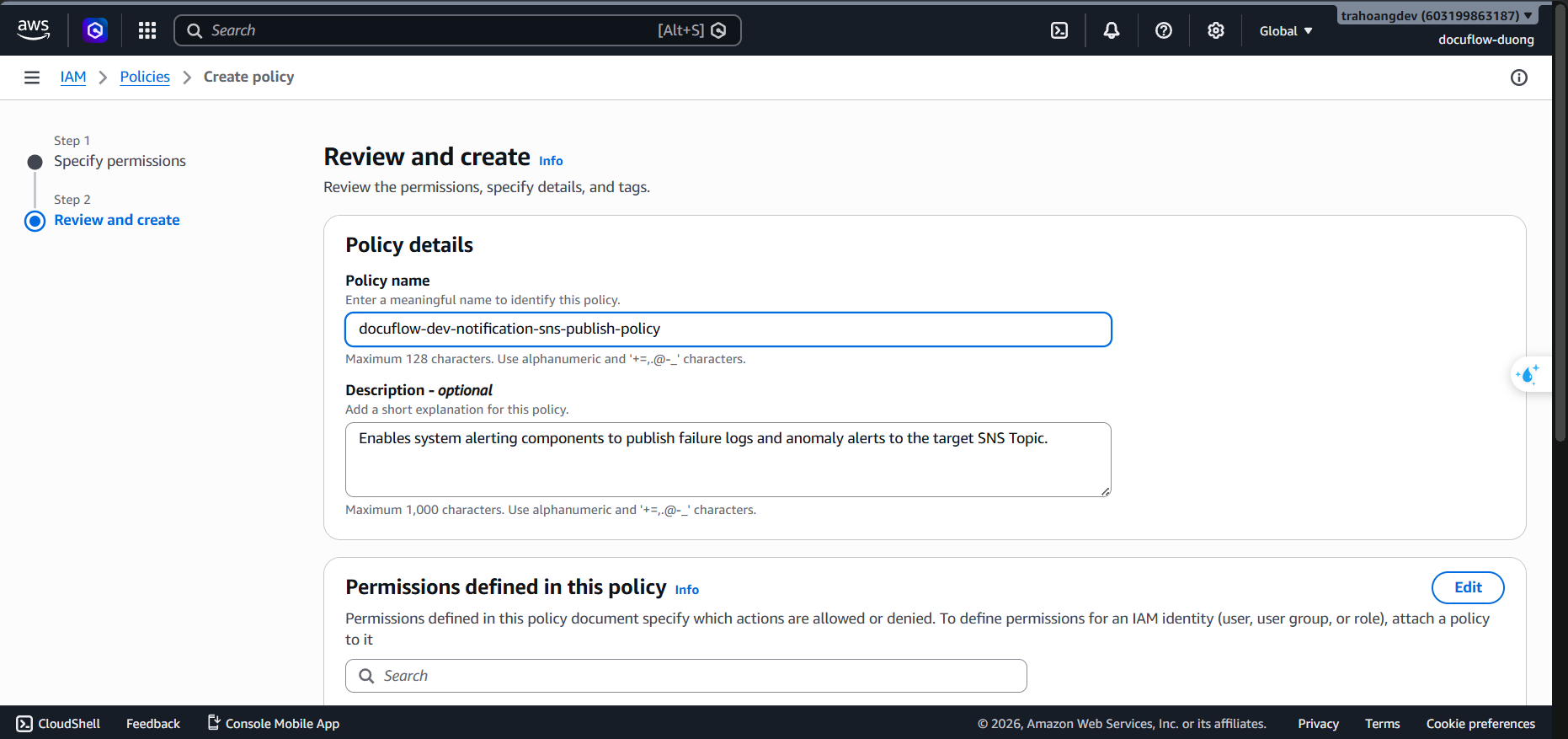
- Click Create policy.
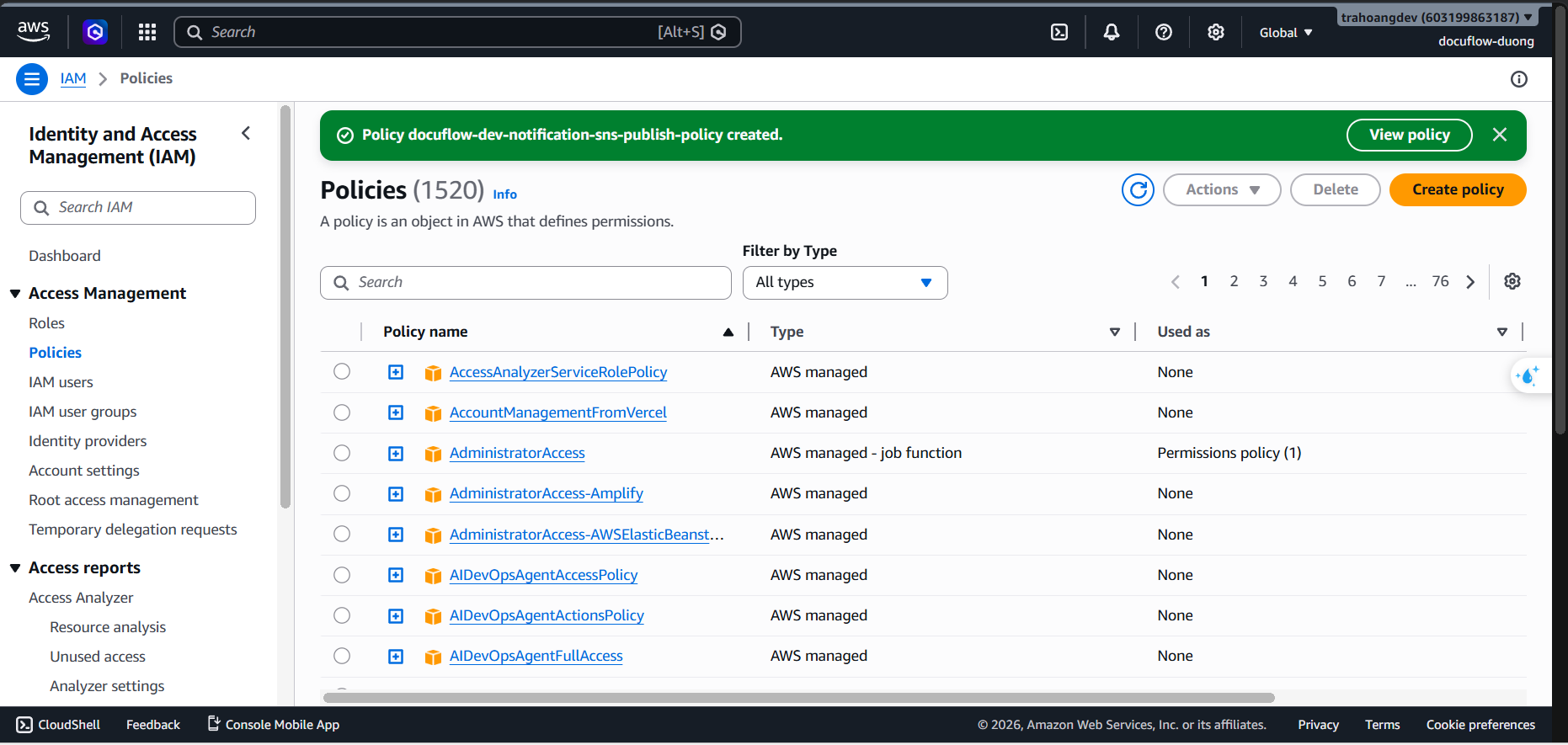
- Go to Roles ➔ Choose Create role (Trusted Entity Type: AWS service ➔ Service: Lambda).
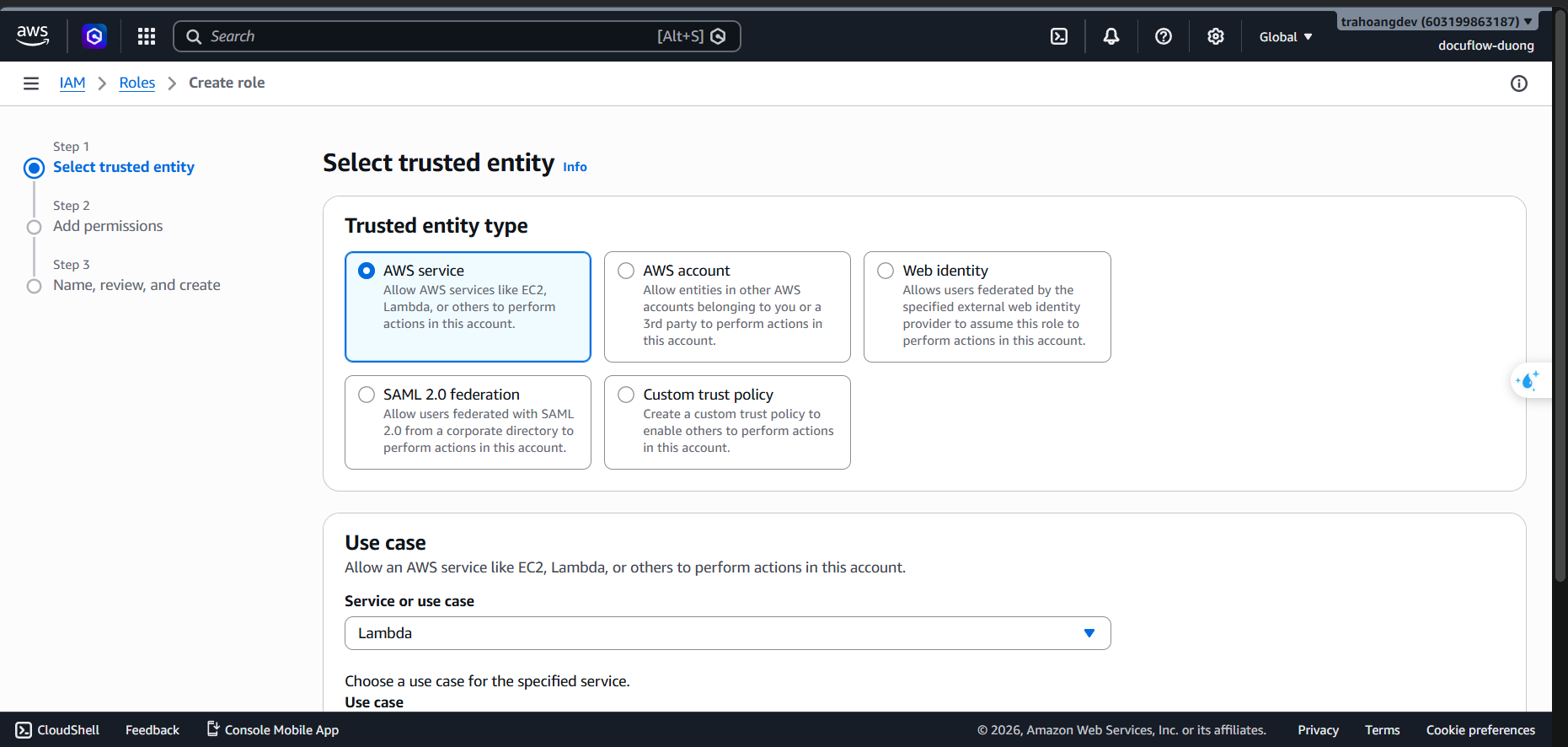
- Click Next.
- Attach Policy: Check
docuflow-dev-notification-sns-publish-policyandAWSLambdaBasicExecutionRole.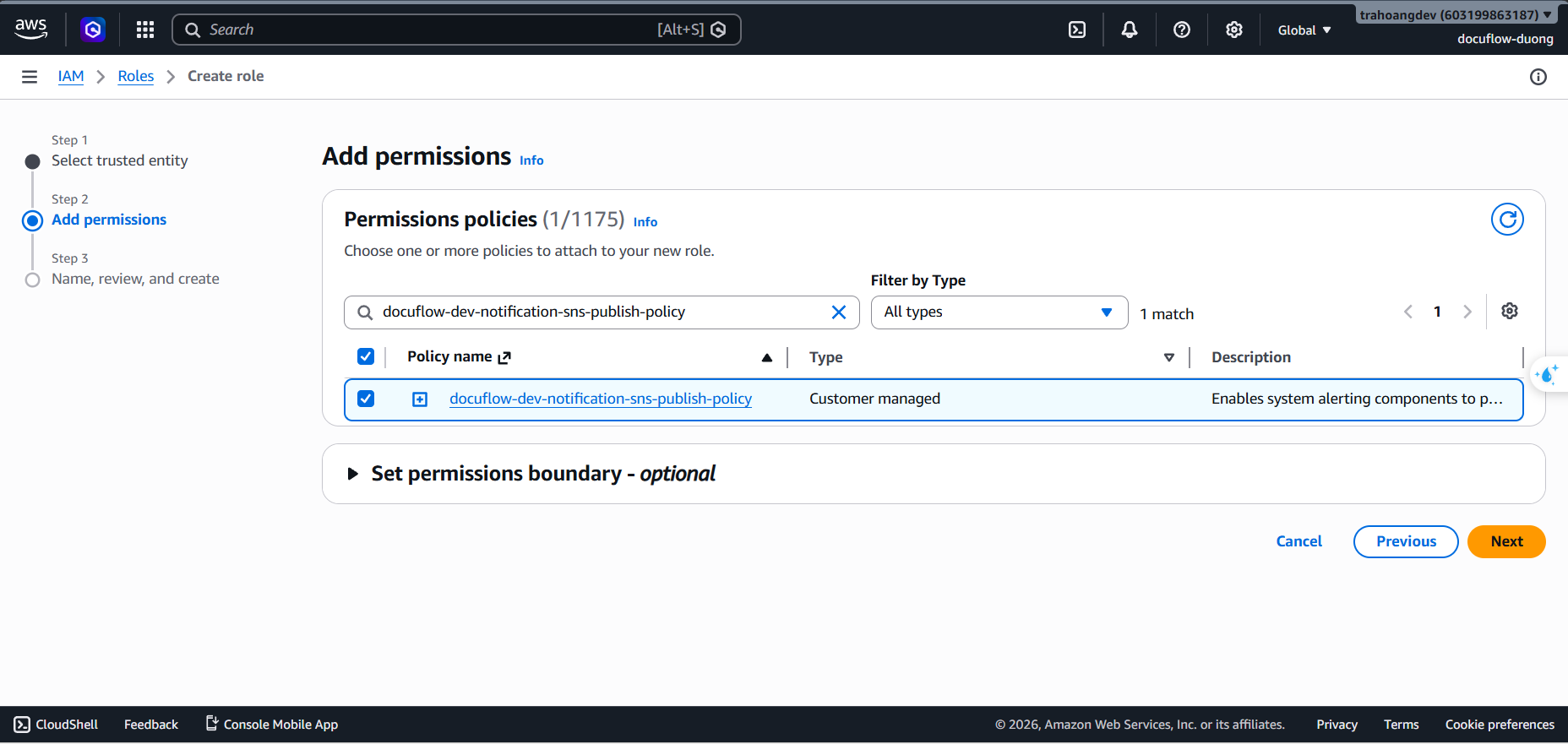
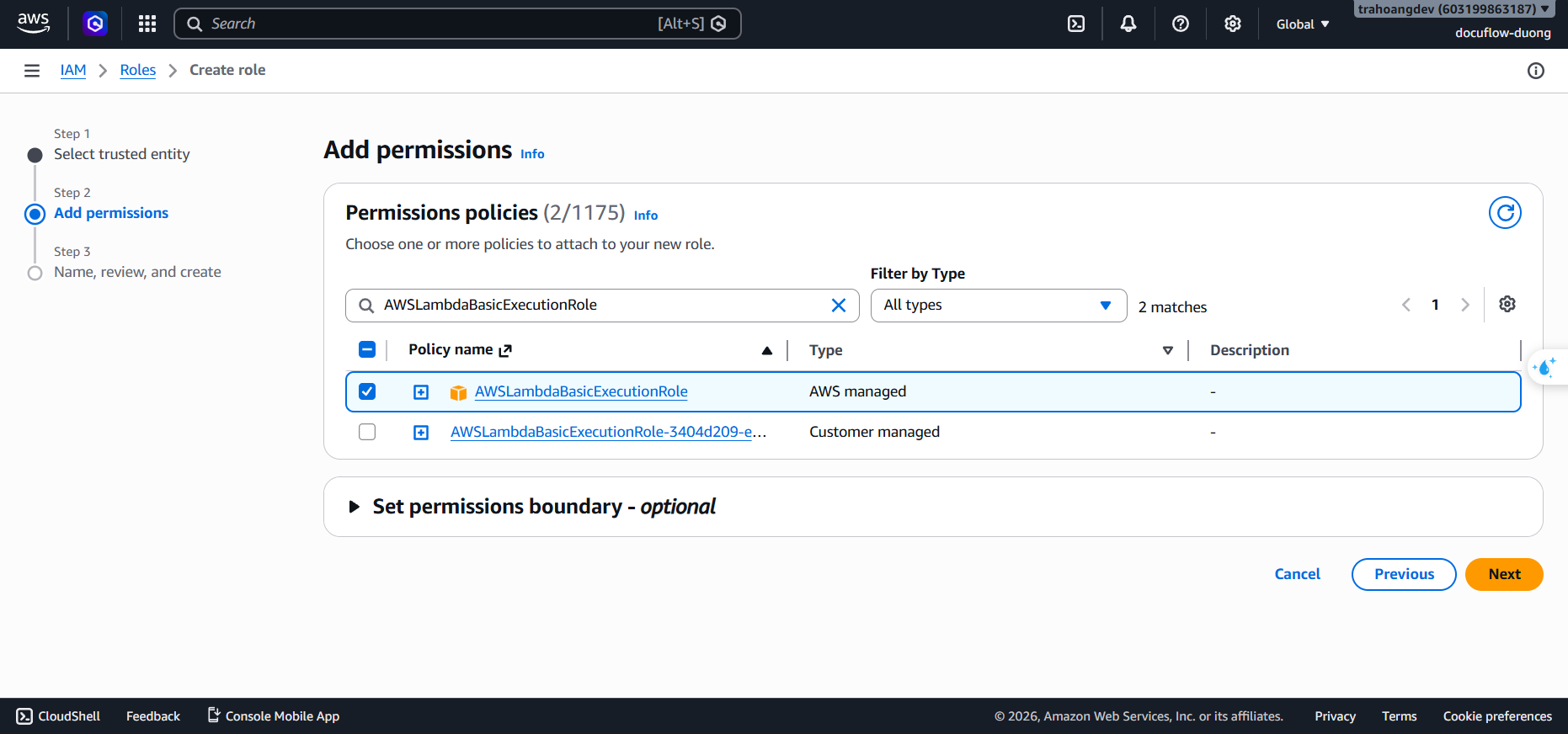
- Click Next. Set Role Name:
docuflow-dev-notification-lambda-role. - Enter Description:
Execution role for notification component to broadcast system alert messages via SNS.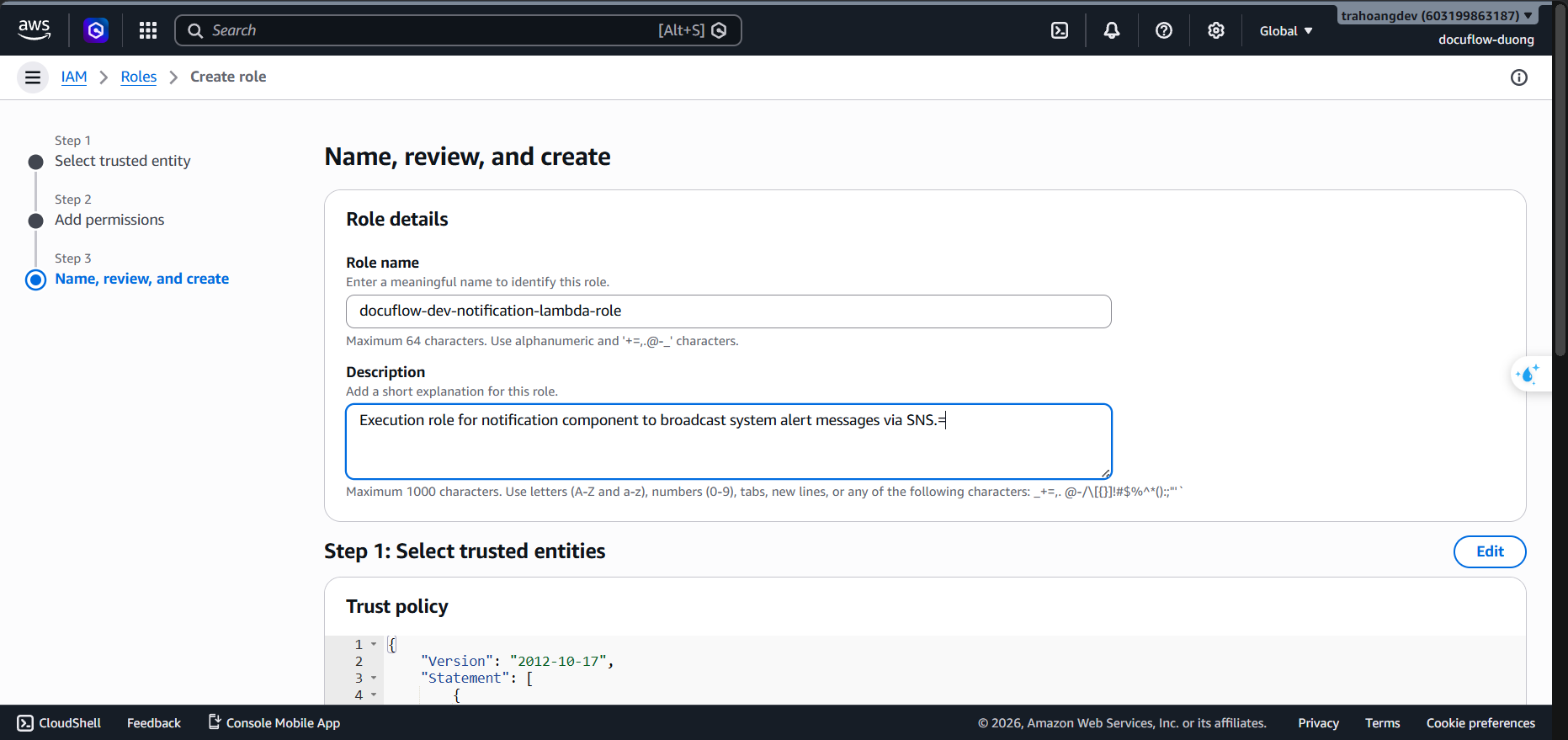
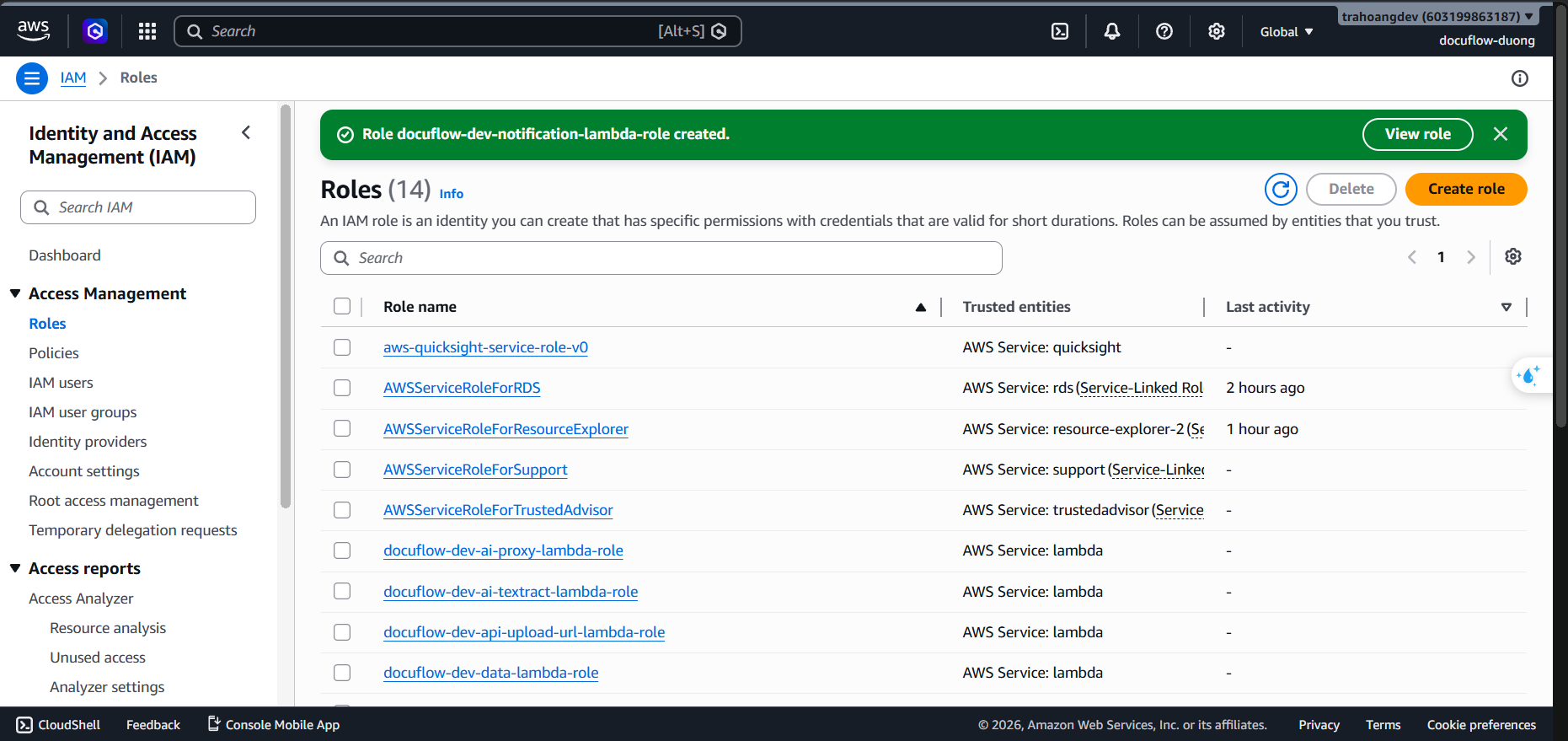
- Click Create role.
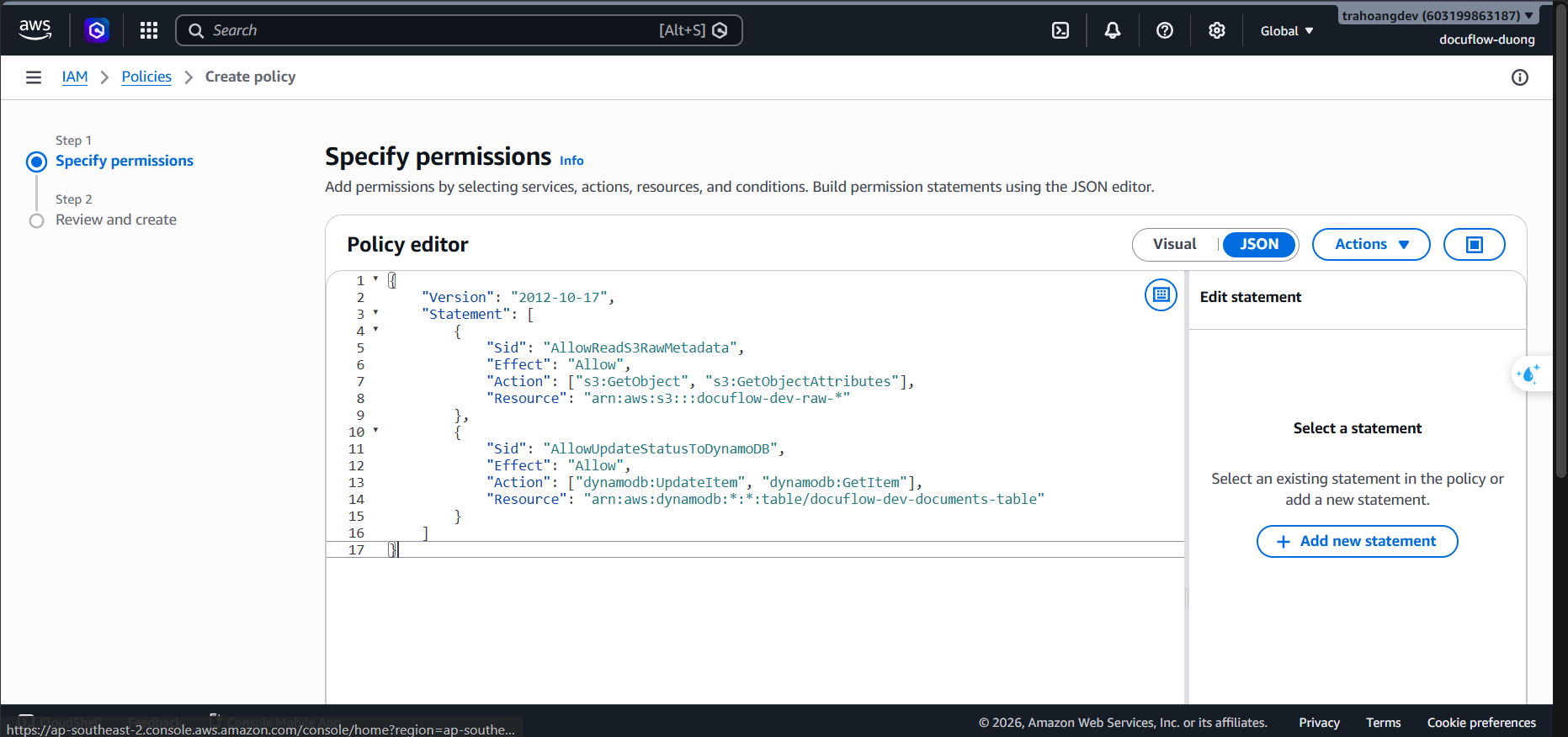
- Role 8: docuflow-dev-workflow-validate-lambda-role (Lambda permissions for input data validation)
Purpose: Responsible for validating file formats and sizes from the S3 Raw bucket, and recording the initial PROCESSING state in DynamoDB.
- Steps:
- Go to the IAM service ➔ Policies ➔ Choose Create policy (JSON).
- Paste the following JSON Policy:
{
    "Version": "2012-10-17",
    "Statement": [
        {
            "Sid": "AllowReadS3RawMetadata",
            "Effect": "Allow",
            "Action": [
                "s3:GetObject",
                "s3:GetObjectAttributes"
            ],
            "Resource": "arn:aws:s3:::docuflow-dev-raw-*"
        },
        {
            "Sid": "AllowUpdateStatusToDynamoDB",
            "Effect": "Allow",
            "Action": [
                "dynamodb:UpdateItem",
                "dynamodb:GetItem"
            ],
            "Resource": "arn:aws:dynamodb:*:*:table/docuflow-dev-documents-table"
        }
    ]
}
- Click Next. Set Policy Name:
docuflow-dev-ingestion-validation-policy. - Enter Description:
Allows Validate Lambda to check file metadata in S3 Raw and update initial processing state in DynamoDB.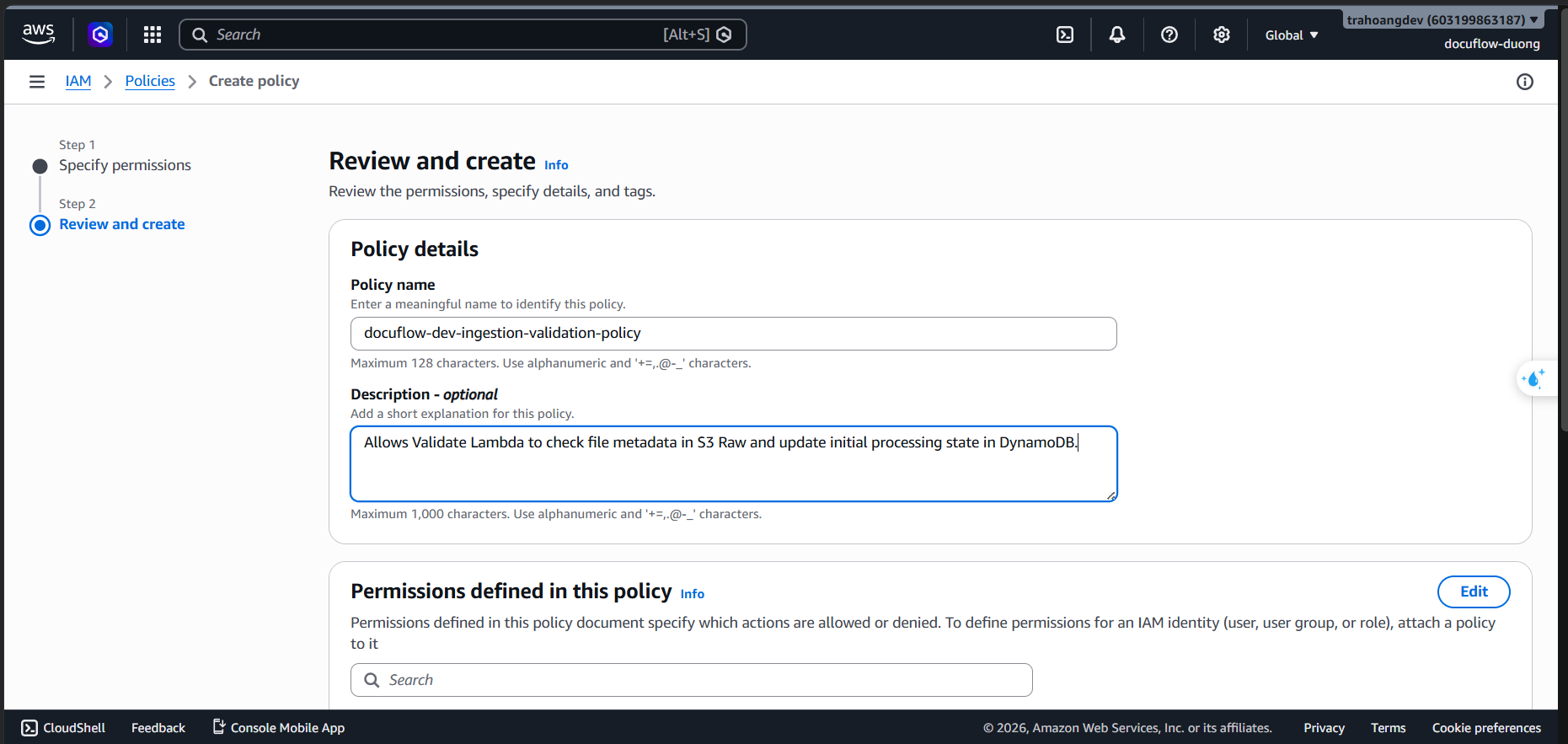
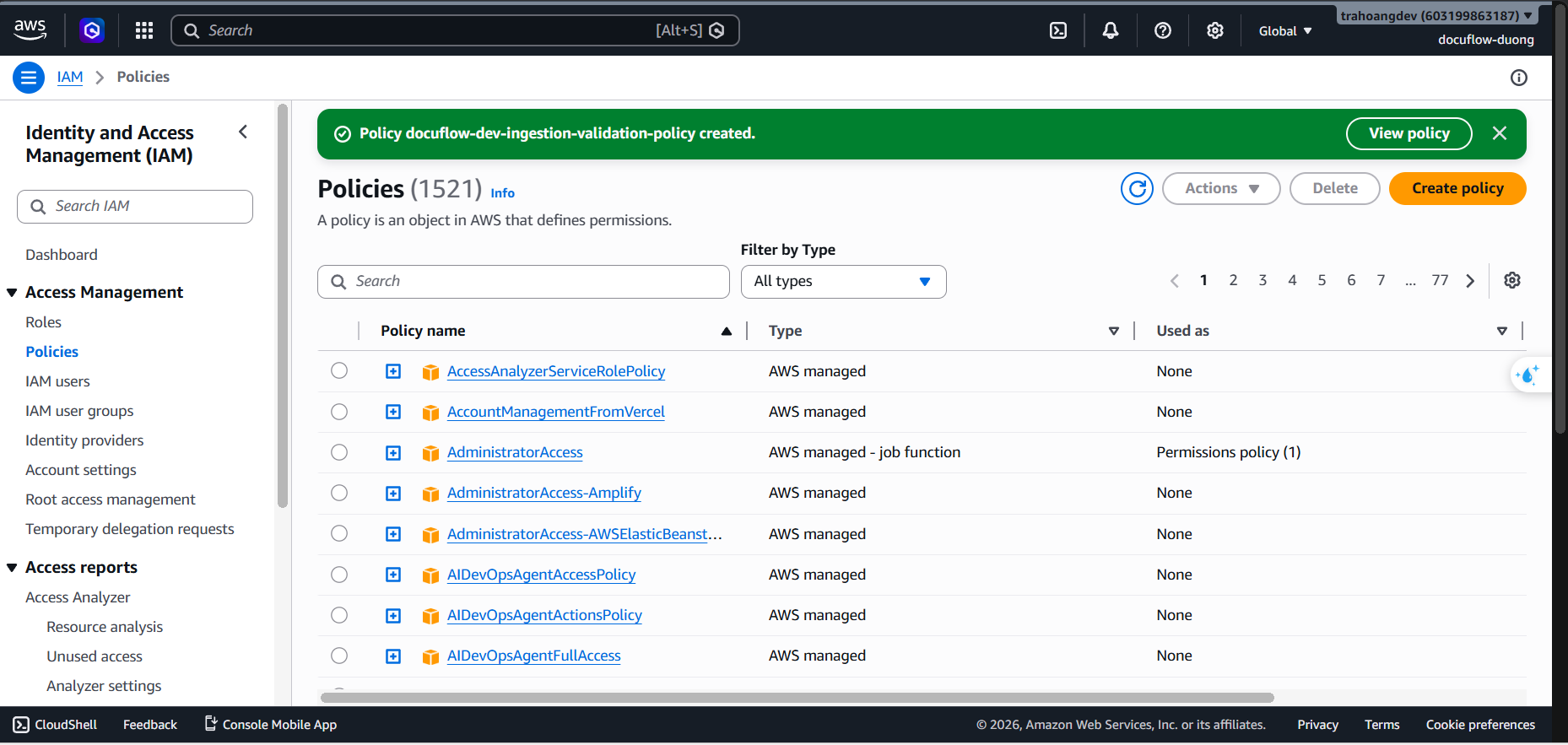
- Click Create policy.
- Go to Roles ➔ Choose Create role (Trusted Entity Type: AWS service ➔ Service: Lambda).
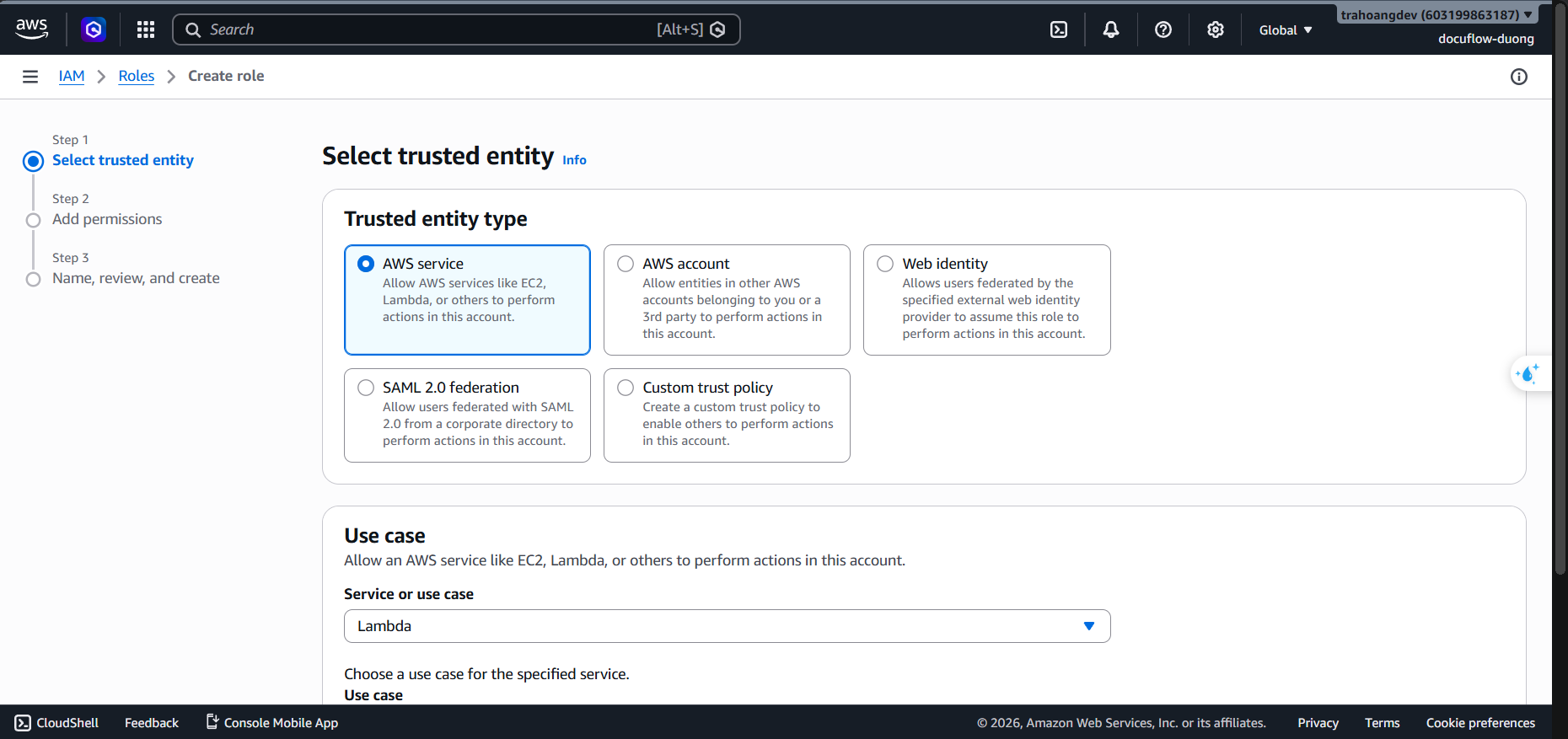
- Click Next.
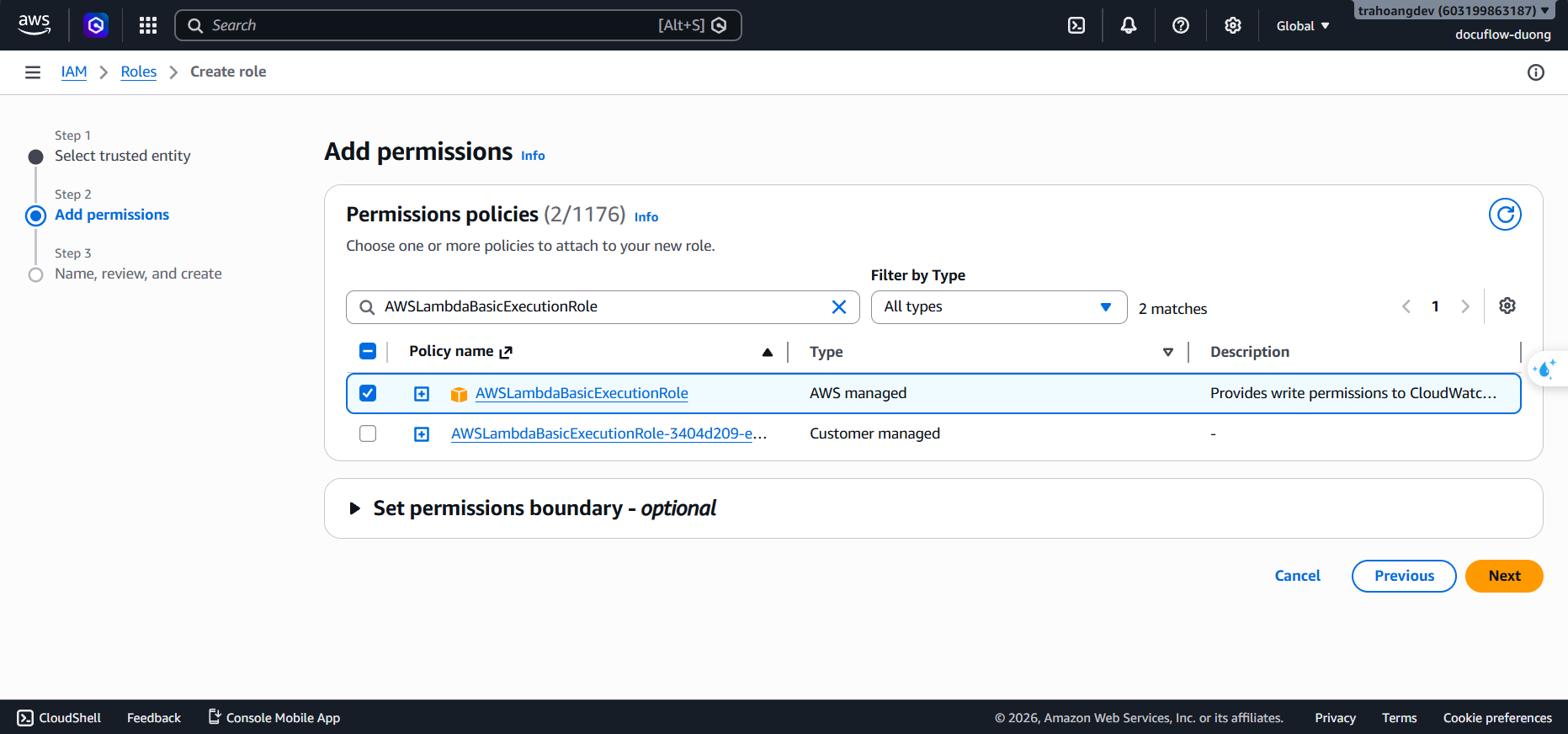
- Attach Policy: Check
docuflow-dev-ingestion-validation-policyandAWSLambdaBasicExecutionRole.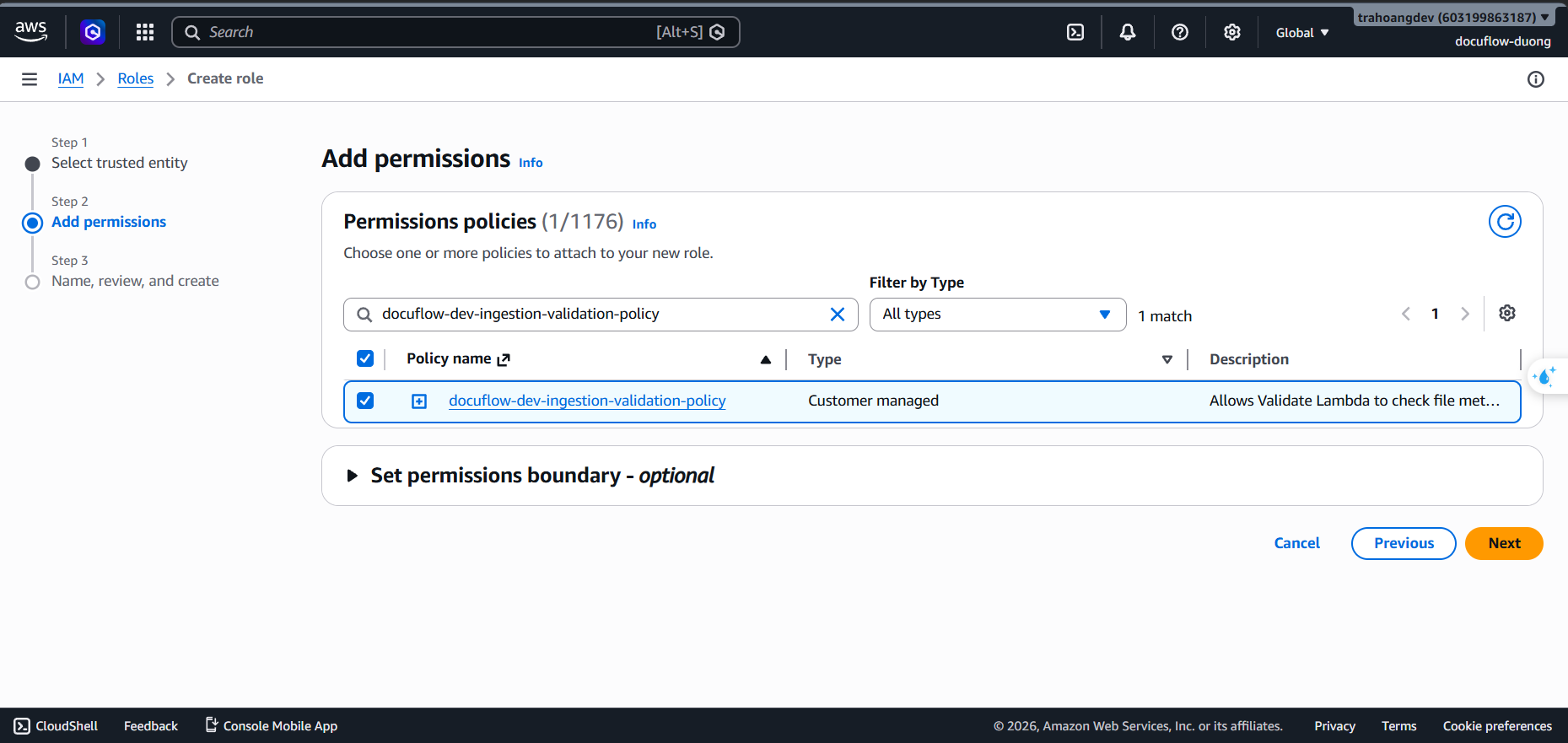
- Click Next. Set Role Name:
docuflow-dev-workflow-validate-lambda-role. - Enter Description:
Execution role for validation lambda to inspect uploaded documents and update state.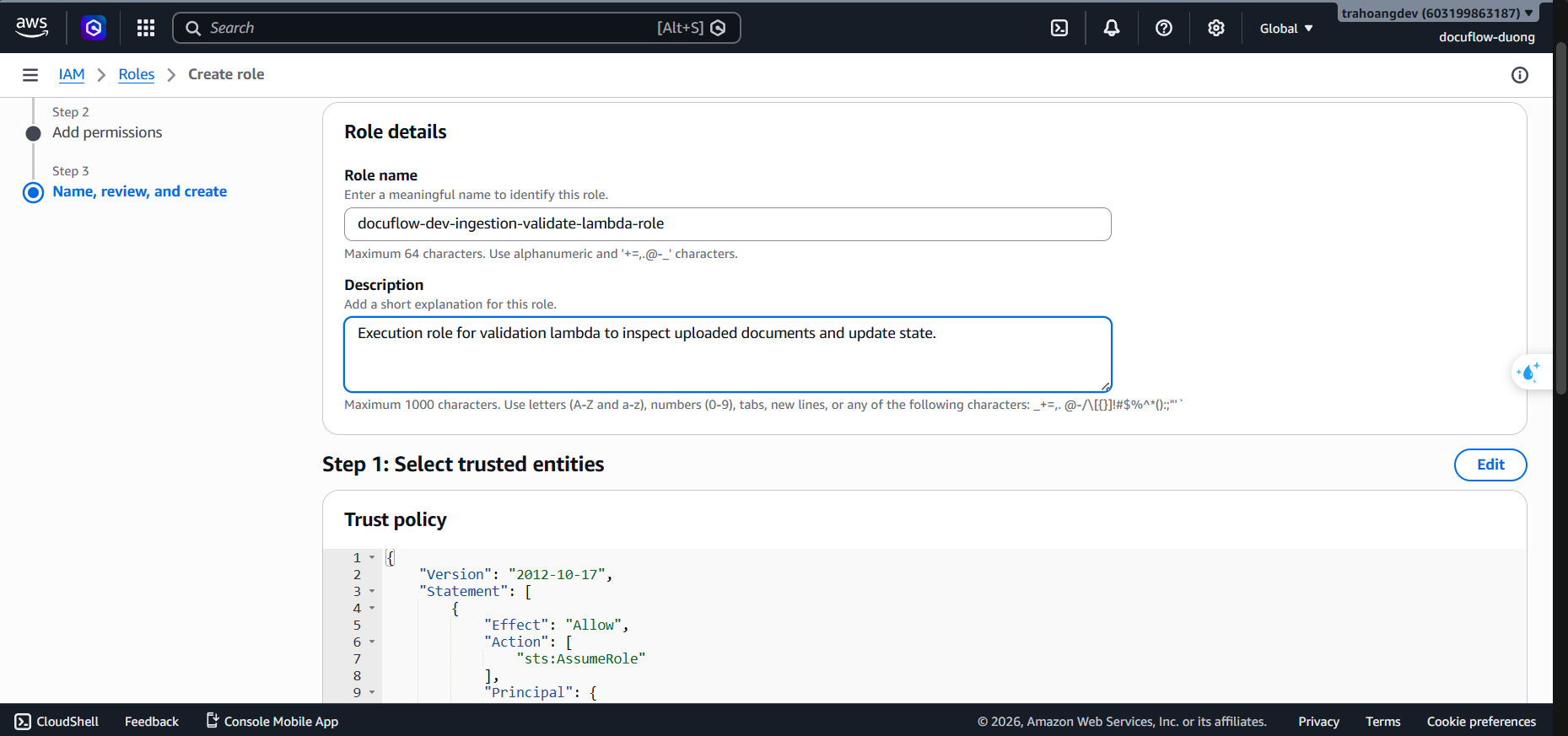
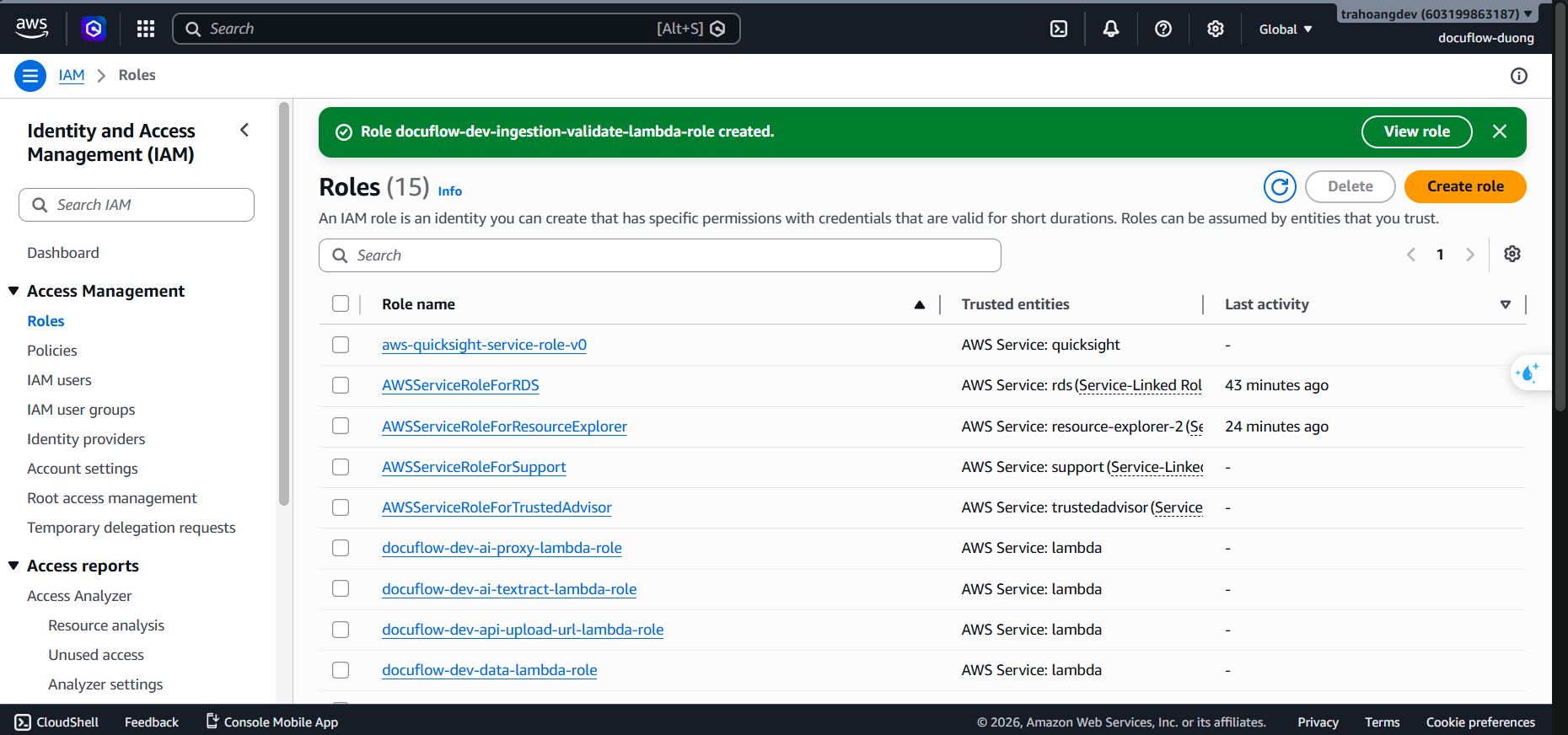
- Click Create role.
- Role 9: docuflow-dev-ai-confidence-status-lambda-role (Lambda permissions for Status Logic & Confidence Evaluation)
Purpose: After the AI Proxy returns the results, the Confidence + Status Lambda evaluates the score, categorizes the status as EXTRACTED or REVIEW_REQUIRED, saves the final result (result.json) to the S3 Processed Bucket, and updates the DynamoDB table.
- Steps:
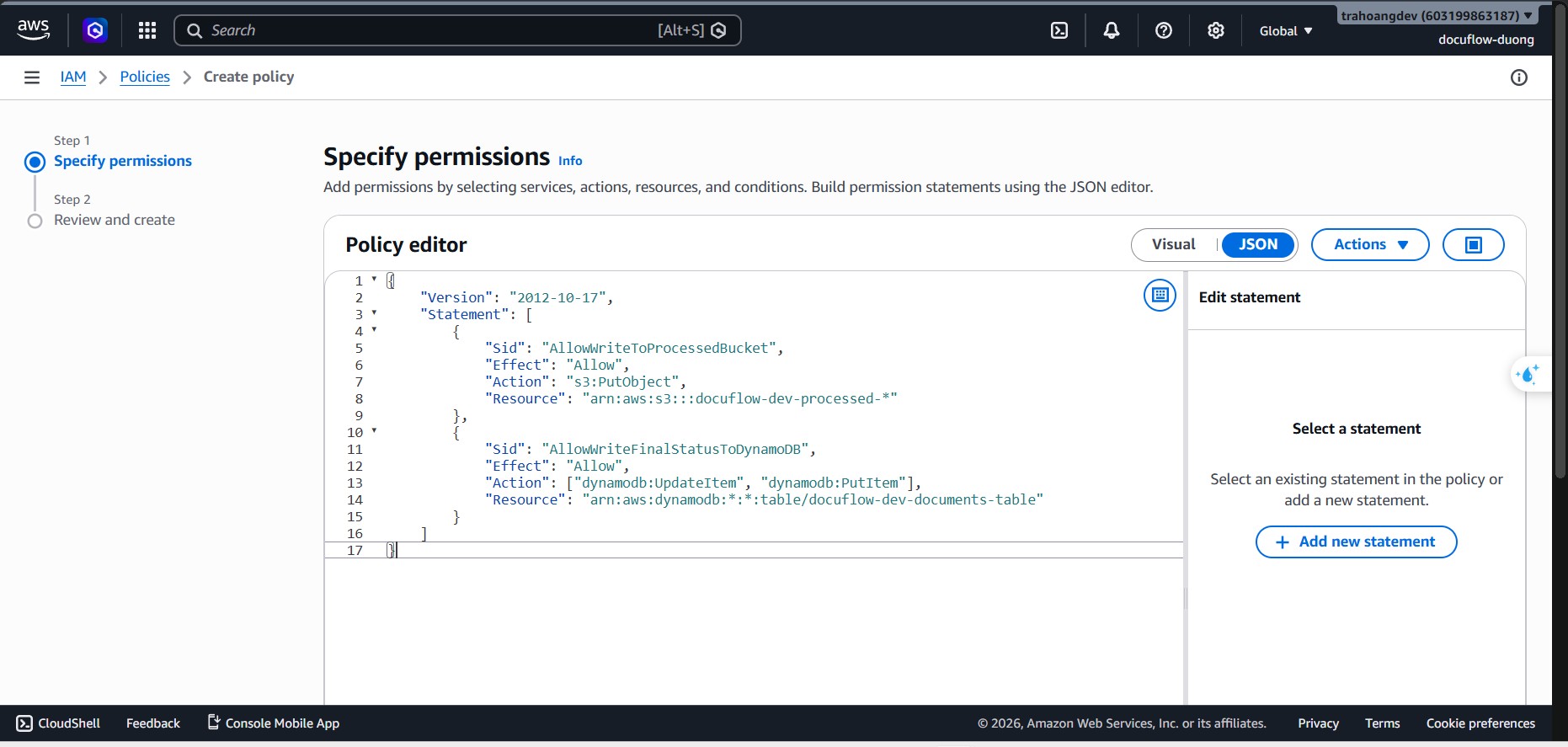
- Go to the IAM service ➔ Policies ➔ Choose Create policy (JSON).
- Paste the following JSON Policy:
{
    "Version": "2012-10-17",
    "Statement": [
        {
            "Sid": "AllowWriteToProcessedBucket",
            "Effect": "Allow",
            "Action": "s3:PutObject",
            "Resource": "arn:aws:s3:::docuflow-dev-processed-*"
        },
        {
            "Sid": "AllowWriteFinalStatusToDynamoDB",
            "Effect": "Allow",
            "Action": [
                "dynamodb:UpdateItem",
                "dynamodb:PutItem"
            ],
            "Resource": "arn:aws:dynamodb:*:*:table/docuflow-dev-documents-table"
        }
    ]
}
- Click Next. Set Policy Name:
docuflow-dev-ai-confidence-status-policy. - Enter Description:
Allows Lambda to calculate confidence scores, save final result JSON to S3 Processed, and update metadata in DynamoDB.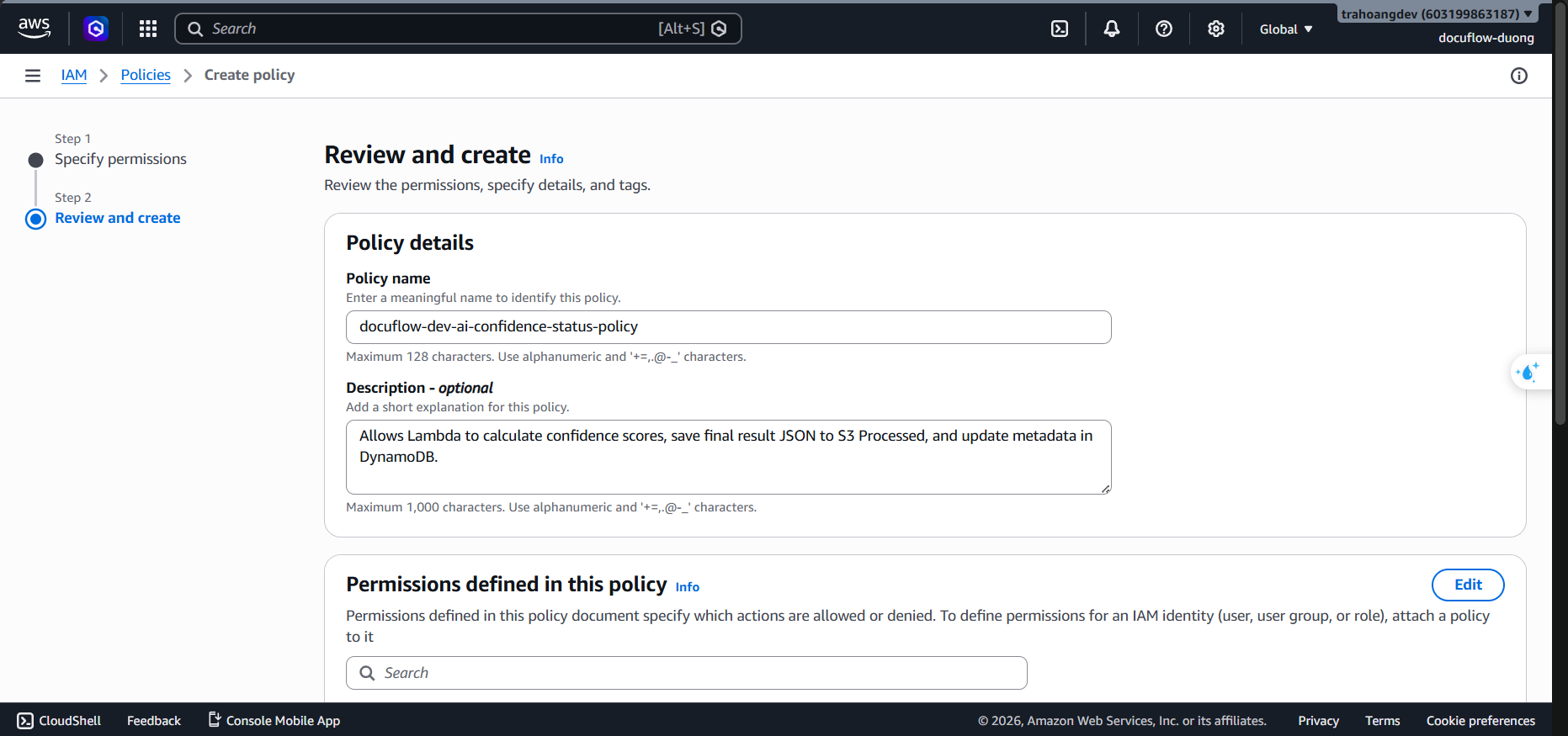
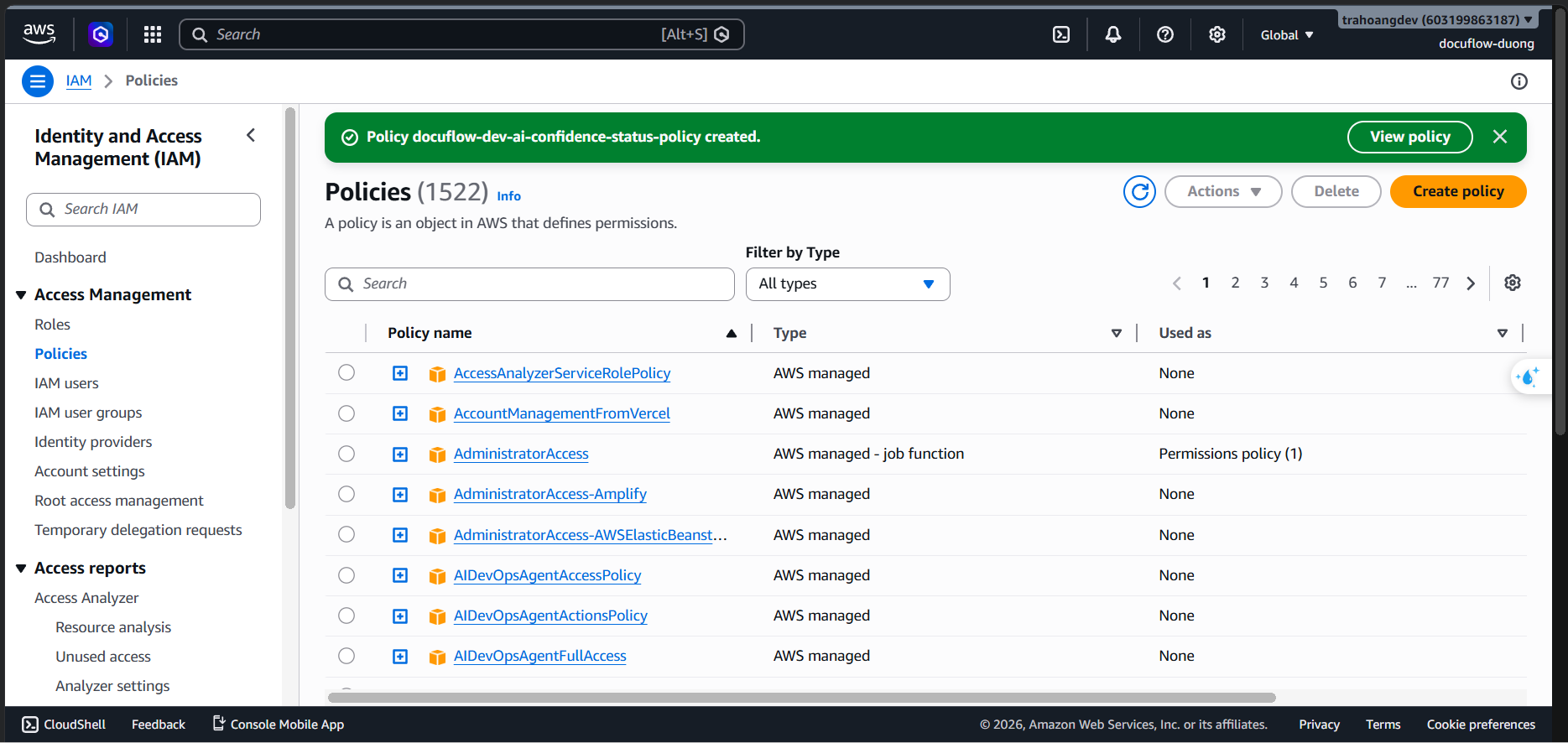
- Click Create policy.
- Go to Roles ➔ Choose Create role (Trusted Entity Type: AWS service ➔ Service: Lambda).
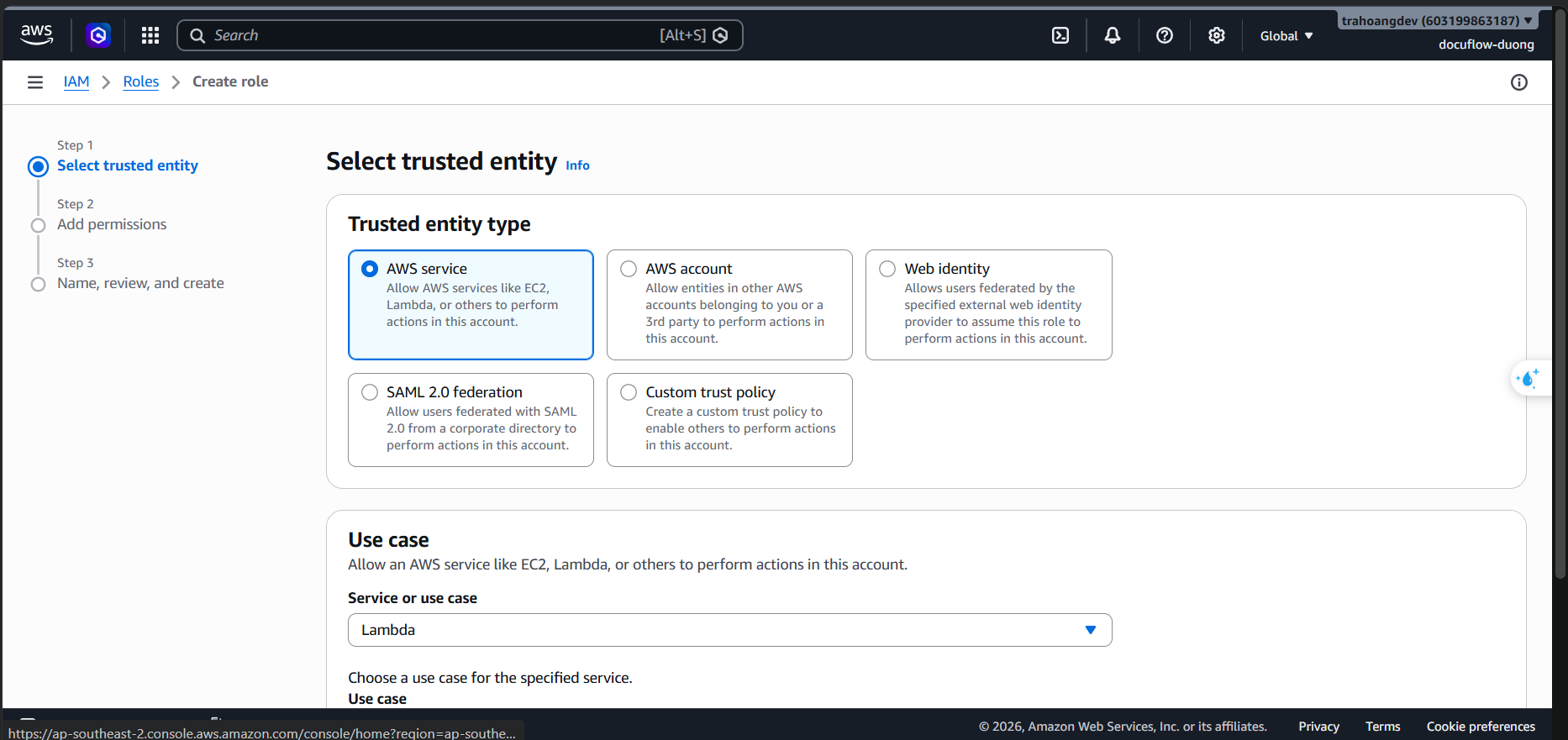
- Click Next.
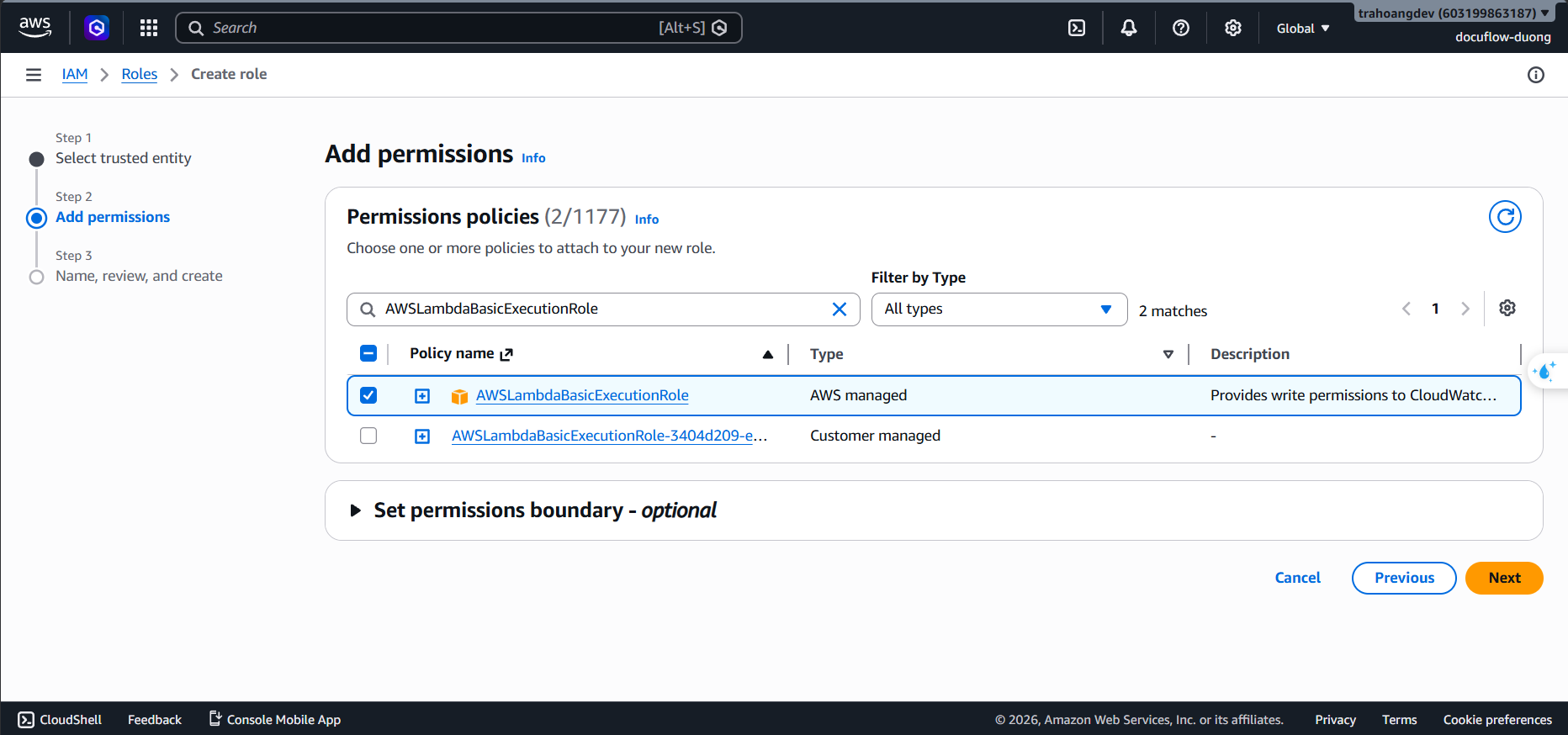
- Attach Policy: Check
docuflow-dev-ai-confidence-status-policyandAWSLambdaBasicExecutionRole.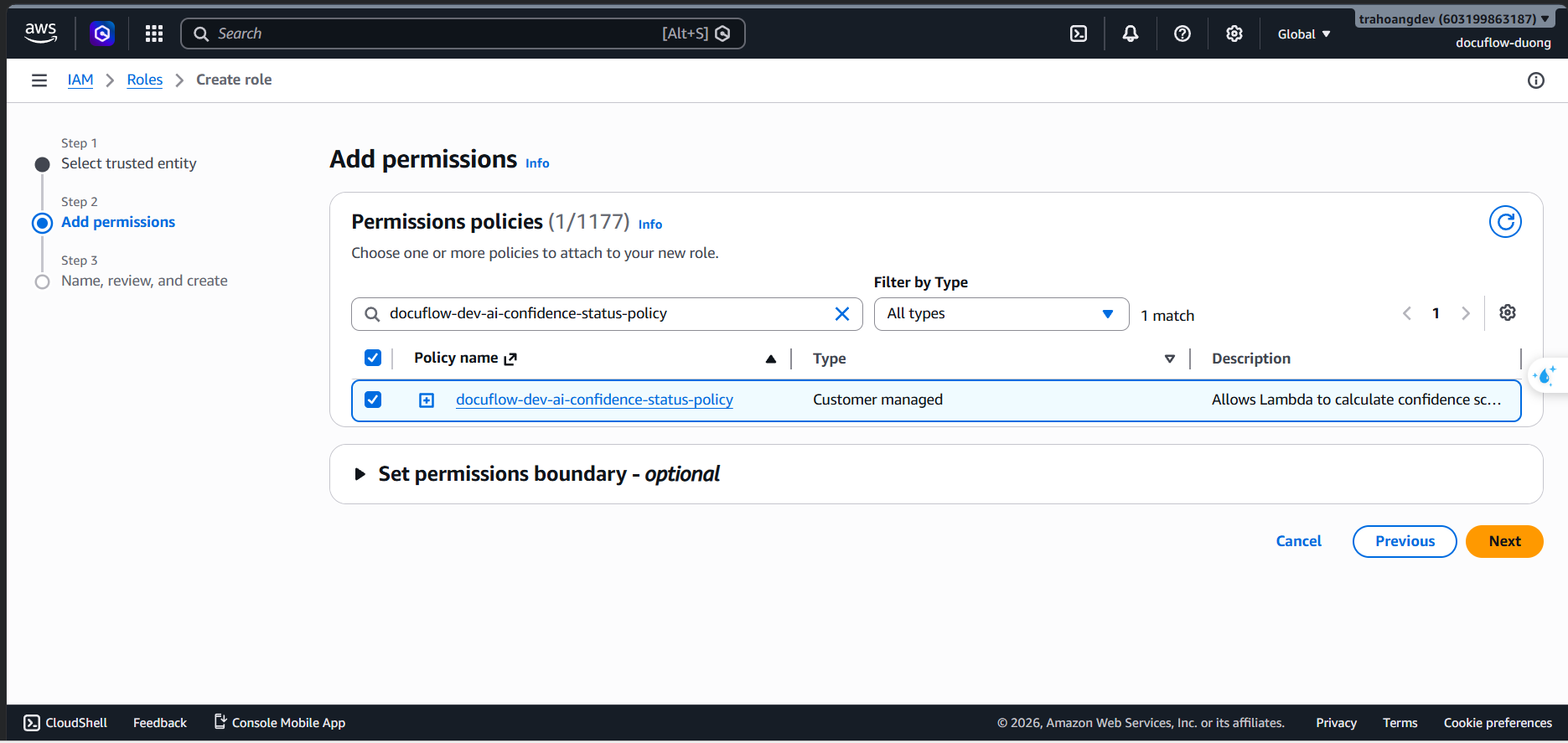
- Click Next. Set Role Name:
docuflow-dev-ai-confidence-status-lambda-role. - Enter Description:
Execution role for confidence and status lambda to evaluate AI result and update final state.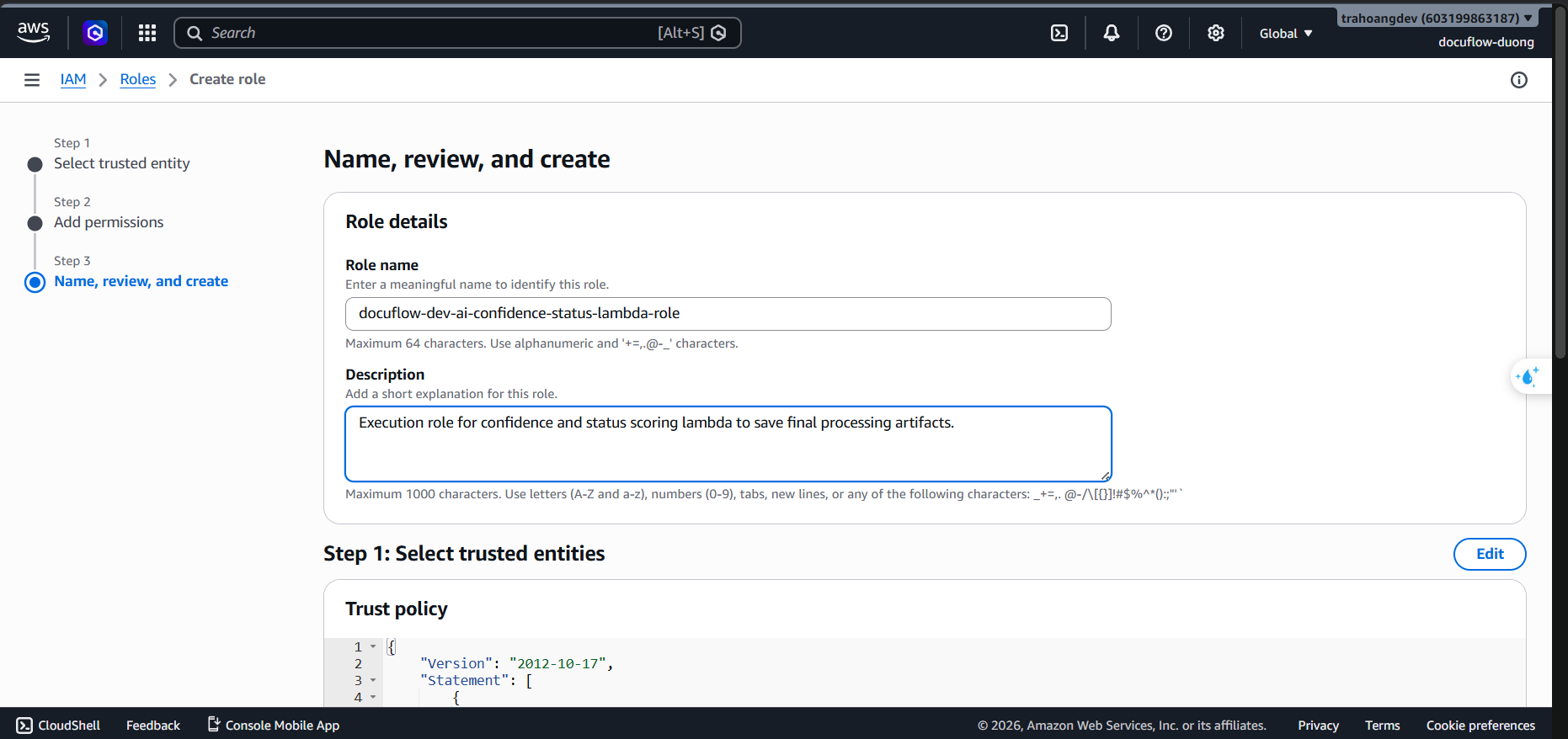
- Click Create role.