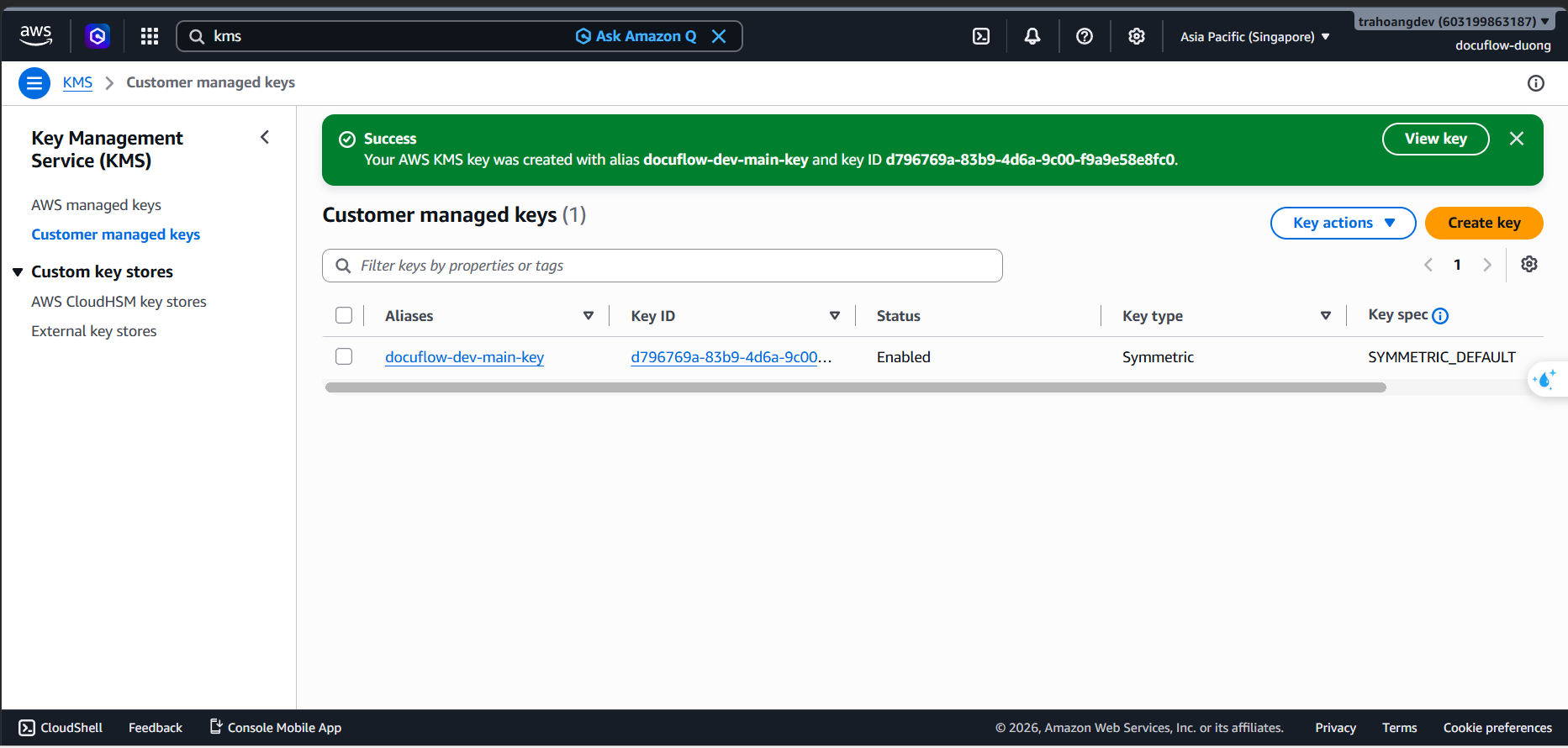
Initialize AWS KMS CMK
We will create a symmetric Customer Managed Key to encrypt all data in S3, DynamoDB, and Secrets Manager.
Steps
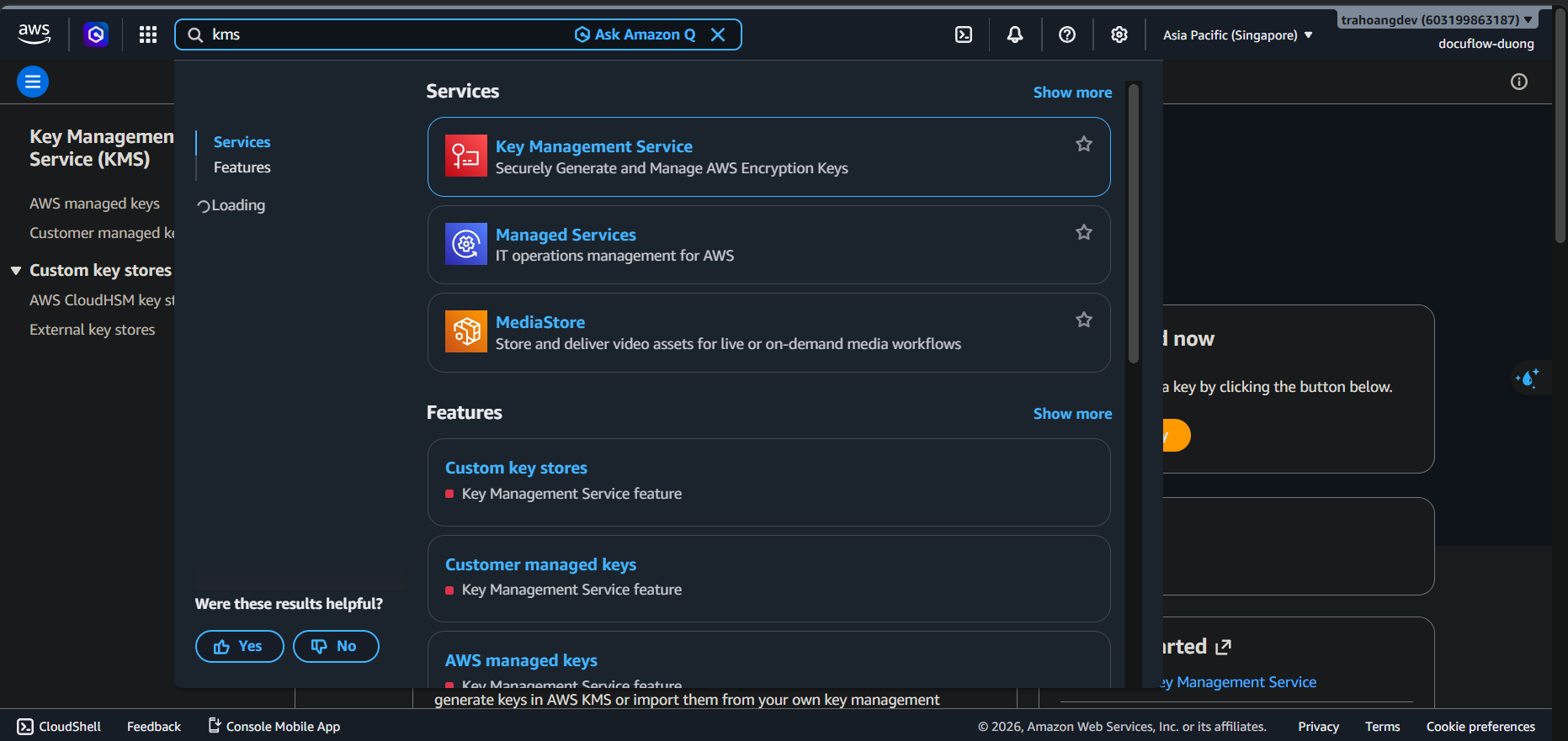
In the AWS Console search bar, type kms ➔ Select Key Management Service (KMS).
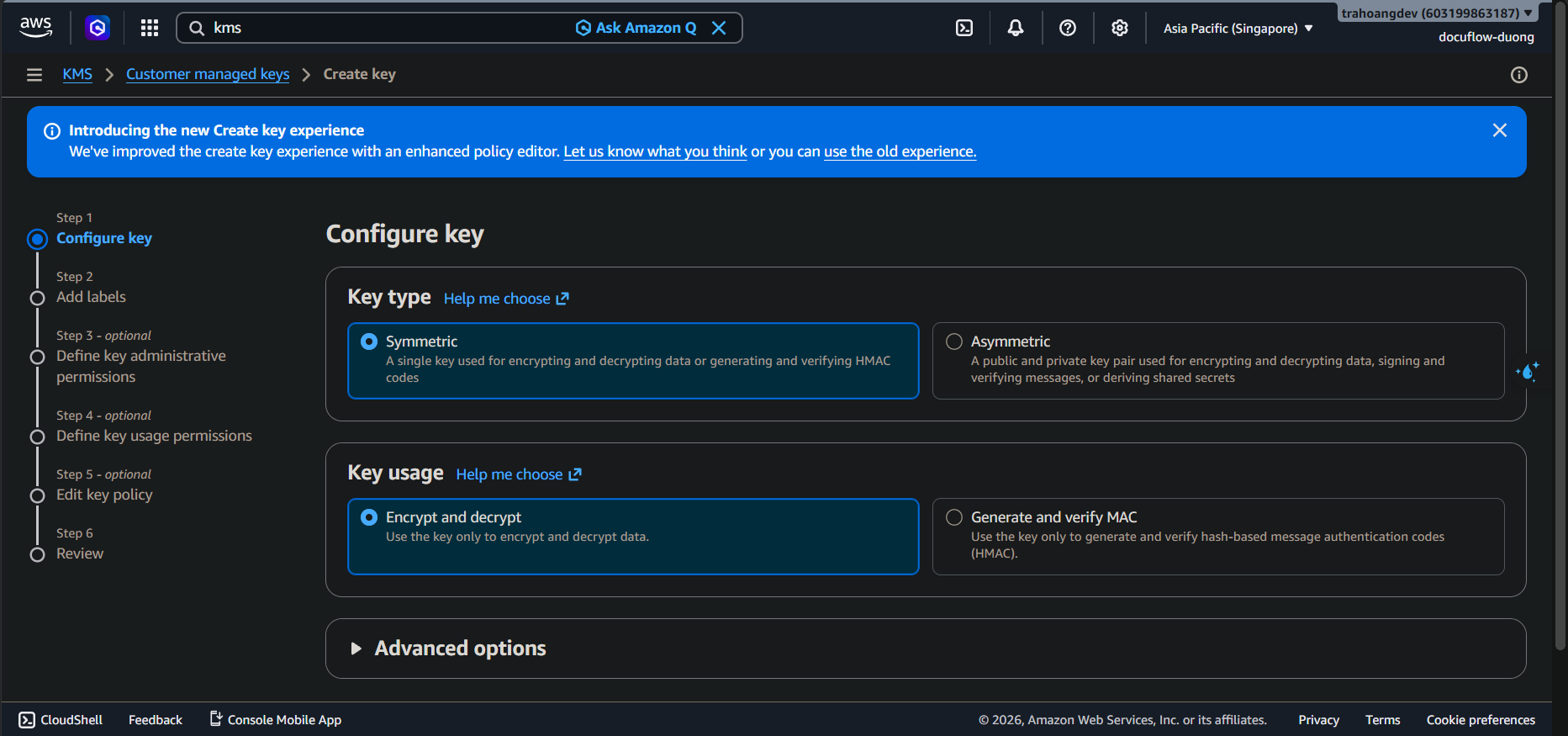
In the left menu, select Customer managed keys ➔ Click the Create key button.
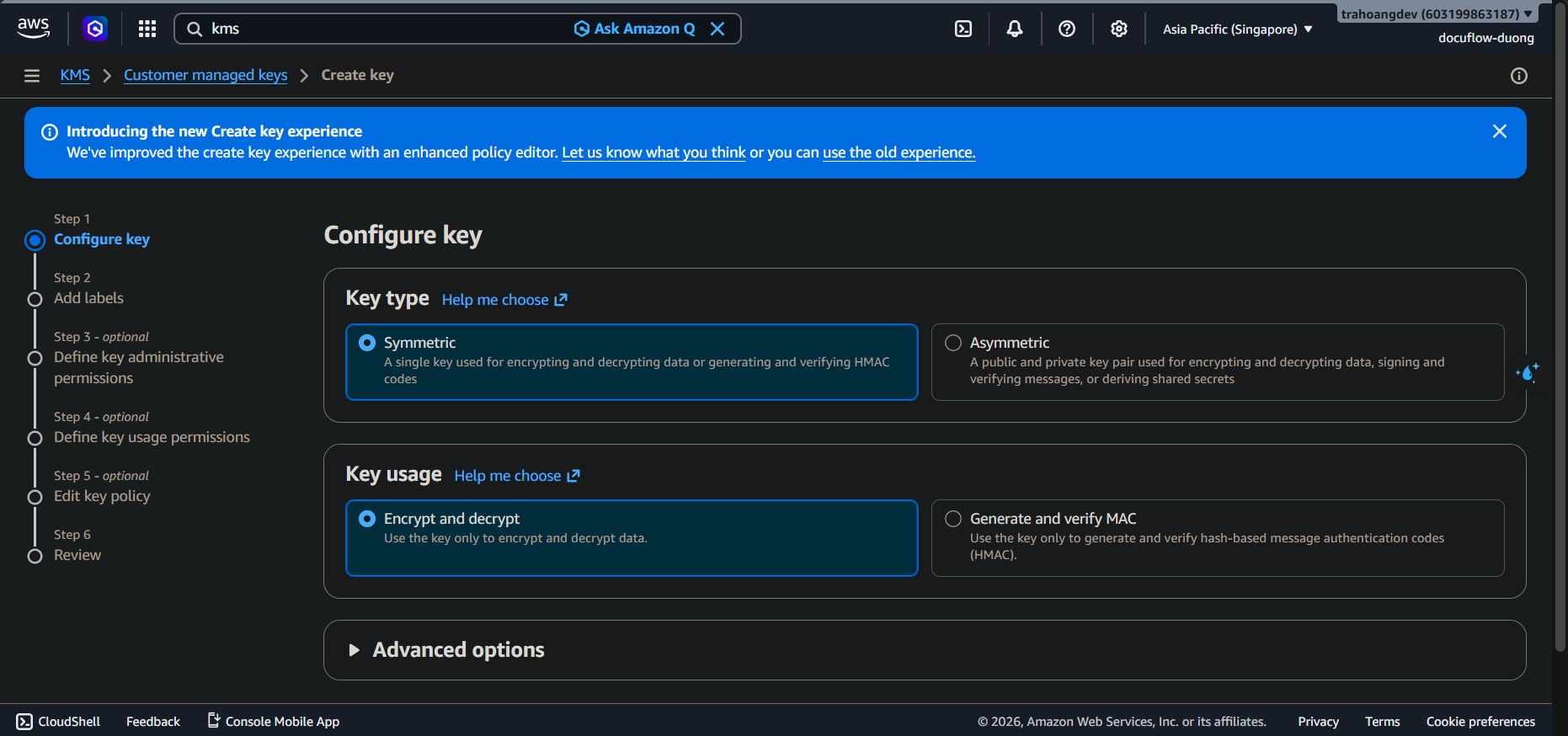
Configure key:
- Key type: Select Symmetric (Symmetric key - required for the architecture).
- Key usage: Select Encrypt and decrypt.
- Click Next.
 4. Add labels:
Alias: Enter exactly
docuflow-dev-main-key(The system will automatically add the prefixalias/to make italias/docuflow-dev-main-key).Description: Enter:
CMK KMS Key for DocuFlow AI project to encrypt S3 buckets, DynamoDB, and Secrets Manager.
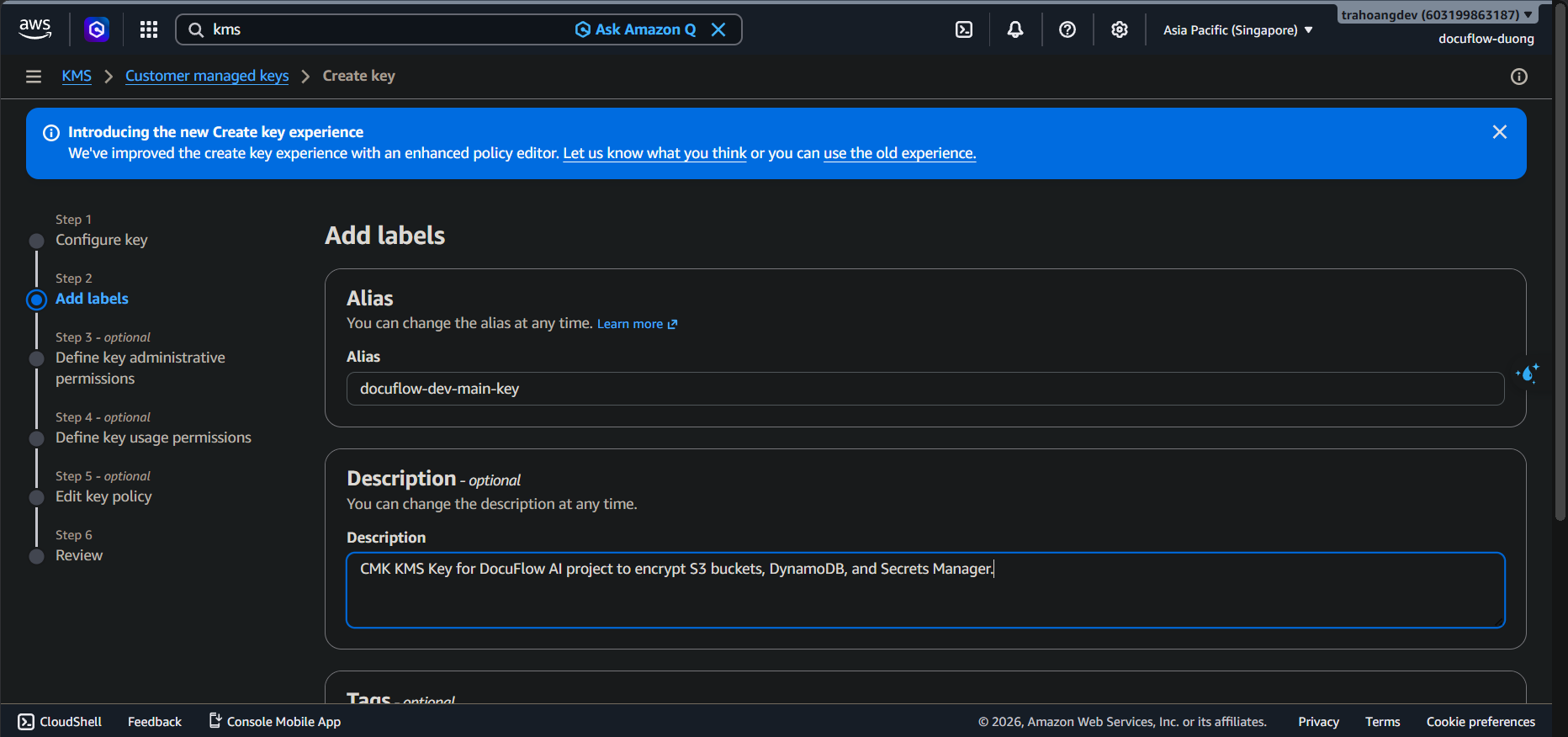
- Click Next.
Define Key Administrative Permissions:
- From the User/Role list, check your account name (or your Administrator role) to designate the person with permission to delete/edit this key.
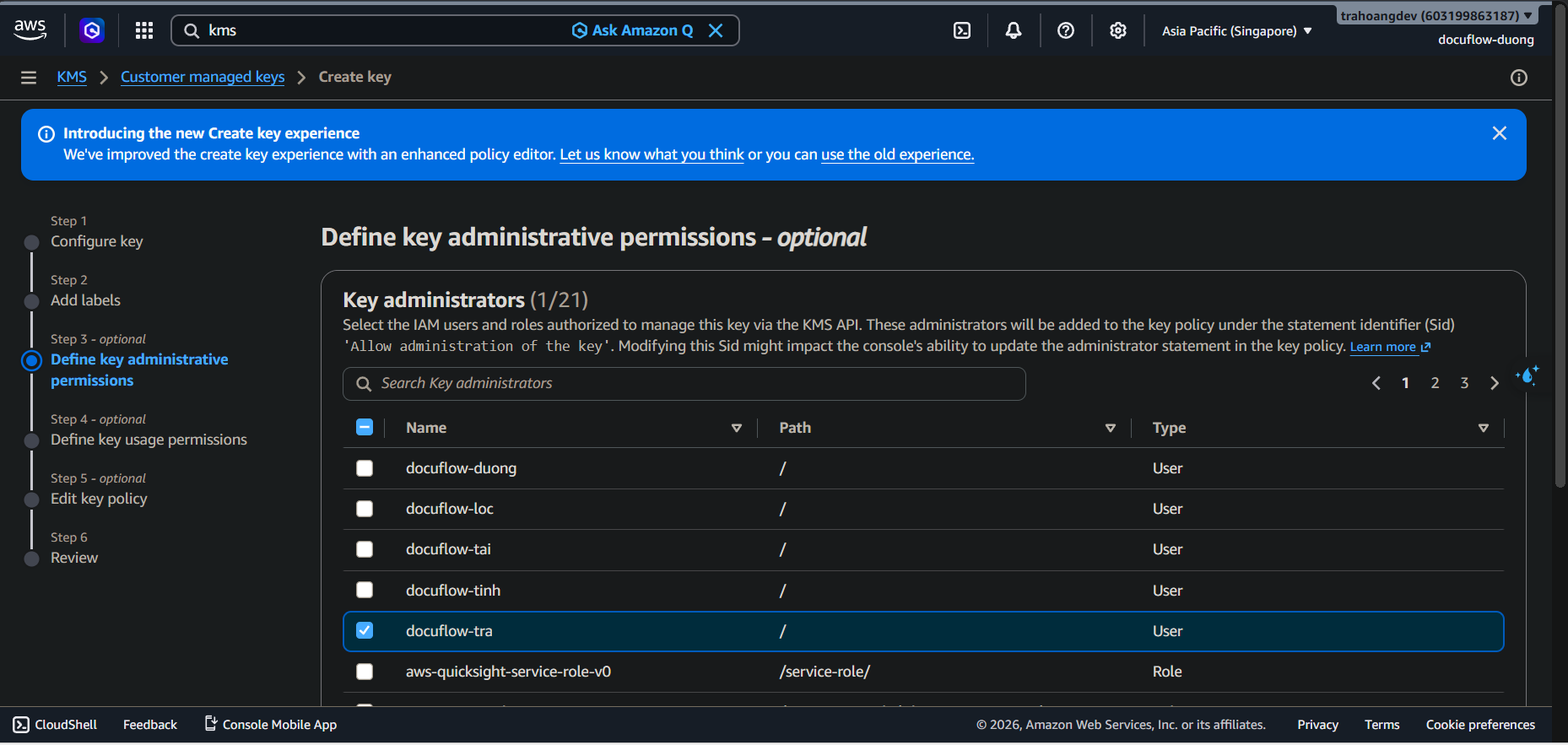
- Key deletion: Check Allow key administrators to delete this key (Allows key deletion when the project finishes).
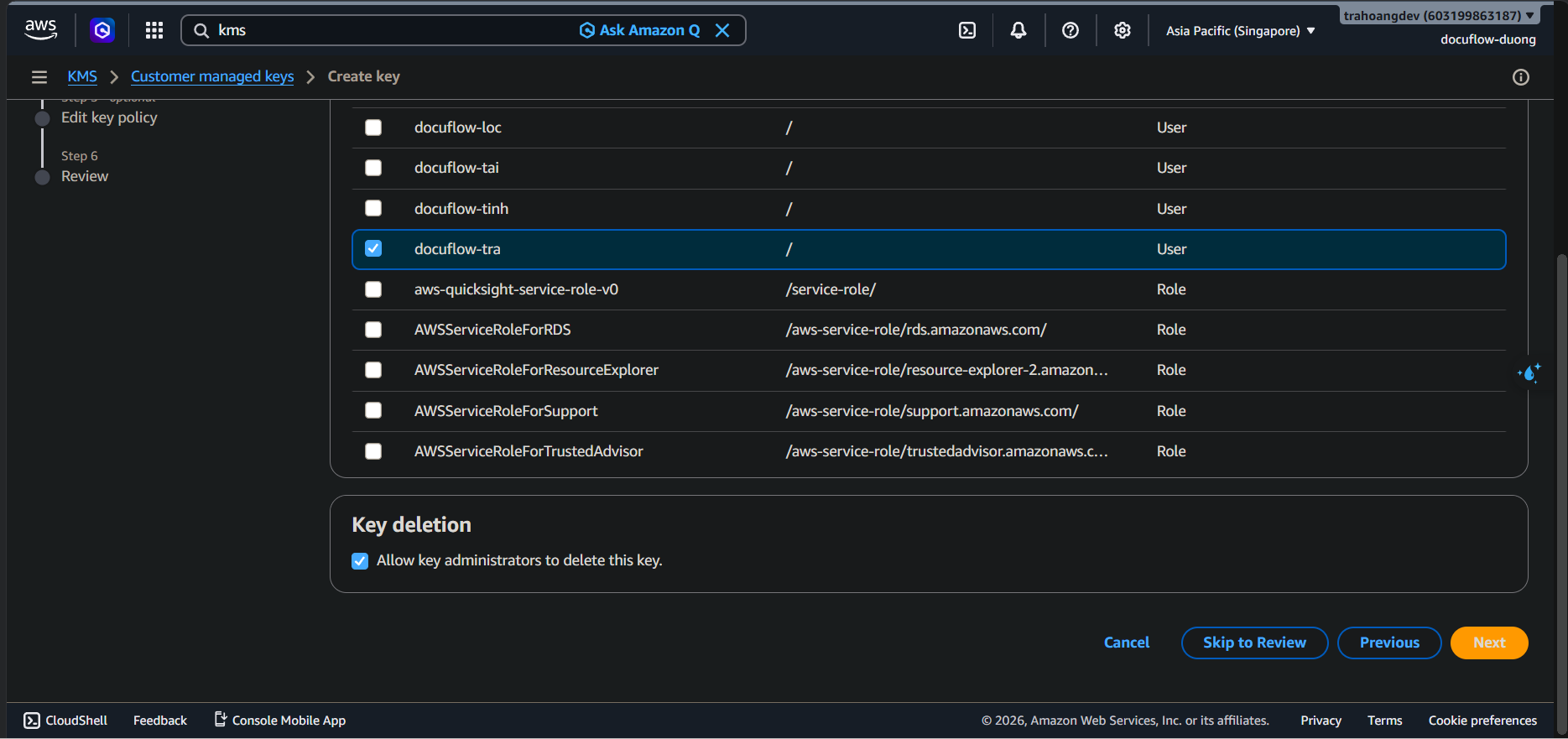
- Click Next.
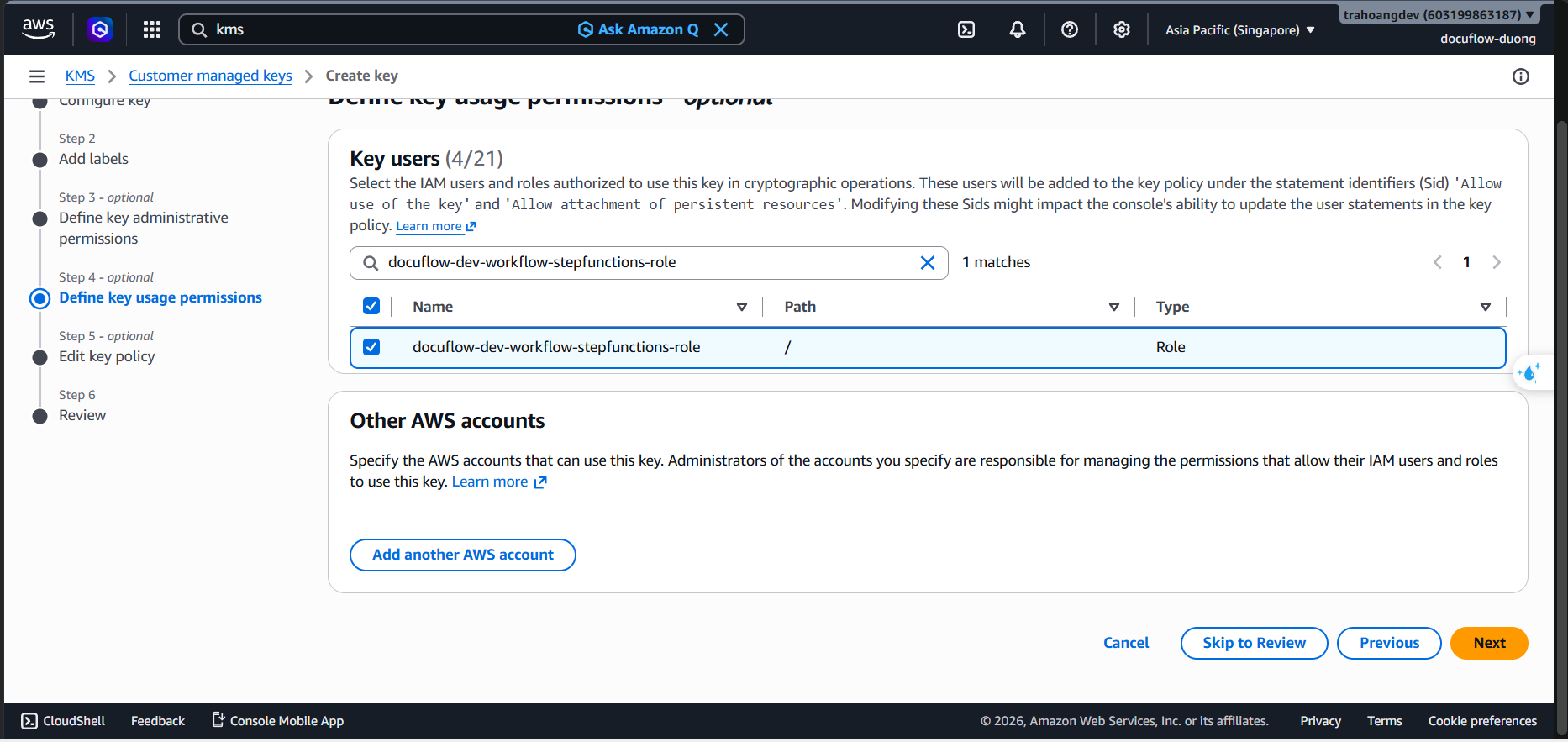
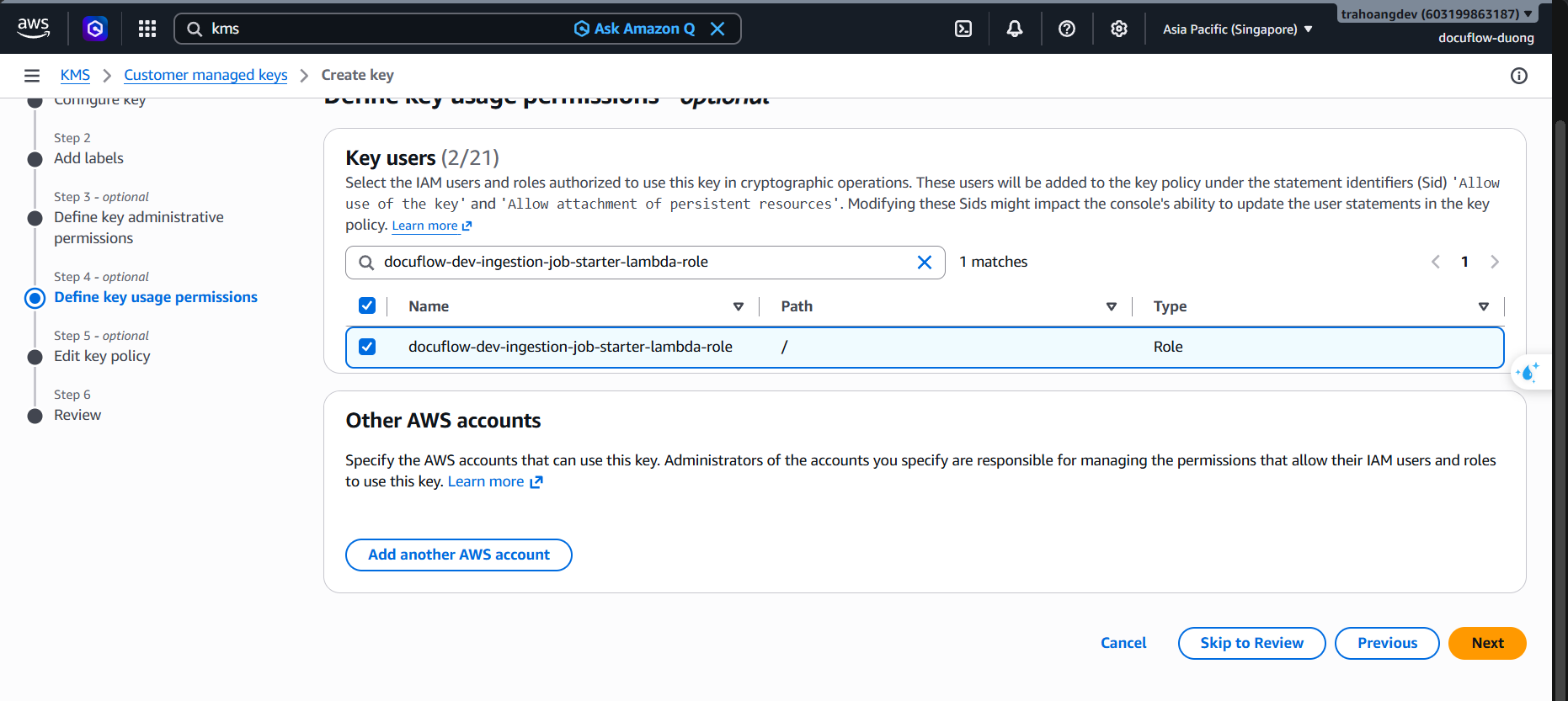
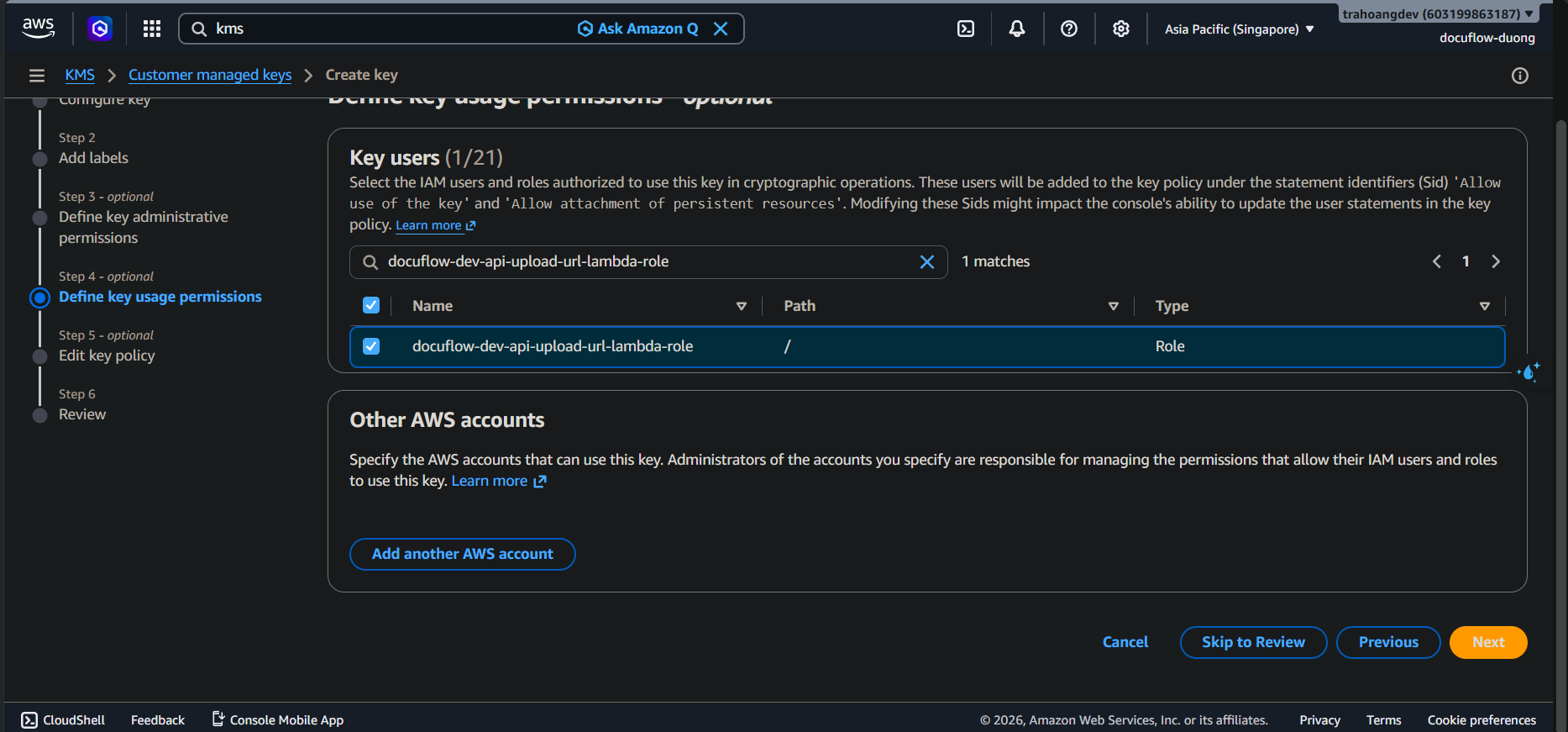
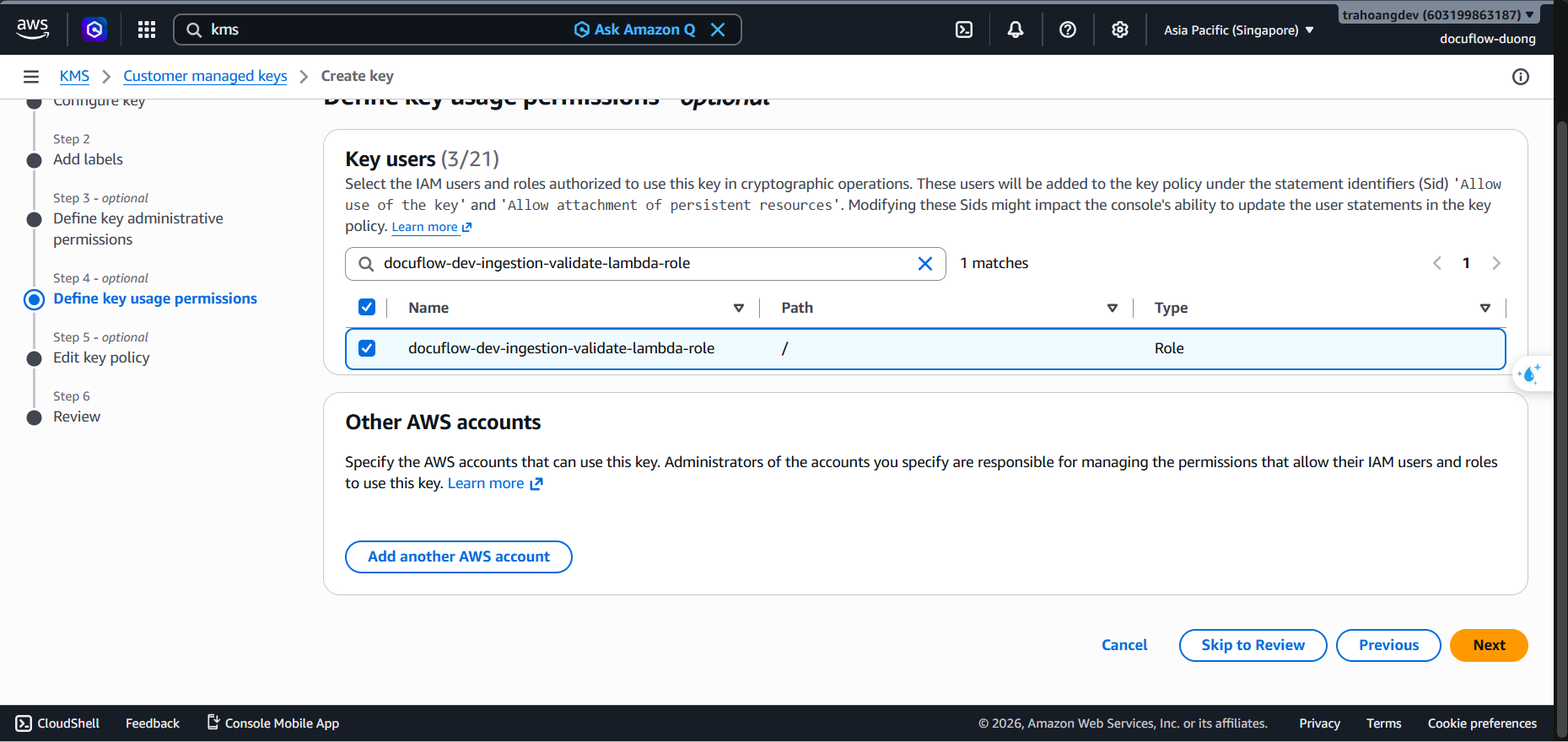
Define Key Usage Permissions:
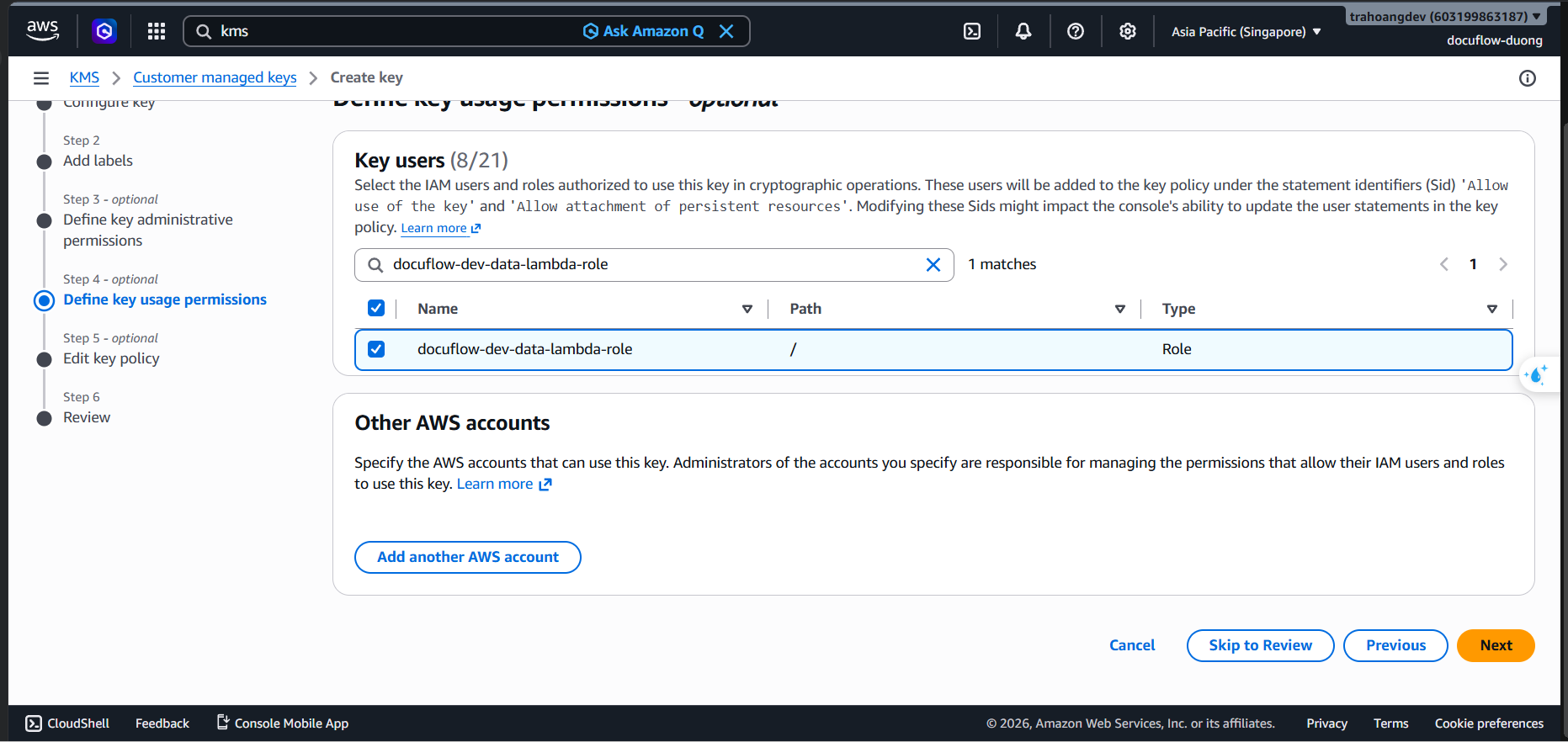
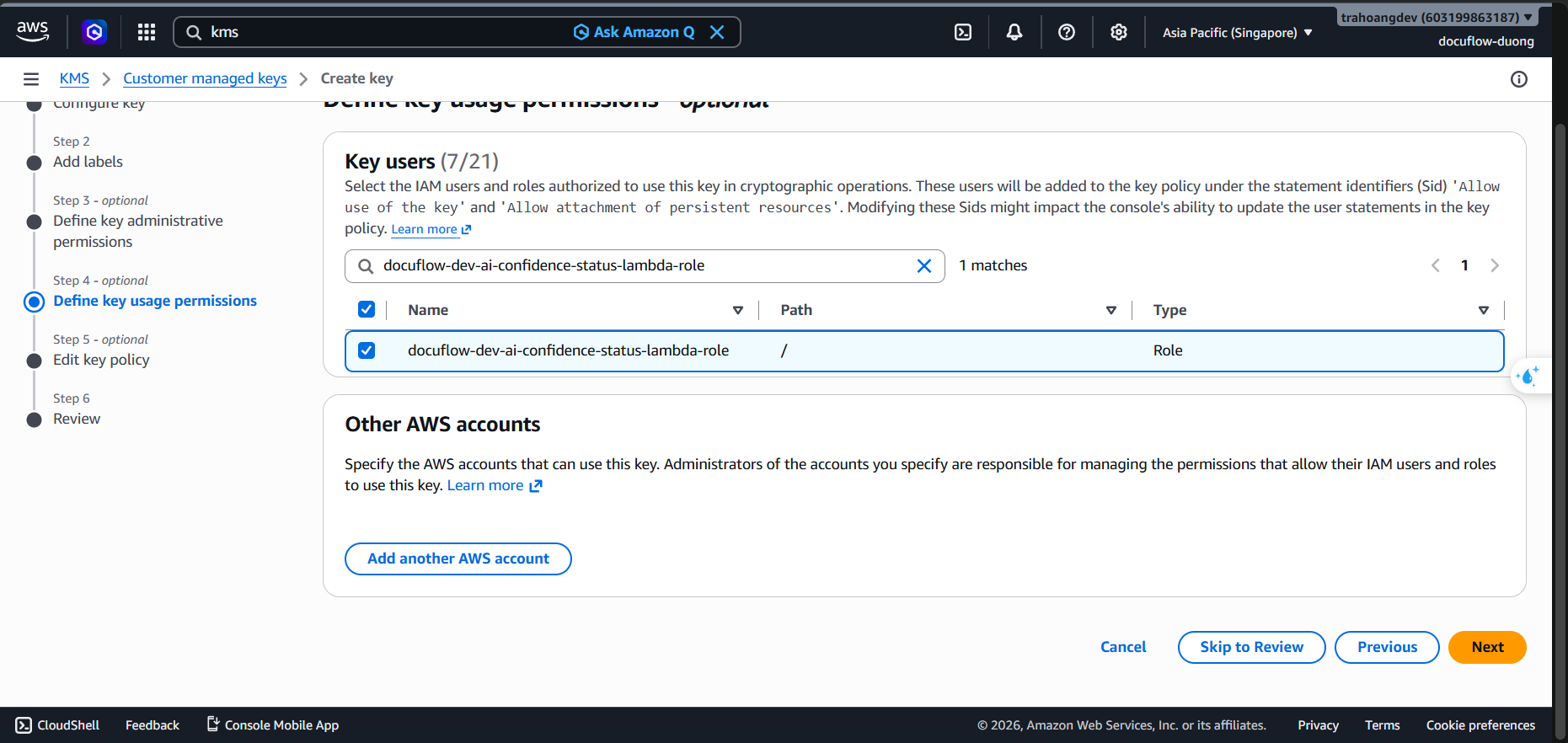
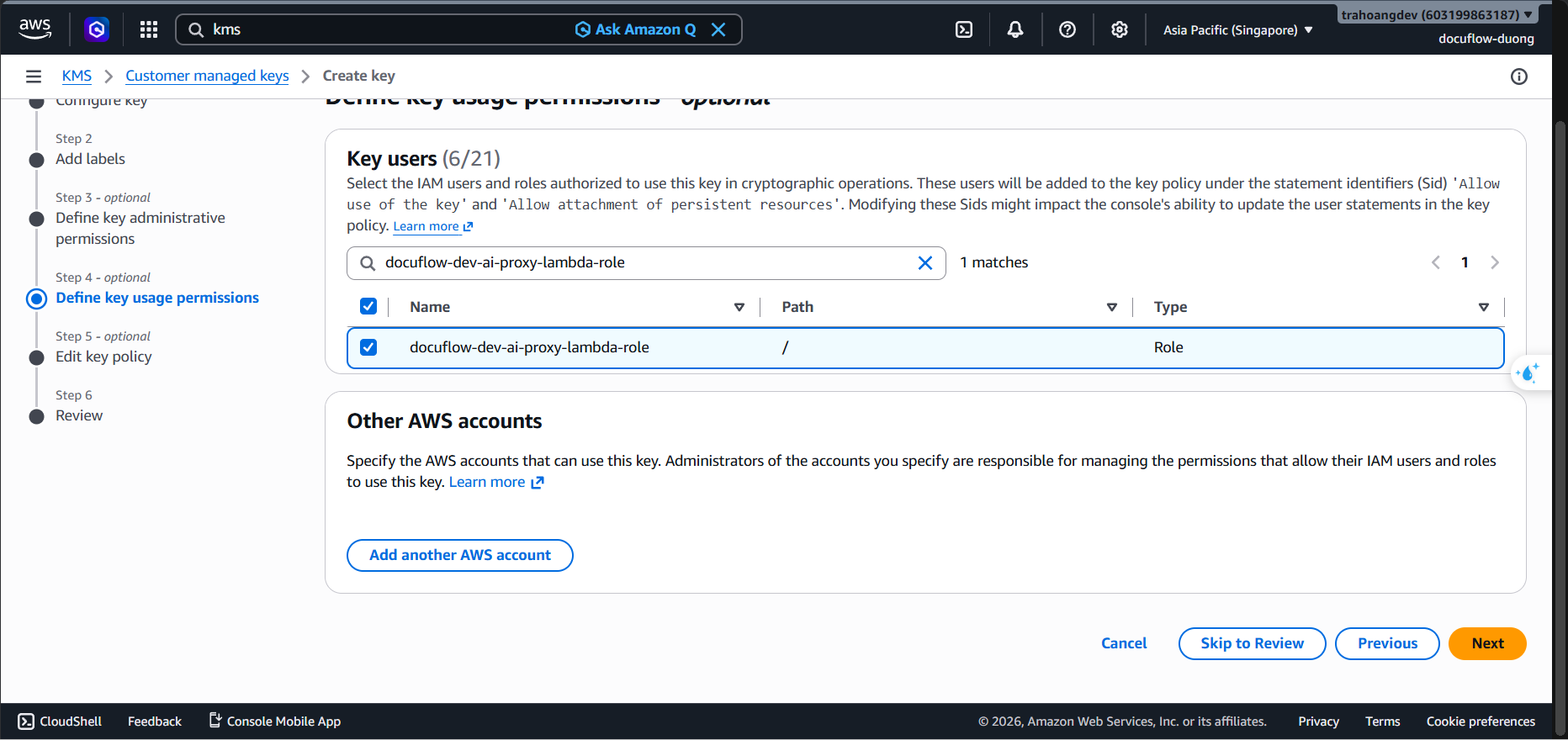
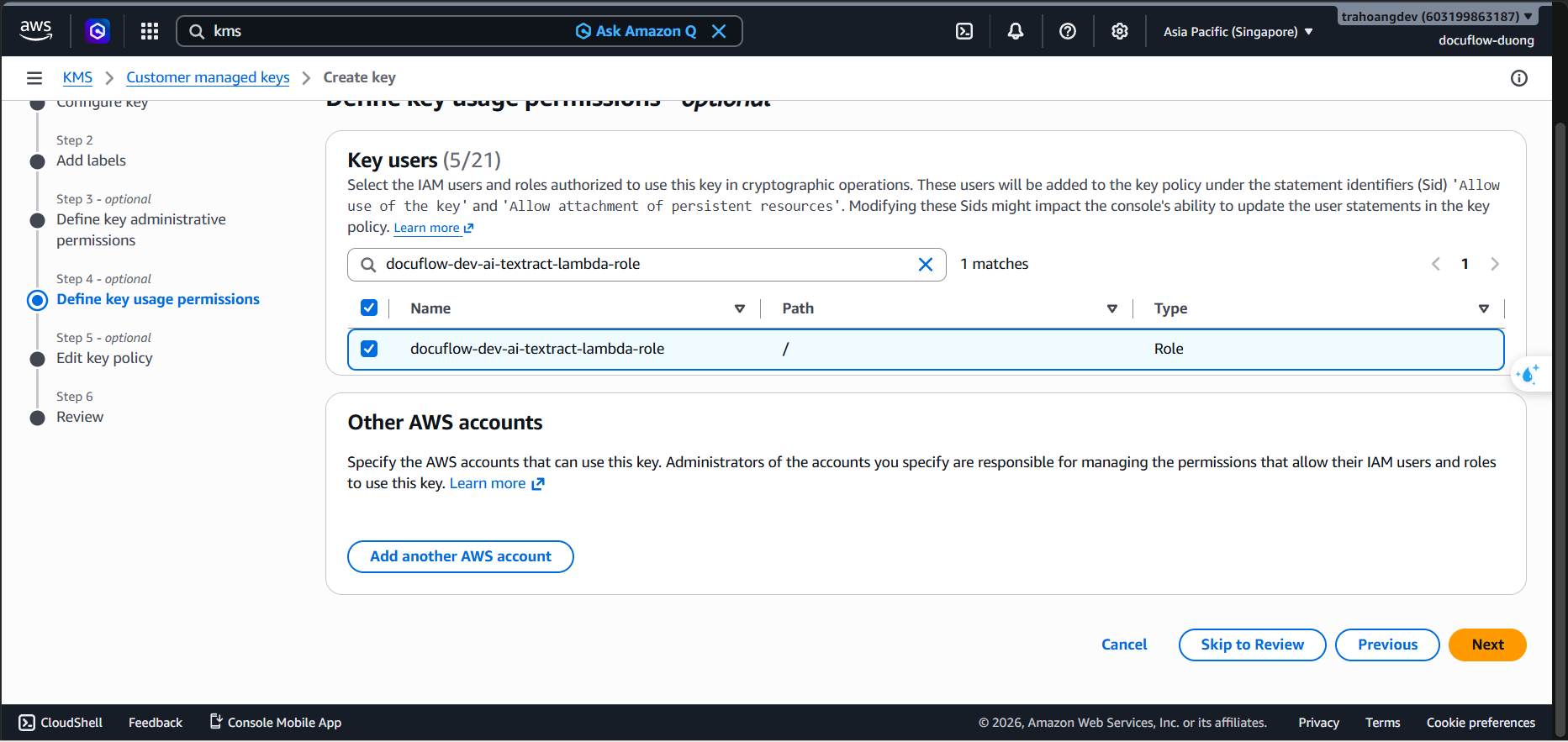
- This step is extremely important. You must grant permissions to the core services and the IAM Roles you created so they can use this key to encrypt/decrypt data.
- From the list, check all the Lambda and Step Functions IAM Roles you created in the previous step (from Role 1 to Role 9, for example:
docuflow-dev-ai-textract-lambda-role,docuflow-dev-workflow-stepfunctions-role,…).
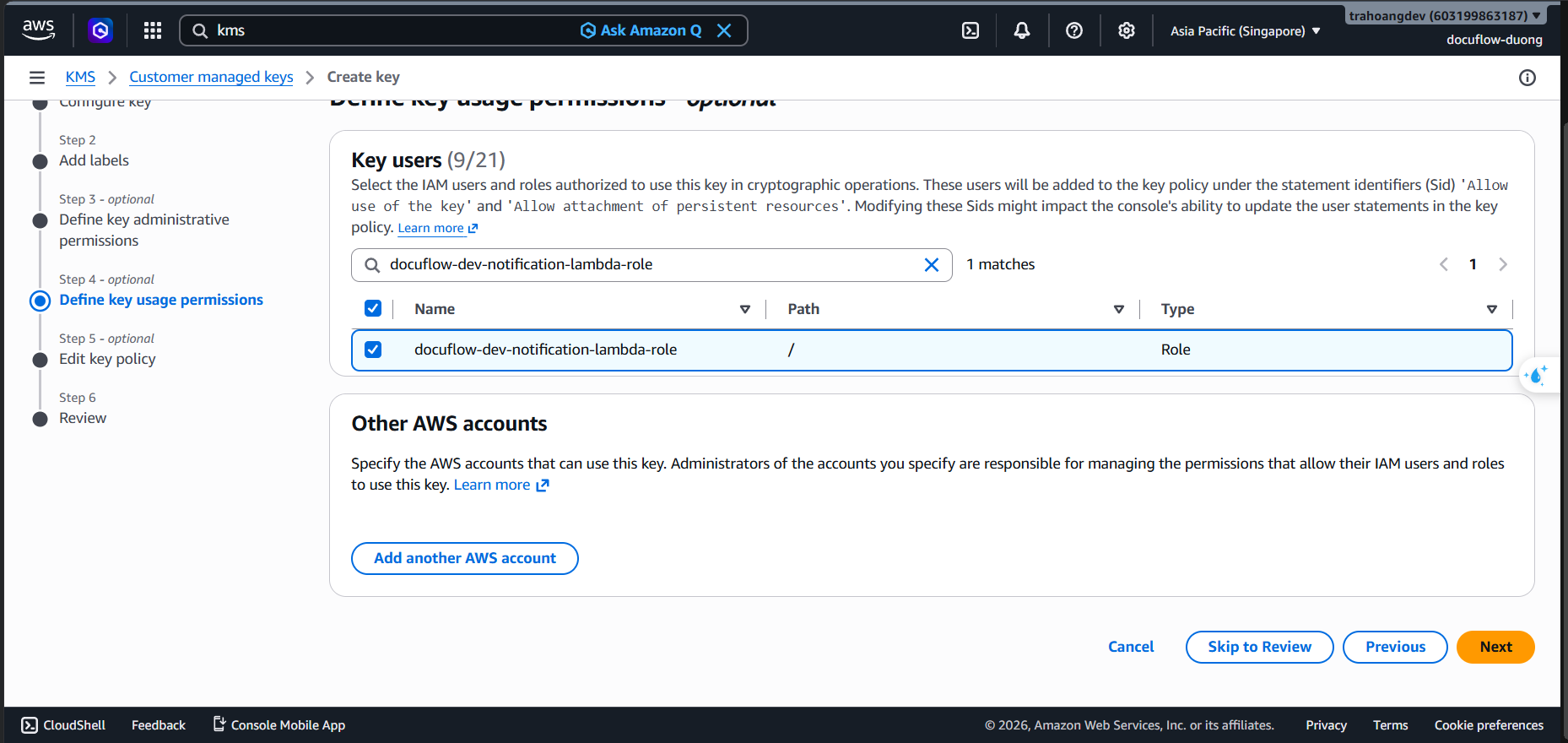
- Click Next.
Review Key Policy (JSON) and Finish:
- AWS will automatically generate a Key Policy block. Scroll to the bottom and click Finish.