Configure S3 Buckets
PART 1: CREATE AMAZON S3 RAW BUCKET
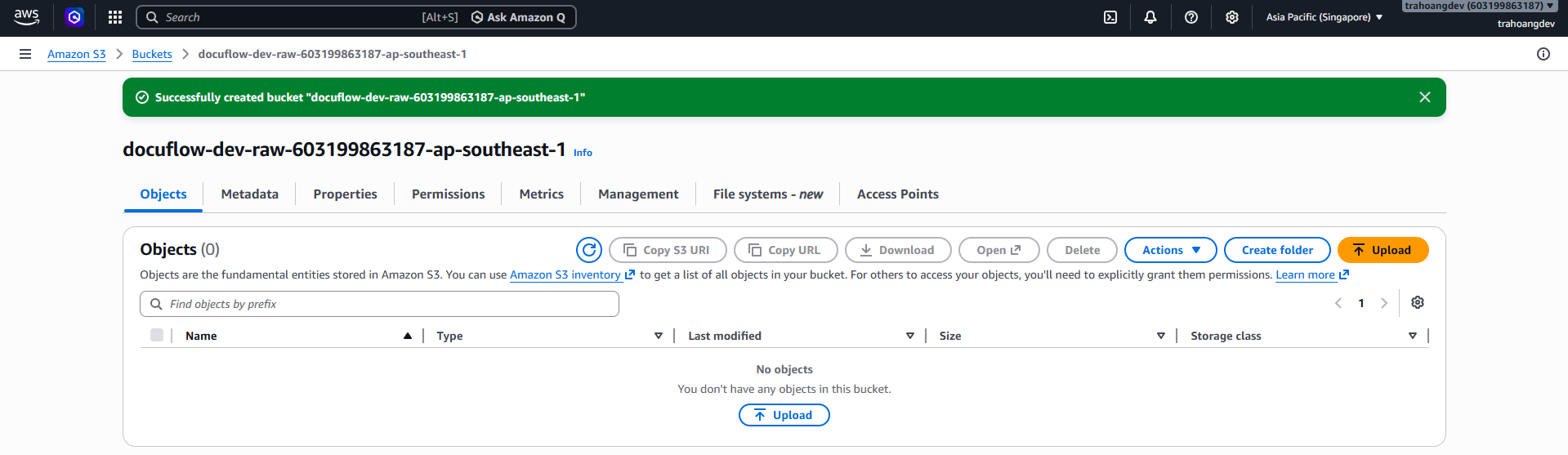
Go to the S3 service → Buckets → Create bucket.
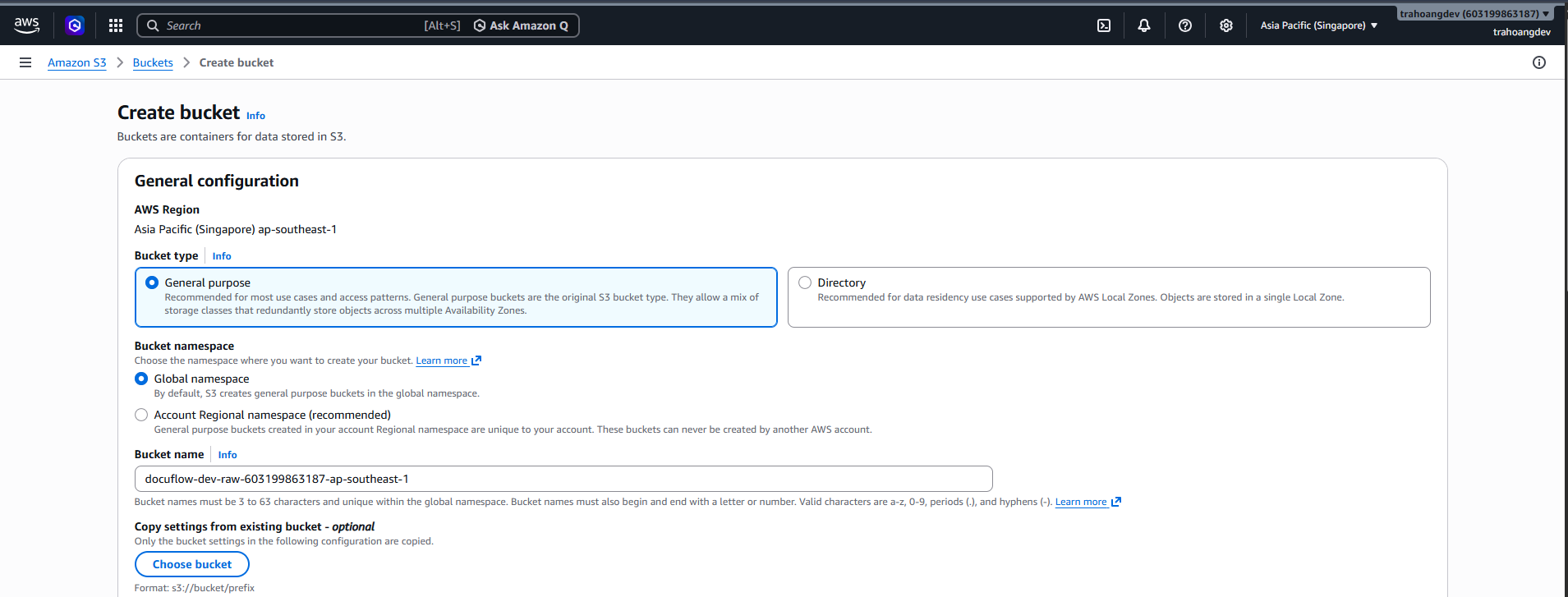
Enter the following information:
- Bucket name:
docuflow-dev-raw-{accountId}-ap-southeast-1 - AWS Region: Asia Pacific (Singapore) ap-southeast-1
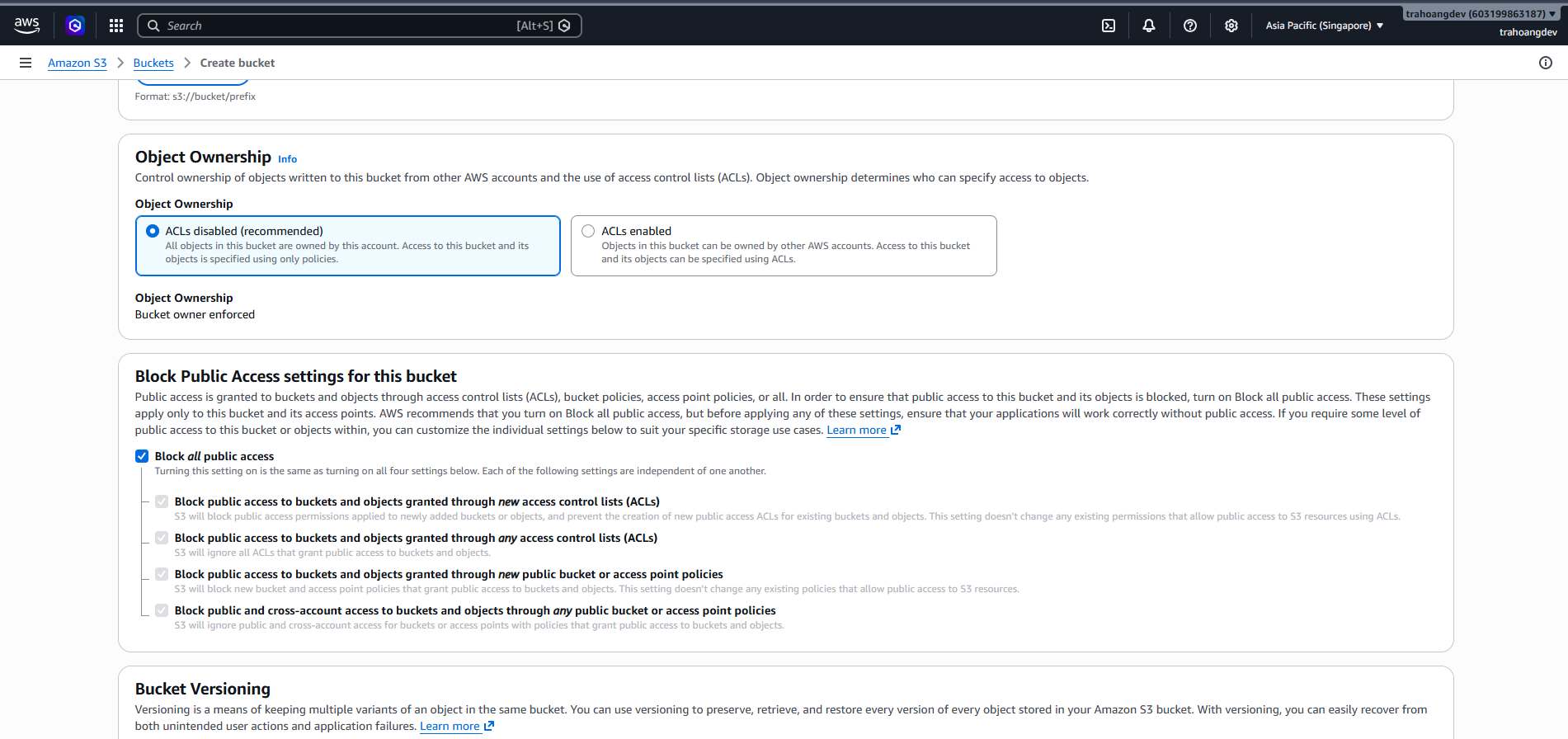
- Object Ownership: ACLs disabled
- Block all public access: ON
- Bucket Versioning: Off for MVP
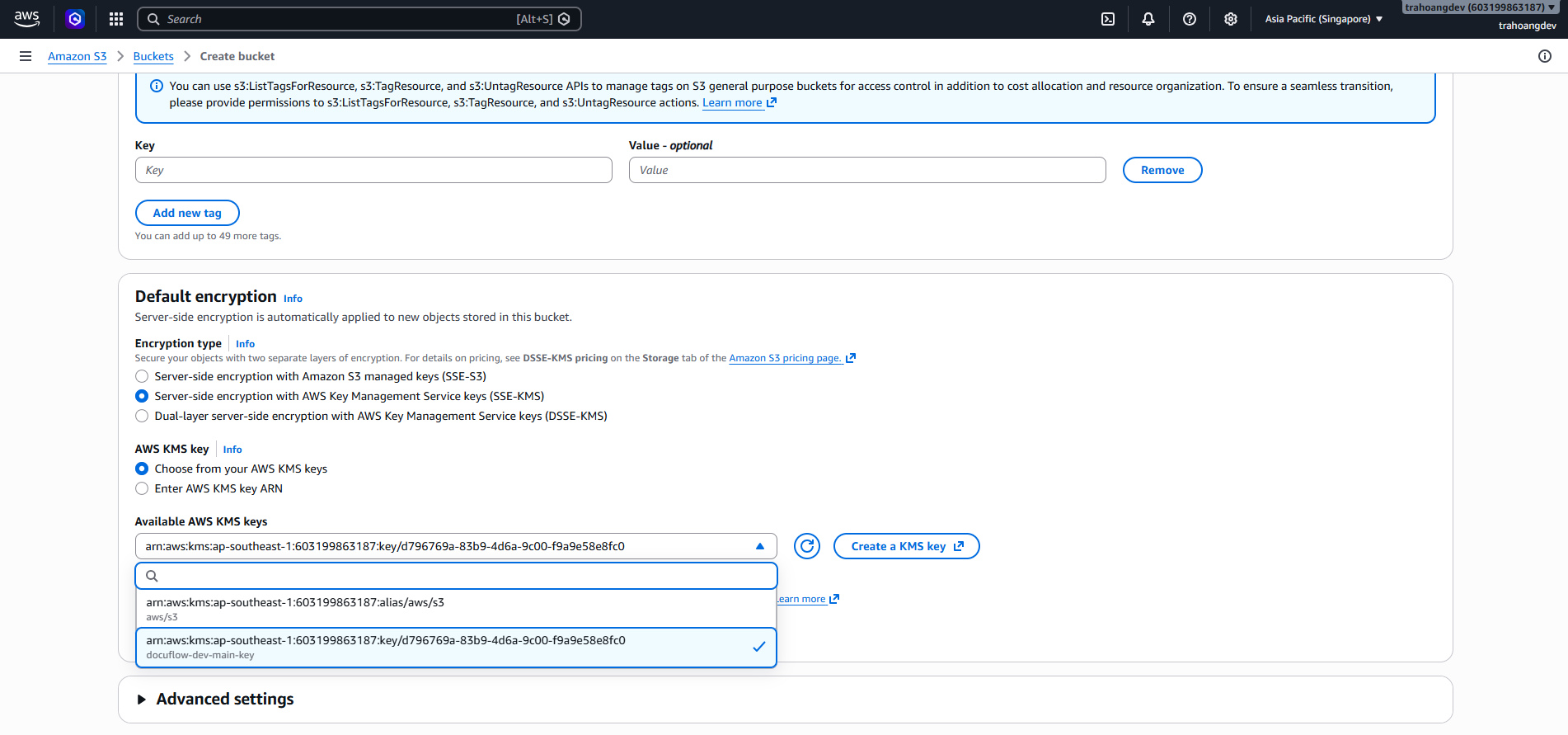
- Default encryption: AWS KMS key
- Bucket name:
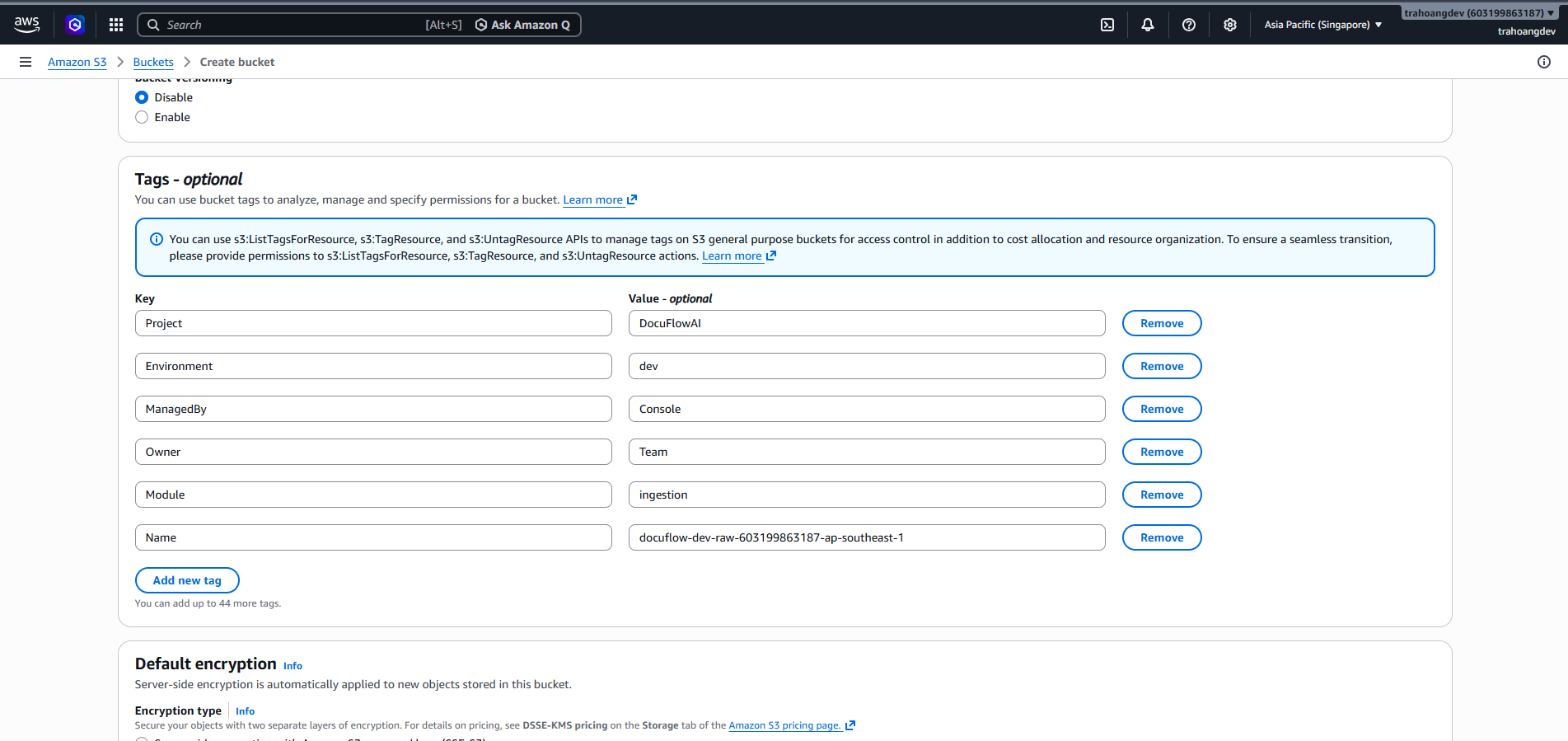
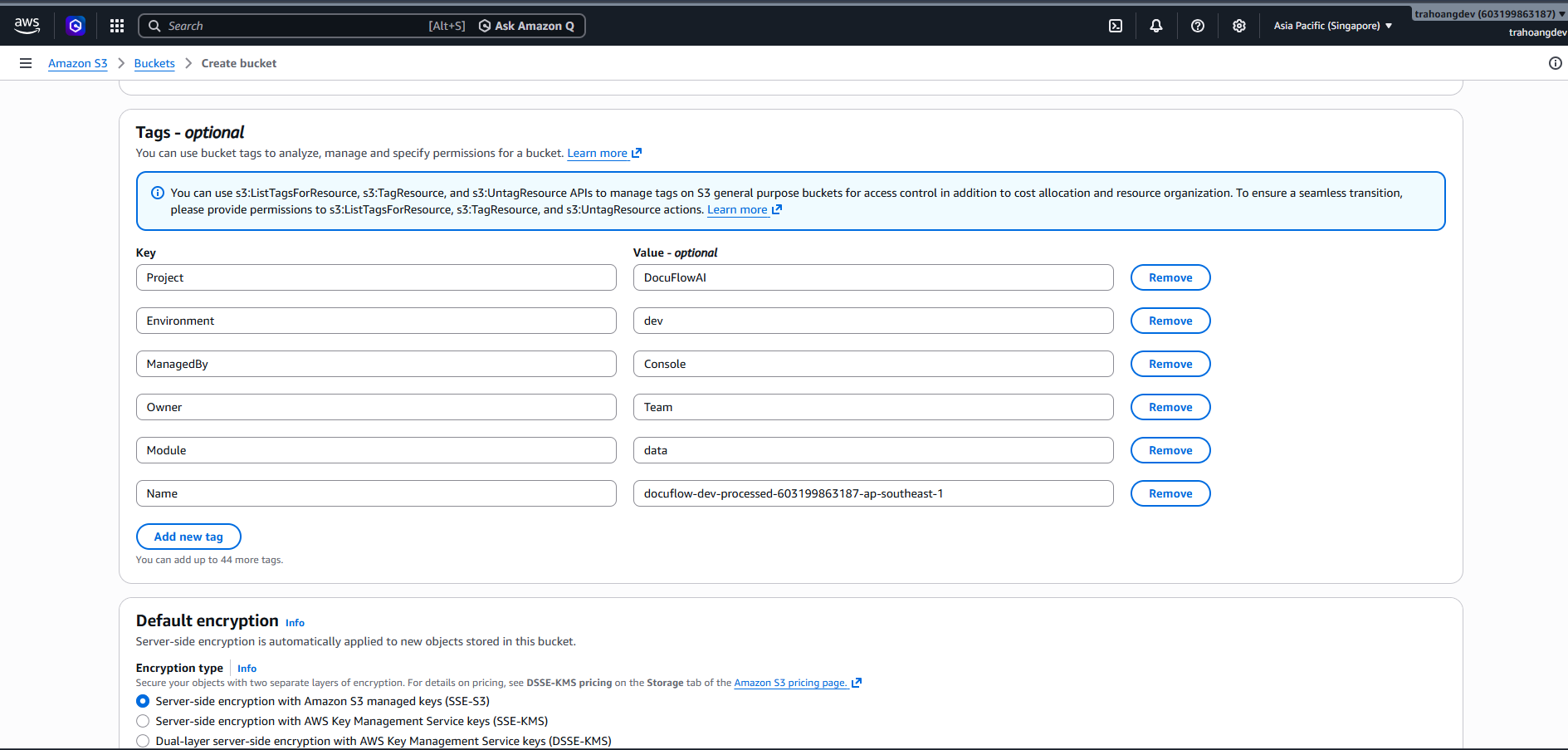
Tags section:
Key Value Project DocuFlowAI Environment dev ManagedBy Console Owner Team Module ingestion Name docuflow-dev-raw-{accountId}-ap-southeast-1 Click Create bucket.
PART 2: CREATE AMAZON S3 PROCESSED BUCKET
What is Amazon S3? Imagine S3 as a limitless hard drive on the Internet (similar to Google Drive). In this project, this Bucket will be used to store JSON result data files after the AI has read, processed, and normalized them.
1. Access the S3 service:
In the top search bar, type S3 and select the S3 service.
2. Start creating the Bucket:
At the S3 interface, click the Create bucket button.
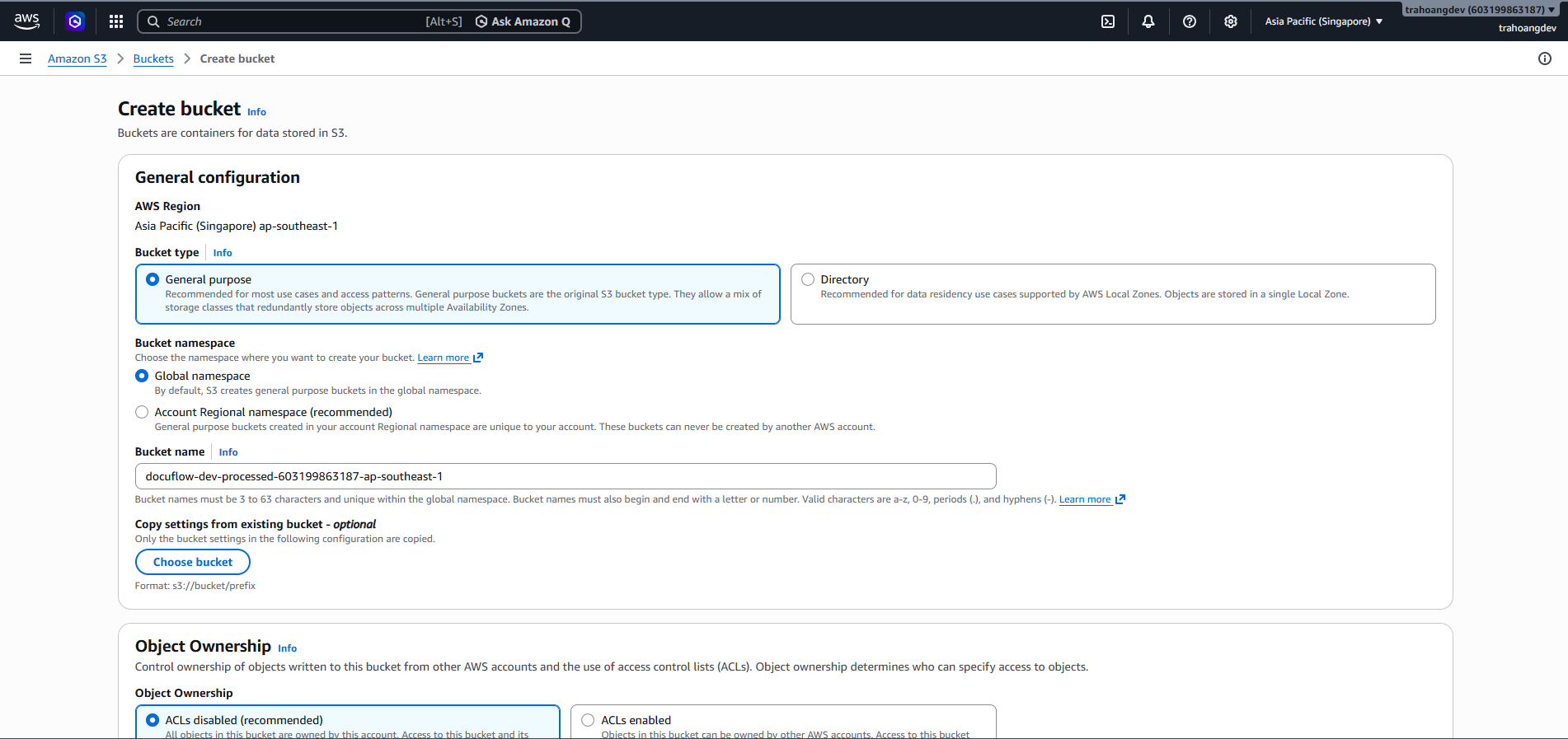
3. General configuration:
- Bucket name: Enter the exact name using the formula:
docuflow-dev-processed-<YOUR_AWS_ACCOUNT_ID>-ap-southeast-1. - AWS Region: Select the Singapore region (ap-southeast-1) for the fastest connection speed to Vietnam.
4. Security configuration (Block Public Access):
Scroll down to the Block Public Access settings for this bucket section. To ensure our data is secure and cannot be read by strangers on the Internet, make sure that the Block all public access checkbox is ticked.
5. Data encryption (Default encryption):
Scroll down to the Encryption type section and select Server-side encryption with Amazon S3 managed keys (SSE-S3) so that AWS automatically encrypts and protects your files.
6. Finish:
Scroll to the bottom of the page and click Create bucket.
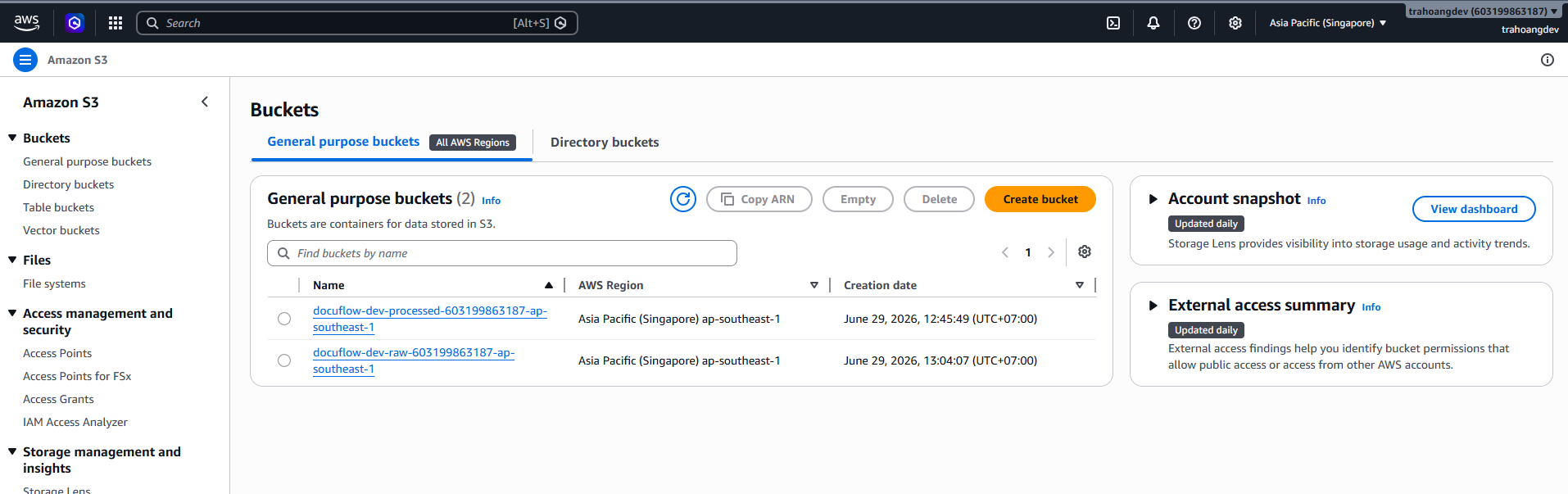
7. Create folder to store data structure
(Example: processed/{userId}/{documentId}/result.json)
Click the Create folder button to create the Processed folder:
PART 3: ENABLE S3 BLOCK PUBLIC ACCESS AND KMS ENCRYPTION
Note: These steps are used to configure additional public access blocking and KMS encryption (SSE-KMS) for both buckets (Raw and Processed) according to the project’s security architecture.
+ For Processed Bucket
Step 1: Enable S3 Block Public Access
- In the AWS Console search bar, type S3 ➔ Select S3.
- Find and click on the Bucket Name you want to configure.
- Select the Permissions tab.
- Under the first section Block public access (bucket settings), click the Edit button on the right.
- Check the box for Block all public access (The system will automatically check all 4 smaller boxes below).
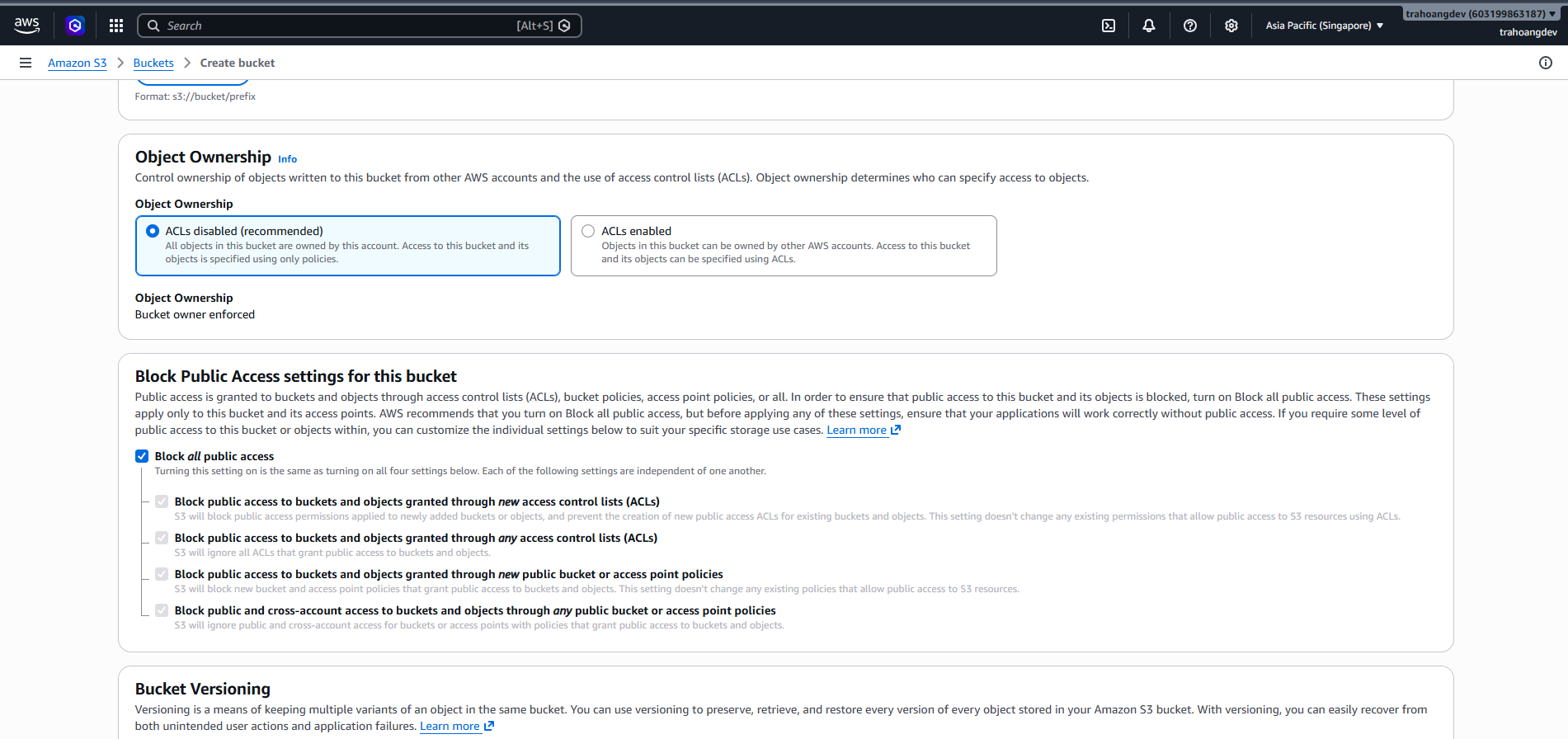
- Click Save changes.
+ For Raw Bucket
Step 1: Enable S3 Block Public Access
- In the AWS Console search bar, type S3 ➔ Select S3.
- Find and click on the Bucket Name you want to configure.
- Select the Permissions tab.
- Under the first section Block public access (bucket settings), click the Edit button on the right.
- Check the box for Block all public access (The system will automatically check all 4 smaller boxes below).
- Click Save changes.
+ For Raw Bucket
Step 2: Enable S3 Encryption using the project KMS key
- Still within that Bucket’s interface, switch to the Properties tab.
- Scroll down to find the Default encryption section ➔ Click Edit.
- Configure exactly as follows to achieve maximum security score:
- Encryption type: Select Server-side encryption with AWS Key Management Service keys (SSE-KMS).
- AWS KMS key: Choose the option Choose from your AWS KMS keys.
- In the key search box, click and select the correct key name
alias/docuflow-dev-main-keythat you created in previous steps. - Bucket Key: Select Enable (Helps reduce KMS API call costs when the system processes a large number of invoices).
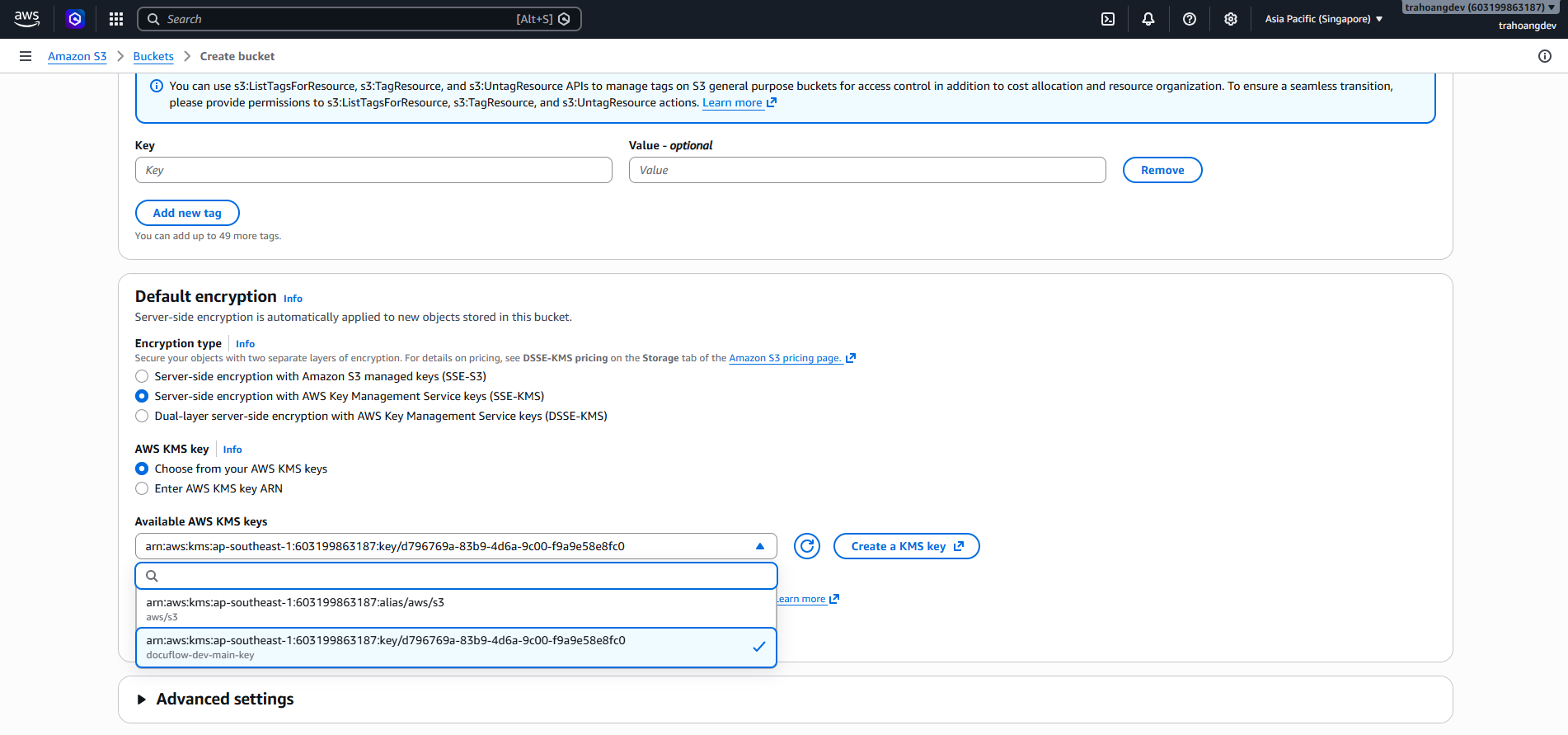
- Click Save changes to finish.
+ For Processed Bucket
Step 2: Enable S3 Encryption using the project KMS key
- Still within that Bucket’s interface, switch to the Properties tab.
- Scroll down to find the Default encryption section ➔ Click Edit.
- Configure exactly as follows to achieve maximum security score:
- Encryption type: Select Server-side encryption with AWS Key Management Service keys (SSE-KMS).
- AWS KMS key: Choose the option Choose from your AWS KMS keys.
- In the key search box, click and select the correct key name
alias/docuflow-dev-main-keythat you created in previous steps. - Bucket Key: Select Enable (Helps reduce KMS API call costs when the system processes a large number of invoices).
- Click Save changes to finish.