Configure Secrets Manager
We will securely store and encrypt the access key (API Key) of the External AI using the AWS Secrets Manager service. This secret key will be encrypted with the project’s KMS Key, and only the AI Proxy Lambda function will have permission to retrieve its value.
Prepare the External AI API Key
Before creating the AWS secret, you need an API key from the LLM provider. In this workshop, the AI Proxy Lambda code calls the OpenAI API at /v1/chat/completions and uses gpt-4o as the default model.
- Open OpenAI API keys, then sign in or create an OpenAI Platform account if you do not have one.
- Select the Project used for this workshop, or create a dedicated Project such as
docuflow-ai-workshop. - Create a new secret key and give it a recognizable name, such as
docuflow-dev-ai-proxy. - Copy the API key immediately after it is created. OpenAI only shows the full secret key at creation time; if you lose it, create a new key and update the AWS secret.
- Confirm that your OpenAI Platform account has suitable billing/quota and that the model you plan to use is available. If you do not use
gpt-4o, record the model name so you can configure theOPENAI_MODELenvironment variable in the AI Proxy Lambda step.
Do not put the API key in the frontend, GitHub, public .env files, or screenshots. In this workshop, the API key is pasted only into AWS Secrets Manager with the key name api_key.
Detailed Steps
Create a new Secret:
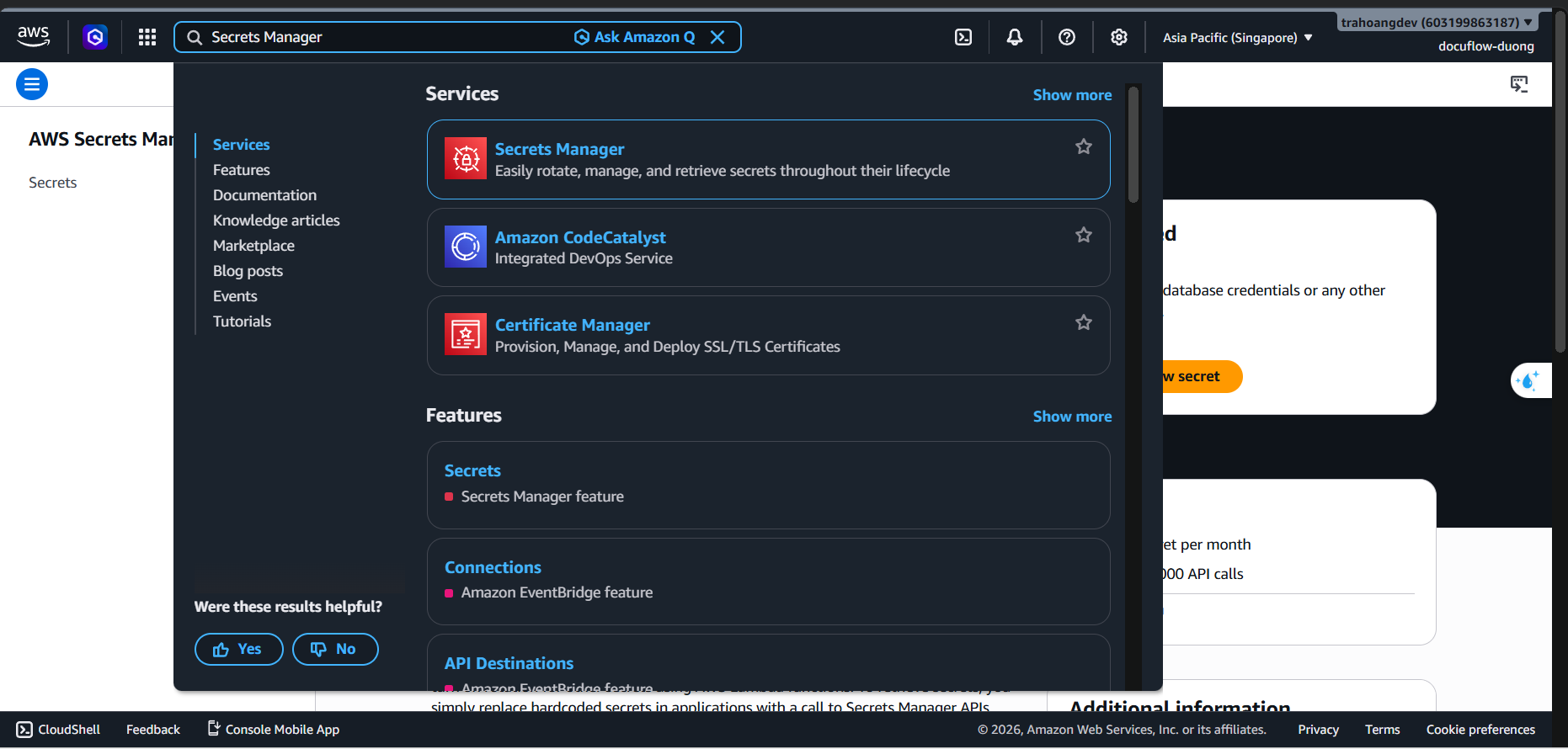
- In the AWS Console search bar, type Secrets Manager ➔ Select the corresponding service.
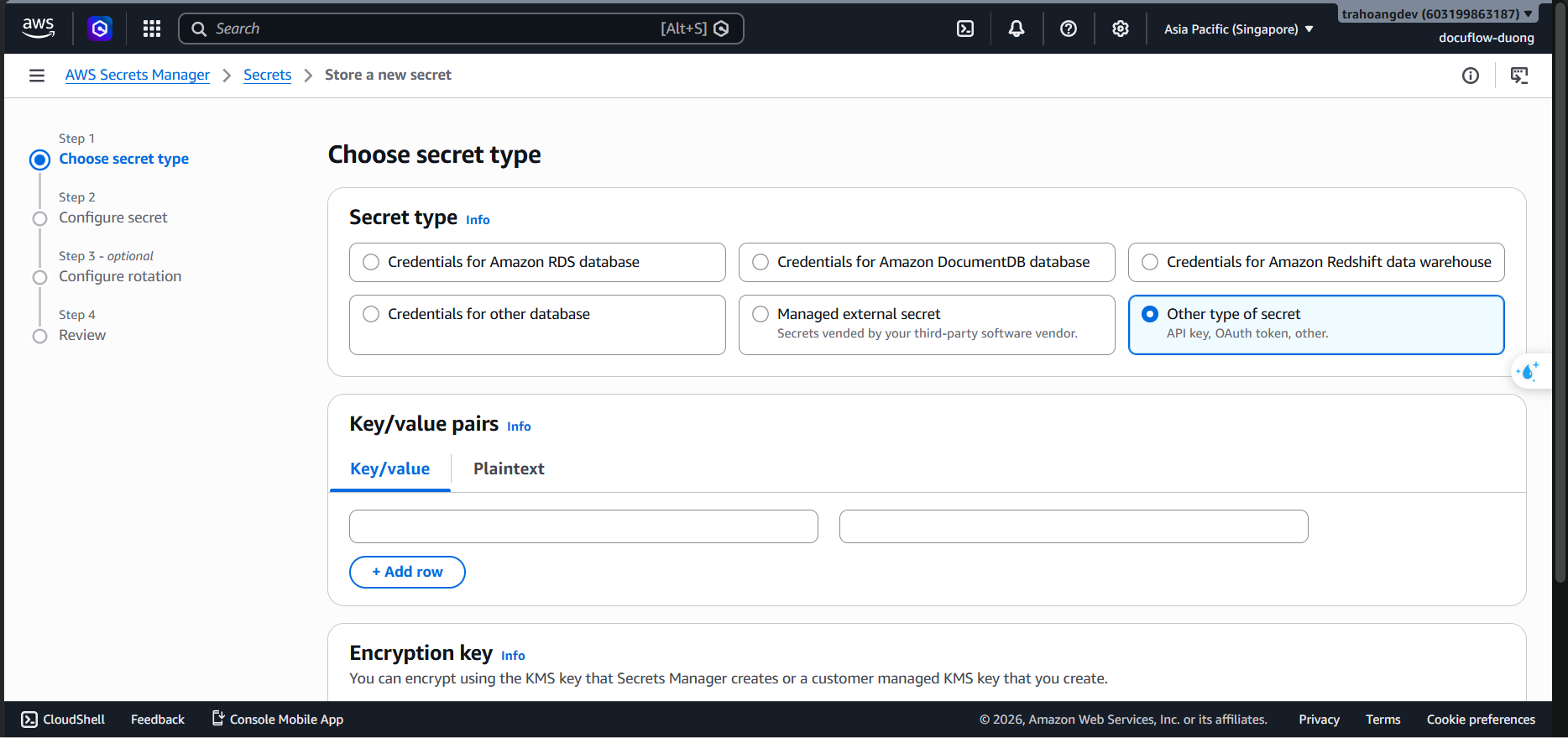
- Click the Store a new secret button.
- Choose secret type: Select Other type of secret.
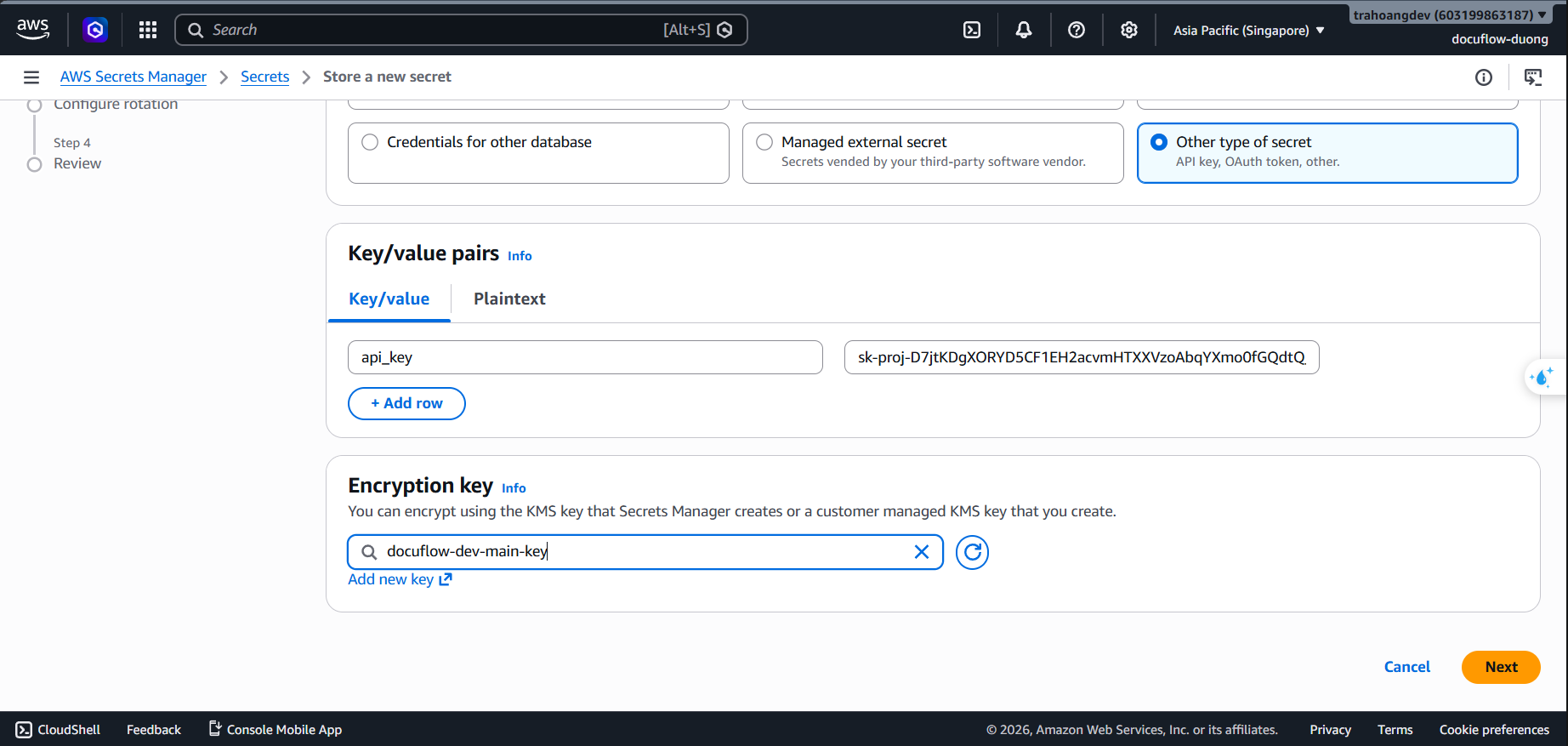
Configure Key/value pairs:
- Left box (Key): Enter
api_key(lowercase, no spaces, standard for the project code). - Right box (Value): Paste your External AI’s Token / API Key.
- Encryption key: Click the dropdown menu and select the correct project KMS key:
alias/docuflow-dev-main-key(Do not use the defaultaws/secretsmanagerkey to ensure maximum information security standards).
- Left box (Key): Enter
- Click Next.
Set secret name and description:
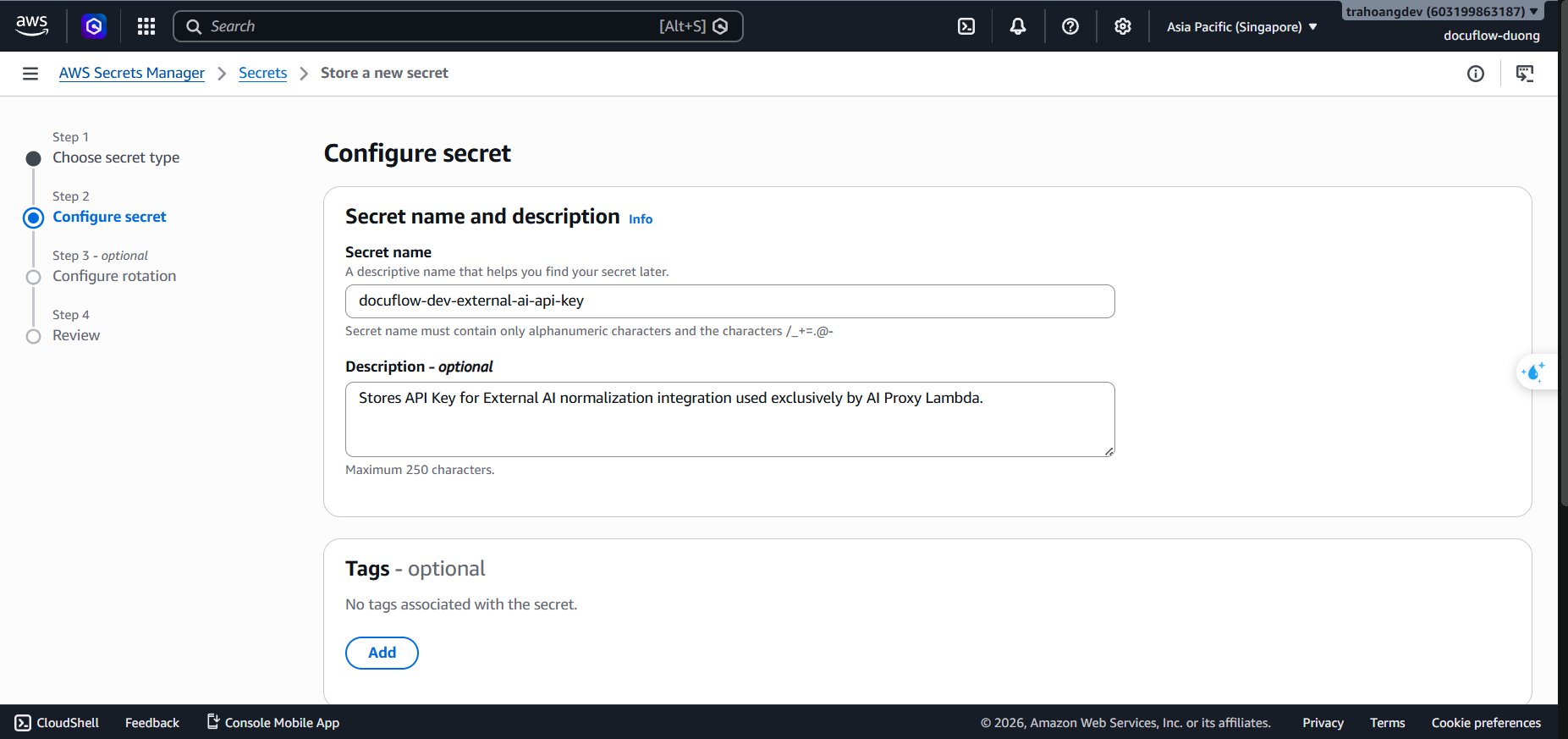
- Secret name: Enter exactly
docuflow-dev-external-ai-api-key.
- Description:
Stores API Key for External AI normalization integration used exclusively by AI Proxy Lambda.
- Keep other settings as default, click Next ➔ Skip Rotation configuration and click Next ➔ Click Store at the bottom to finish.
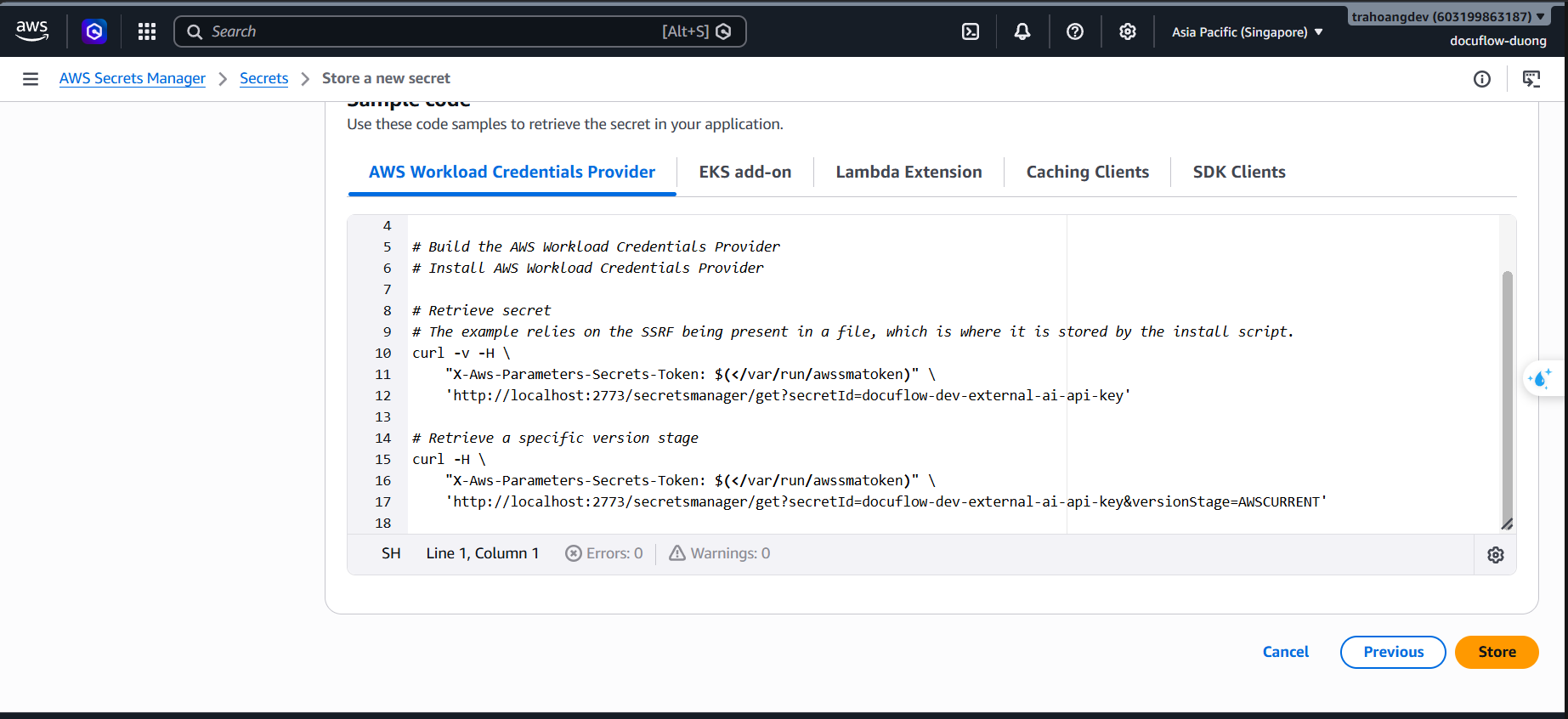
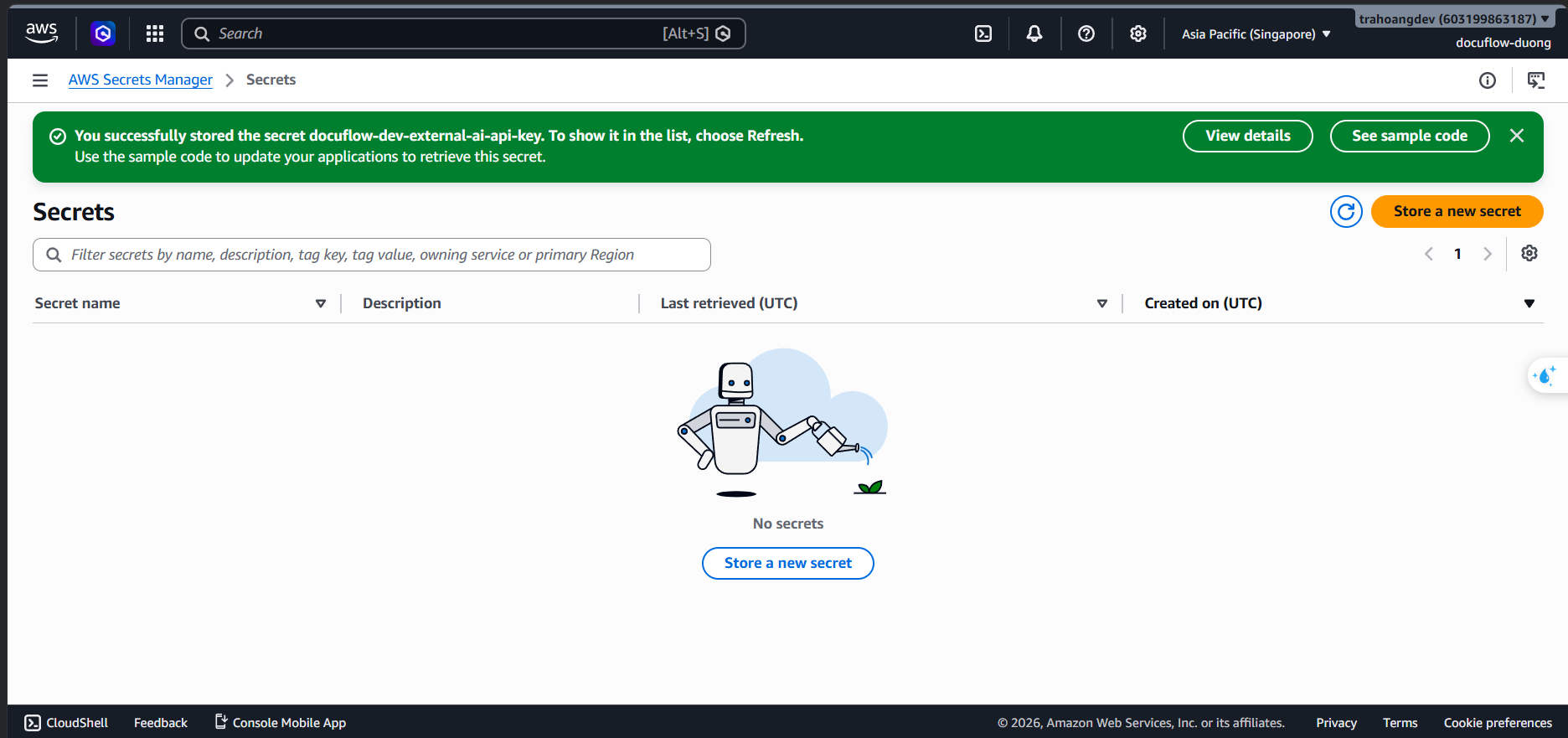
- Secret name: Enter exactly
Record the Secret ARN:
- After saving, click on the name of the newly created Secret.
- Copy its Secret ARN string (Example:
arn:aws:secretsmanager:ap-southeast-1:<AWS_ACCOUNT_ID>:secret:docuflow-dev-external-ai-api-key-XXXXXX).
Grant exclusive permissions solely to AI Proxy Lambda (Security Checkpoint):
To correctly configure your Lambda to read this secret, configure the IAM Policy as follows:
- Go to the IAM service ➔ Policies ➔
docuflow-dev-ai-secret-read-policy➔ Select the JSON tab ➔ Edit. - Delete the old code and paste the following “least privilege” JSON block (Replace with your secret ARN string in the Resource section if you want absolute security, or keep the
*at the end as below):
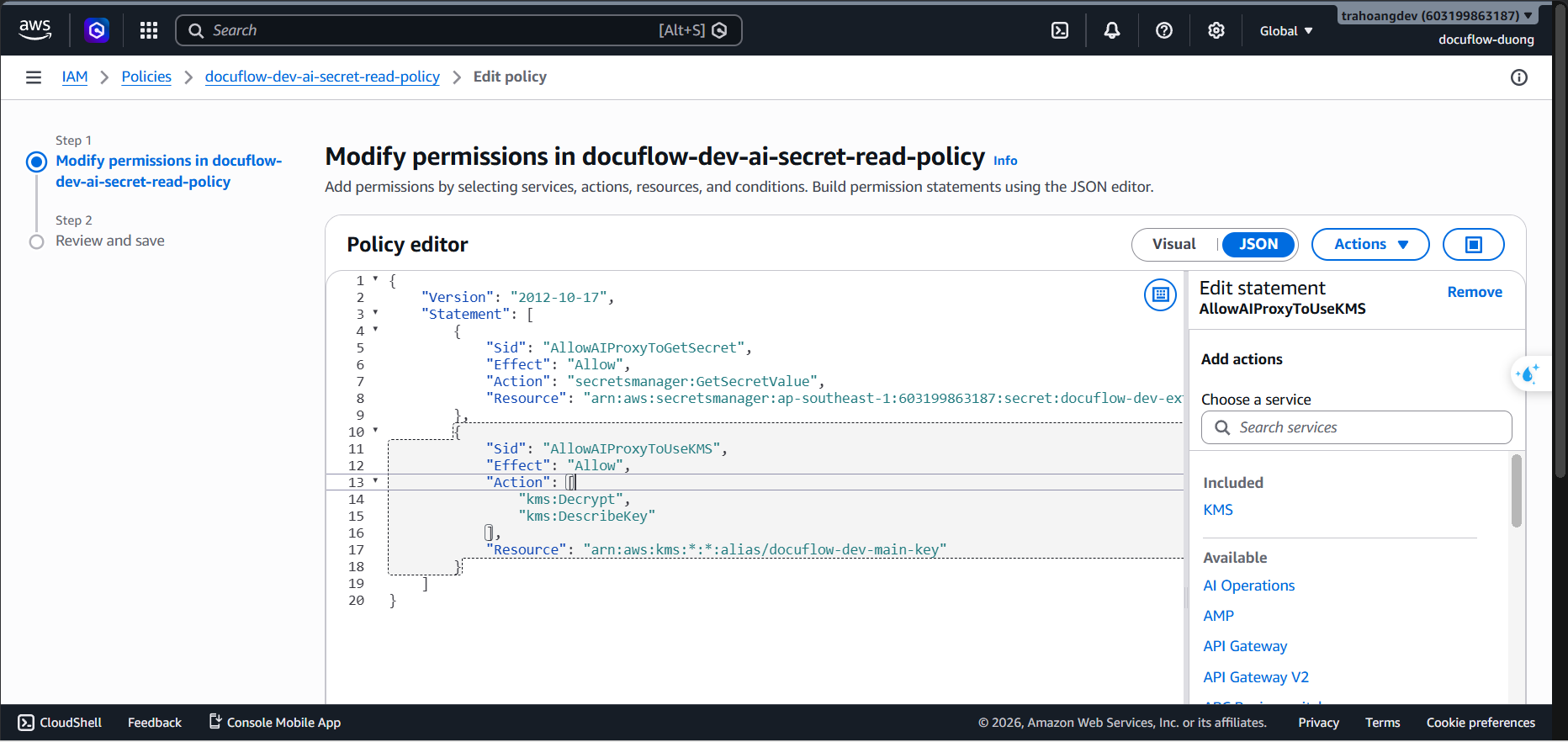
- Click Next, then select Save changes.
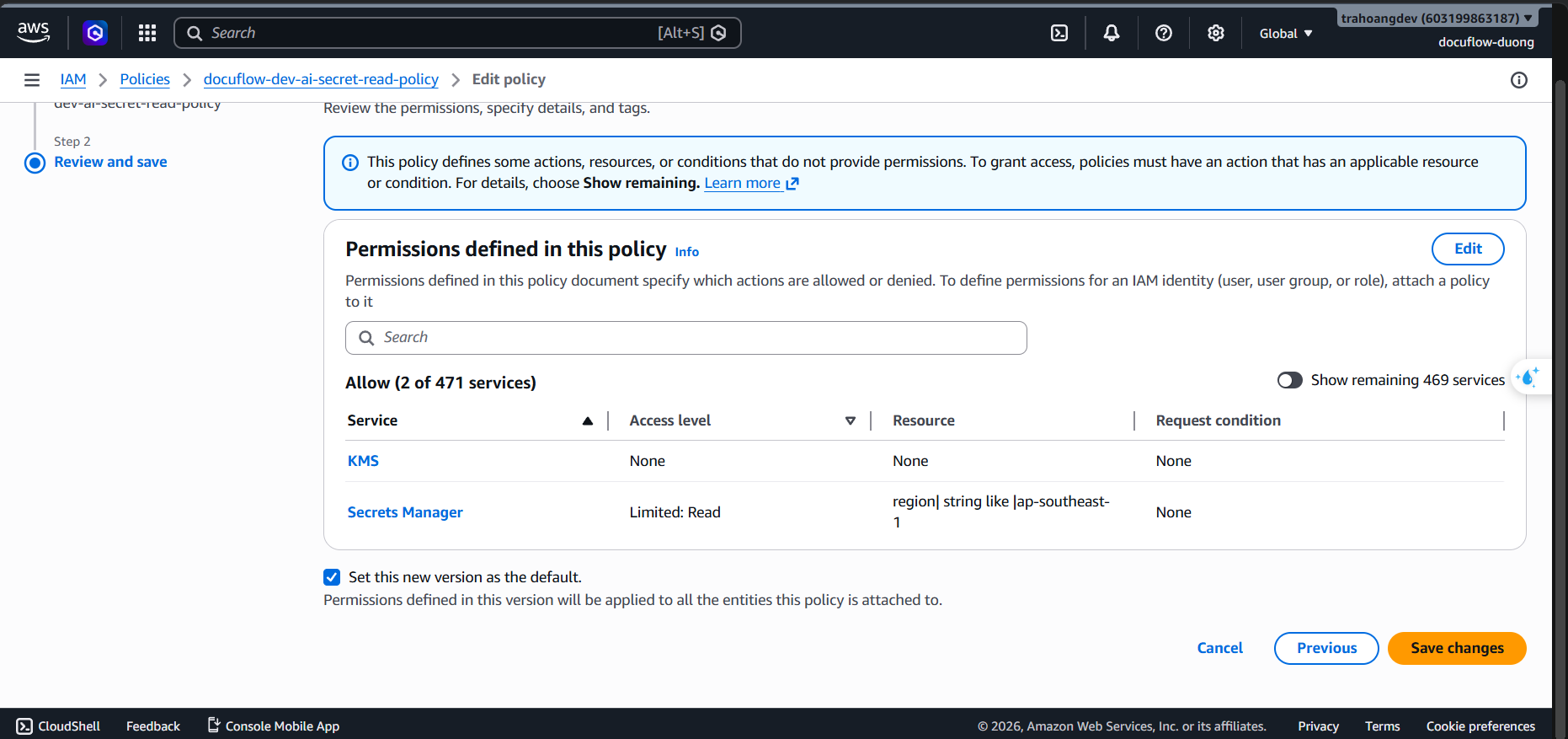
- Go to the IAM service ➔ Policies ➔