Deploy Frontend with AWS Amplify Hosting
Use AWS Amplify Hosting to publish the React/Vite frontend as a production web application. This step should be completed after the Cognito User Pool is created and after the API Gateway Invoke URL is available from section 5.7.3.
1. Goal
Deploy the DocuFlow AI frontend from GitHub, configure production environment variables, verify the Amplify domain, and confirm the hosted application can call the backend API.
2. Prerequisites
Before starting, prepare these values:
| Variable | Source |
|---|---|
VITE_COGNITO_REGION | AWS Region, for example ap-southeast-1 |
VITE_COGNITO_USER_POOL_ID | Cognito User Pool details page |
VITE_COGNITO_CLIENT_ID | Cognito App client details page |
VITE_API_BASE_URL | API Gateway stage Invoke URL from section 5.7.3 |
Do not put server-side secrets in Vite variables. Any variable prefixed with
VITE_is bundled into the browser application.
3. Deploy with Amplify Hosting
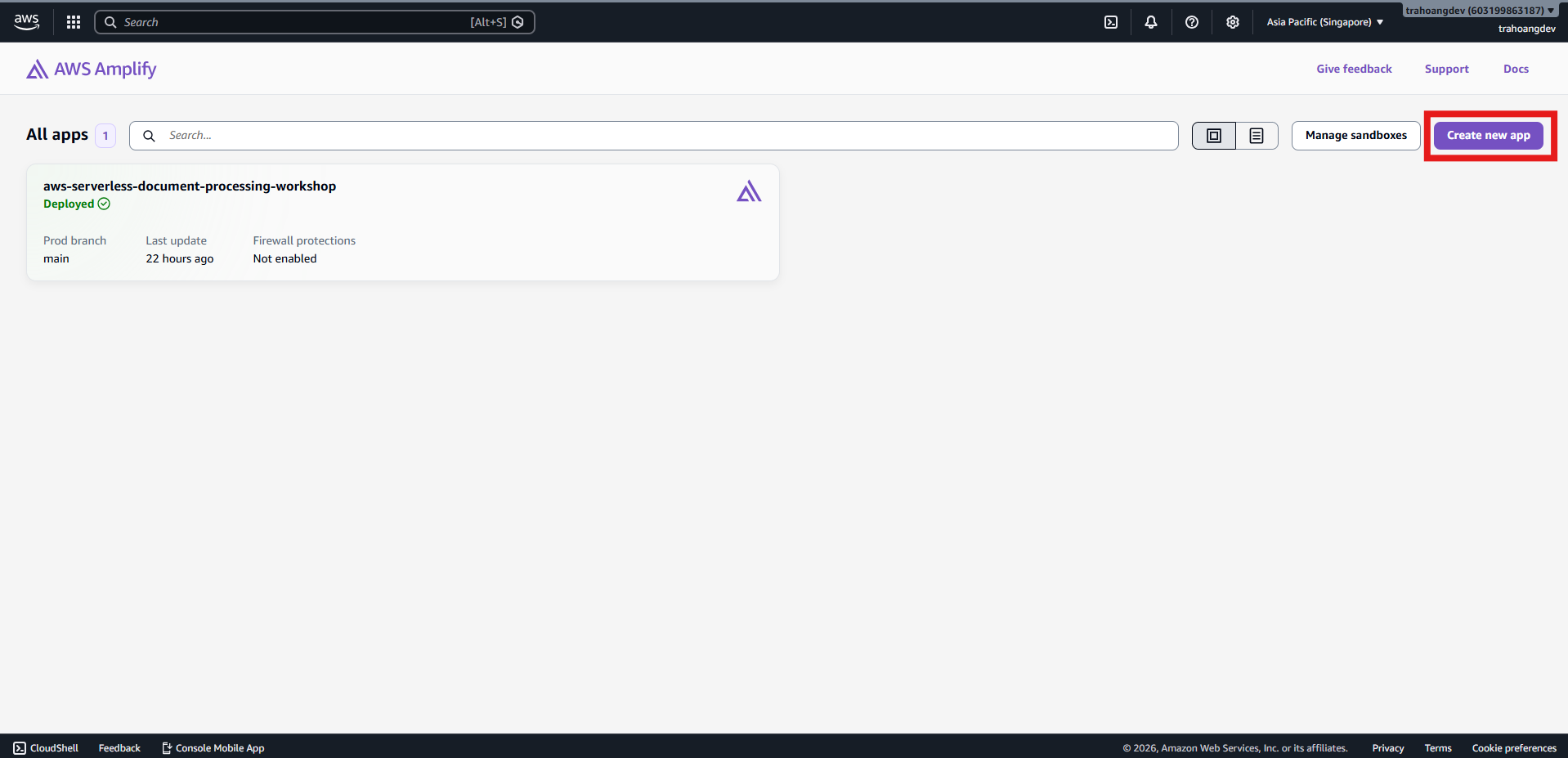
- Open the AWS Amplify console.
- Choose New app -> Host web app or Deploy an app.
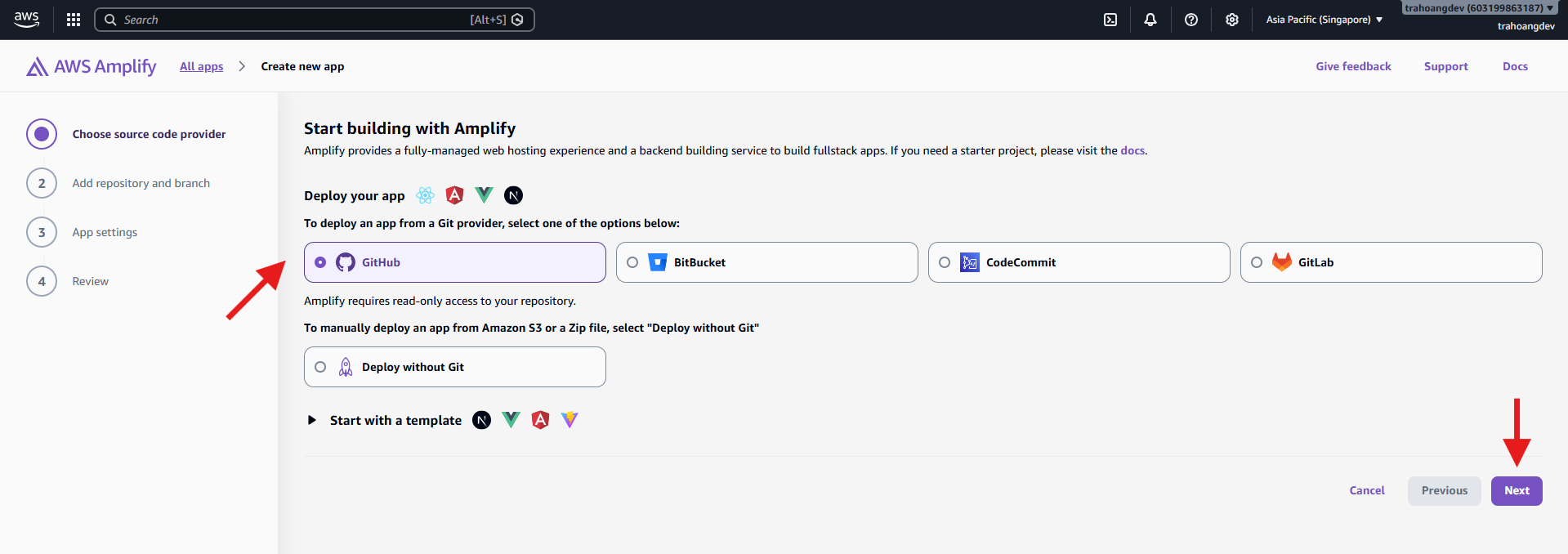
- Select your Git provider, for example GitHub, then authorize the AWS Amplify GitHub App if prompted.
- Select the repository that contains the frontend source code.
- Select the branch to deploy, for example
main.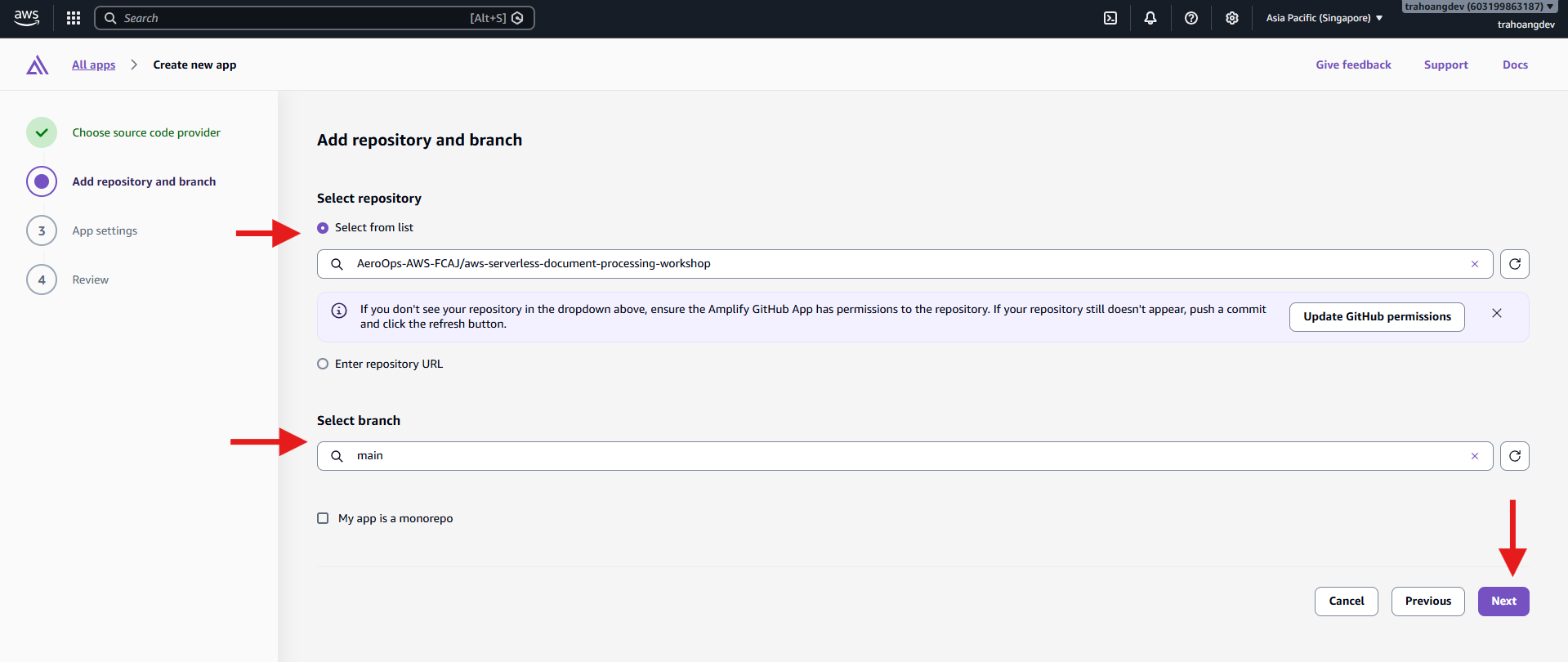
- If the repository is a monorepo, set the application root to:
apps/web
- On the build settings page, confirm or replace the build specification with:
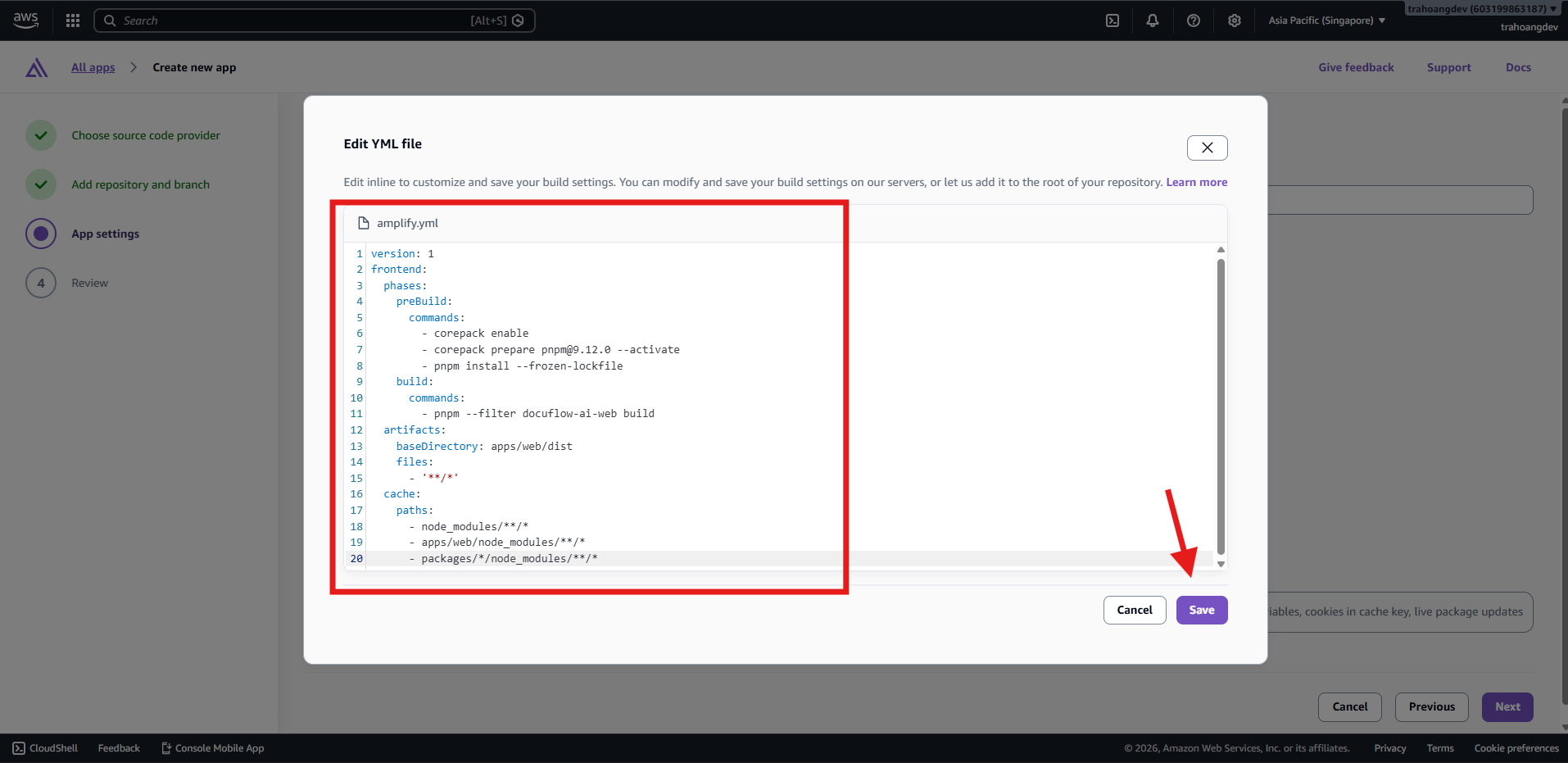
version: 1
applications:
  - appRoot: apps/web
    frontend:
      phases:
        preBuild:
          commands:
            - corepack enable
            - pnpm install --frozen-lockfile
        build:
          commands:
            - pnpm run build
      artifacts:
        baseDirectory: dist
        files:
          - '**/*'
      cache:
        paths:
          - node_modules/**/*
          - apps/web/node_modules/**/*
- Add the production environment variables:
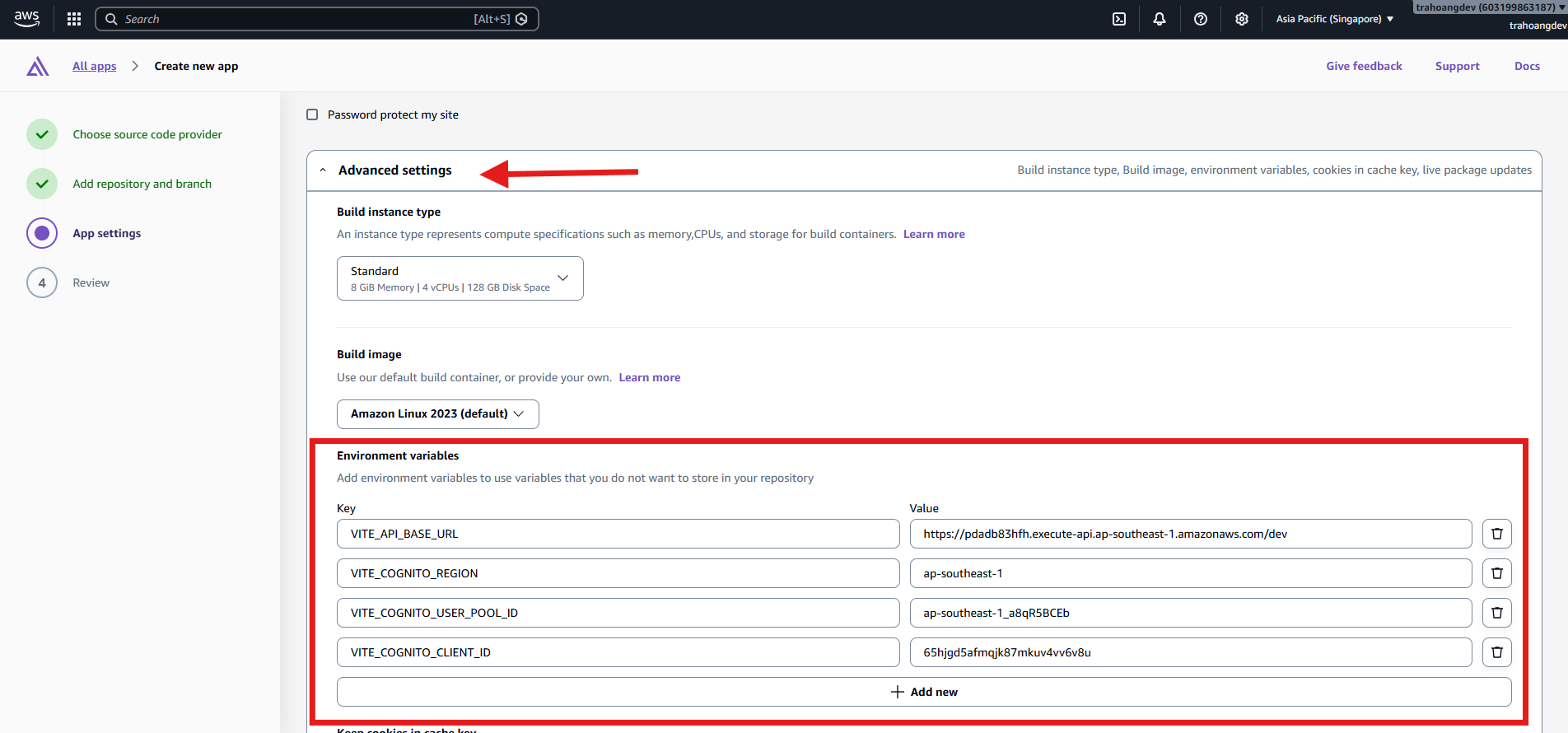
VITE_COGNITO_REGION=ap-southeast-1
VITE_COGNITO_USER_POOL_ID=ap-southeast-1_xxxxxxxxx
VITE_COGNITO_CLIENT_ID=xxxxxxxxxxxxxxxxxxxxxxxxxx
VITE_API_BASE_URL=https://xxxxxxxxxx.execute-api.ap-southeast-1.amazonaws.com/dev
- Review the configuration and choose Save and deploy.
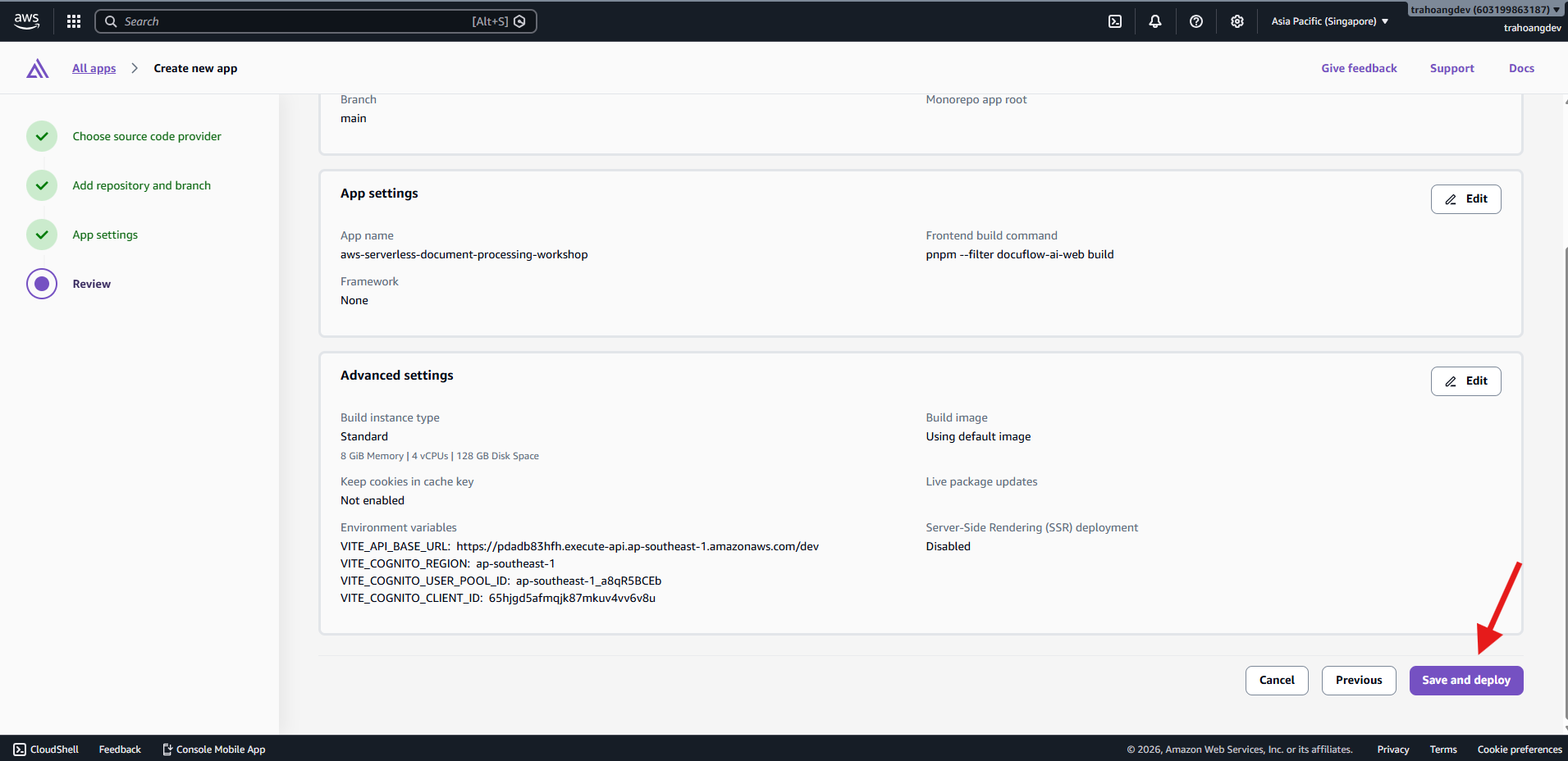
- Wait for the build pipeline to finish. The stages should complete successfully: Provision, Build, Deploy, and Verify.
- Open the Amplify domain, for example:
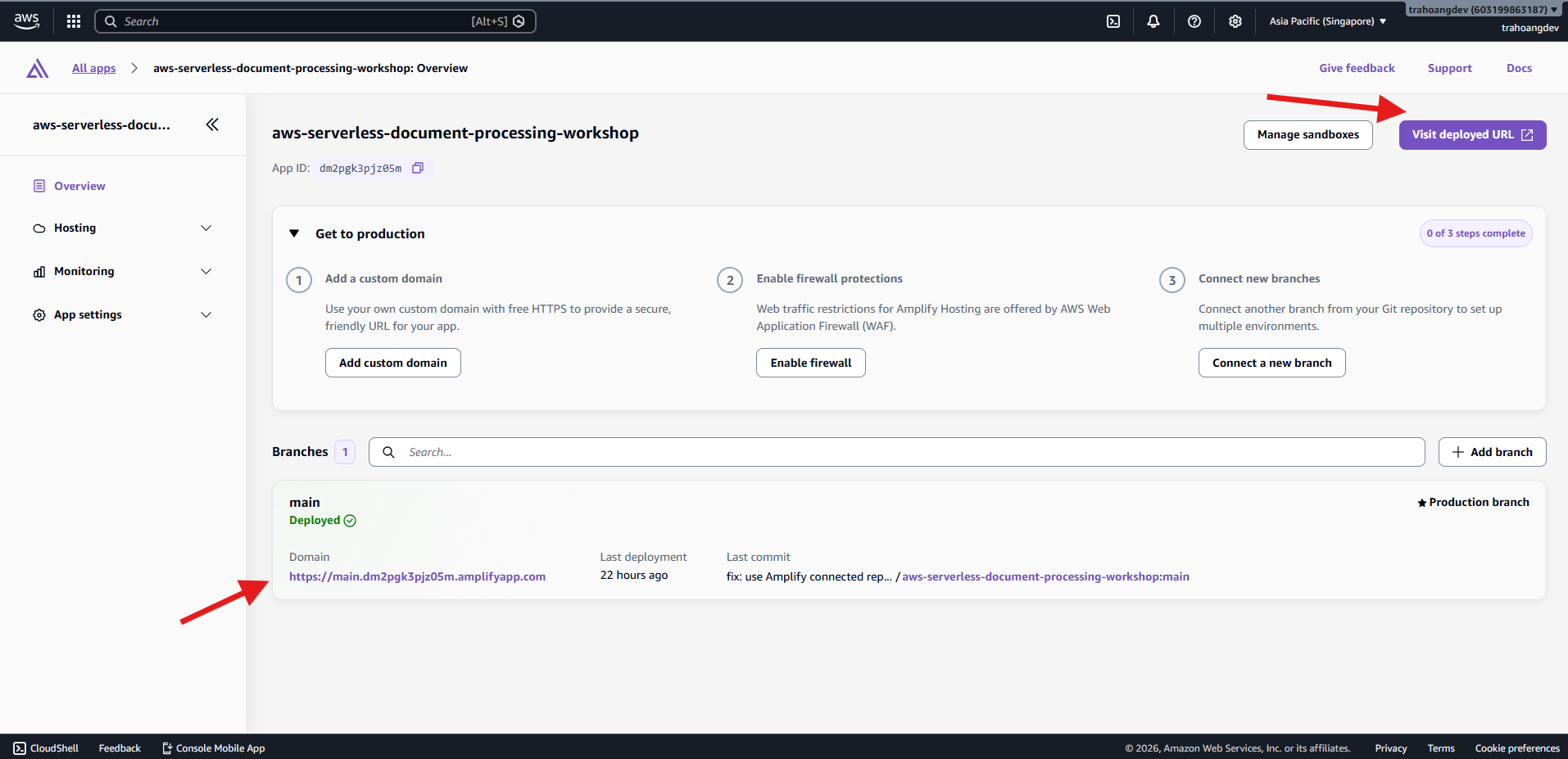
https://main.xxxxx.amplifyapp.com
4. Configure SPA Routing
If refreshing a frontend route returns a 404 page, add a rewrite rule in Amplify:
| Source address | Target address | Type |
|---|---|---|
| `</^[^.]+$ | .(?!(css | gif |
Save the rule and redeploy the app if Amplify prompts you to do so.
5. Verify the Hosted Frontend
- Open the Amplify app URL.
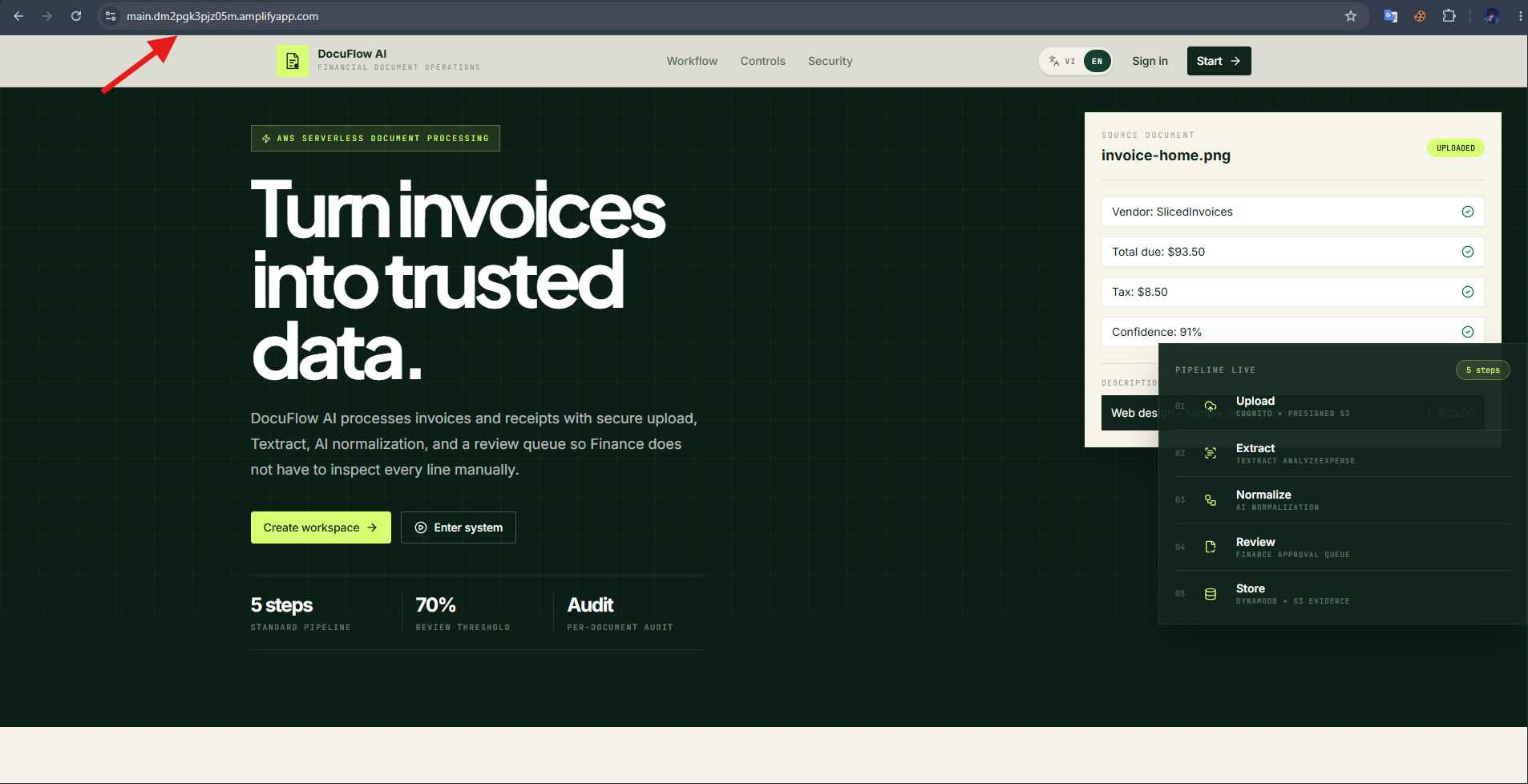
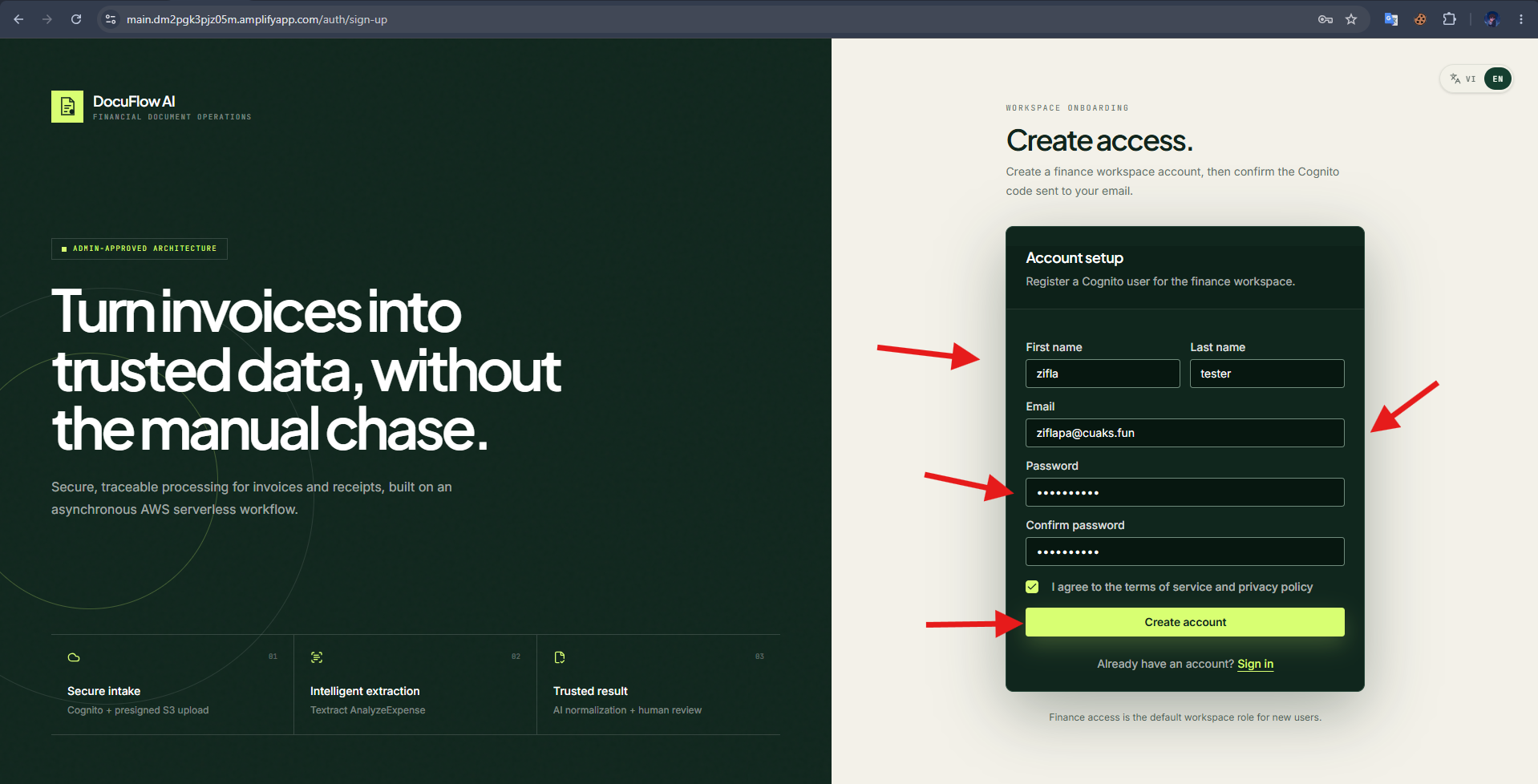
- Register or sign in with a Cognito test user.
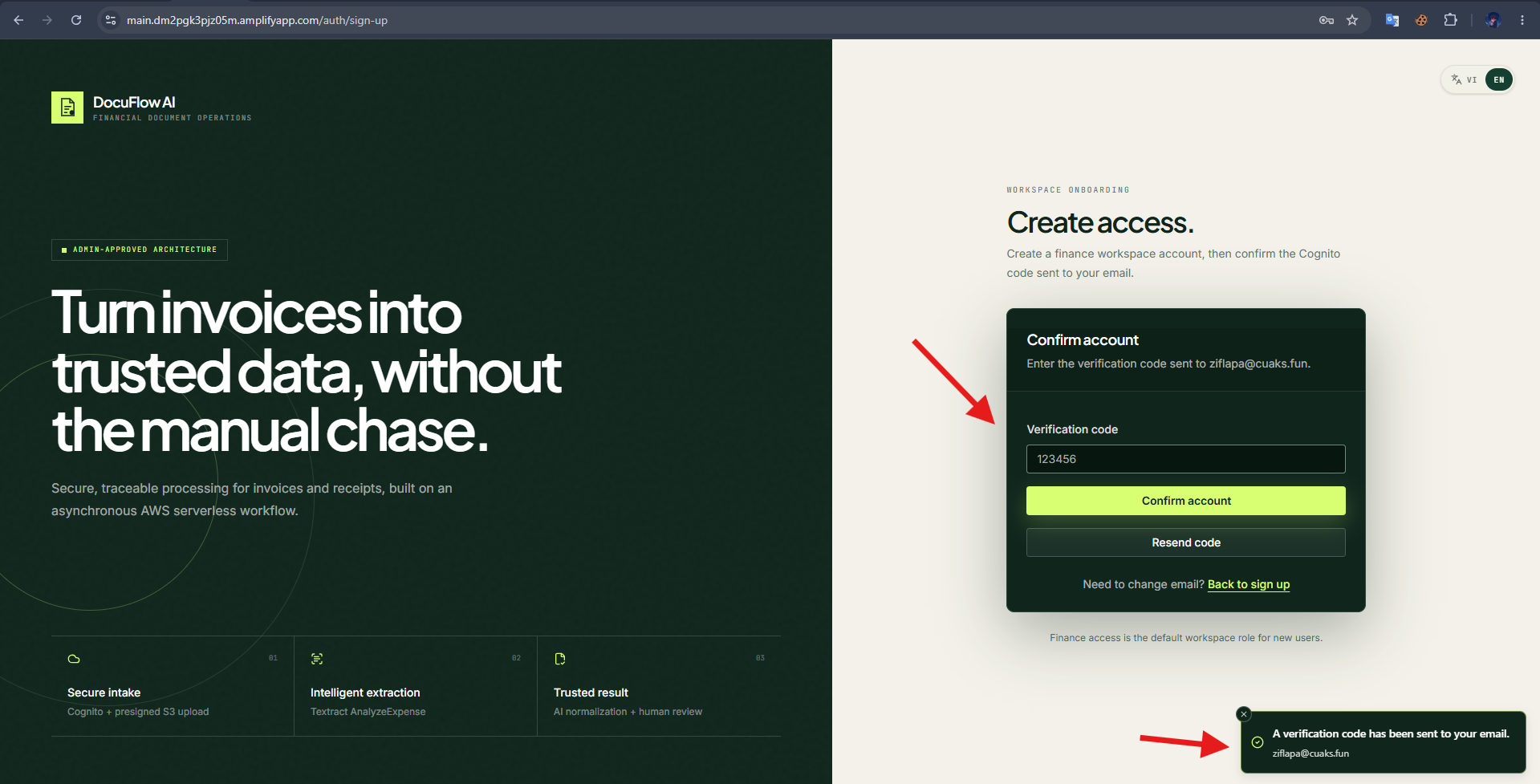
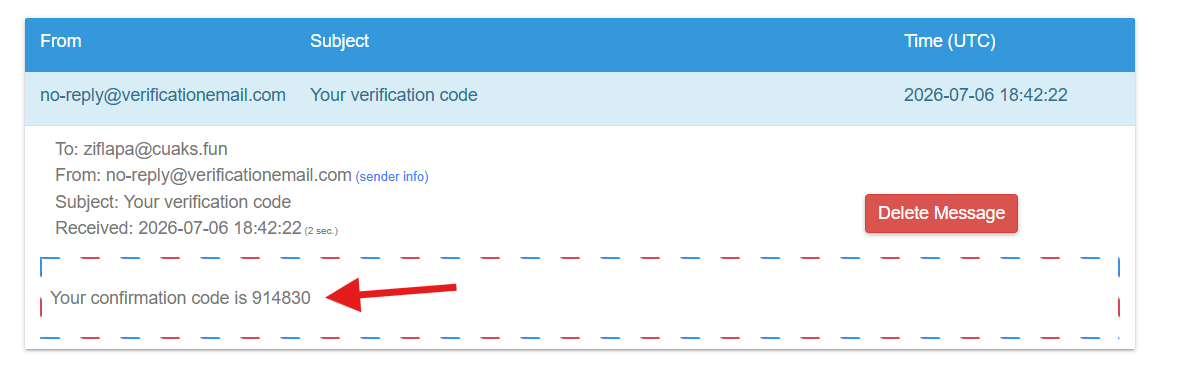
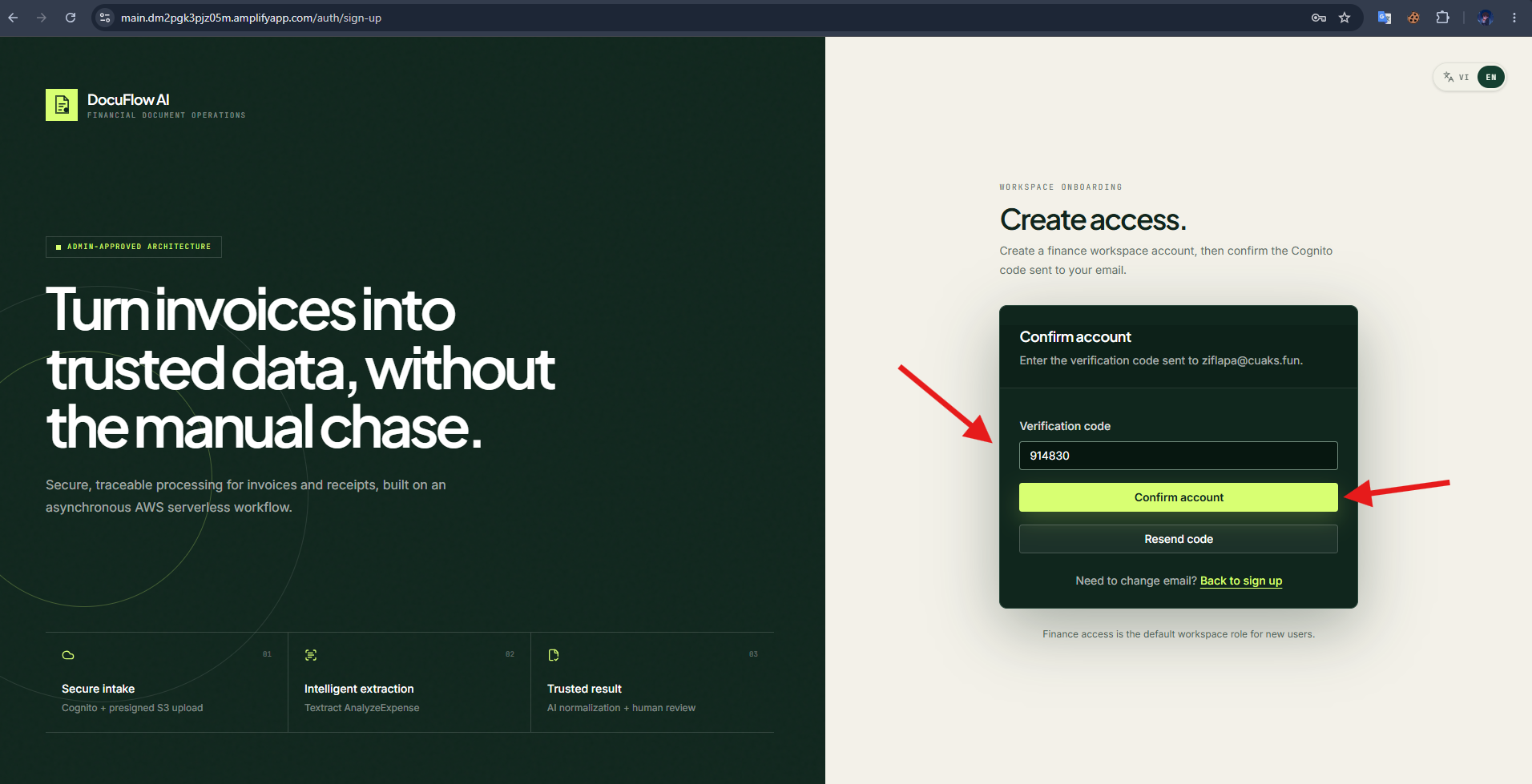
- Enter the verification code sent by email to confirm the account.
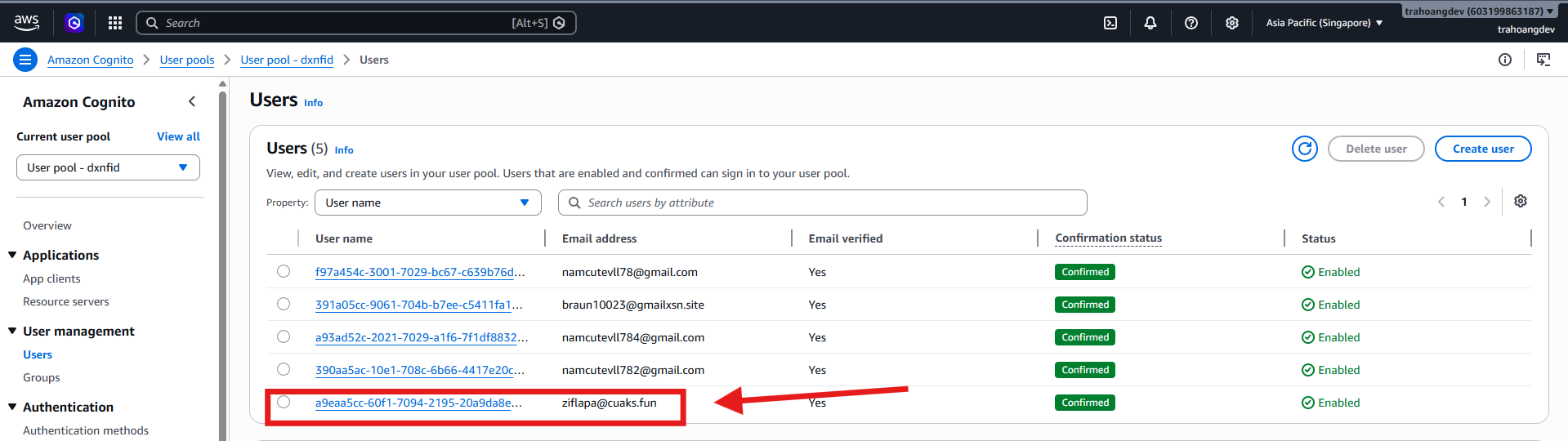
- Confirm the user is created and confirmed in the Cognito User Pool.
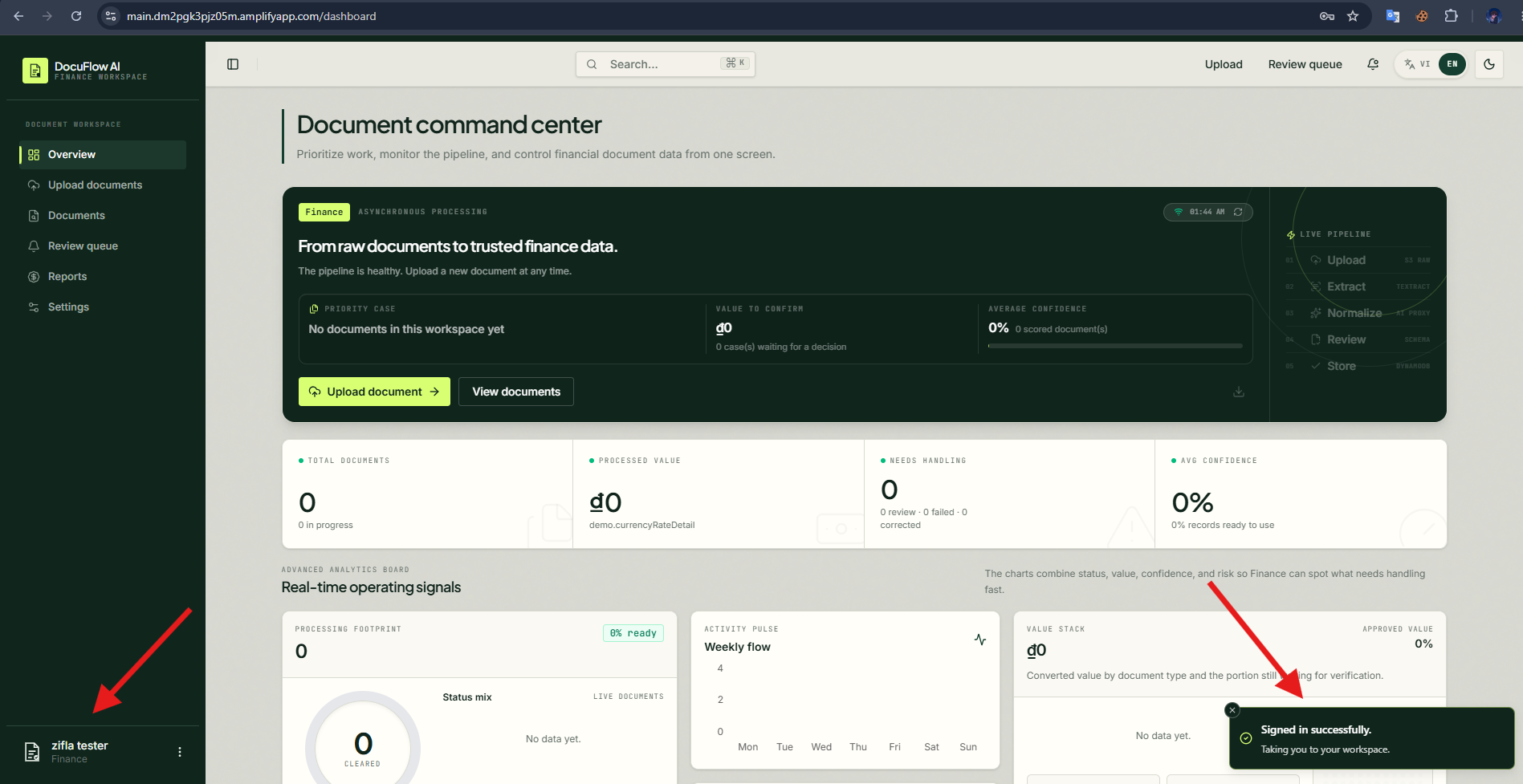
- Sign in to the application dashboard.
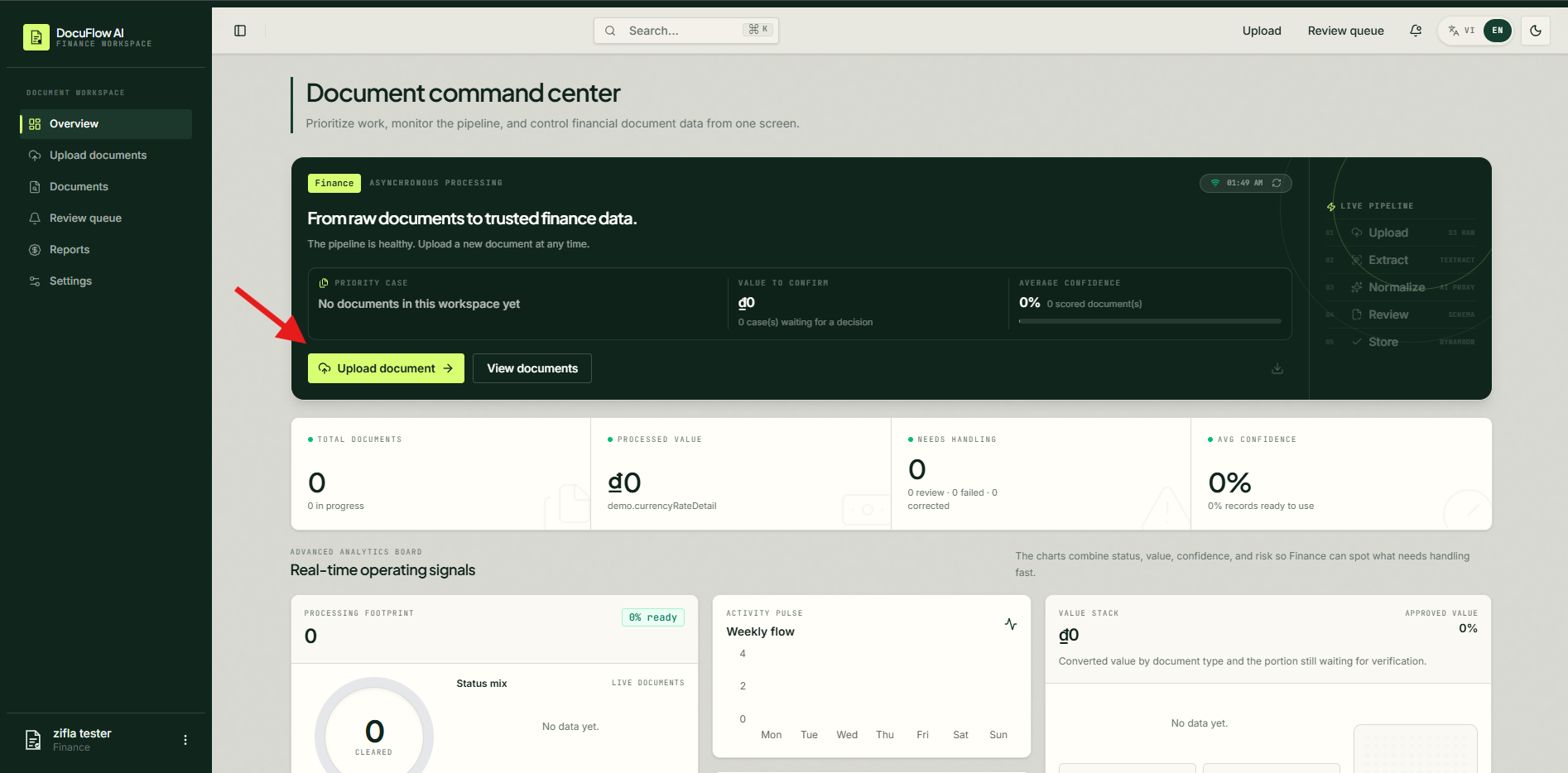
- Choose Upload document to open the document upload flow.
- Select a sample invoice or document to upload.
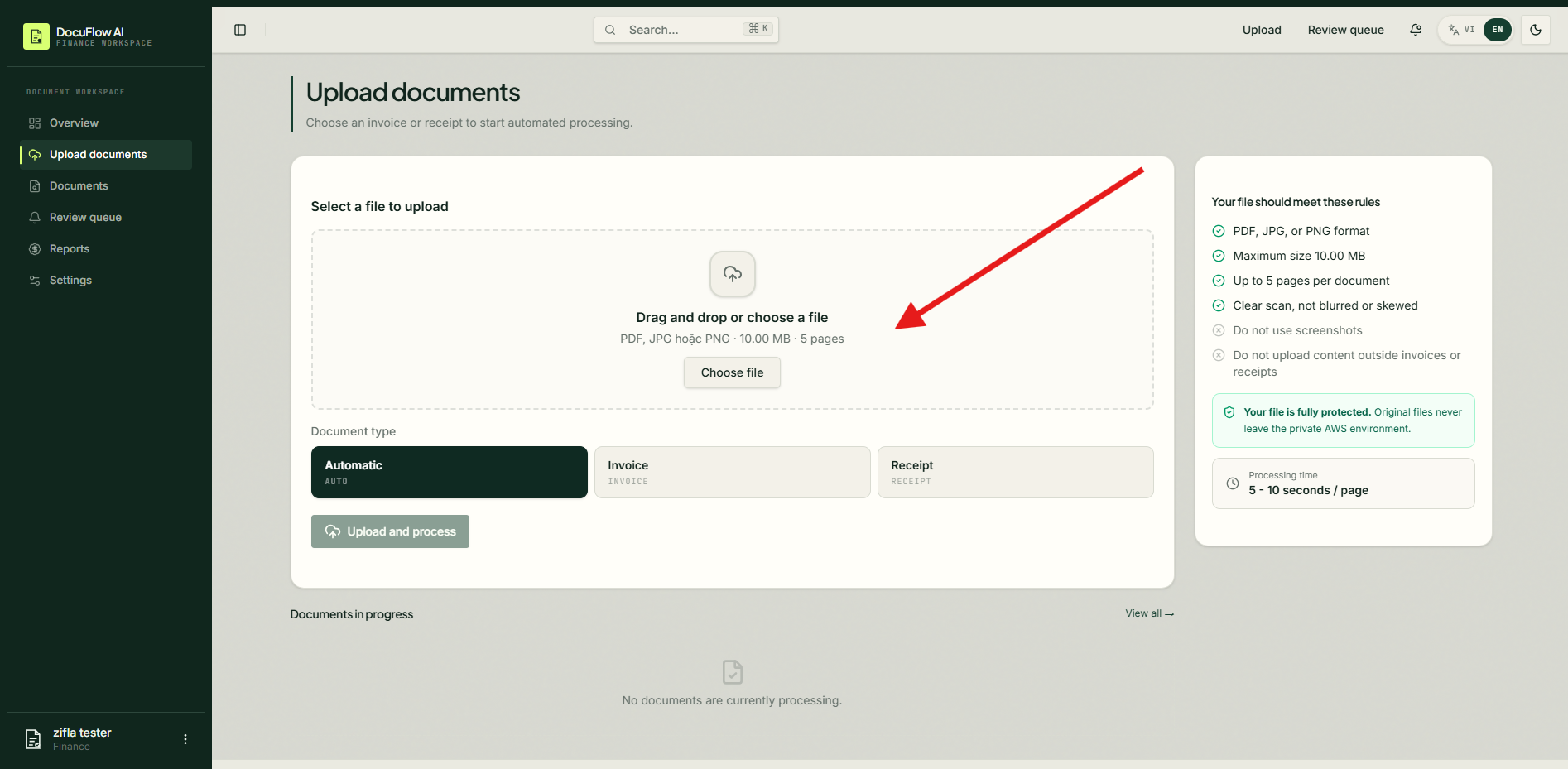
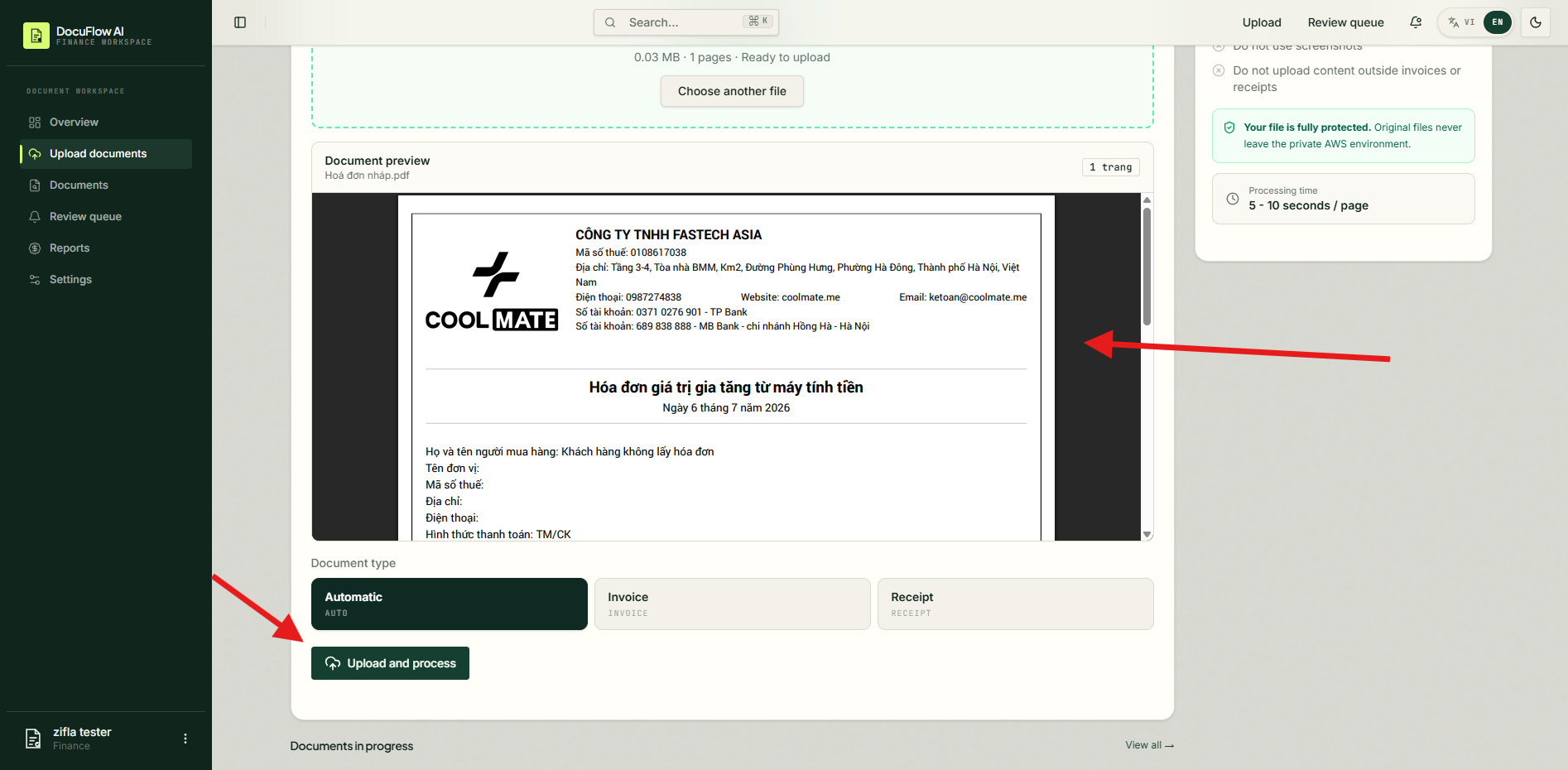
- Click Upload and process and wait for the frontend to submit the file to the backend.
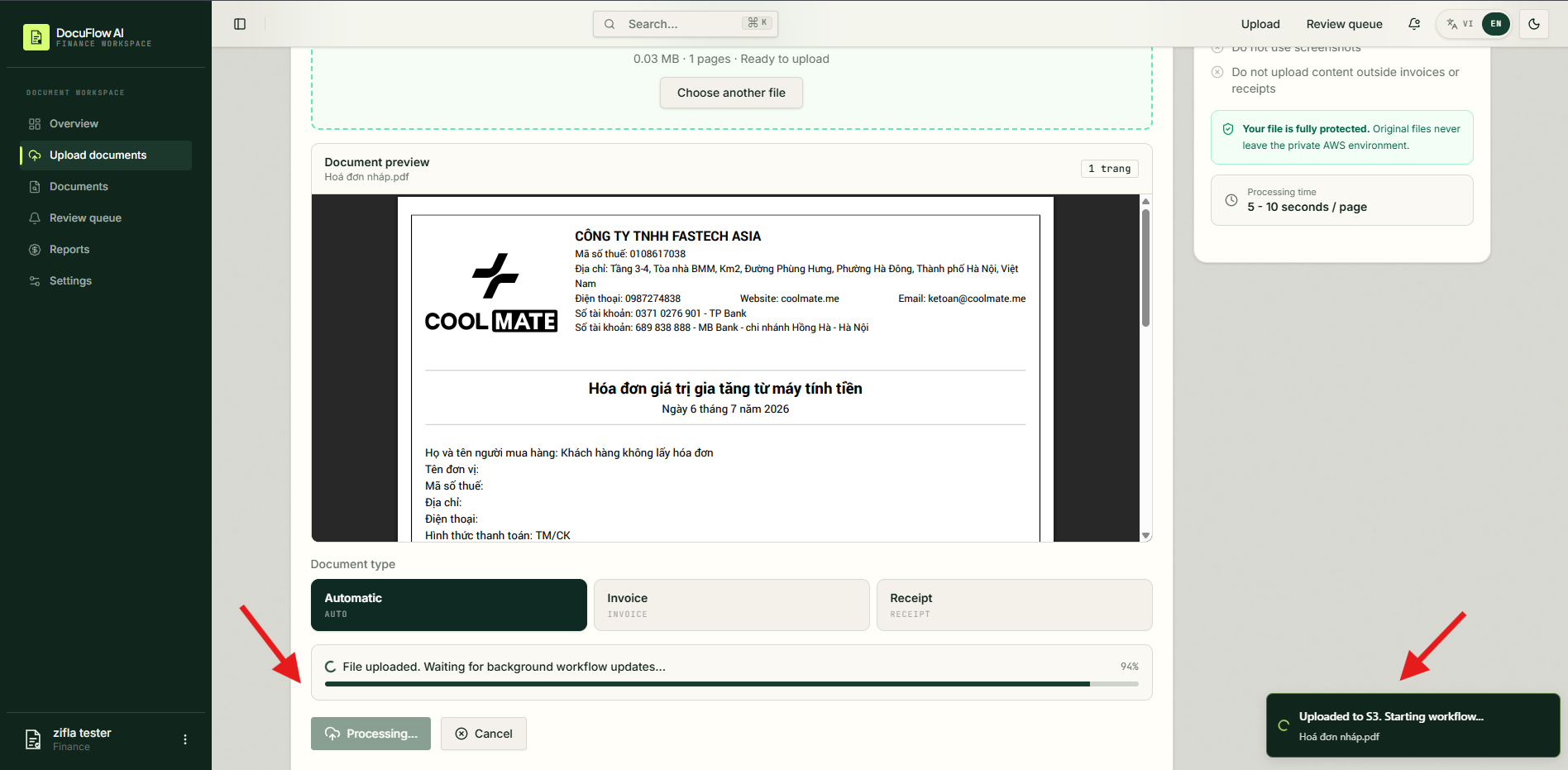
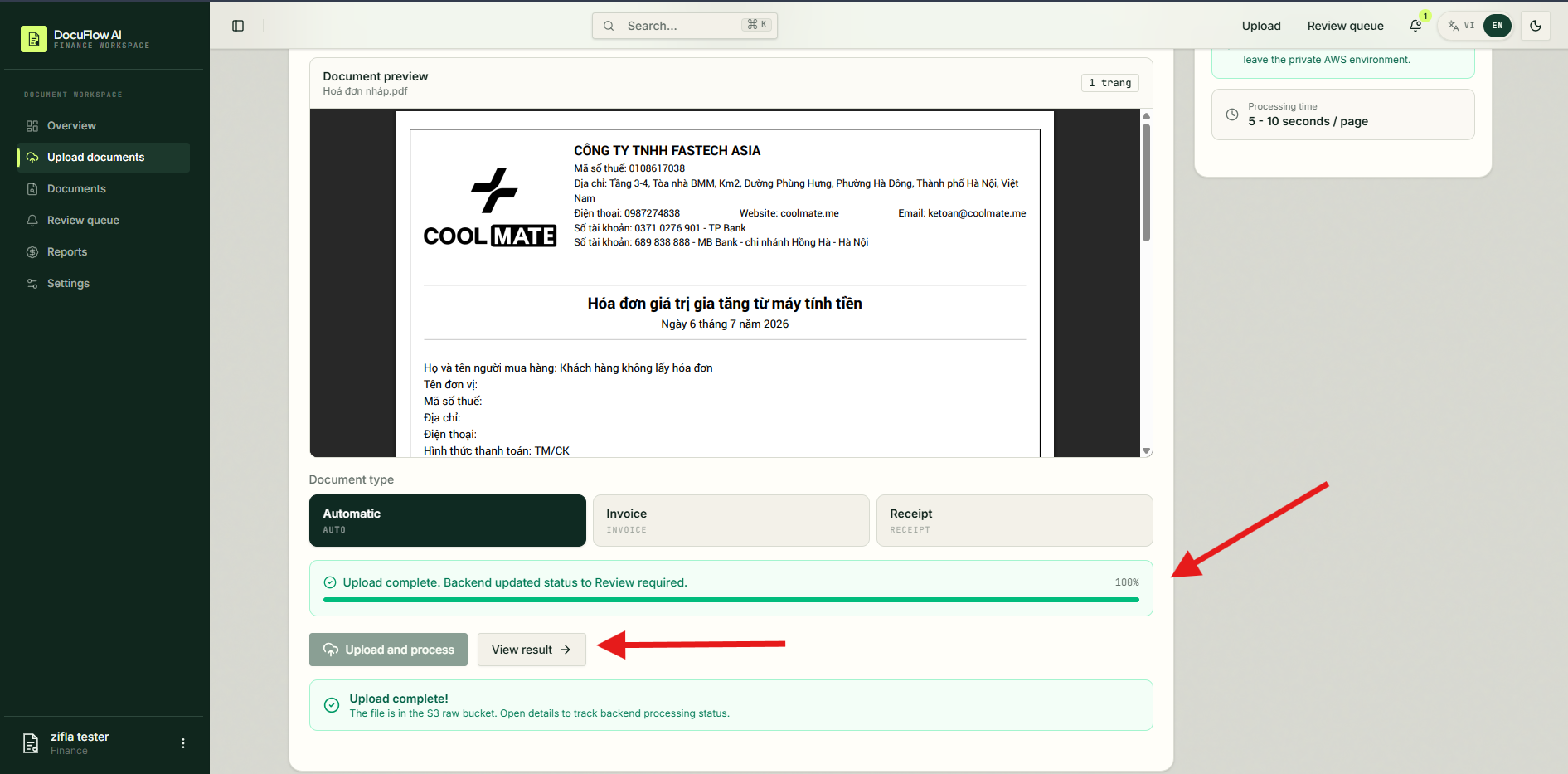
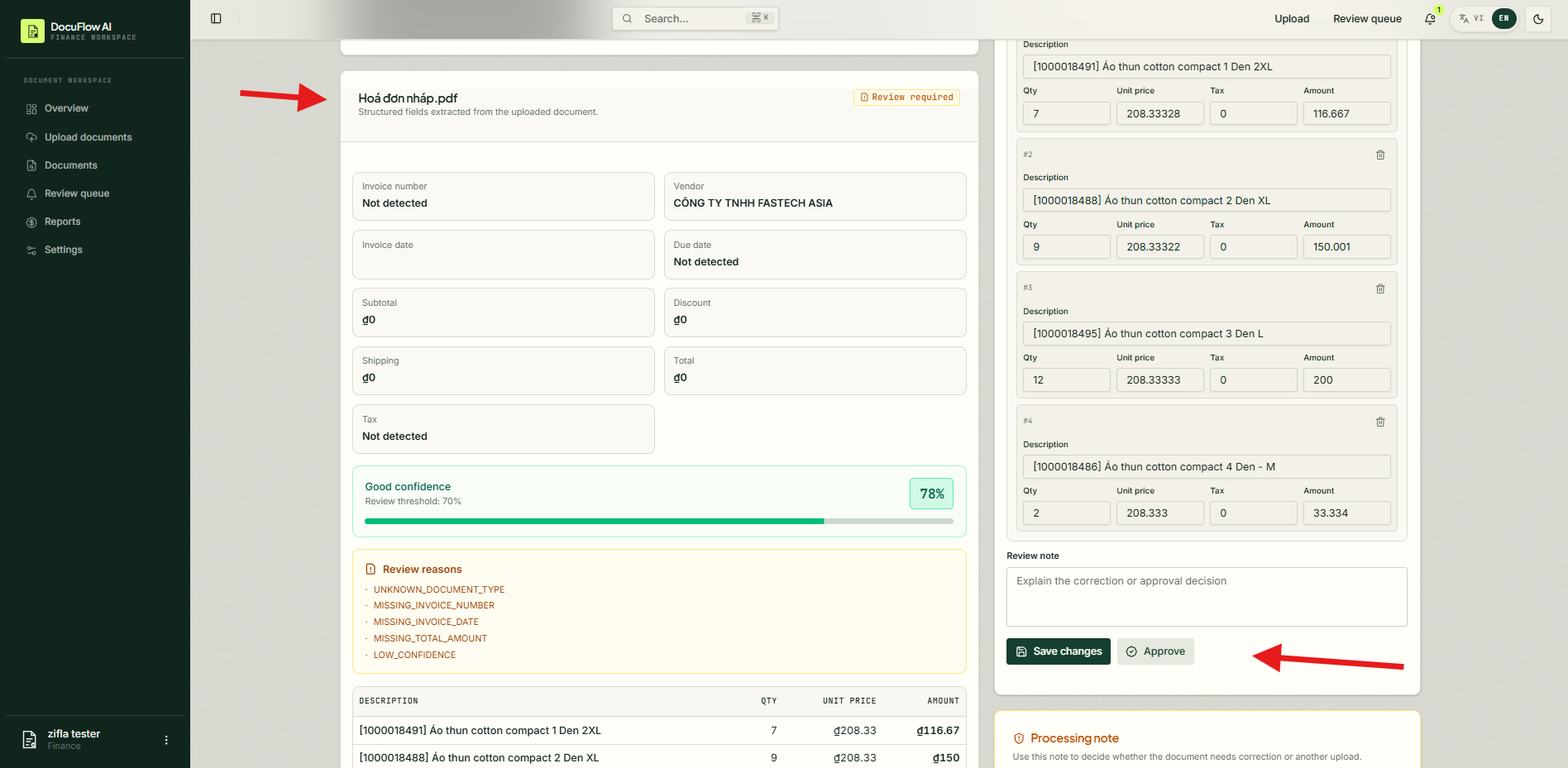
- Open the document detail page to inspect extracted data and review status.
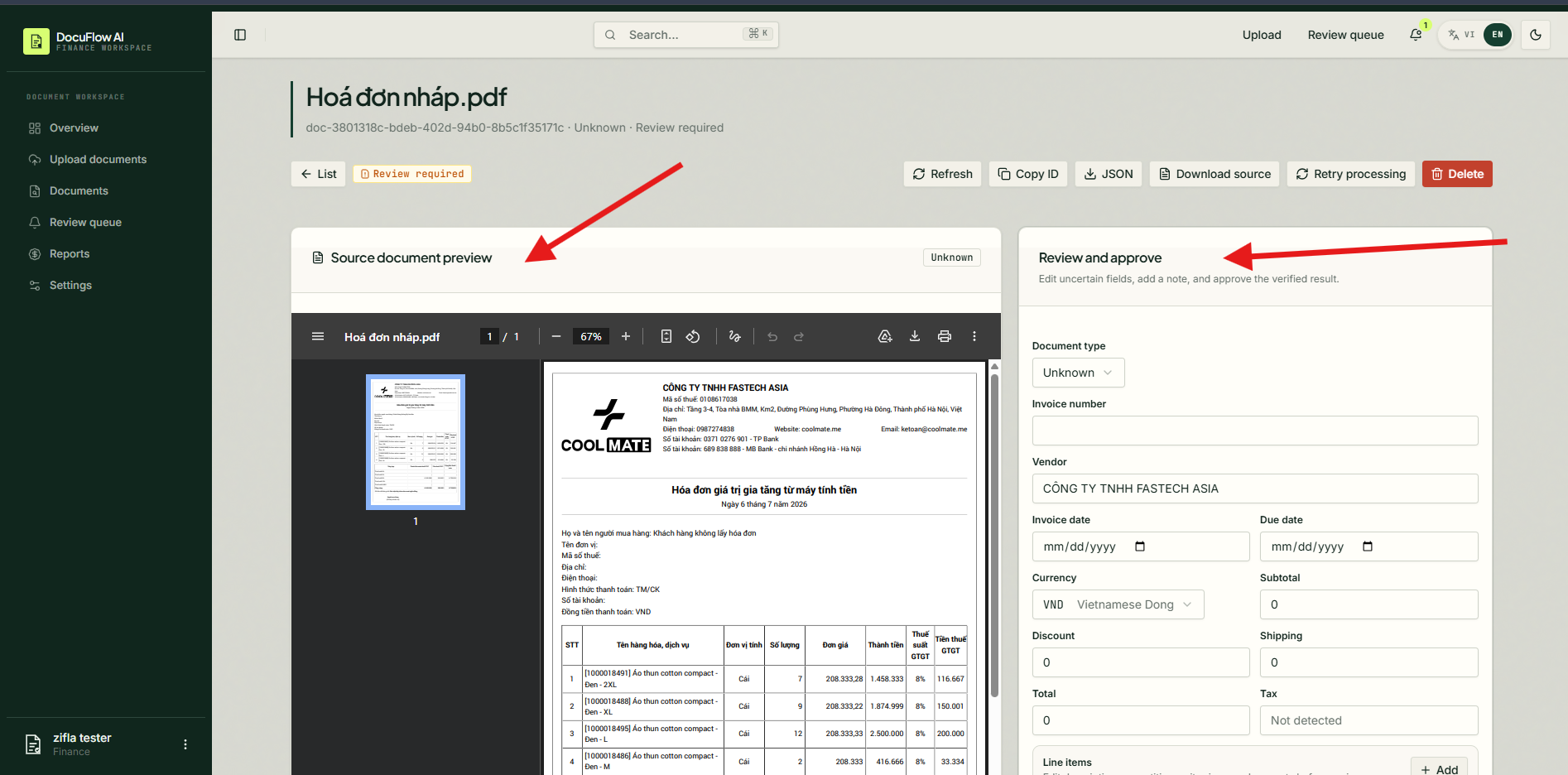
- Review and approve the result to confirm the frontend calls API Gateway successfully.
- Open the S3 Raw bucket and verify the uploaded file appears under the expected prefix:
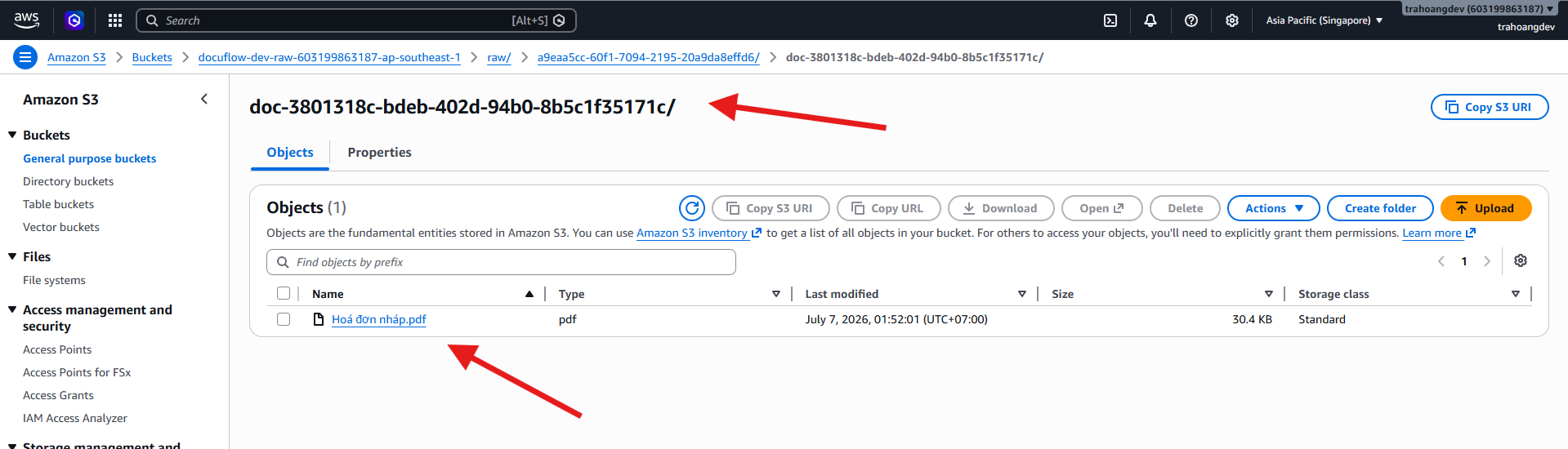
raw/{userId}/{documentId}/original.pdf
If the browser reports a CORS error, update the API Gateway CORS configuration to allow the Amplify domain, then redeploy the API stage.