SES, SNS & CloudWatch Alarms
To receive instant notifications when the processing system encounters an error or when there are low-confidence invoices requiring review, we will configure the SES email sending service, the SNS distribution channel, and set up 4 automated CloudWatch Alarms.
After configuring SNS and SES, continue with Notification Trigger Lambda to publish REVIEW_REQUIRED and workflow failure messages from Step Functions.
Step 1: Verify Email on Amazon SES (Avoid Spam)
Because your AWS account is in the Sandbox environment, you need to verify the sending and receiving email addresses to avoid security blocking:
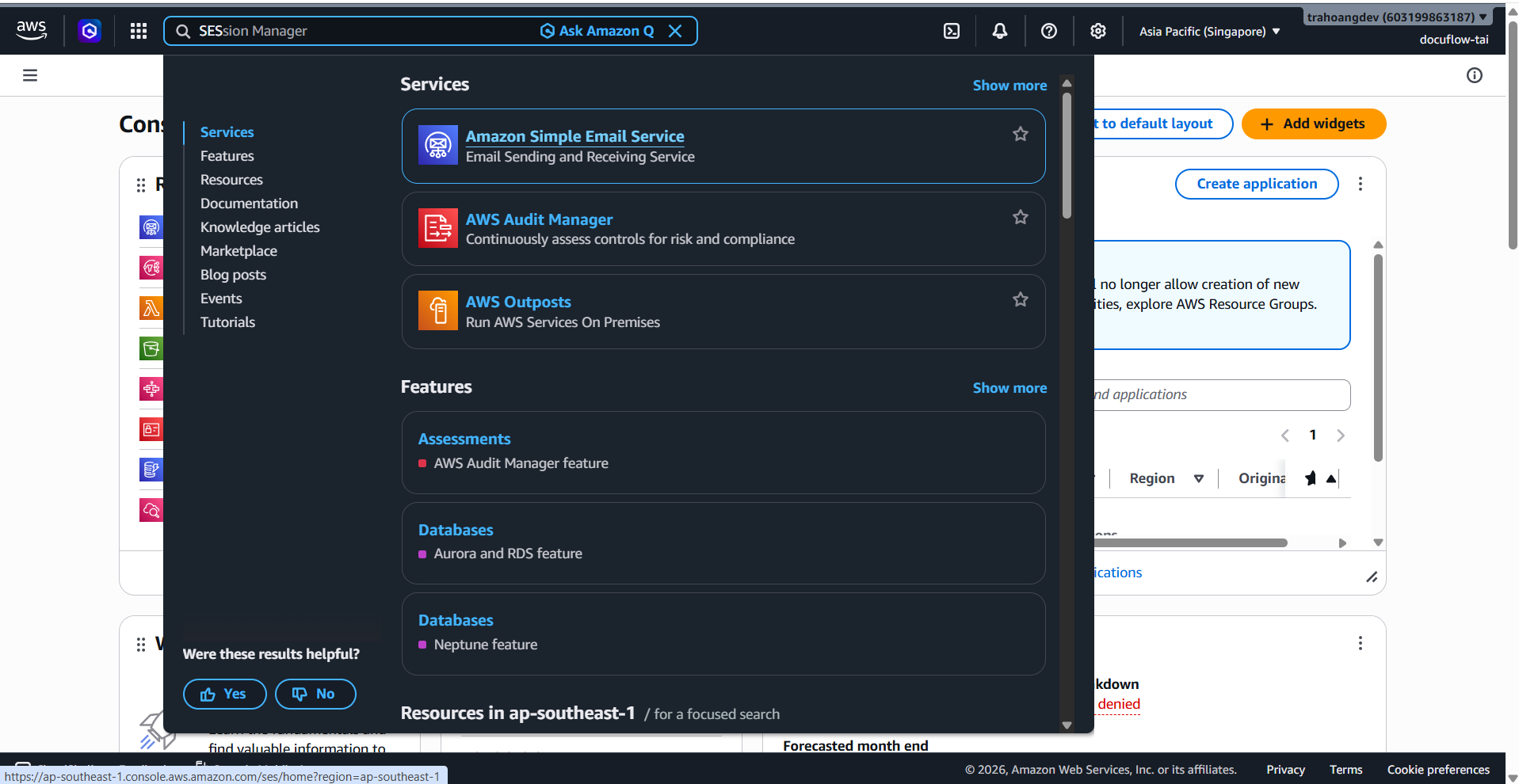
In the AWS Console search bar, type SES ➔ Select the Amazon Simple Email Service.
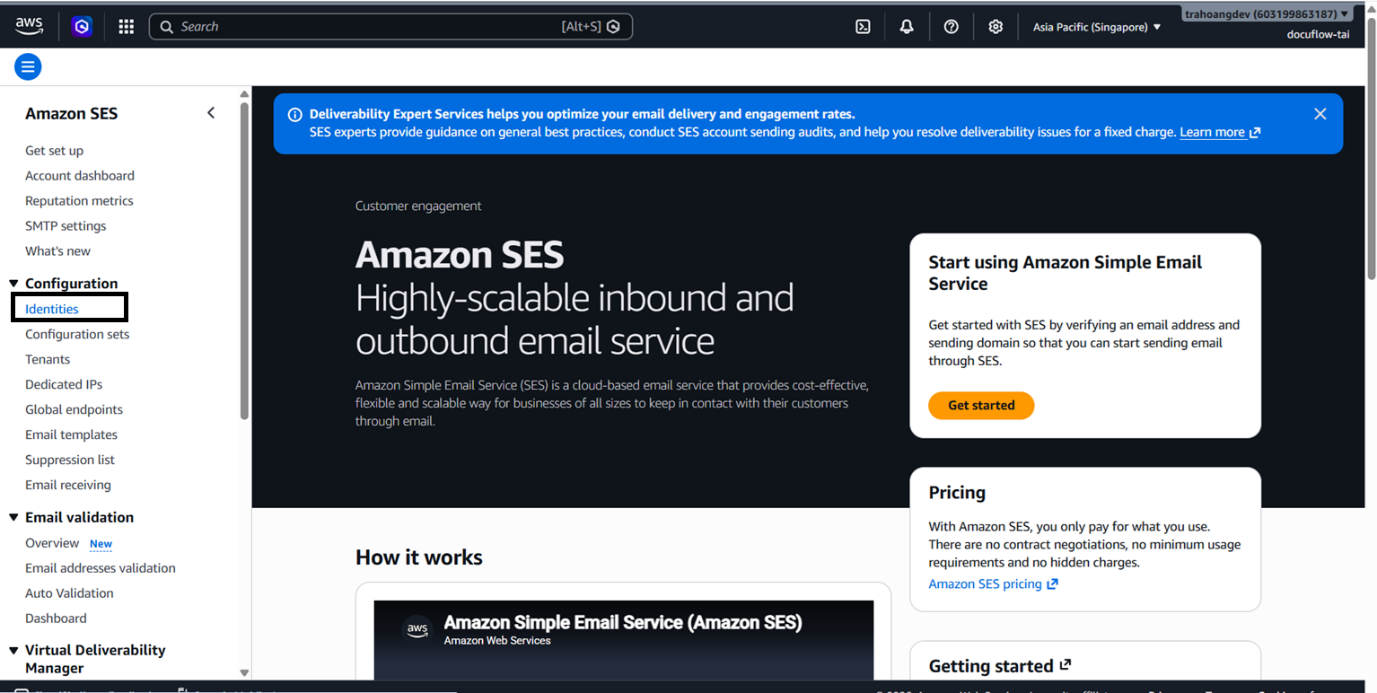
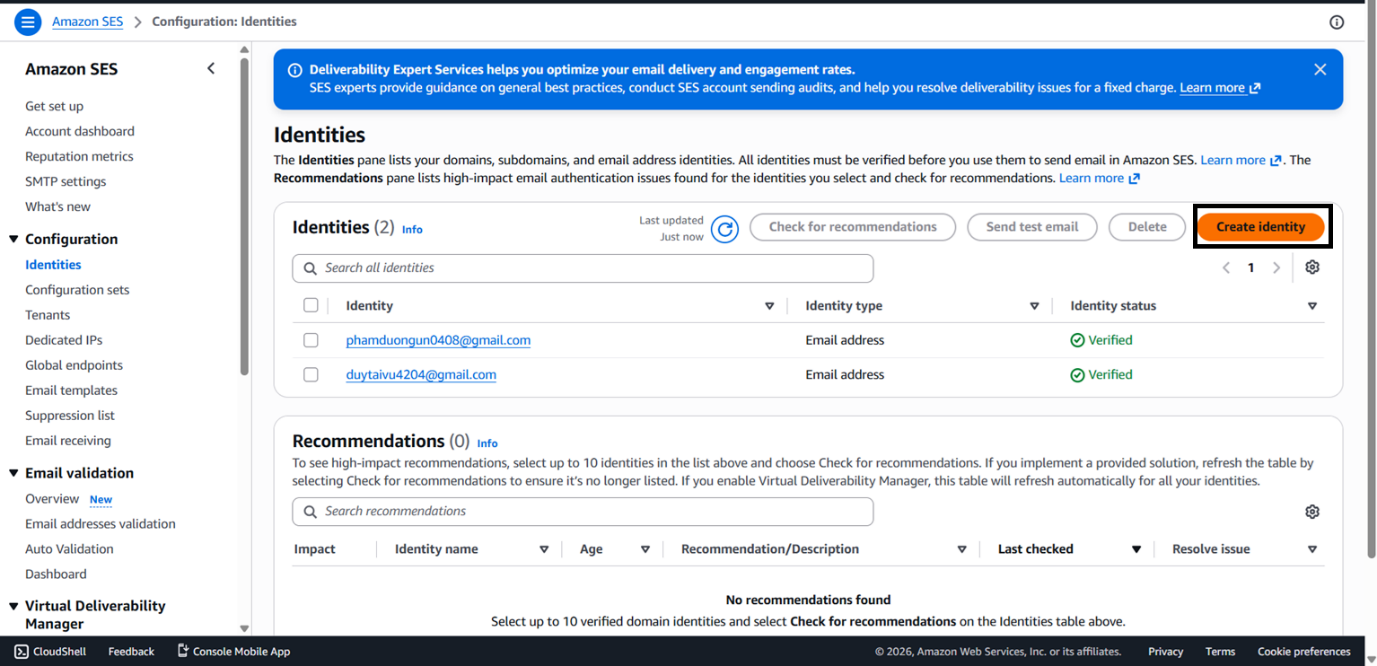
On the left vertical menu, select Verified identities ➔ Click the orange Create identity button.
Configure Identity:
- Identity type: Check Email address.
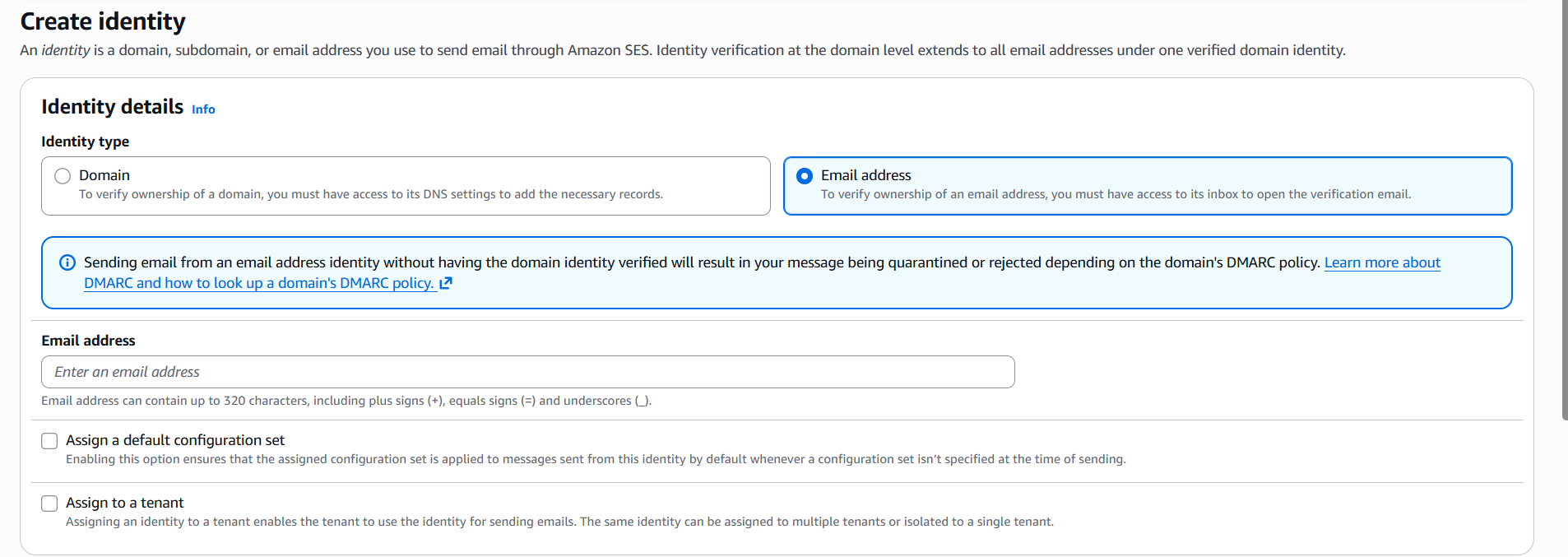
- Email address: Enter exactly the personal email address you use to receive messages (e.g.,
your-email@gmail.com).

- Identity type: Check Email address.
Click Create identity.
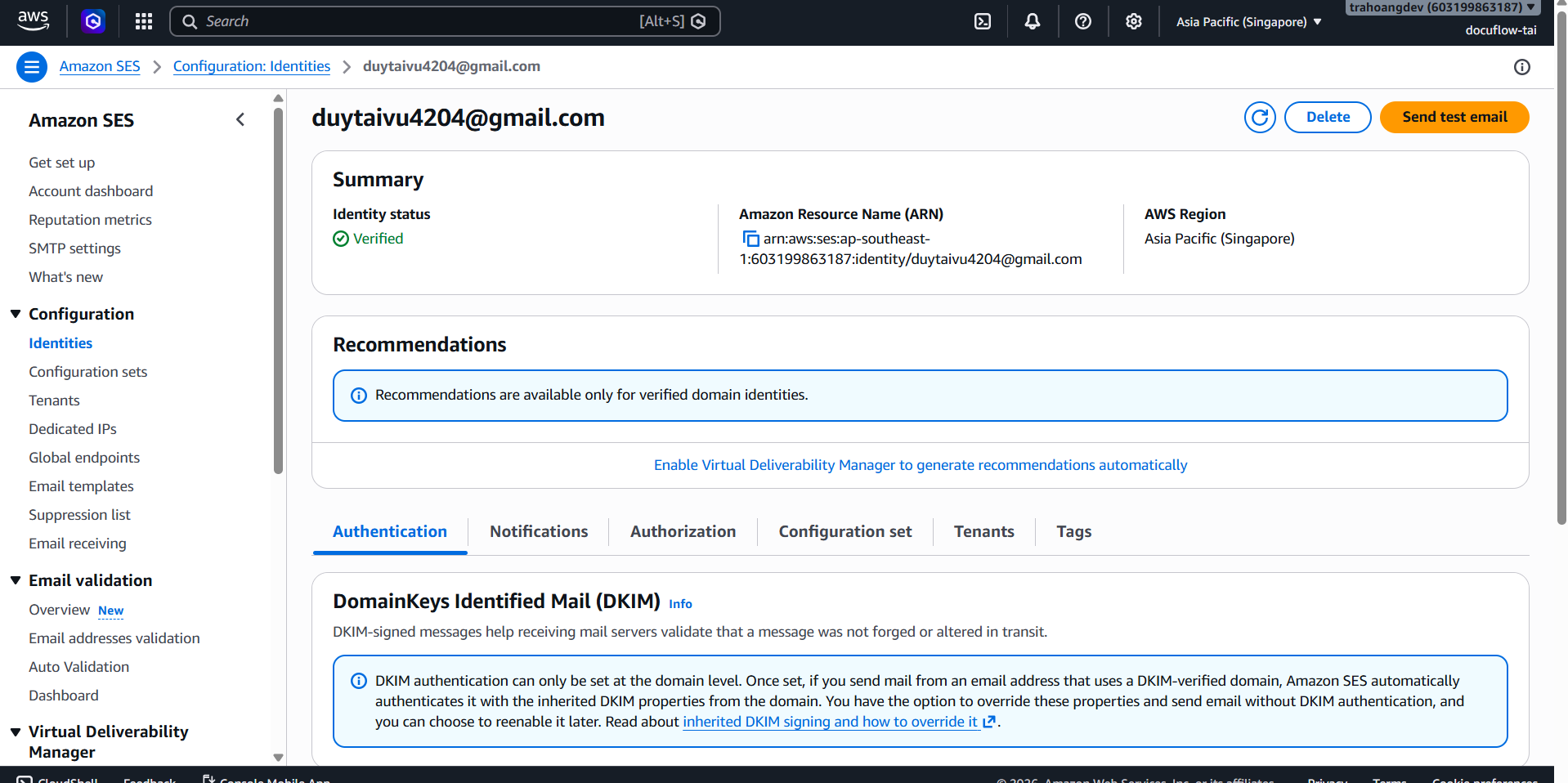
Confirmation Action: AWS SES will send a verification email from the AWS system to your inbox. Check your email and click the confirmation link. The email status on the SES console will turn green Verified.
Step 2: Initialize Amazon SNS Topic and Create Subscription
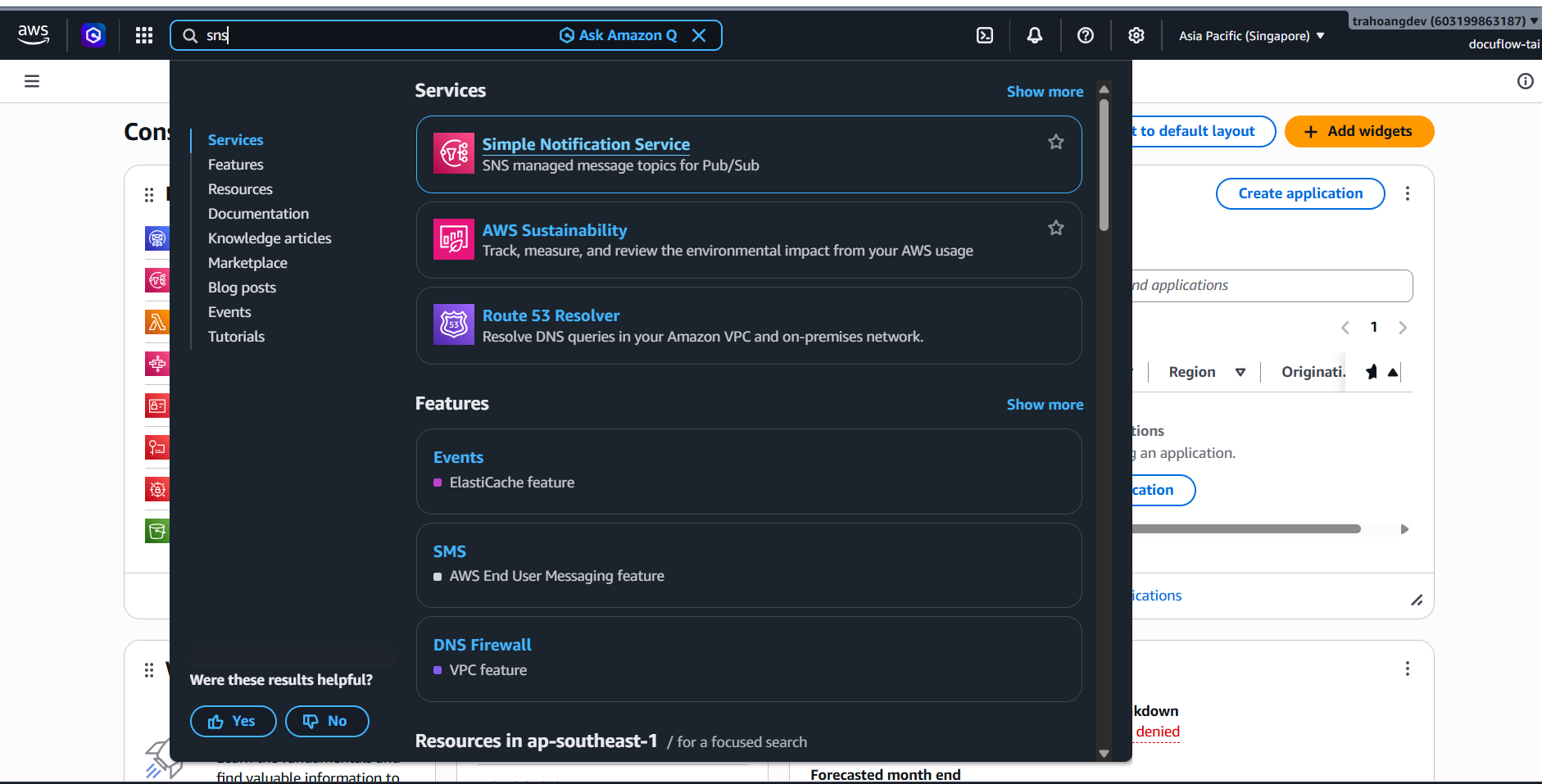
Type SNS in the search bar ➔ Select Simple Notification Service.
On the left menu, select Topics ➔ Click Create topic.
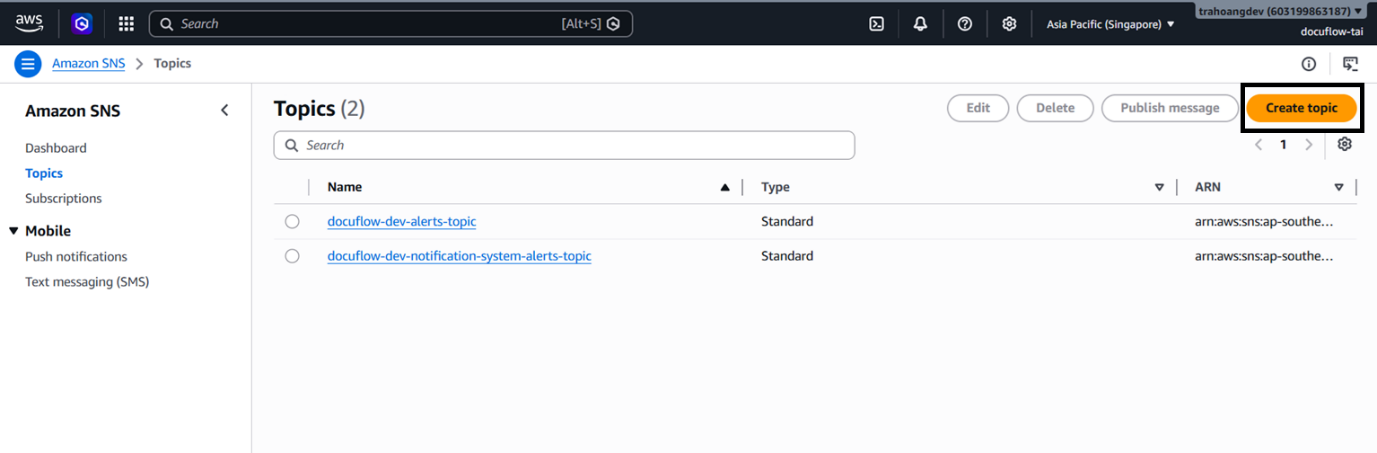
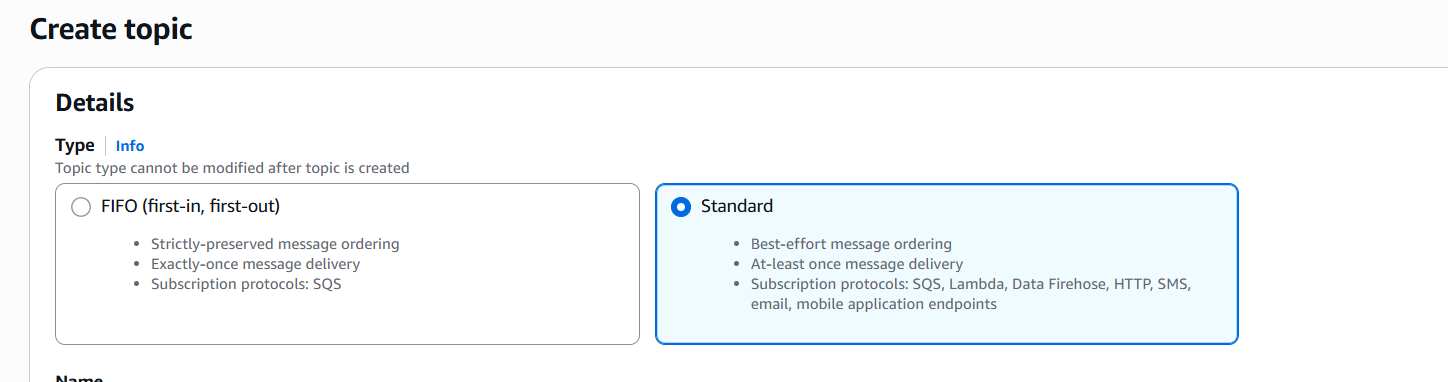
Configure Topic:
- Type: Select Standard (Must be Standard to support Email protocol, do not select FIFO).
- Name: Enter
docuflow-dev-notification-system-alerts-topic.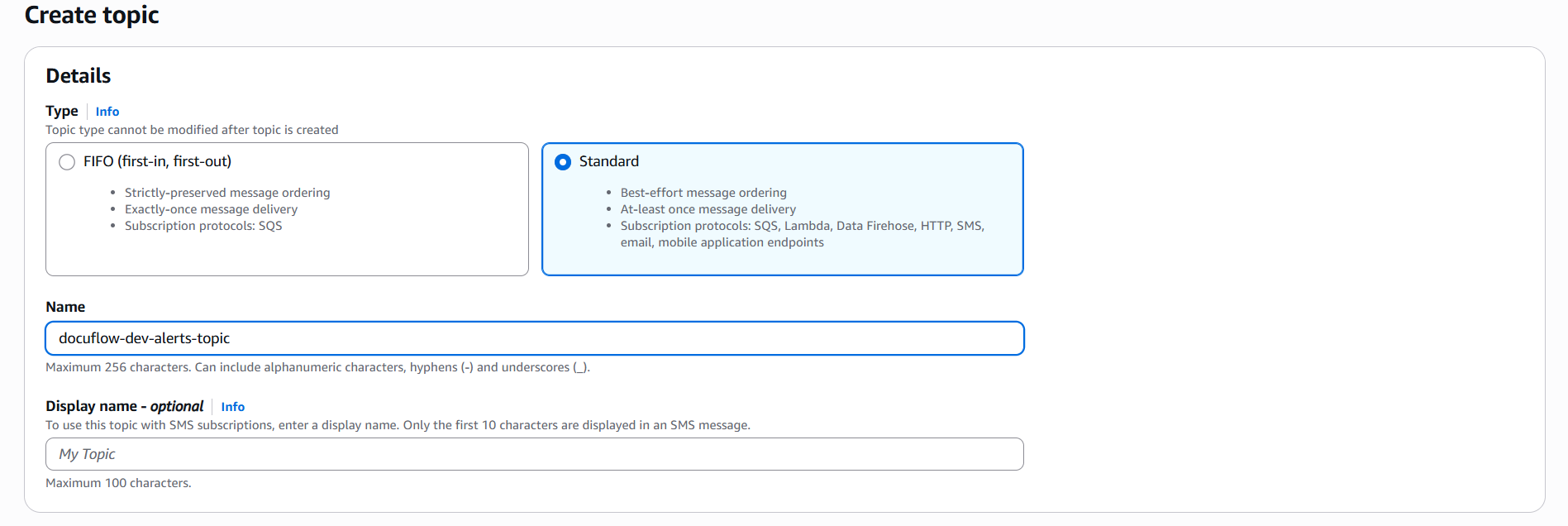
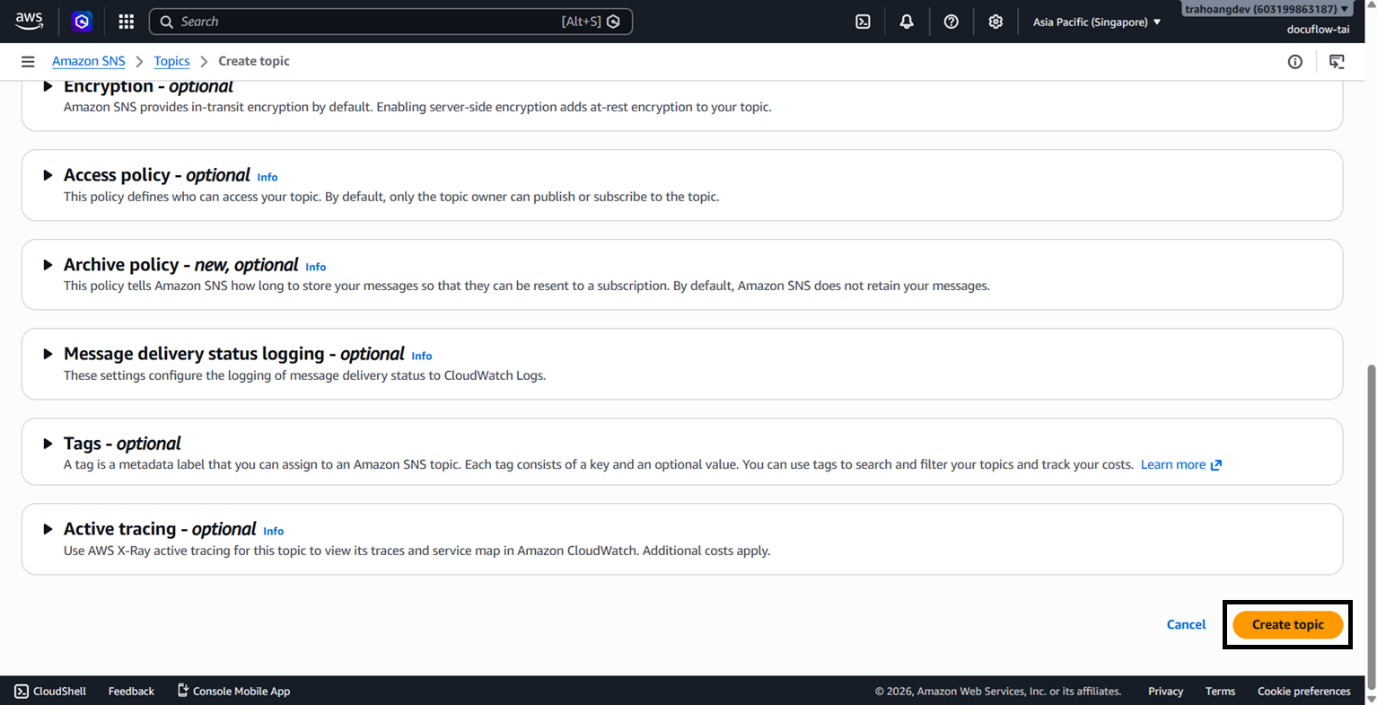
- Click Create topic at the bottom.
- Type: Select Standard (Must be Standard to support Email protocol, do not select FIFO).
Register to Receive Email (Create Subscription):
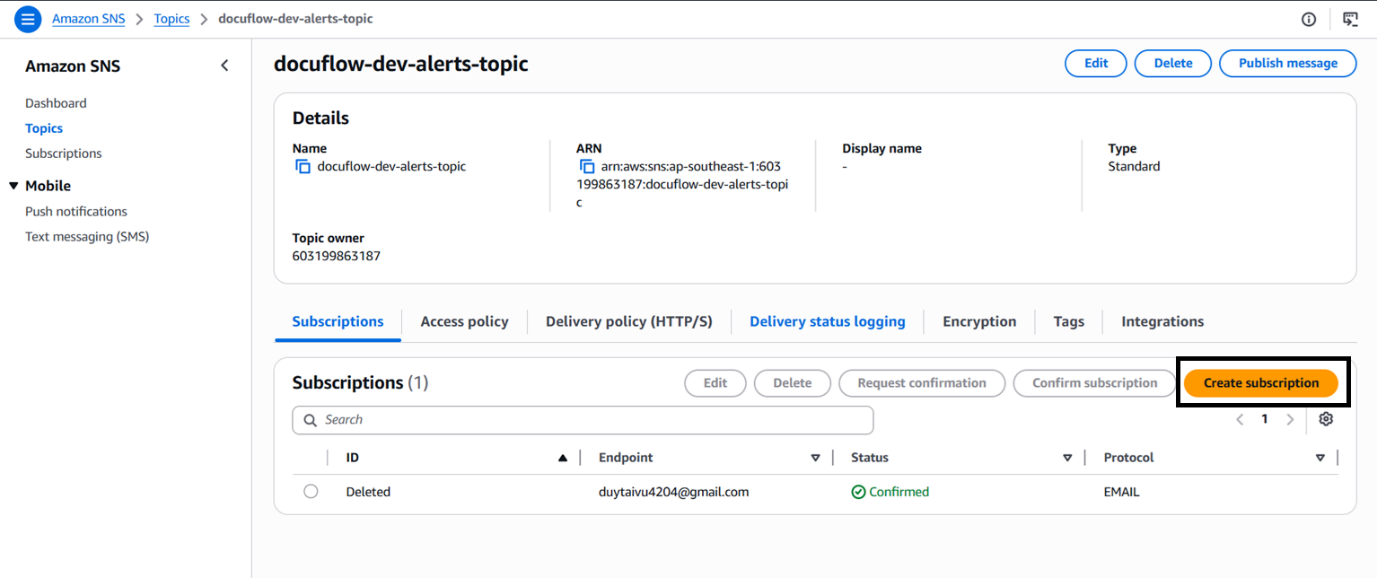
On the detail screen of the newly created Topic, scroll down to the Subscriptions section ➔ Click Create subscription.
Protocol: Select Email.
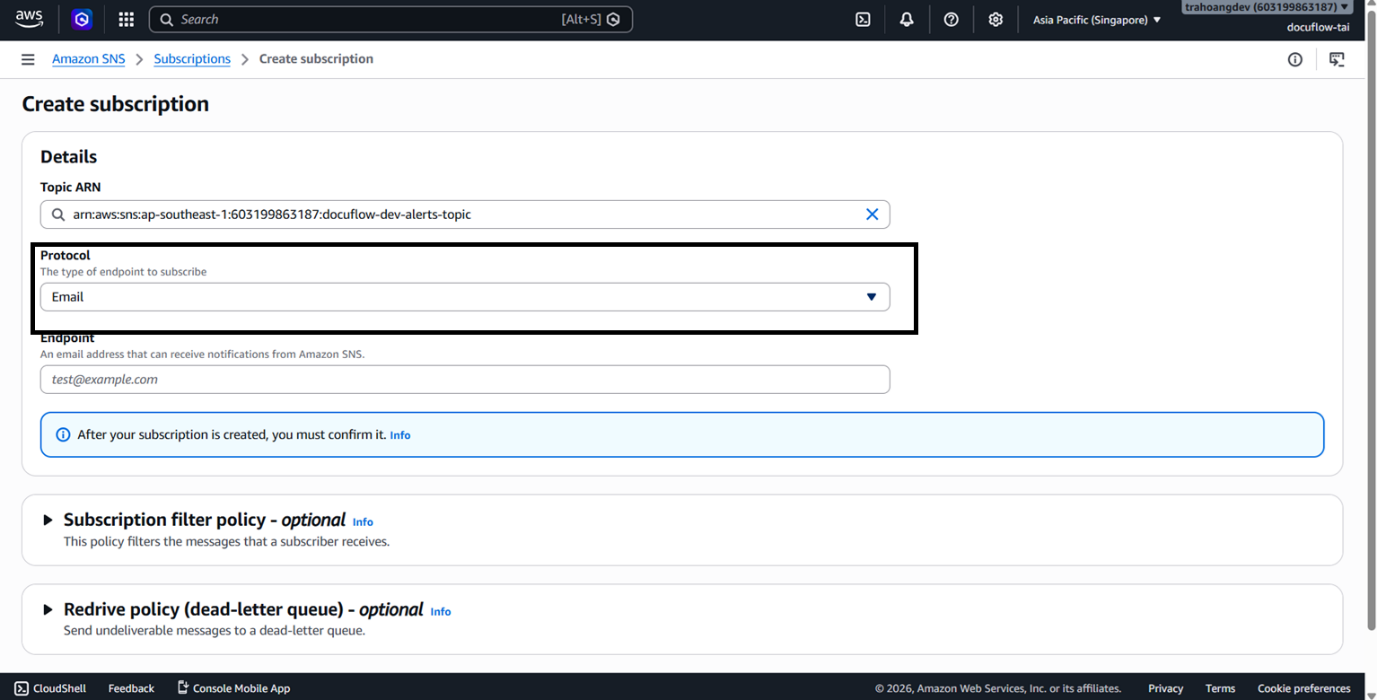
Endpoint: Enter the personal email address you verified in the SES step above.

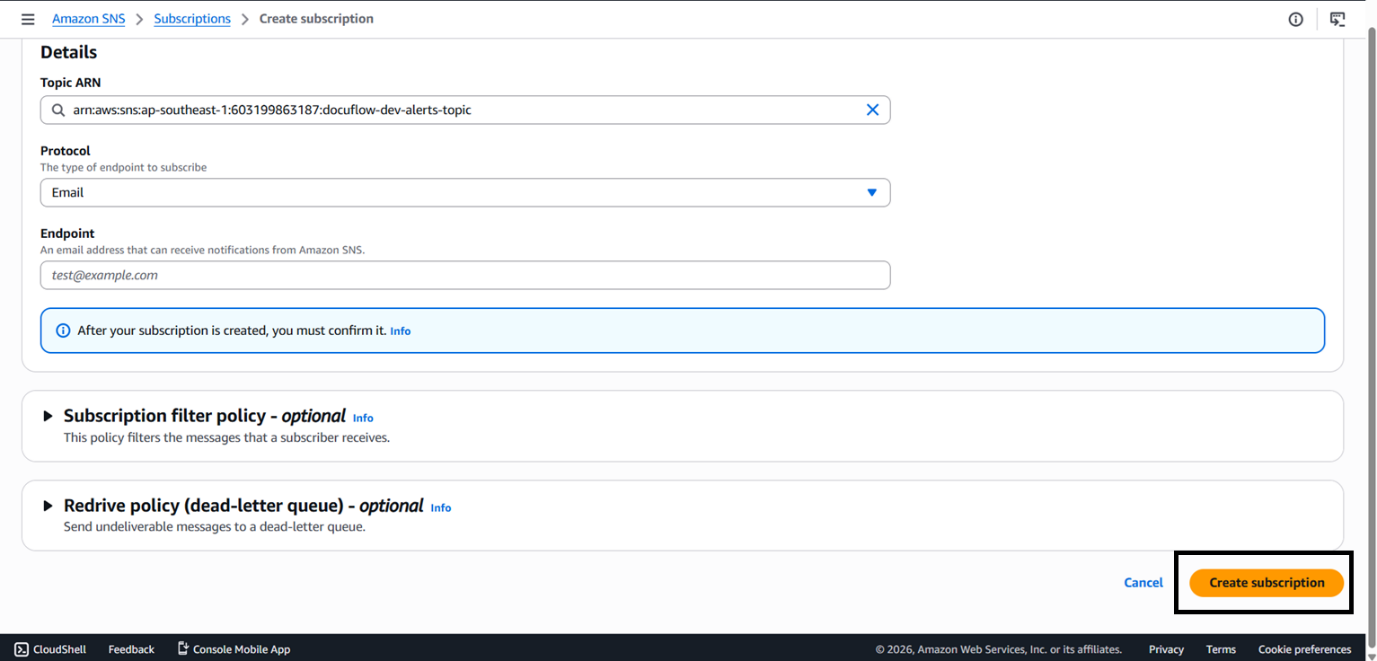
Click Create subscription.
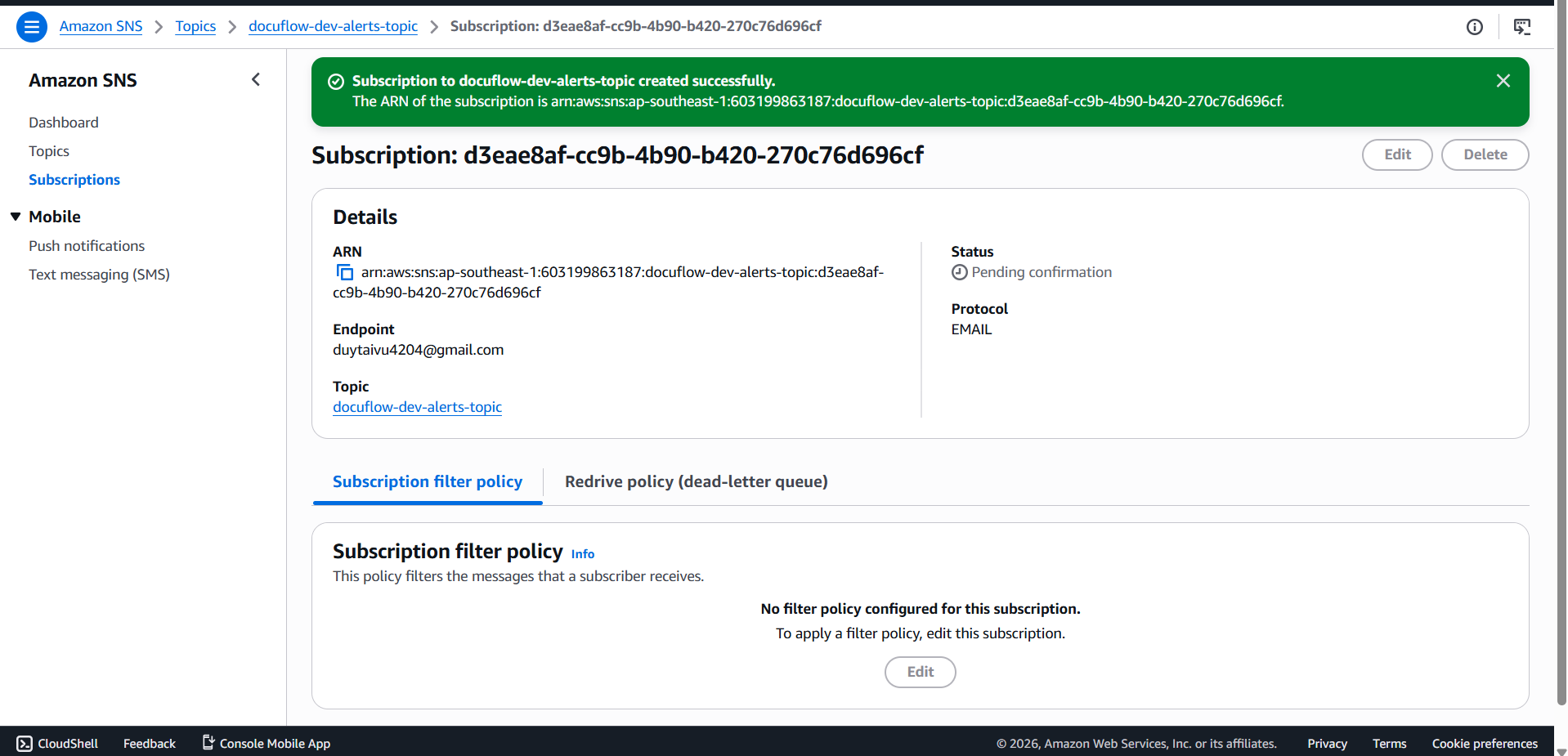
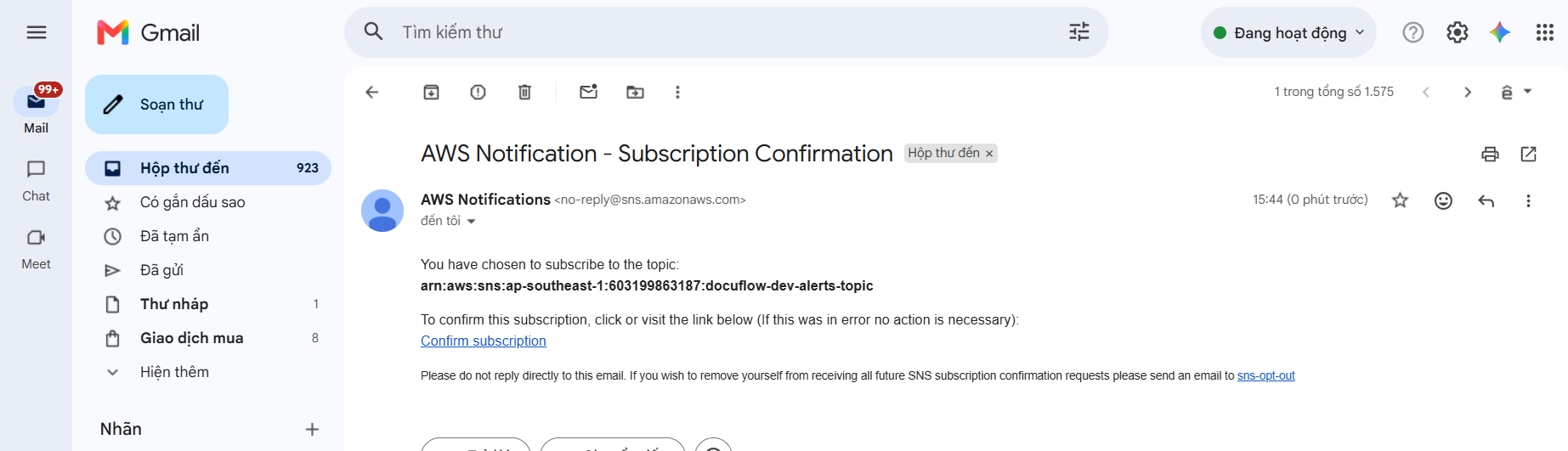
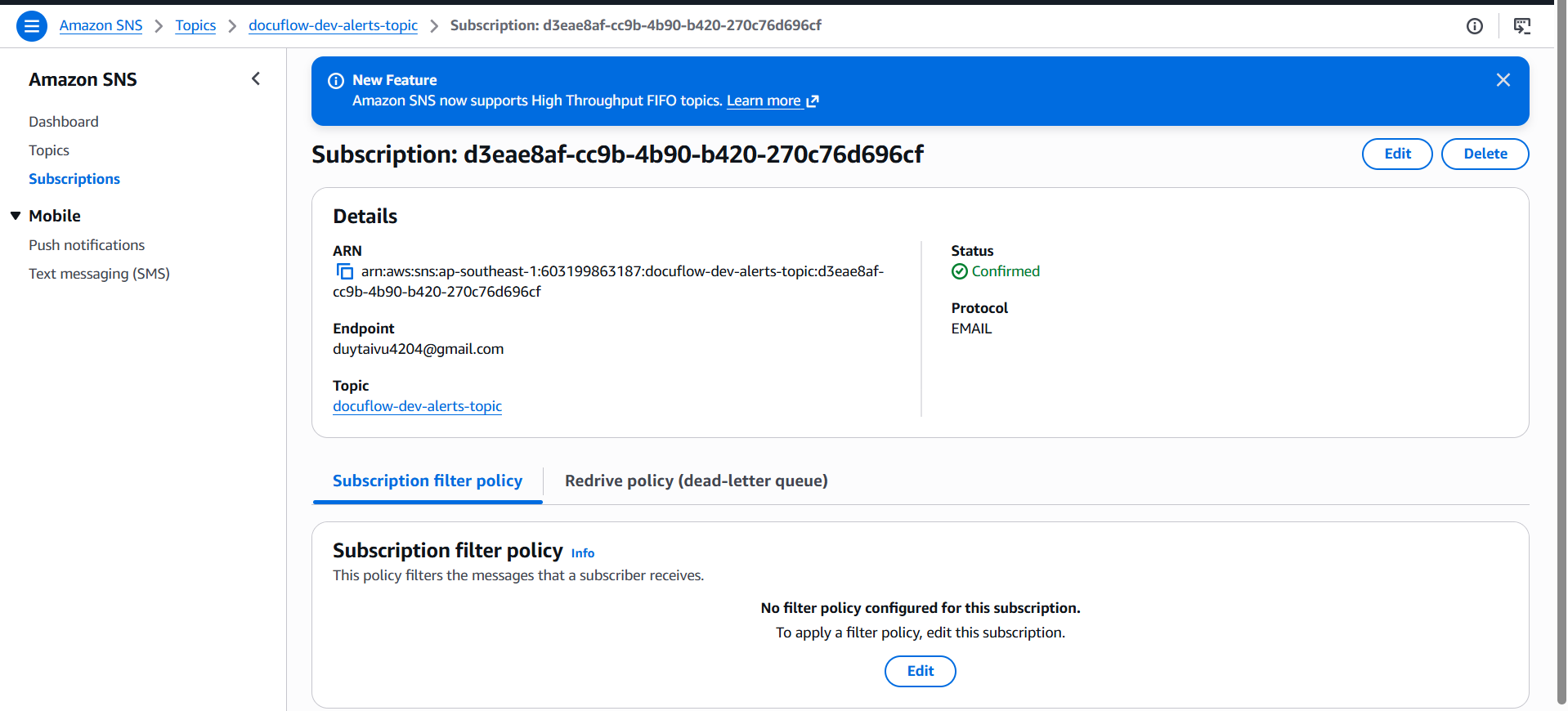
Verify Subscription: AWS SNS will send a verification email to your inbox. Check your email, click the Confirm subscription link in the received email. The Subscription status on the console will change from Pending confirmation to Confirmed.
Step 3: Configure 4 CloudWatch Alarms
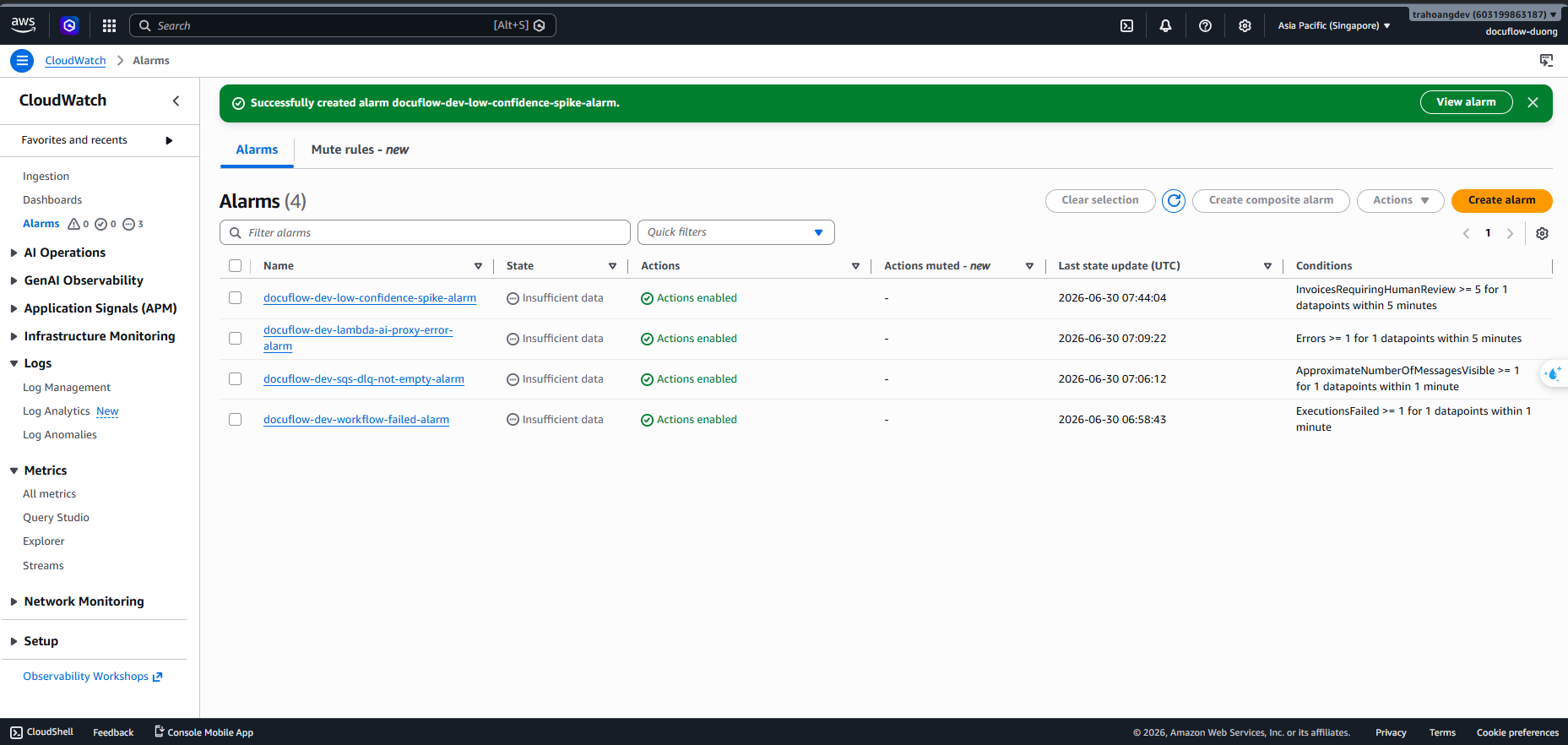
We will create 4 automated alarms to send email alerts via the SNS Topic:
Alarm 1:
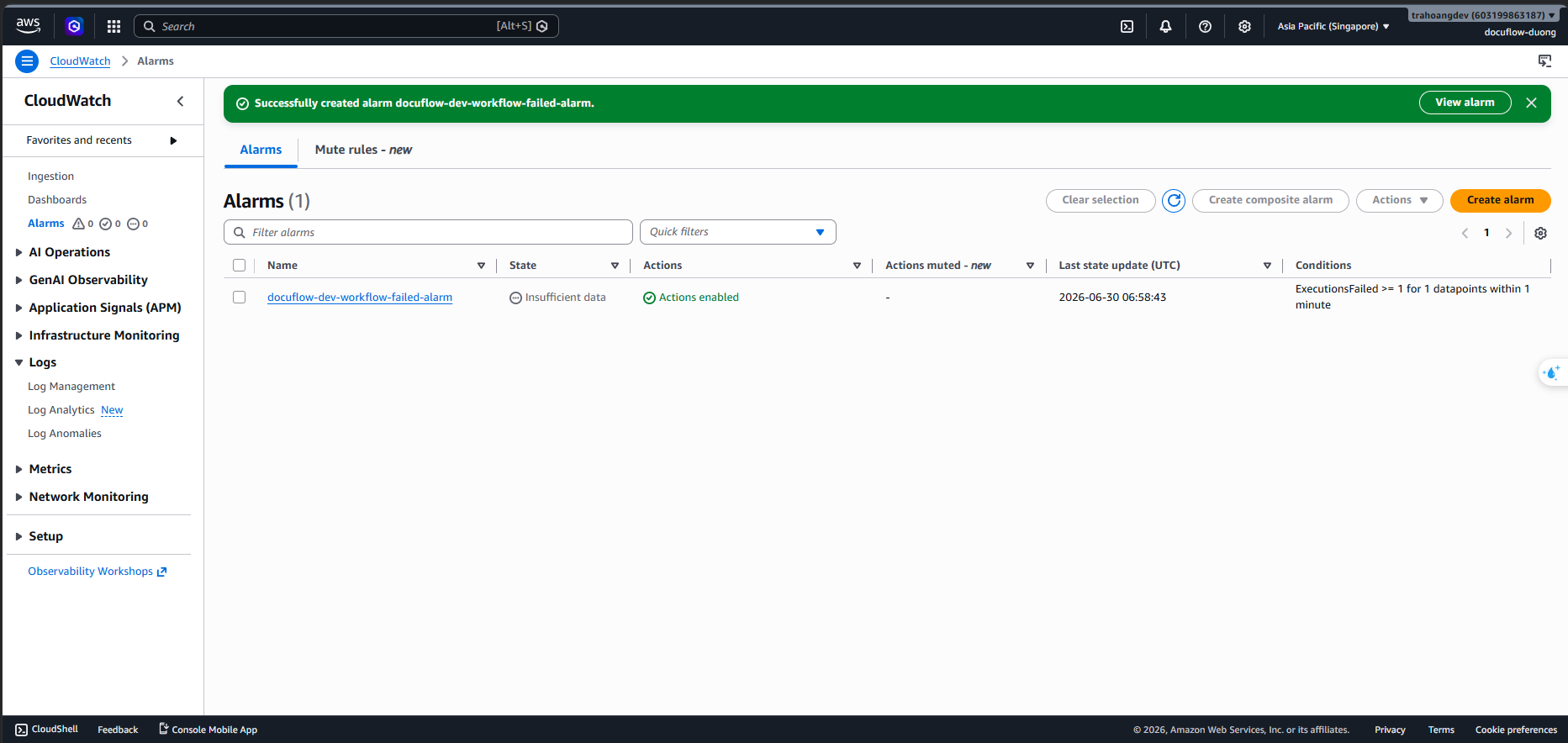
docuflow-dev-workflow-failed-alarm(Step Functions execution failed)Go to CloudWatch ➔ Alarms ➔ All alarms ➔ Click Create alarm.
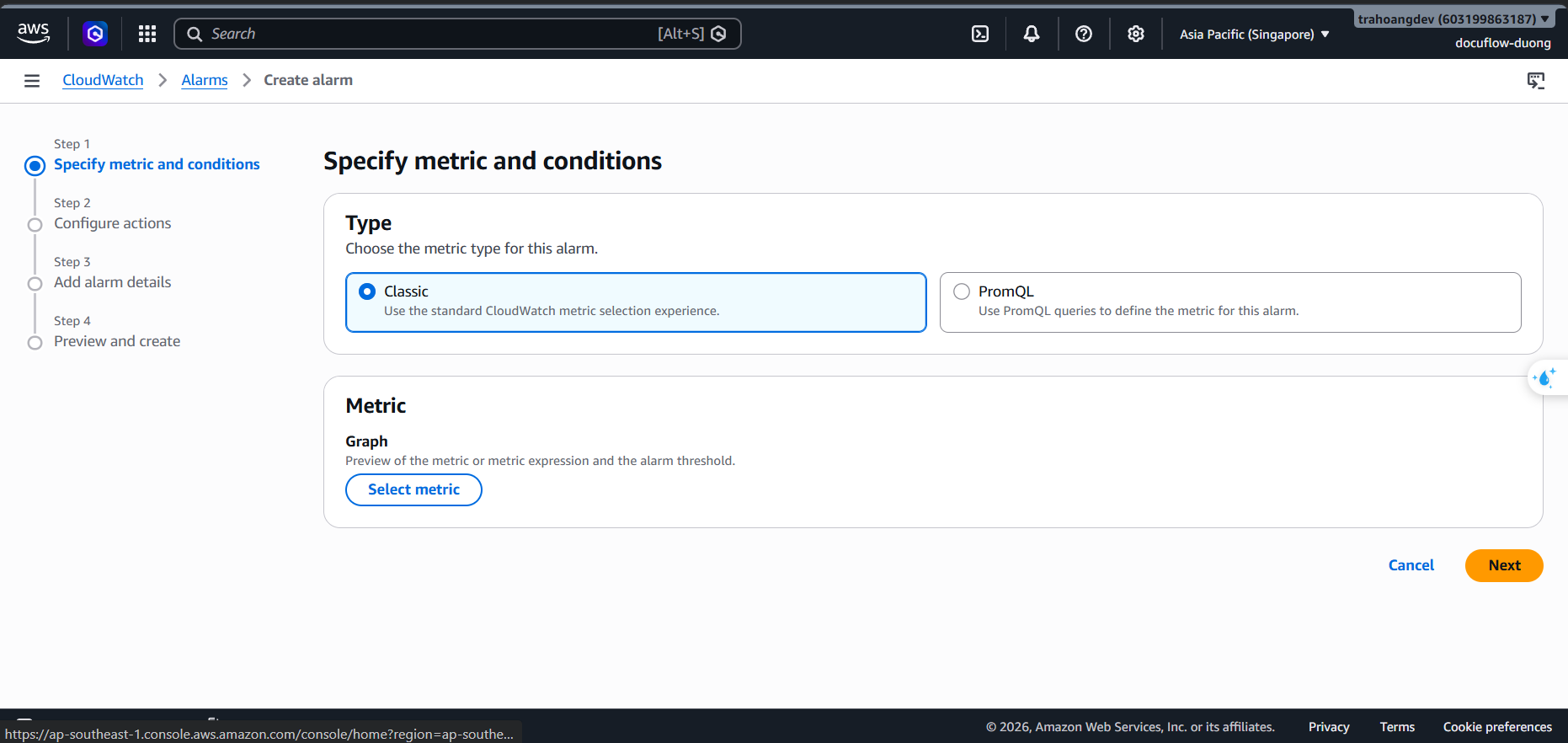
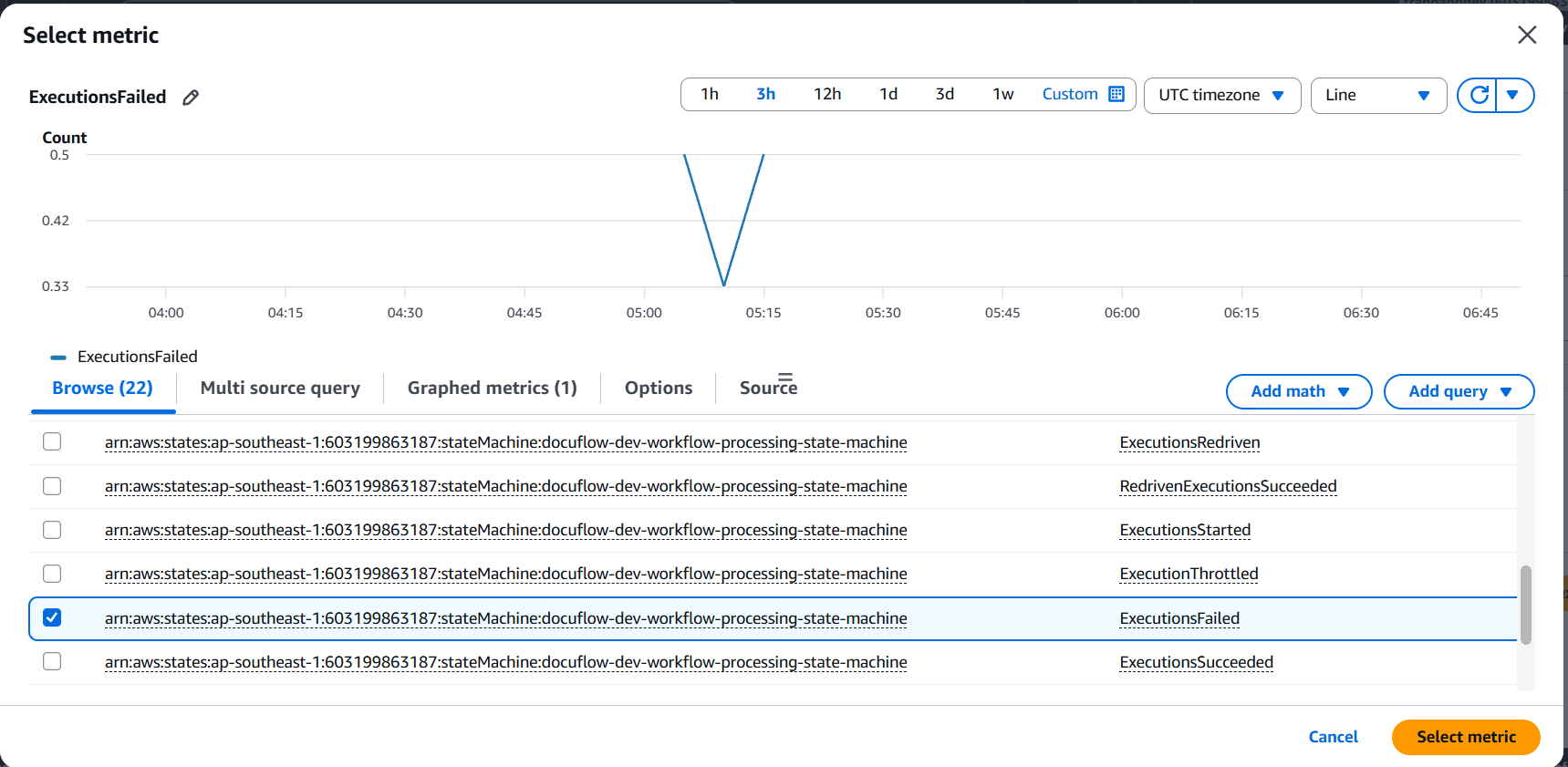
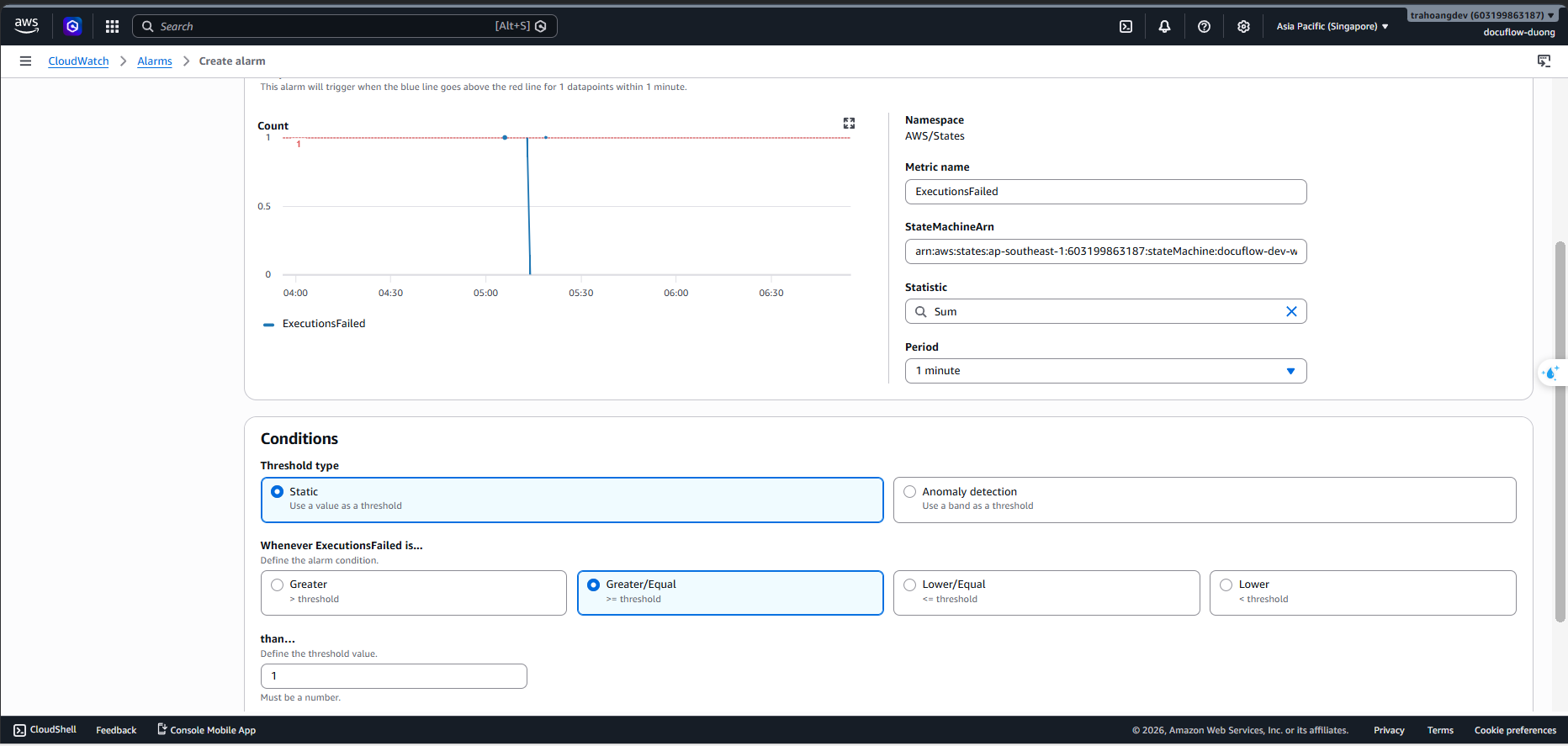
Click Select metric ➔ Choose States ➔ StateMachineName ➔ Select the
ExecutionsFailedmetric of the project’s State Machine.
- Statistic: Select
Sum. Period: Select1 minute. - Condition: Static threshold, select Greater/Equal (>=) and enter
1.
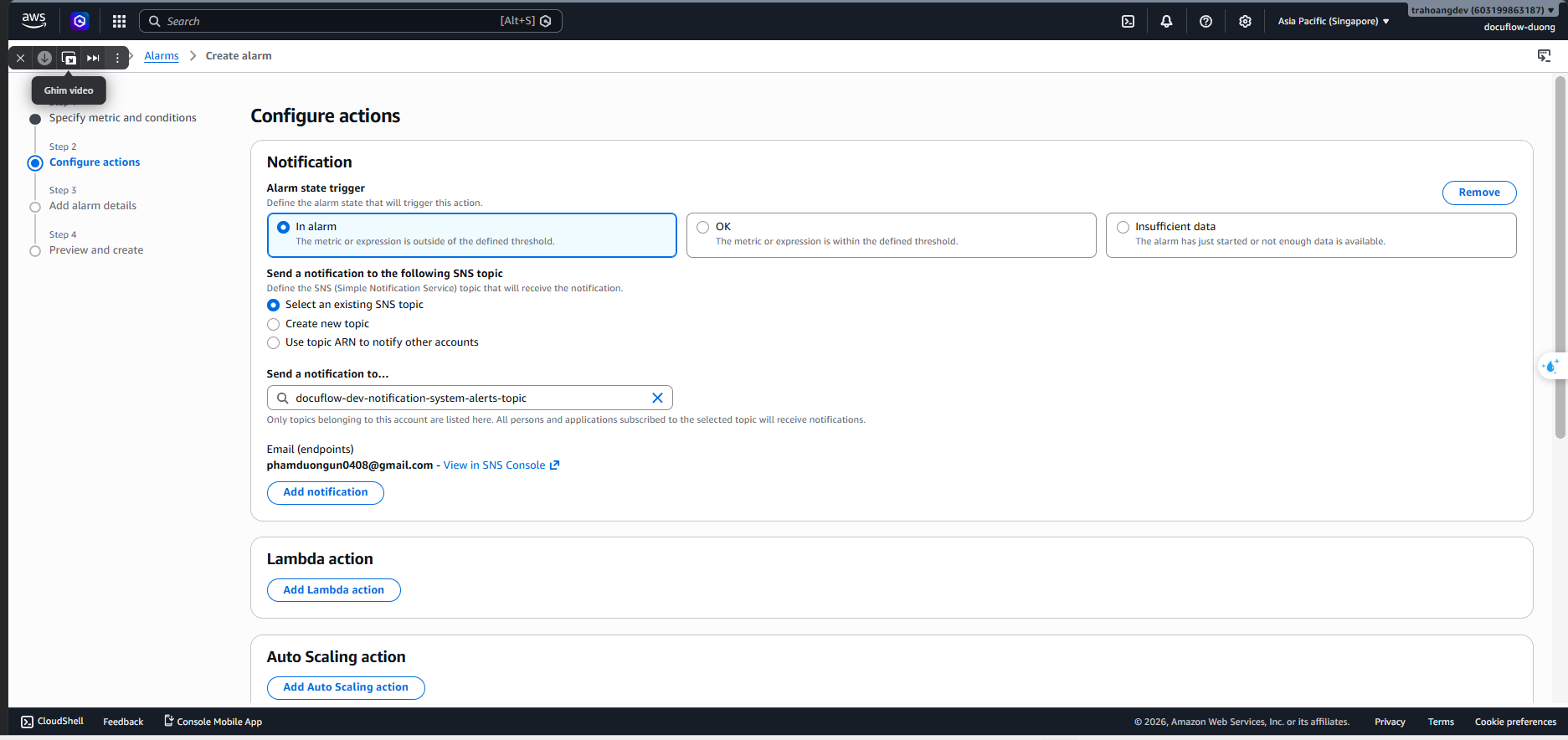
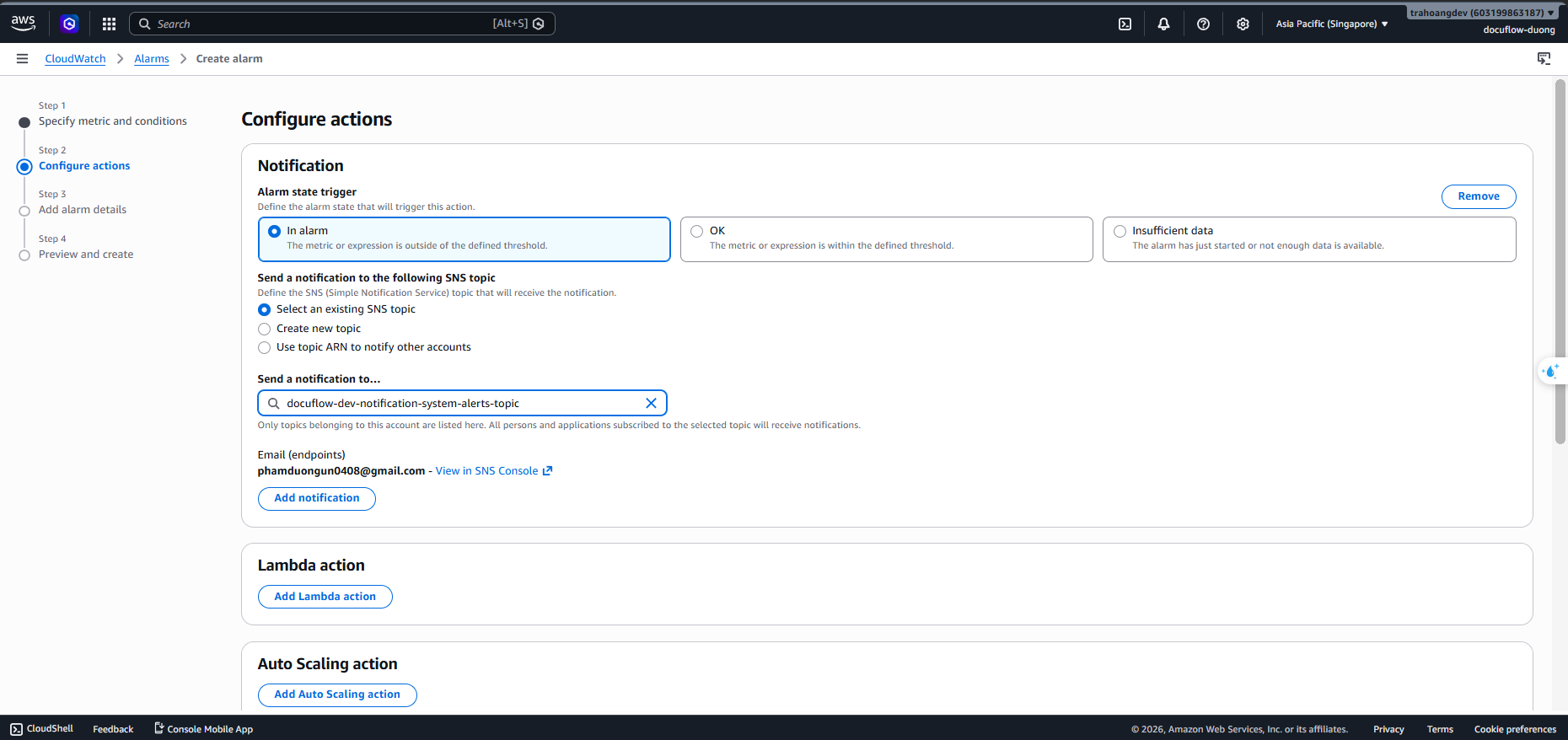
- Click Next. In the Notification section, choose to send the notification to the SNS Topic
docuflow-dev-notification-system-alerts-topic.
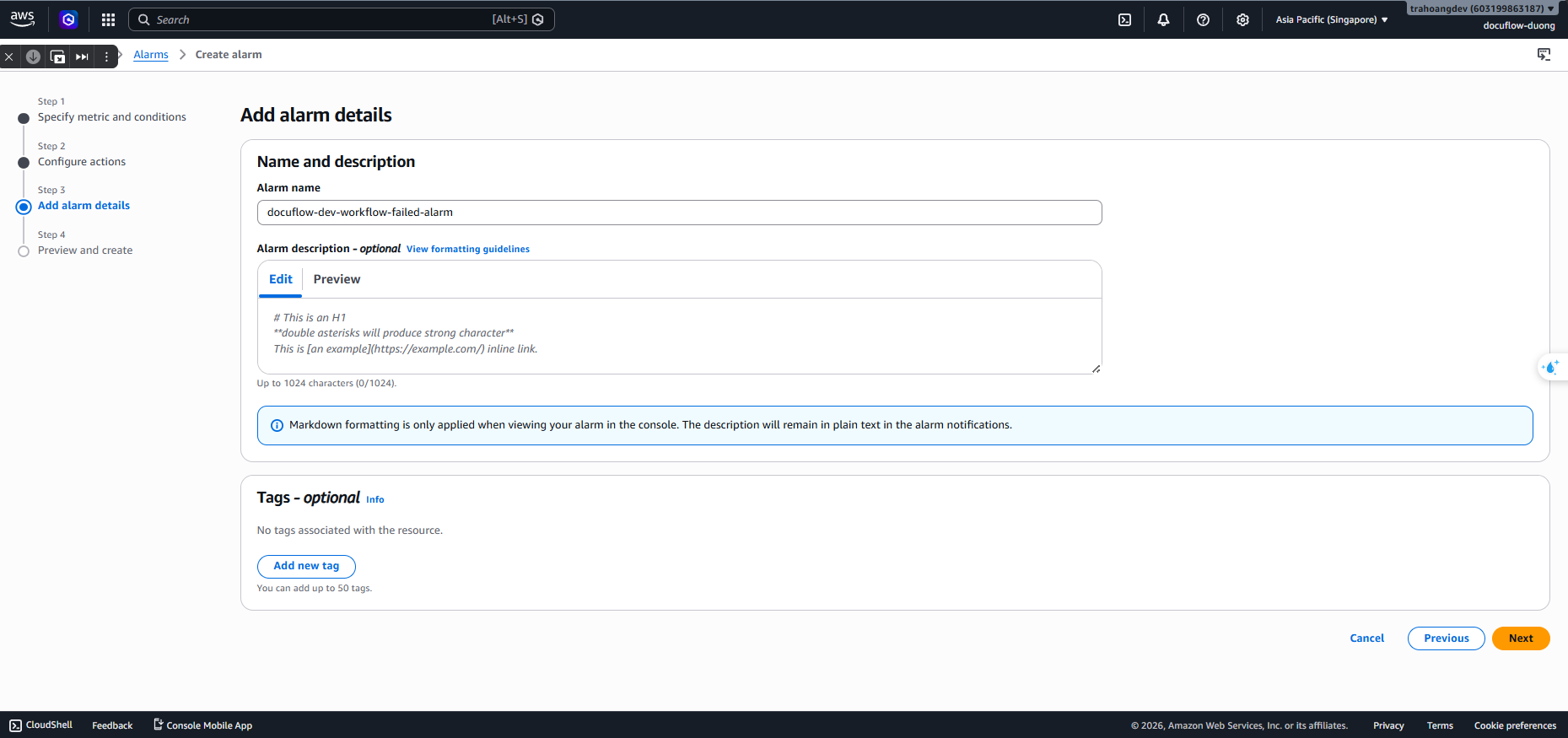
- Click Next ➔ Name the Alarm:
docuflow-dev-workflow-failed-alarm➔ Click Create alarm.
Alarm 2:
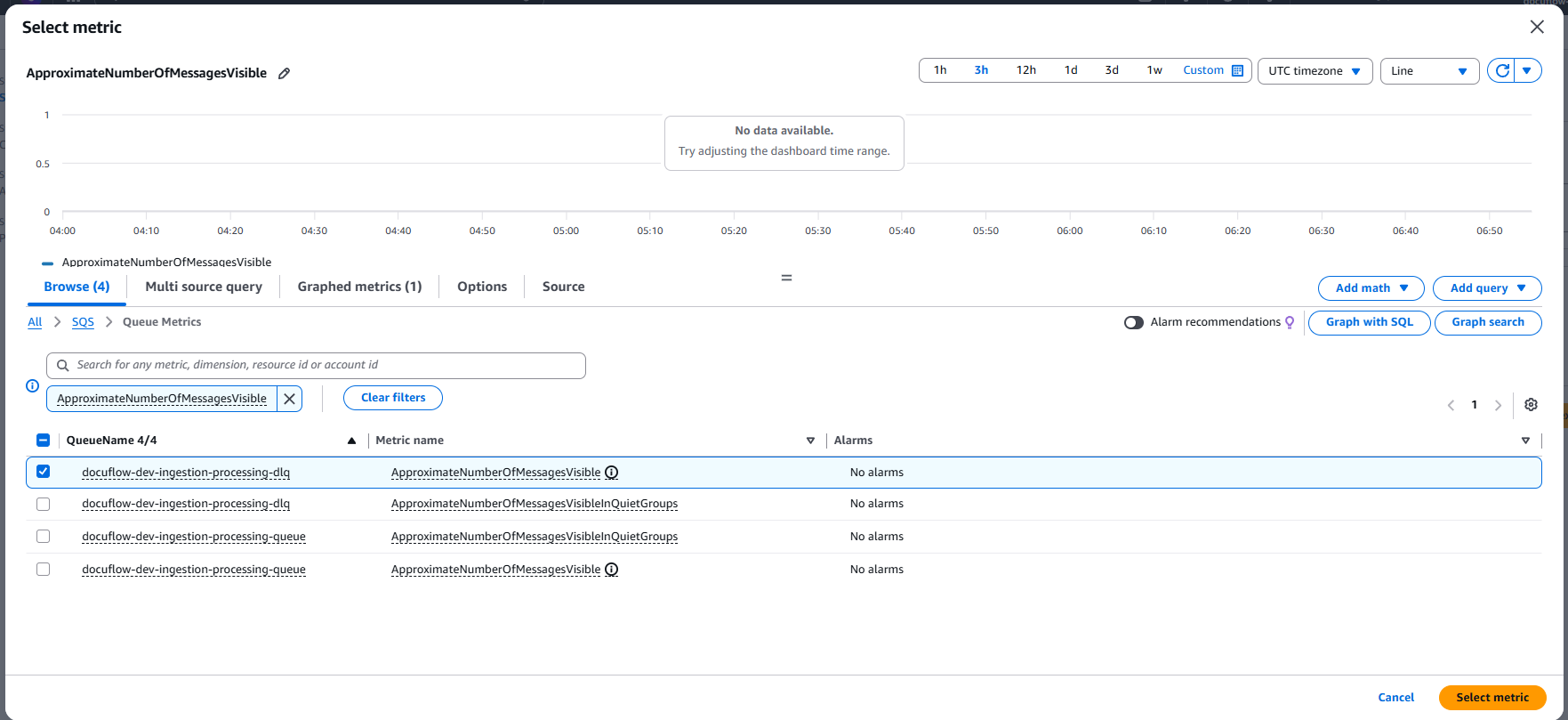
docuflow-dev-sqs-dlq-not-empty-alarm(Error messages stuck in DLQ)- Click Create alarm ➔ Select metric ➔ Choose SQS ➔ QueueName ➔ Select the
ApproximateNumberOfMessagesVisiblemetric of thedocuflow-dev-processing-dlqqueue.
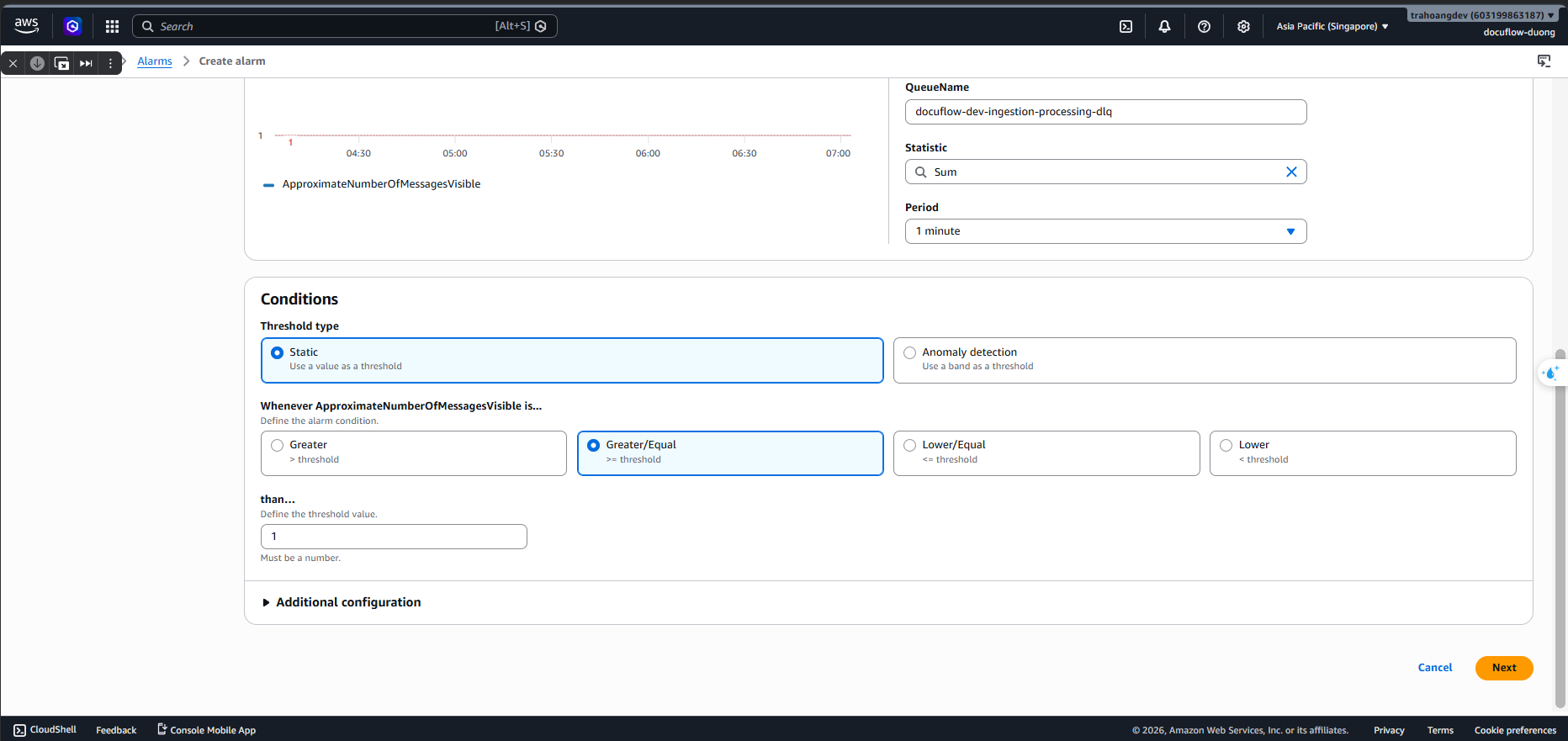
Statistic: Select
Sum. Period:1 minute.Condition: Static threshold, Greater/Equal (>=) 1.
Action: Send notification to SNS Topic. Name the Alarm:
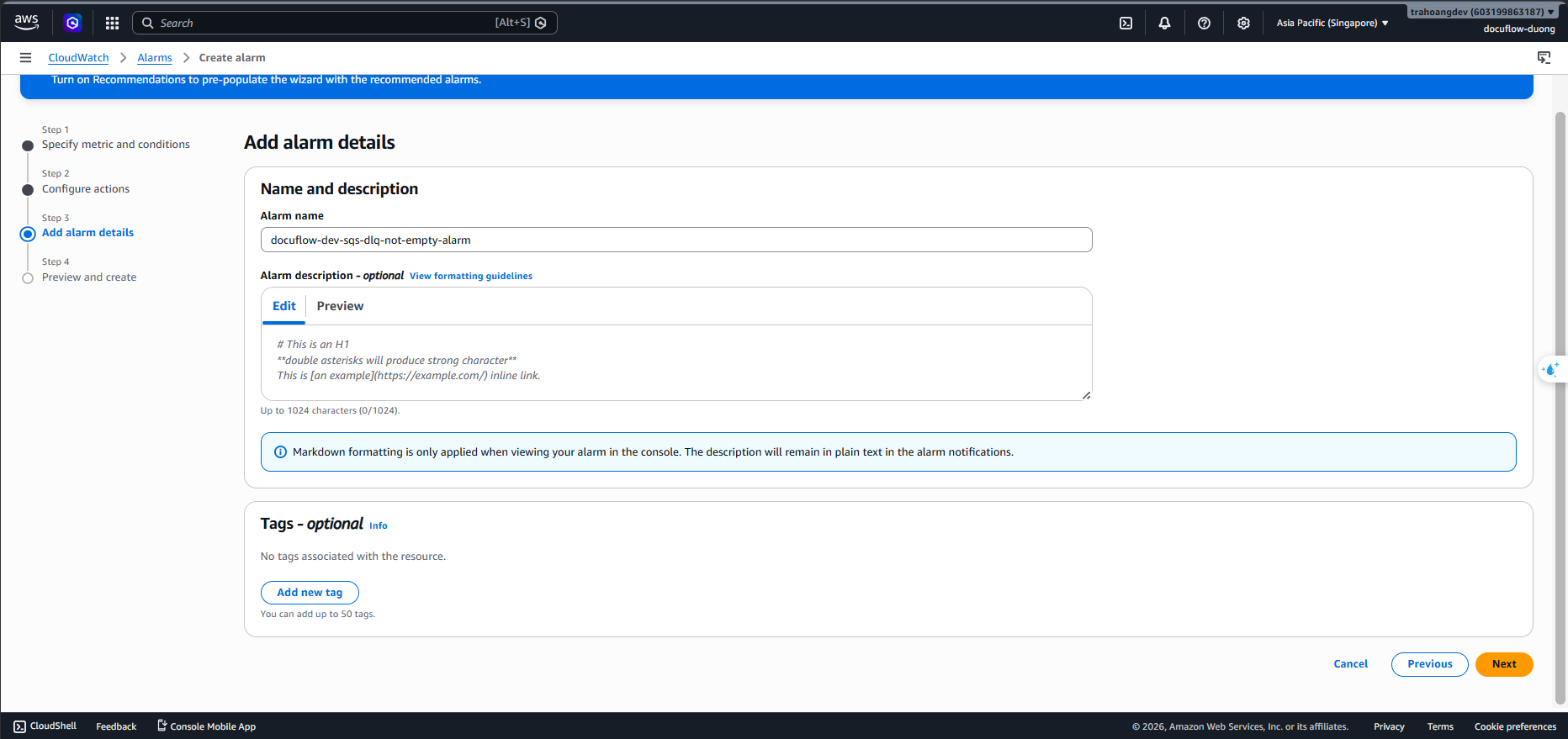
docuflow-dev-sqs-dlq-not-empty-alarm➔ Click Create alarm.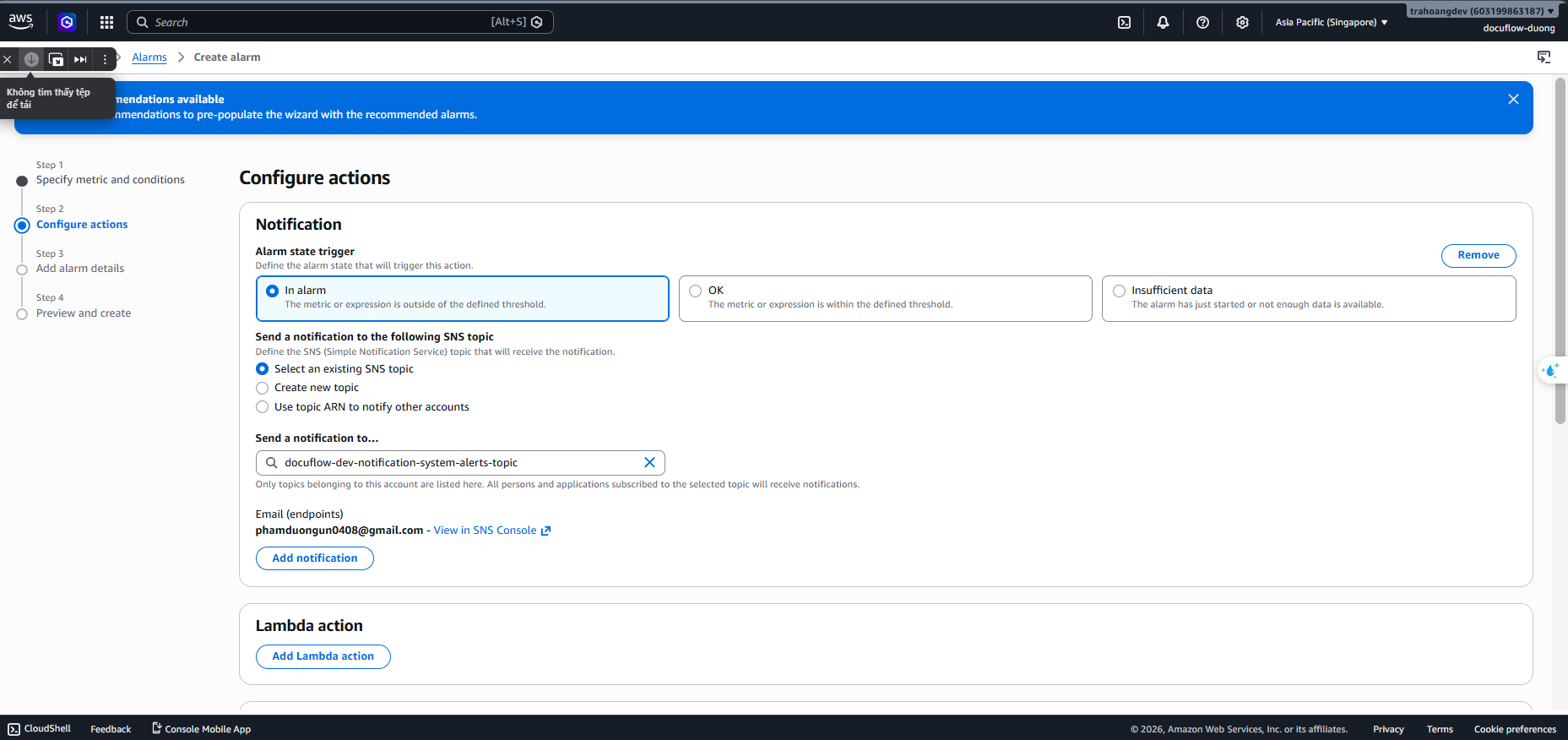
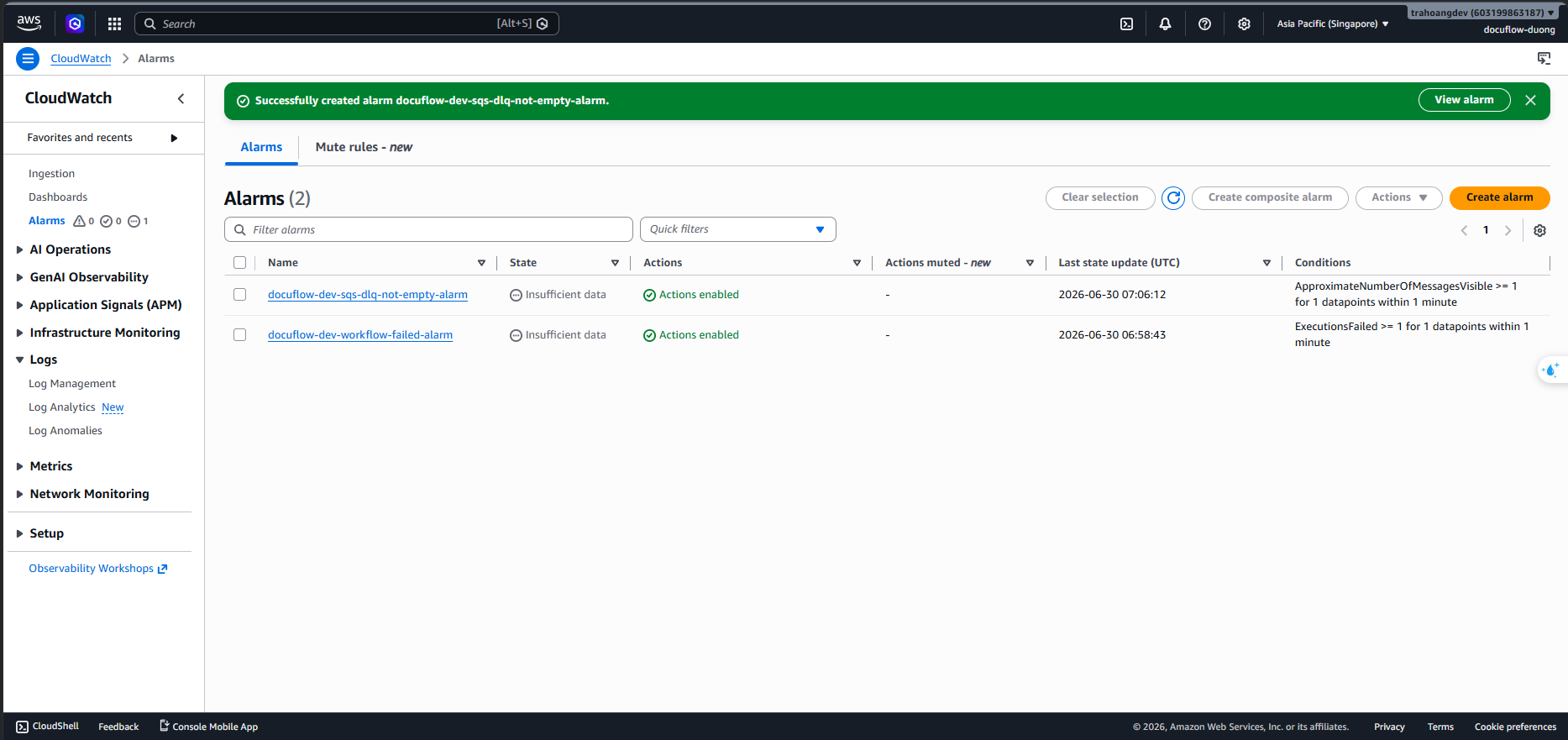
- Click Create alarm ➔ Select metric ➔ Choose SQS ➔ QueueName ➔ Select the
Alarm 3:
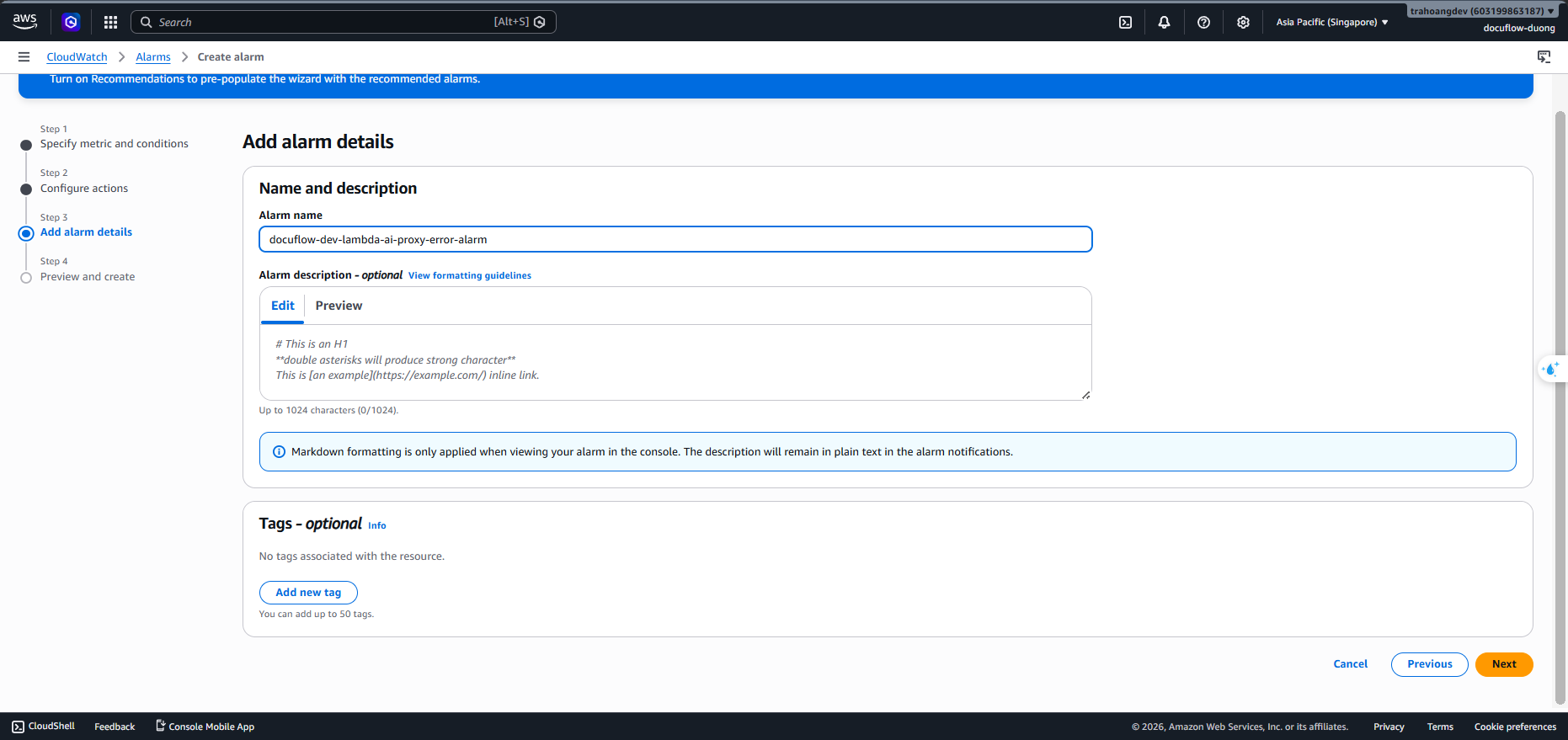
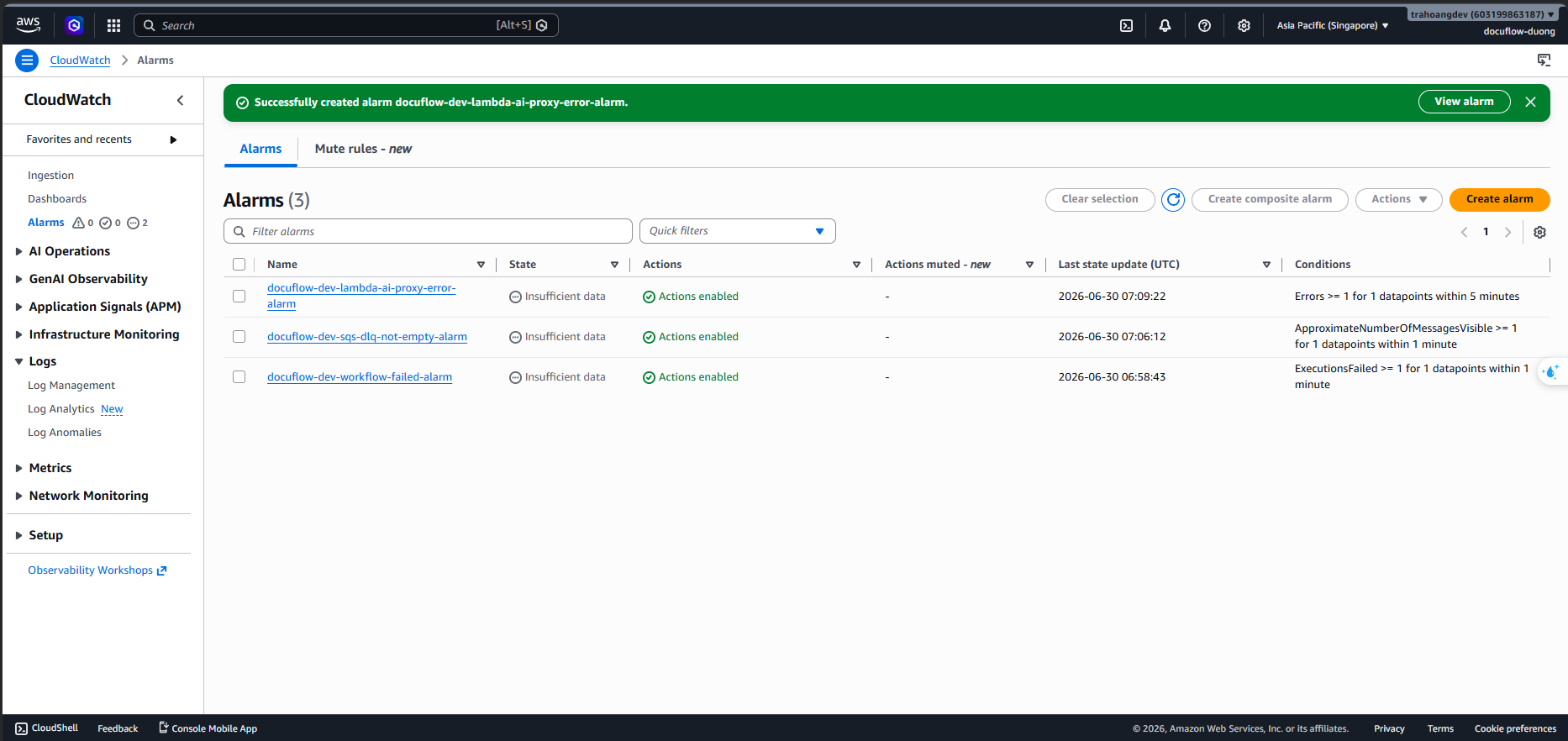
docuflow-dev-lambda-ai-proxy-error-alarm(AI Proxy function calling external API failed)- Click Create alarm ➔ Select metric ➔ Choose Lambda ➔ By Function Name ➔
docuflow-dev-ai-proxy-lambda➔ select theErrorsmetric.
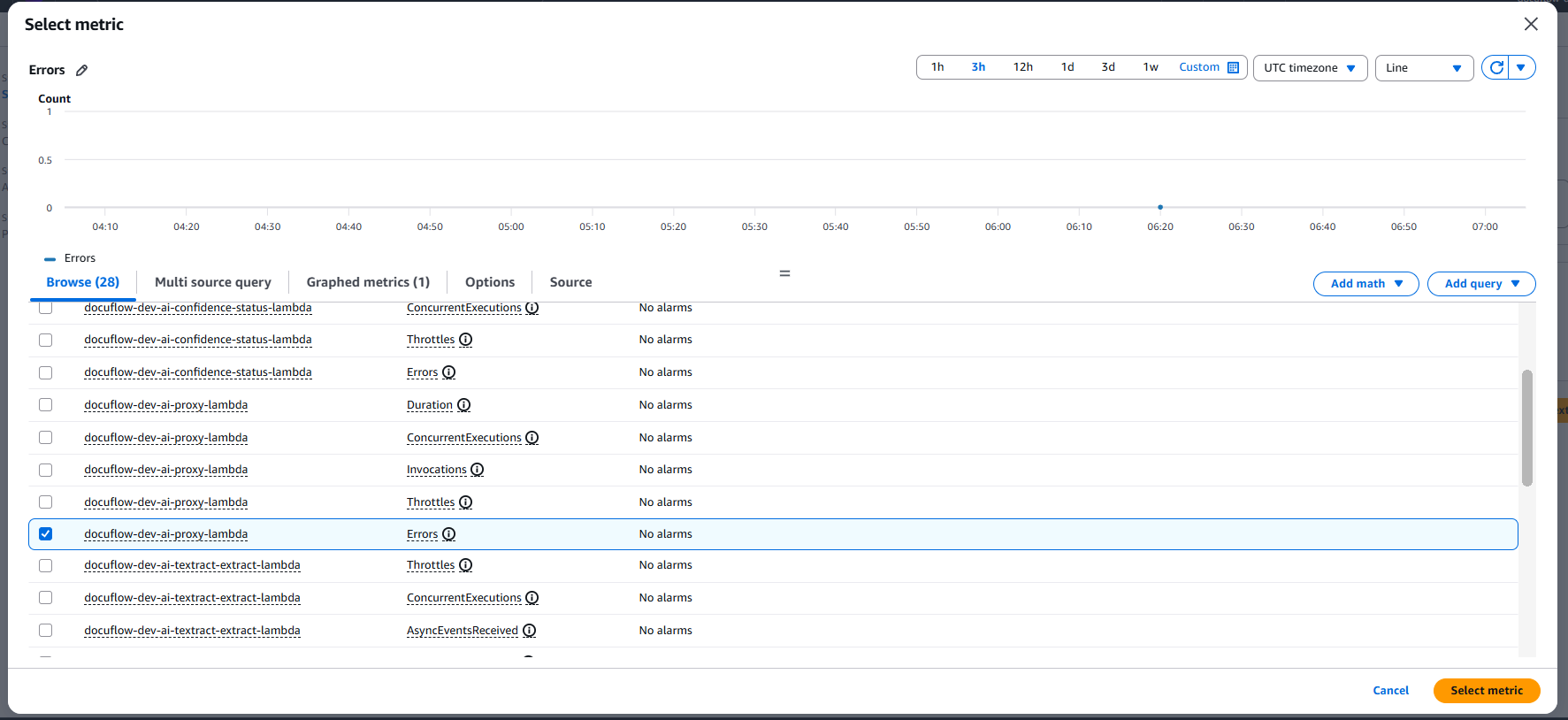
- Statistic: Select
Sum. Period:5 minutes. - Condition: Greater/Equal (>=) 1.
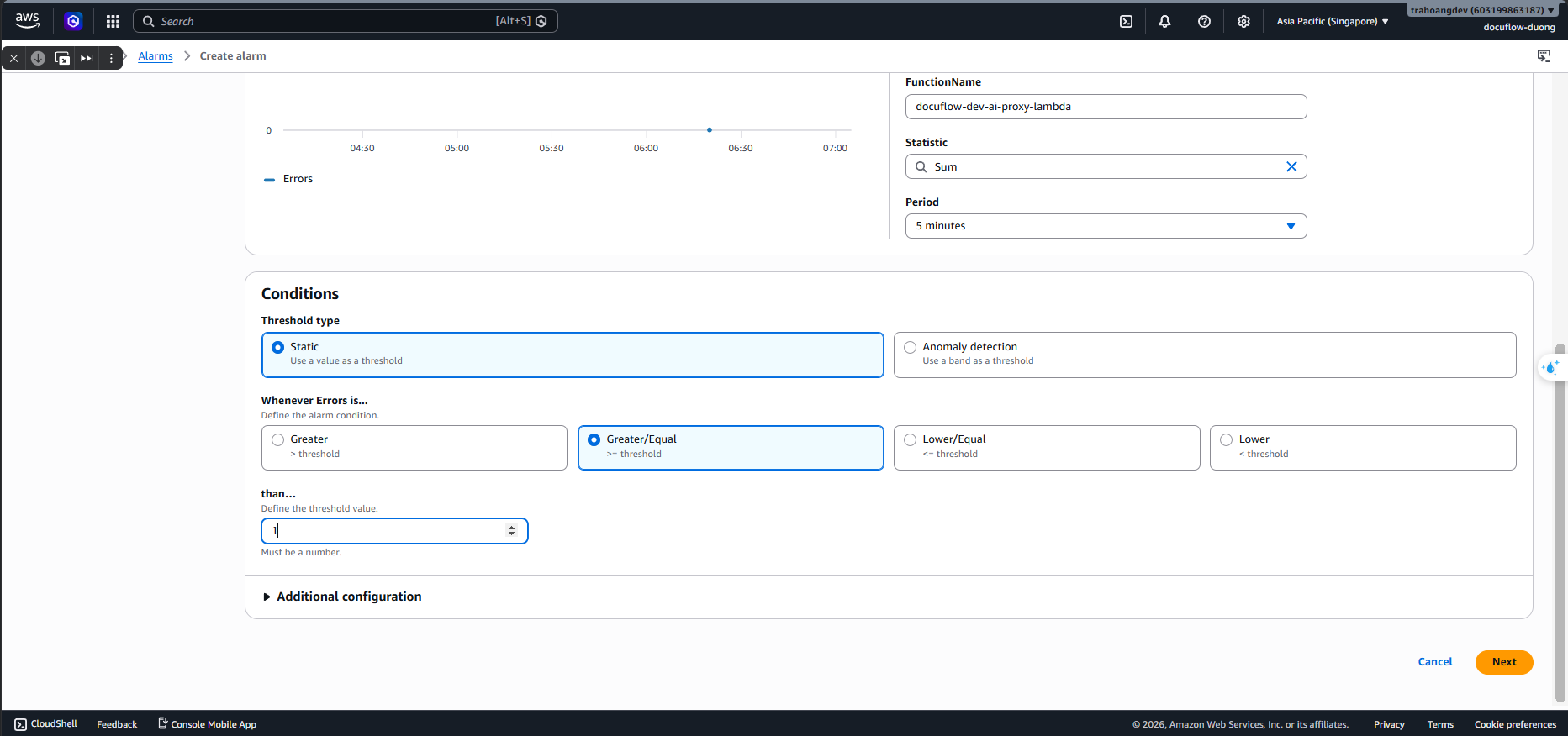
- Action: Send notification to SNS Topic. Name the Alarm:
docuflow-dev-lambda-ai-proxy-error-alarm➔ Click Create alarm.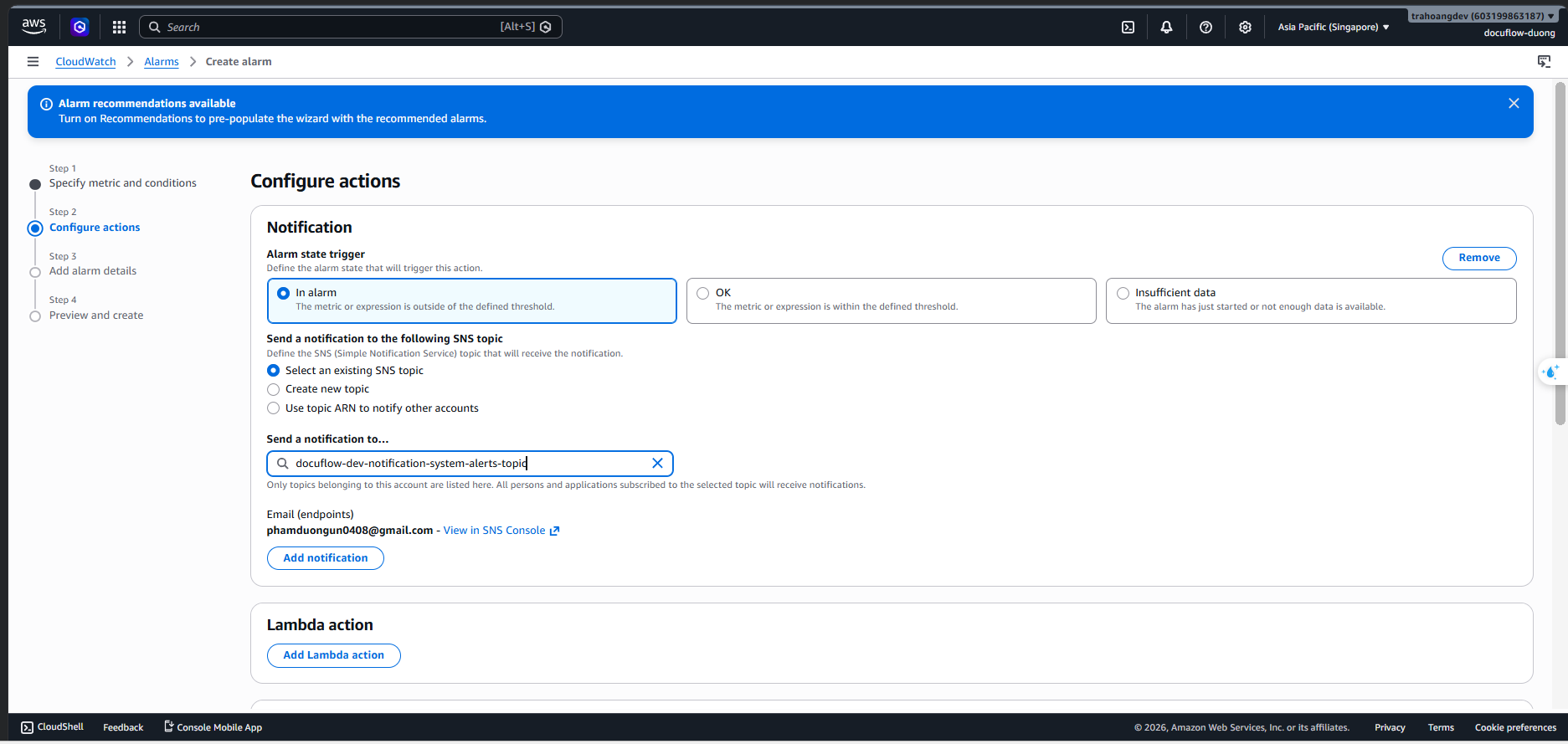
- Click Create alarm ➔ Select metric ➔ Choose Lambda ➔ By Function Name ➔
Alarm 4:
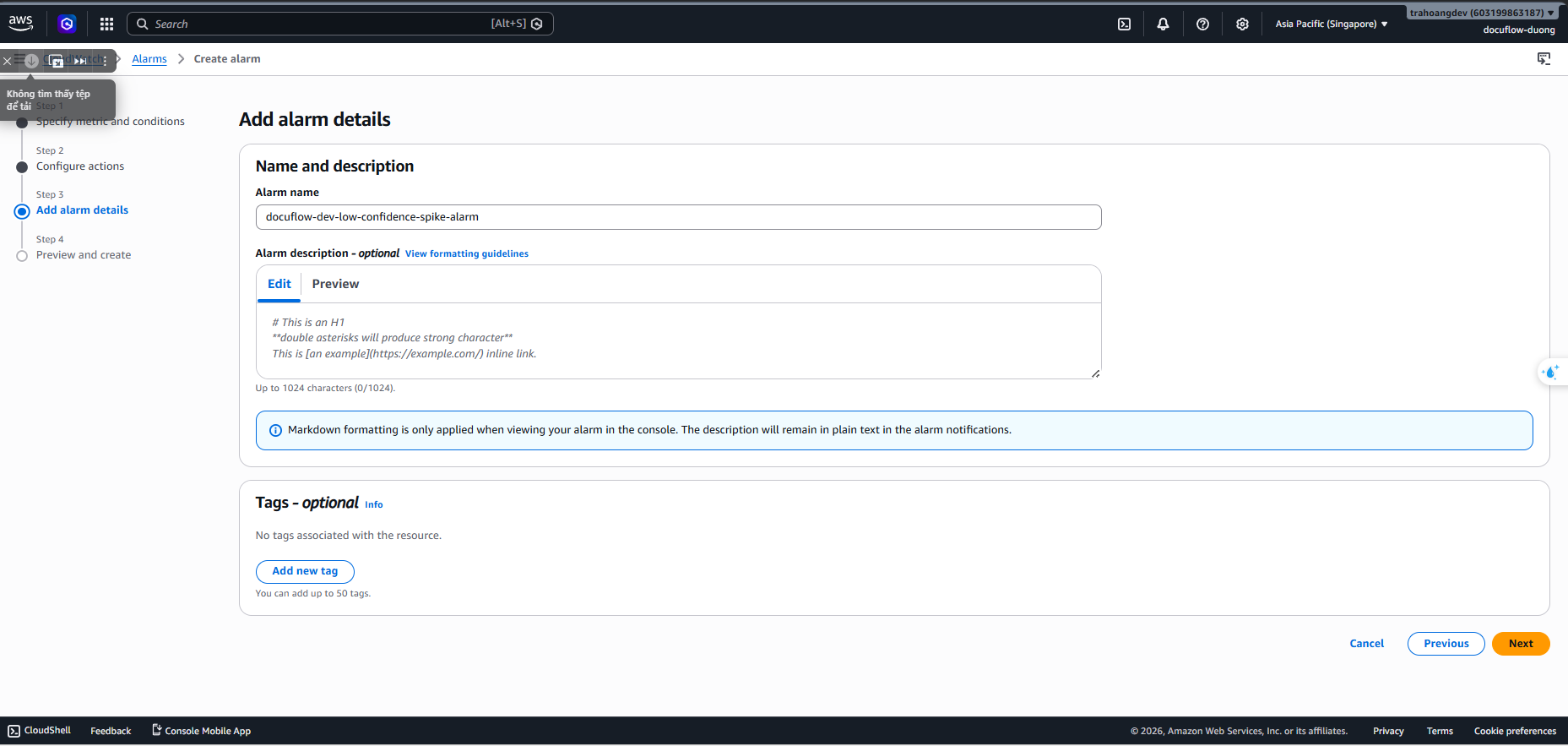
docuflow-dev-low-confidence-spike-alarm(Sudden spike in low-confidence invoices)Click Create alarm ➔ Select metric ➔ Choose Custom Namespaces ➔ DocuFlowAI/Metrics ➔ Select the
InvoicesRequiringHumanReviewmetric (created from the Metric Filter in the previous lesson).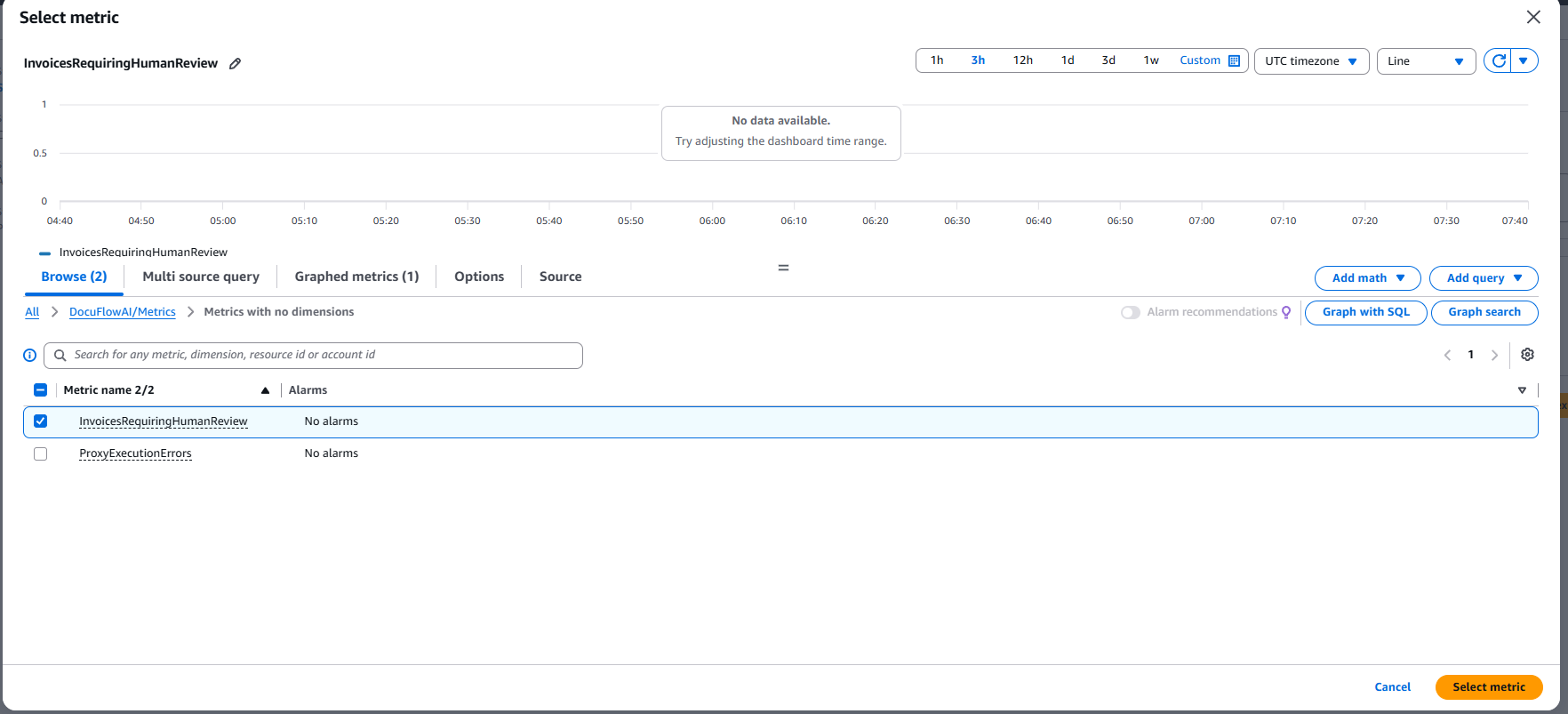
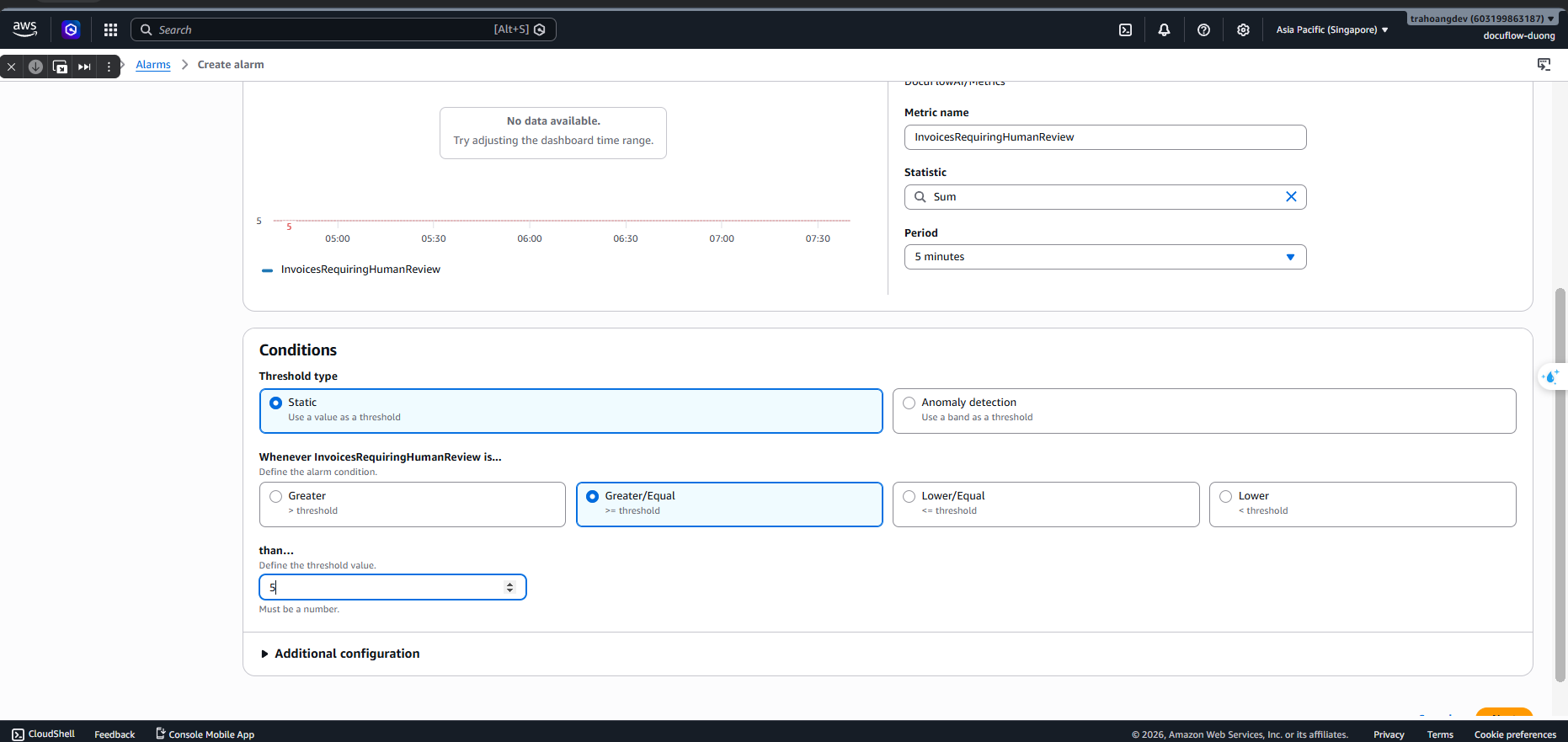
Statistic: Select
Sum. Period:5 minutes.Condition: Greater/Equal (>=) 5 (If 5 low-confidence invoices occur within 5 minutes, the AI might be experiencing structural drift or batch blurring issues).
Action: Send notification to SNS Topic.
 Name the Alarm:
 docuflow-dev-low-confidence-spike-alarm➔ Click Create alarm.