Governance & Audit Logs
To track administrative API activities, monitor changes to infrastructure configuration, and maintain compliance auditing (Audit Logging), we will establish a trail using AWS CloudTrail.
Step-by-Step Console Configuration
Step 1: Create a Dedicated S3 Bucket for CloudTrail Logs
Due to strict security standards prohibiting the co-location of system logs with raw data, you need to create a dedicated bucket:
Go to the S3 service ➔ Click Create bucket.
Bucket name: Enter exactly using the naming convention:
docuflow-dev-cloudtrail-logs-[random-string].Region: Select Singapore (
ap-southeast-1).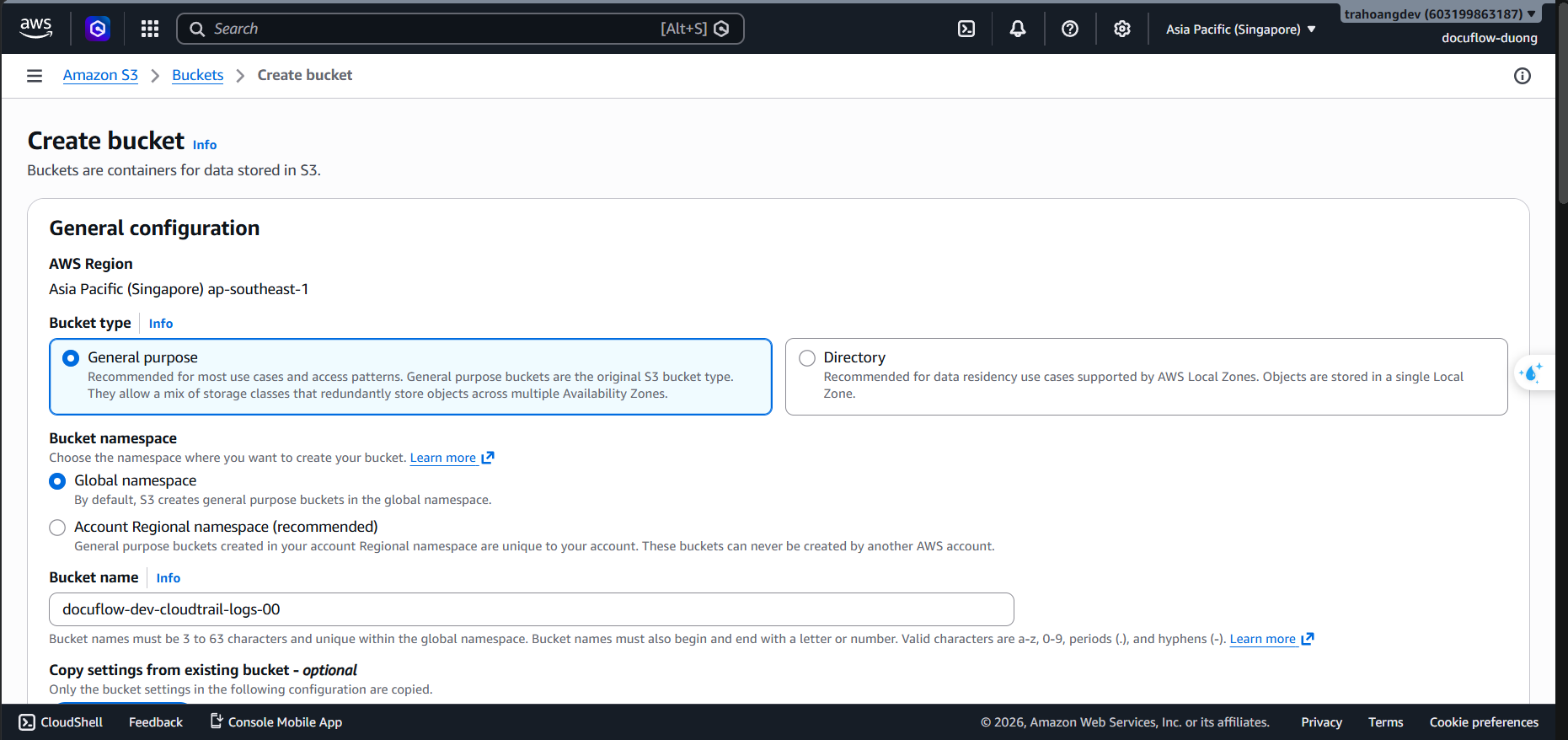
Leave other options as default (Block Public Access is automatically enabled).
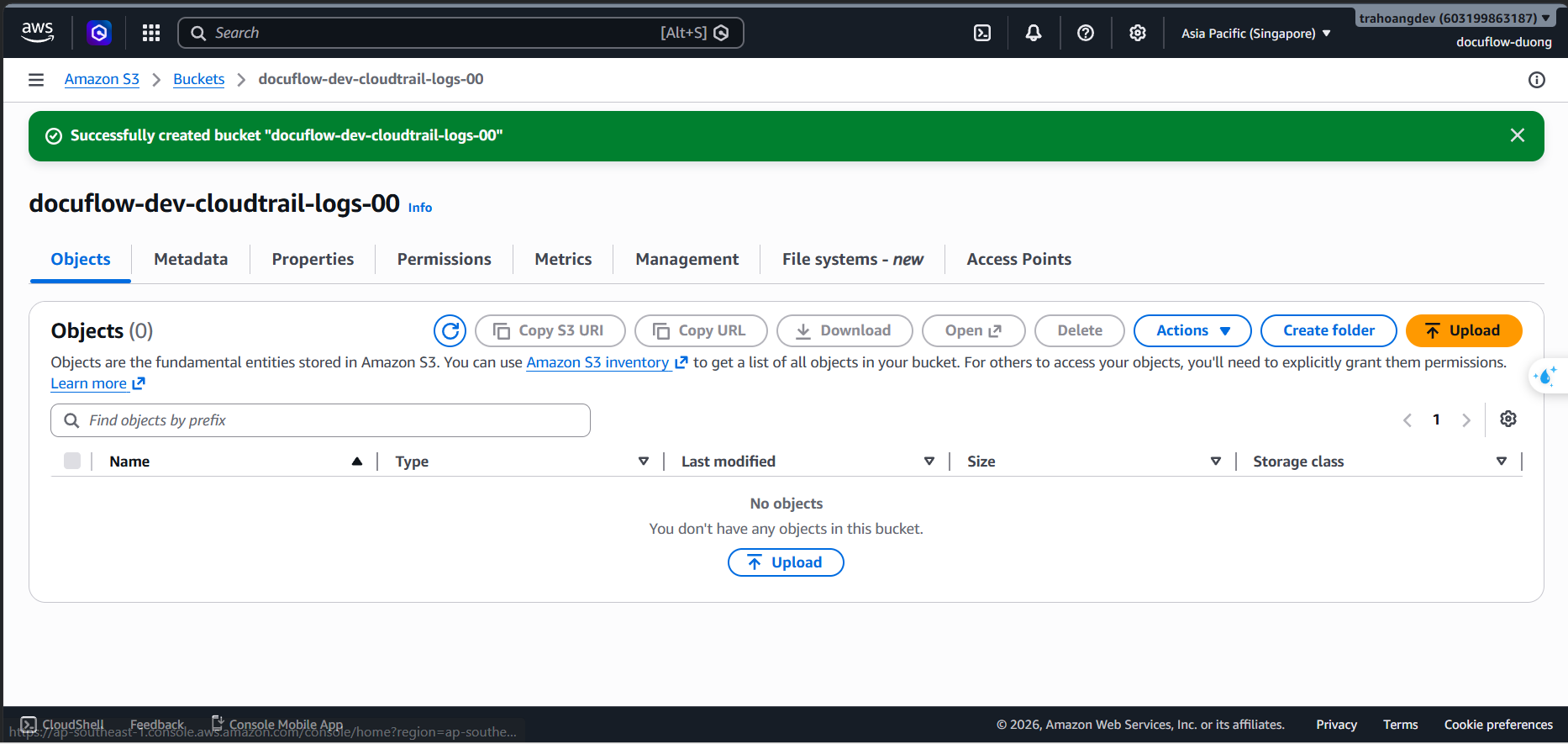
Click Create bucket and copy this bucket name.
Step 2: Initialize and Configure CloudTrail
In the AWS Console search bar, type CloudTrail ➔ Select the CloudTrail service.
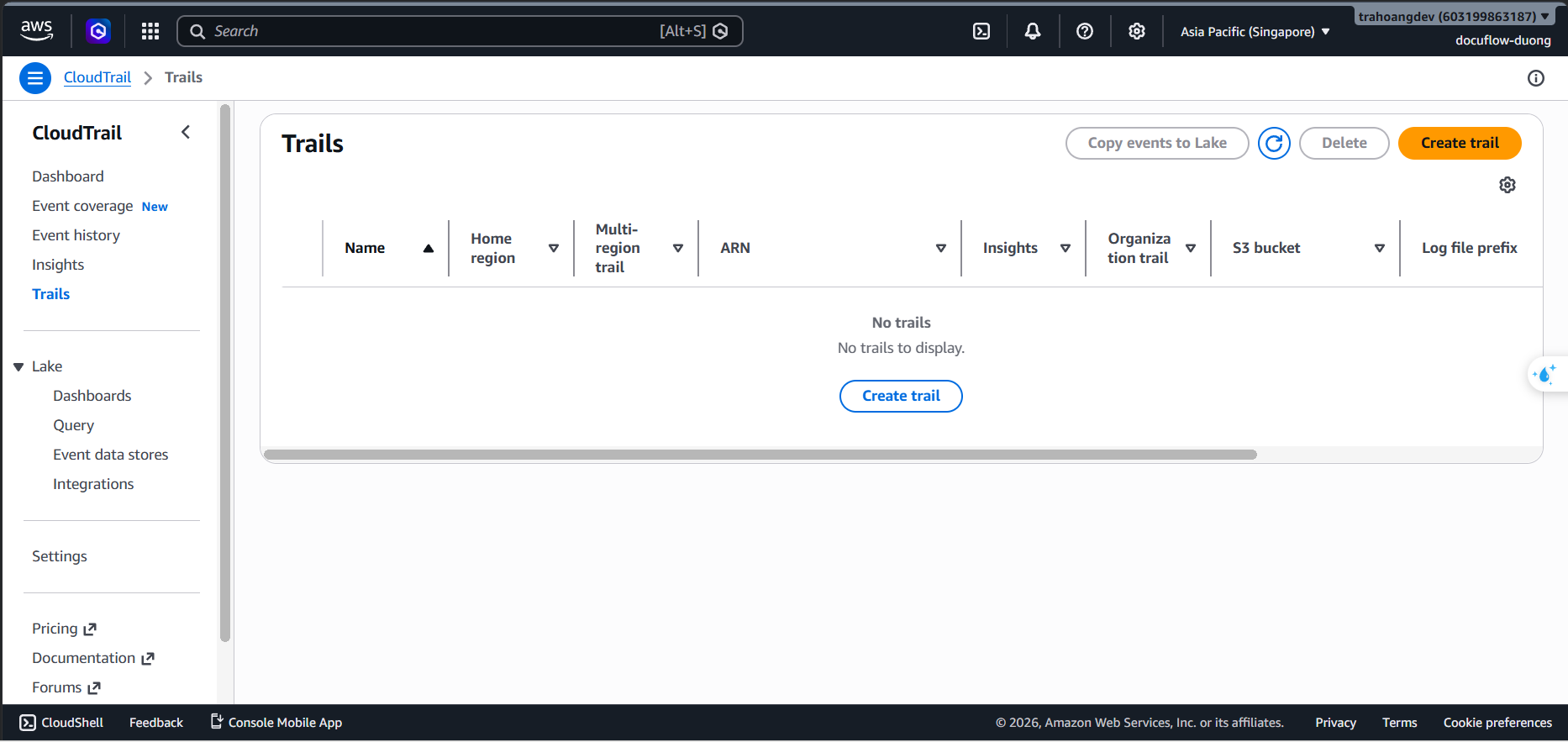
In the left menu, select Trails ➔ Click the Create trail button on the top right.
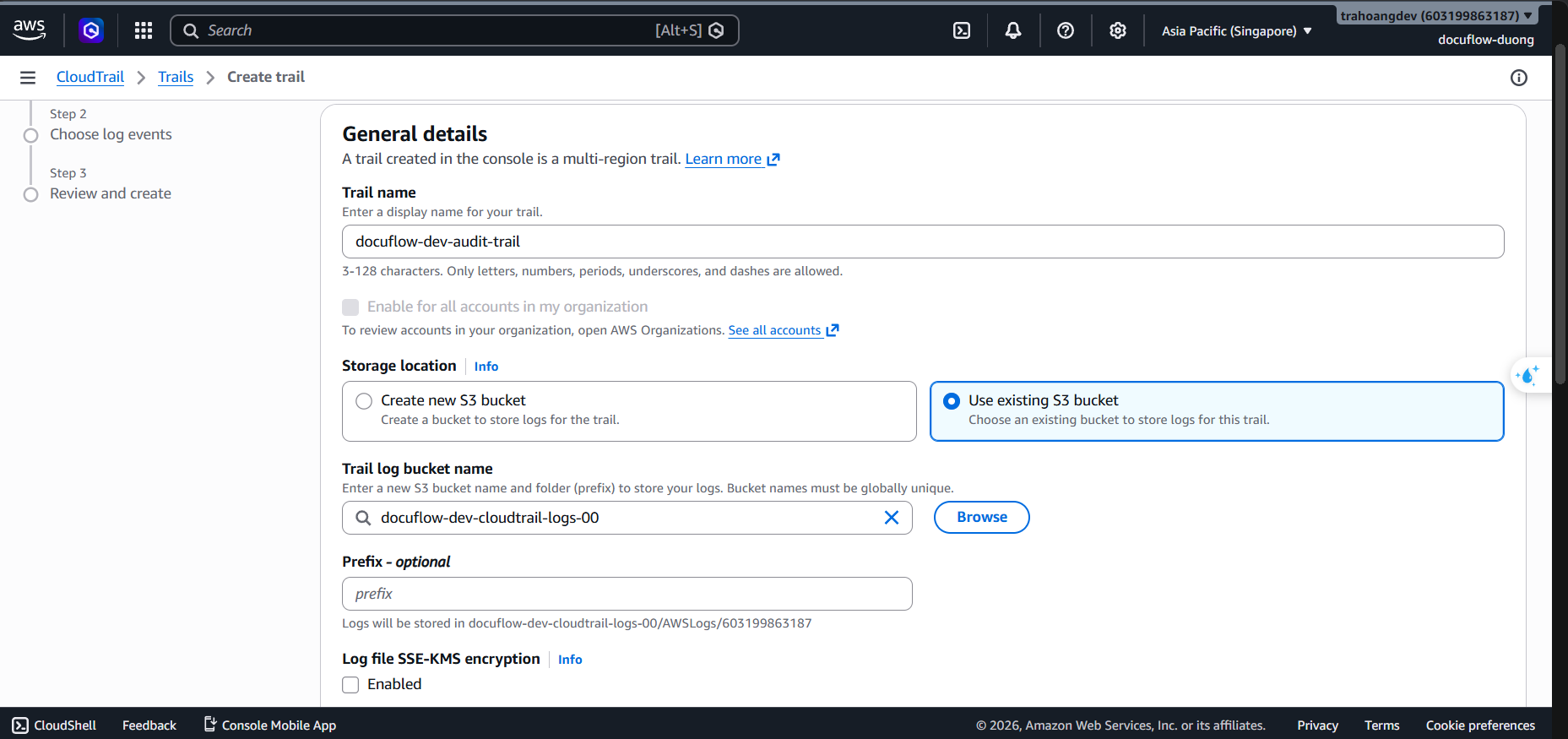
Section 1: Trail settings:
- Trail name: Enter exactly
docuflow-dev-audit-trail. - Storage location: Check the box for Use an existing S3 bucket.
- Trail log bucket: Click or paste the bucket name
docuflow-dev-cloudtrail-logs-[random-string]created in Step 1. - Log file SSE-KMS encryption: Uncheck this option (Use the default S3 encryption to avoid unnecessary KMS charges as per Cost guardrails).
- Trail name: Enter exactly
Click Next.
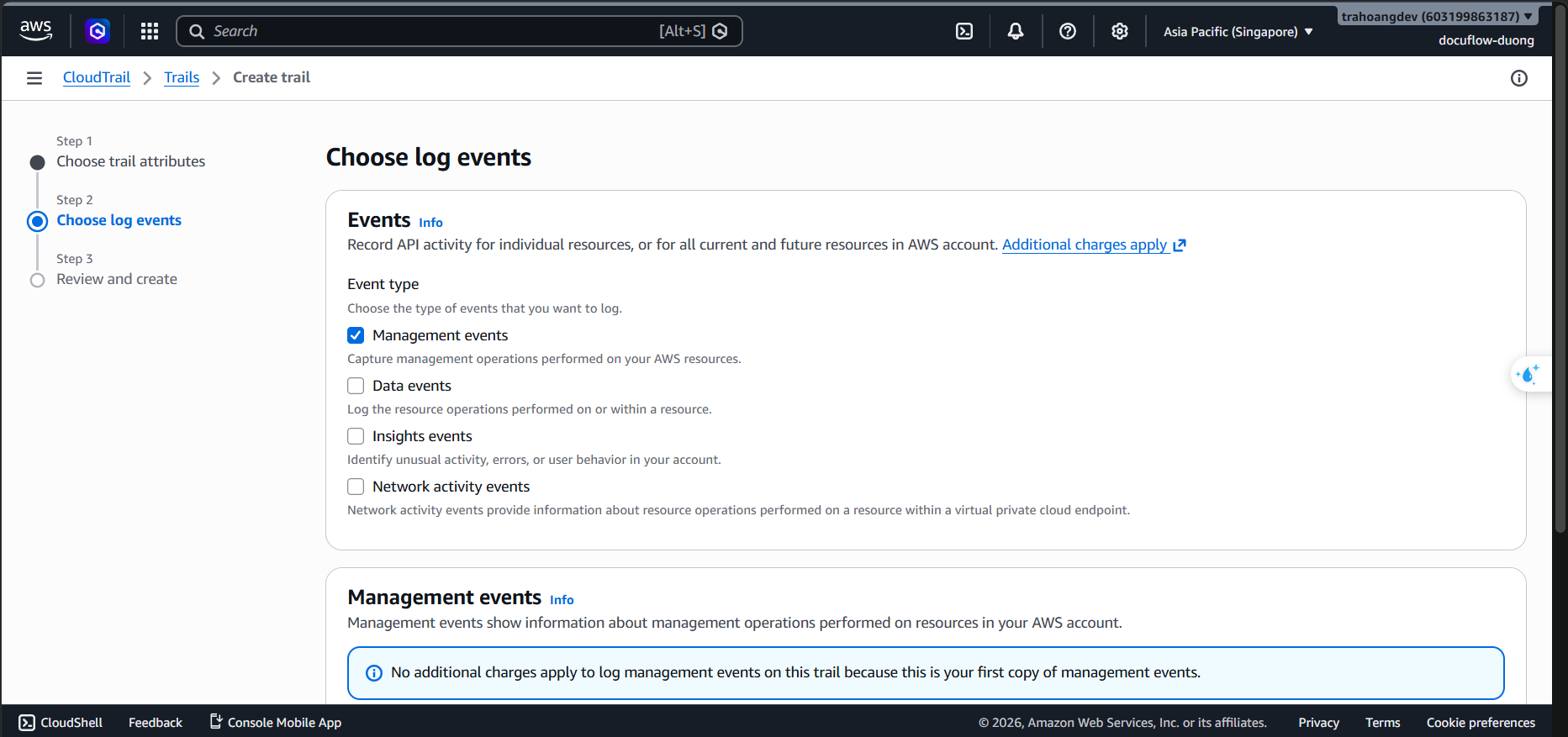
Section 3: Choose log events
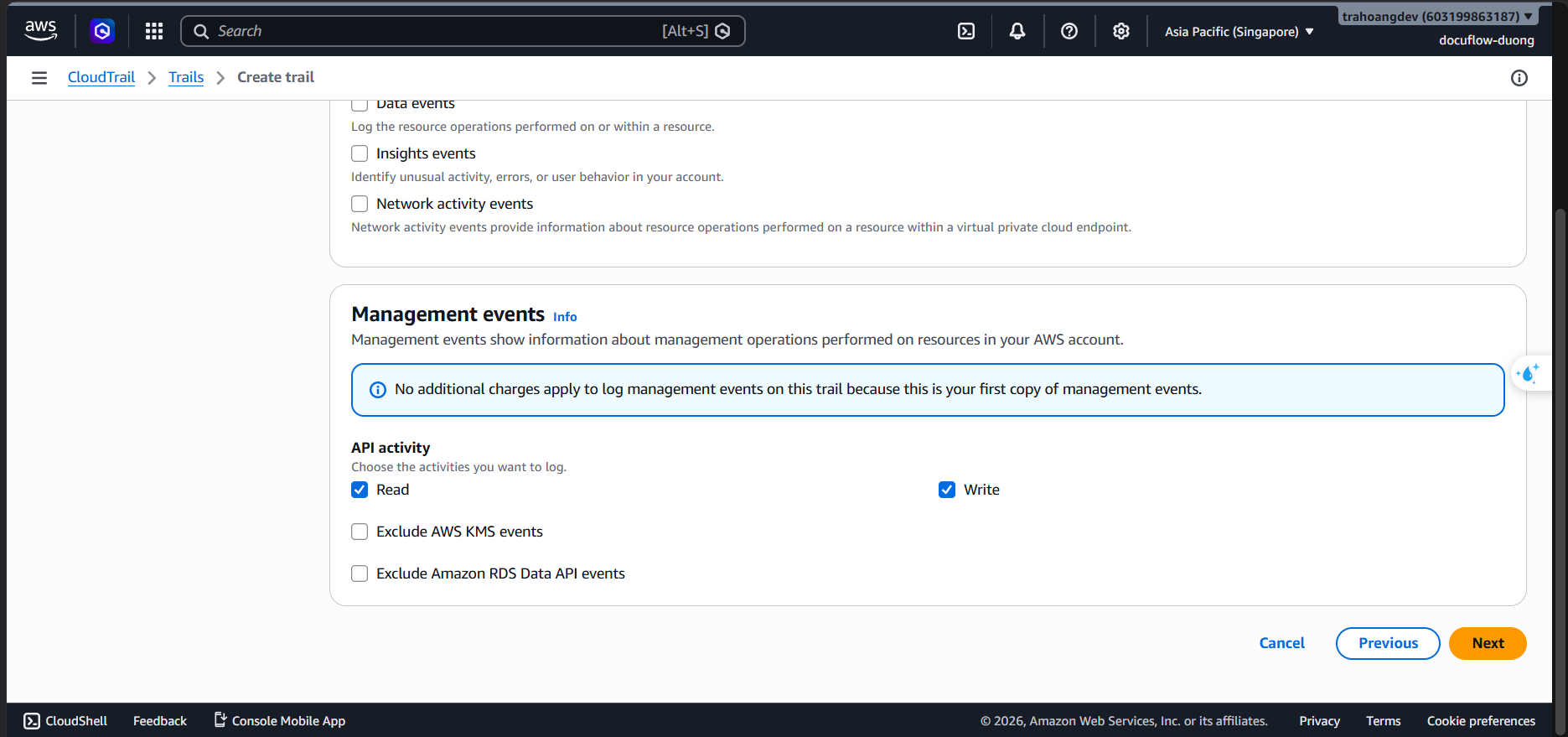
- Event type: Only check the box for Management events. Absolutely DO NOT check: Data events and Insights events (to avoid incurring huge unexpected costs).
- API activity: Check both Read and Write.
- Event type: Only check the box for Management events. Absolutely DO NOT check: Data events and Insights events (to avoid incurring huge unexpected costs).
Click Next ➔ Scroll to the bottom and click Create trail.
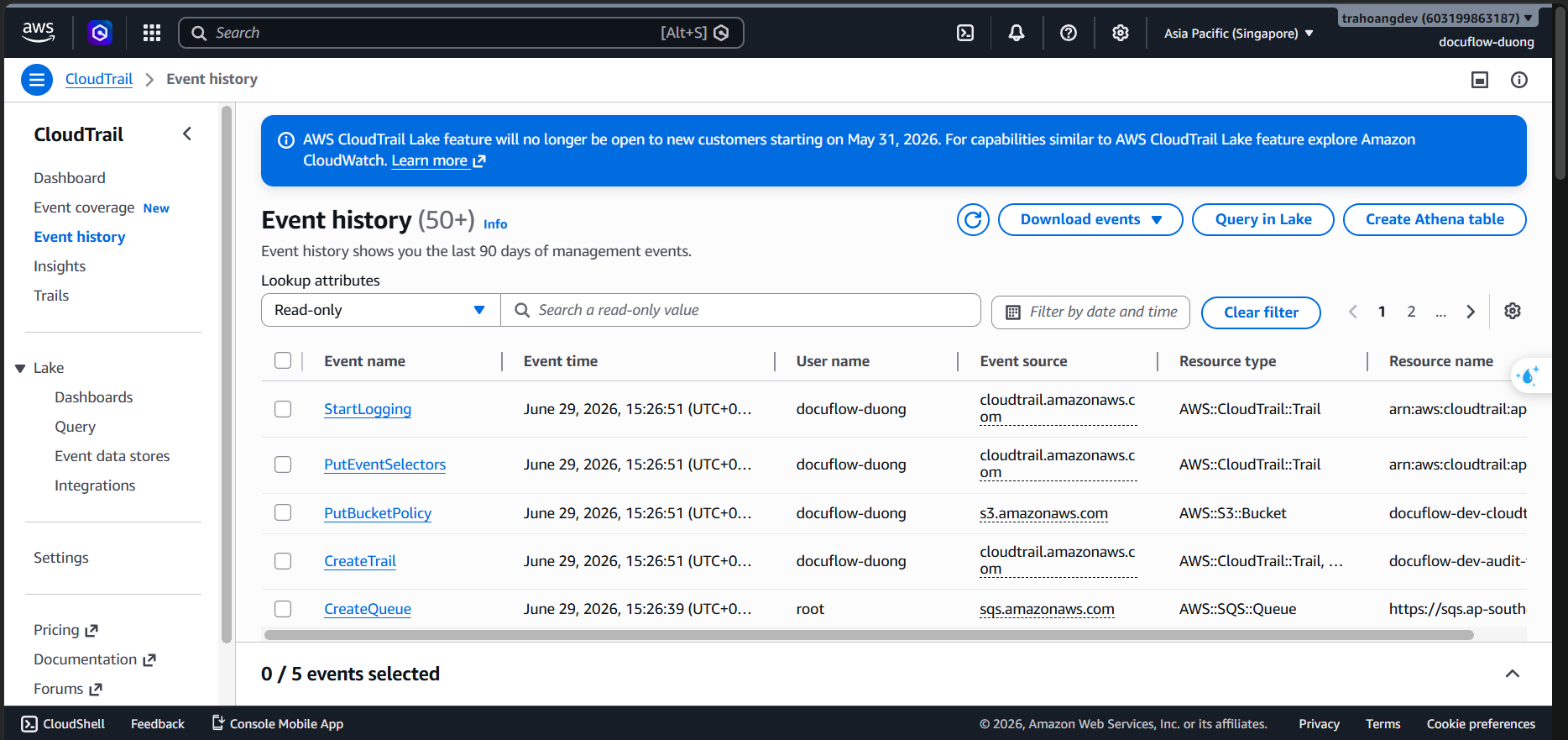
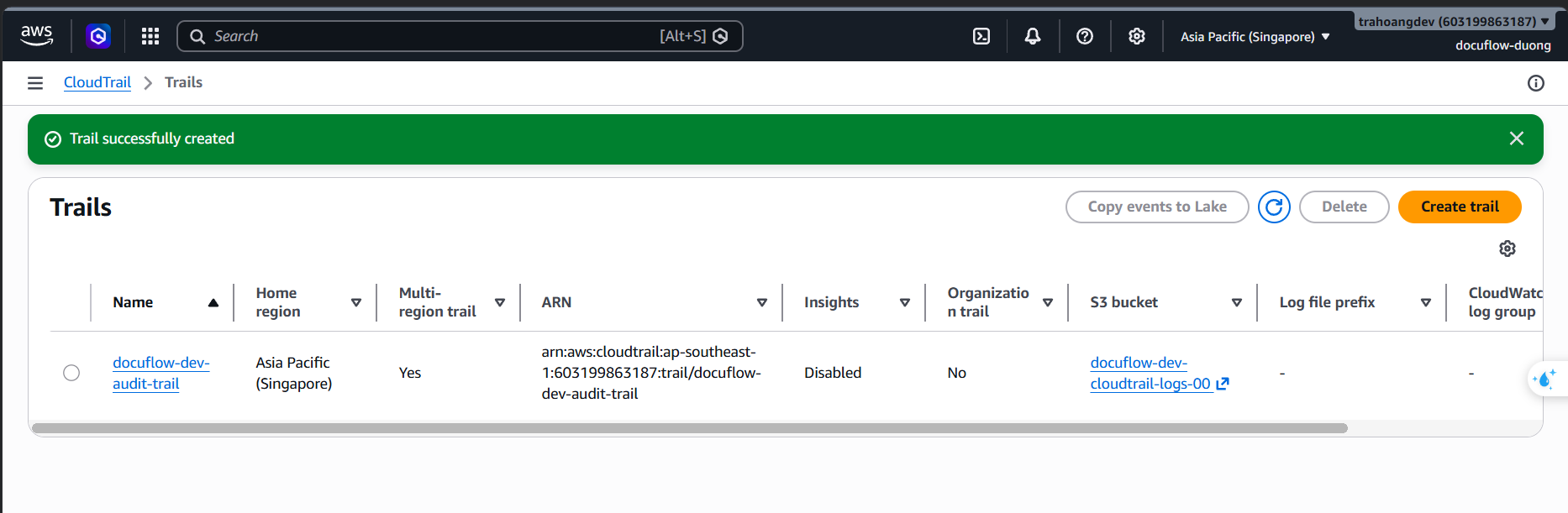 The system will display the log trail status as Logging with a green dot. From this moment on, every activity of the AeroOps team on the AWS account is recorded with undeniable audit evidence!